Manage Endpoints
View All Endpoints
In the left sidebar, under Dedicated Inference, click My endpoints.
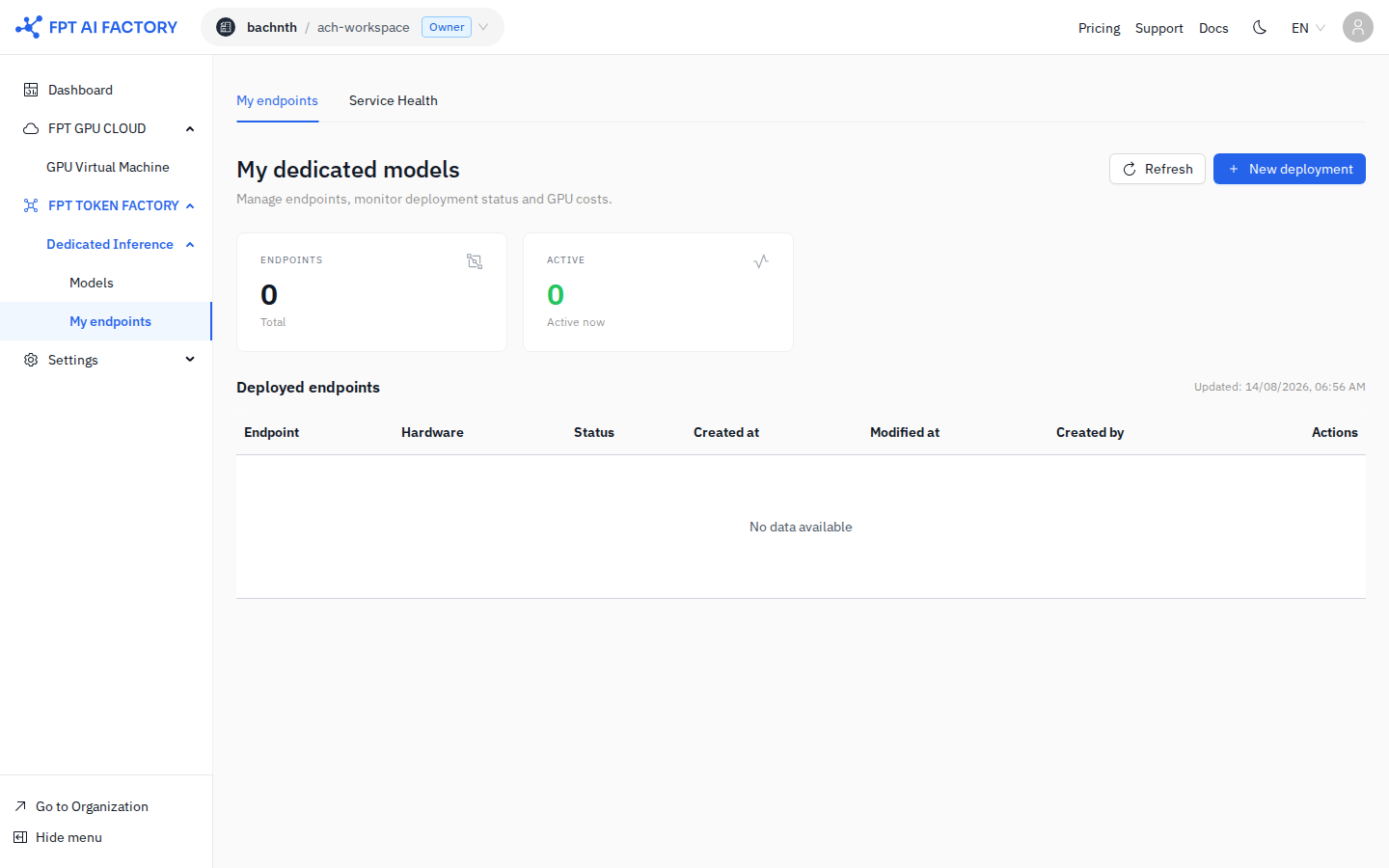
Page title: My dedicated models Manage endpoints, monitor deployment status and GPU costs.
The summary cards at the top show workspace totals:
| Card | What it shows |
|---|---|
| ENDPOINTS | Total number of endpoints |
| RUNNING | Active endpoints right now |
| GPU-HOURS | GPU-hours consumed this month |
| SPEND | Cost this month |
Click Refresh to reload the latest status. The table timestamp (Updated: DD/MM/YYYY HH:MM) shows when data was last fetched.
Deployed Endpoints Table
| Column | Description |
|---|---|
| ENDPOINT | Endpoint name and model |
| HARDWARE | GPU configuration |
| STATUS | Running · Deploying · Stopped |
| REPLICAS | Active / total replicas |
| GPU-H | GPU-hours consumed |
| COST (MTD) | Cost billed month-to-date |
| ACTIONS | Pause (Running) · Resume (Stopped) · View (Deploying) |
Endpoint Statuses
| Status | Meaning |
|---|---|
| Deploying | GPU is being provisioned and model weights are being downloaded |
| Running | All replicas are ready and serving requests |
| Stopped | Scaled to zero — no GPU active |
Pause an Endpoint
- Find the endpoint in the table.
- Click Pause in the Actions column.
- Confirm the action.
To restart, click Resume in the Actions column.
Delete an Endpoint
- Click the endpoint name to open the detail page.
- Use the delete action in the endpoint settings.
danger
Deleting an endpoint is irreversible. You will need to redeploy from scratch.
Deploy a New Endpoint
Click Deploy new (top right) to open the Deploy Dedicated Endpoint modal.
See detailed guide: Deploy a Model