Quickstart
This guide walks you through creating and connecting to a GPU Container for the first time.
Prerequisites
- An FPT AI Factory account with sufficient credit.
- Access to a workspace (Organization → Project).
Step 1 — Navigate to GPU Container
- Log in to FPT AI Factory.
- In the top bar, confirm the correct Organization / Project is selected.
- In the left sidebar, click FPT GPU Cloud → GPU Container.
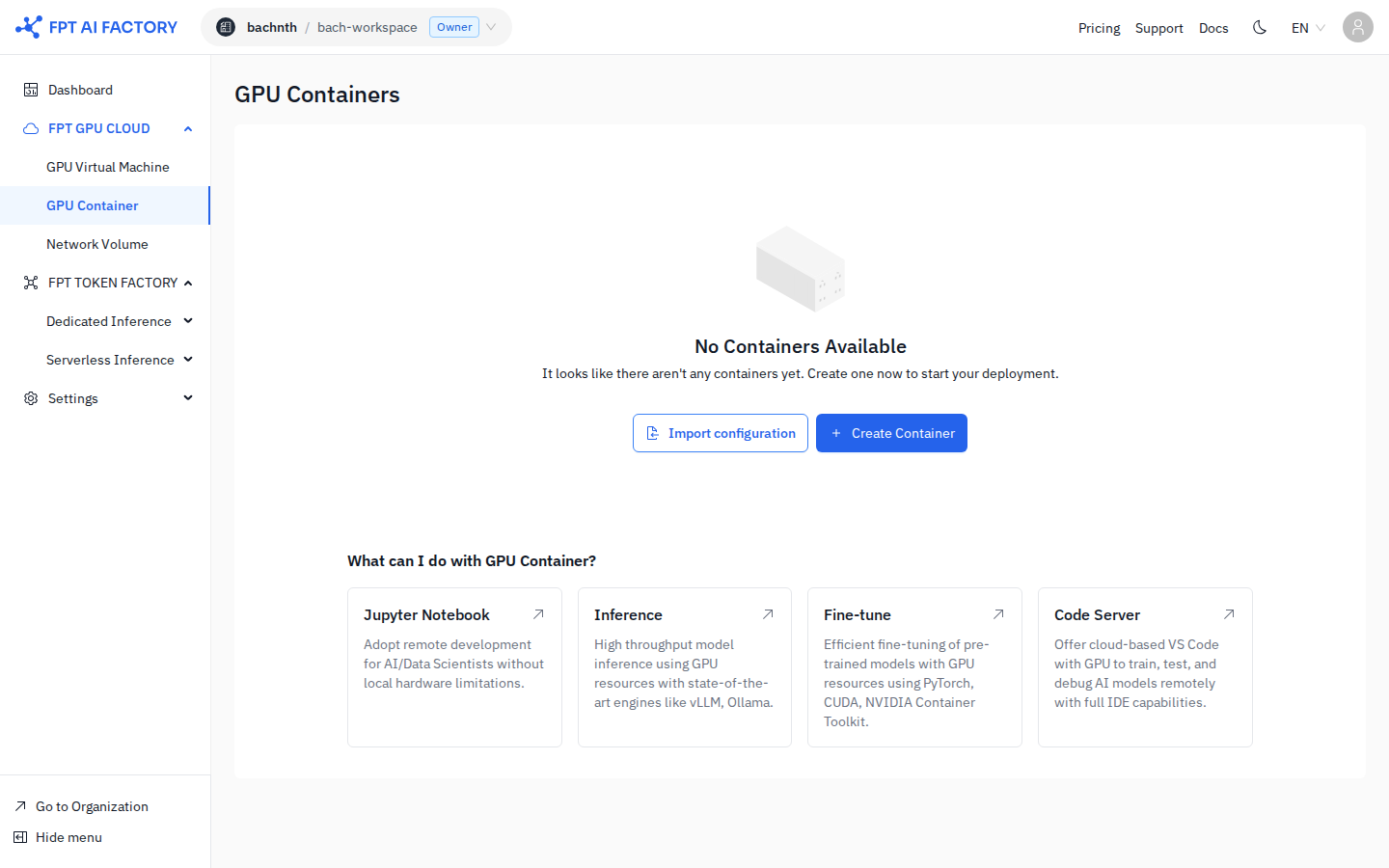
Step 2 — Create a container
- Click + Create Container.
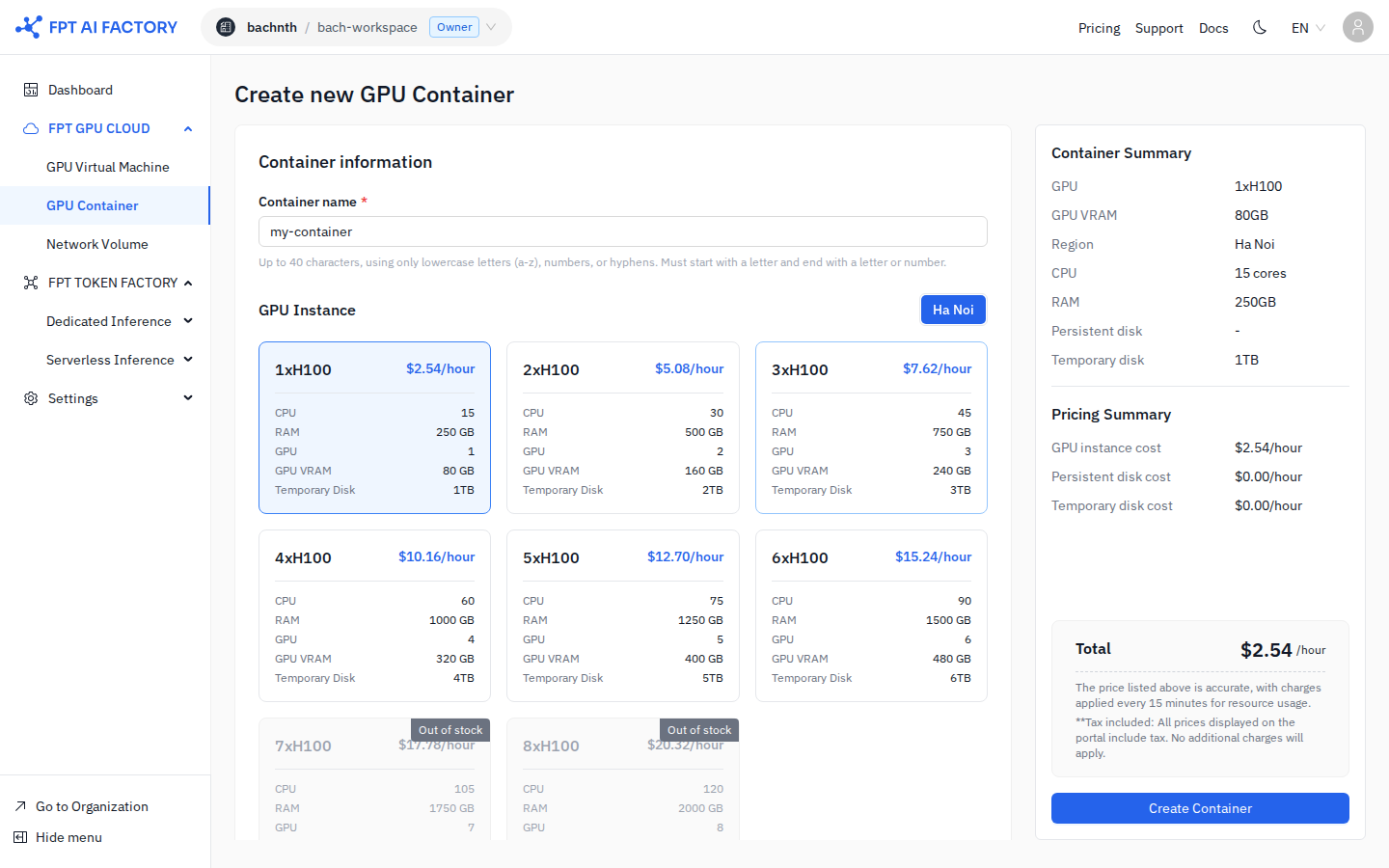
- Enter a Container name (up to 40 characters; lowercase letters, numbers, and hyphens only; must start and end with a letter or number).
- Under GPU Instance, select the size you need. The right panel updates the pricing summary in real time.
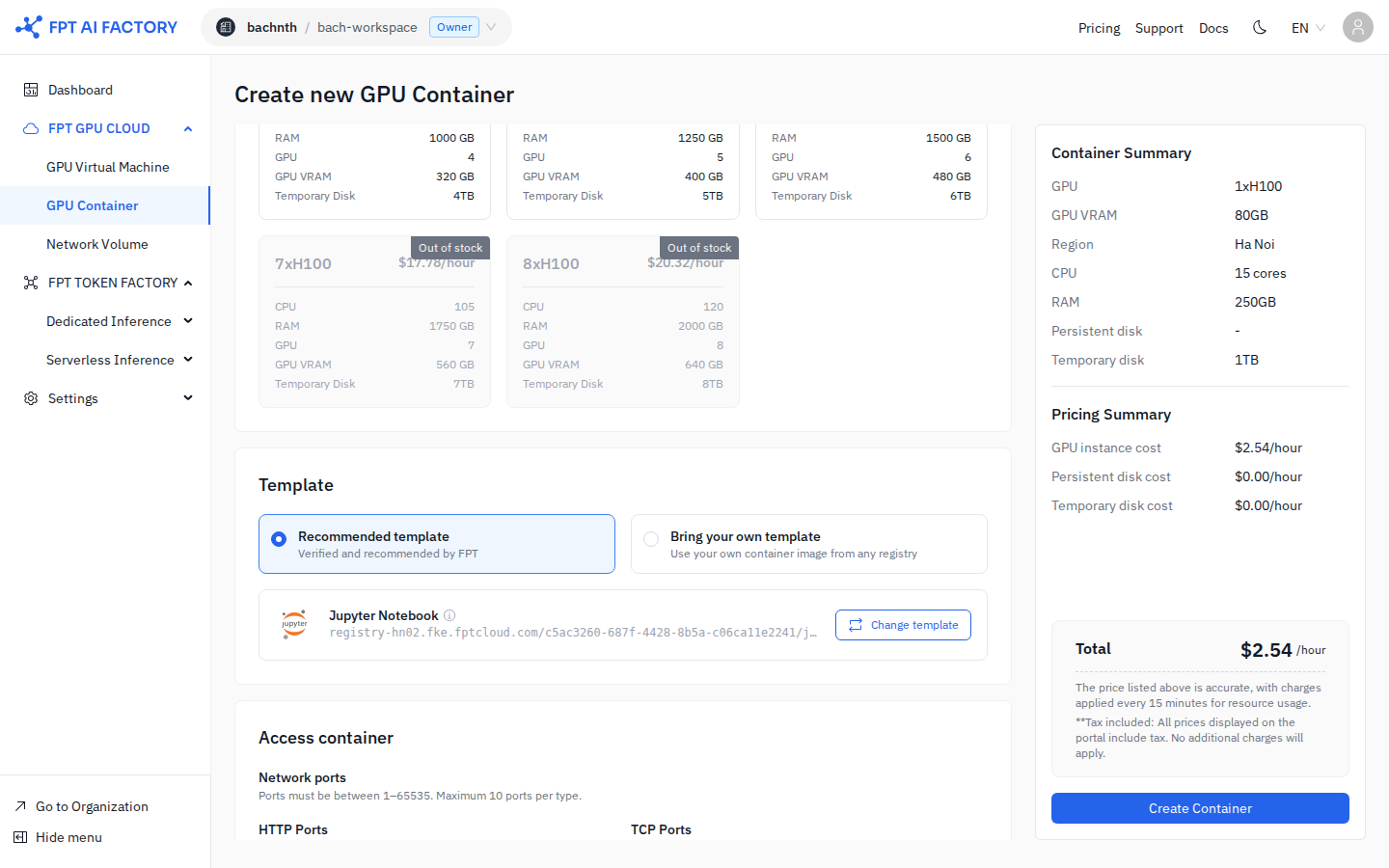
- Under Template, choose Recommended template (default: Jupyter Notebook) or Bring your own template to use a custom image from any registry.
- To change the recommended template, click Change template and select from the list.
- Under Access container, add the HTTP Ports and TCP Ports your application needs.
- HTTP ports get a public HTTPS URL automatically.
- TCP ports are used for SSH and other direct connections.
- (Optional) Expand Advanced settings to:
- Attach a Persistent disk — set capacity (1–3,000 GB) and mount path inside the container.
- Add Environment variables (key–value pairs passed into the container at startup).
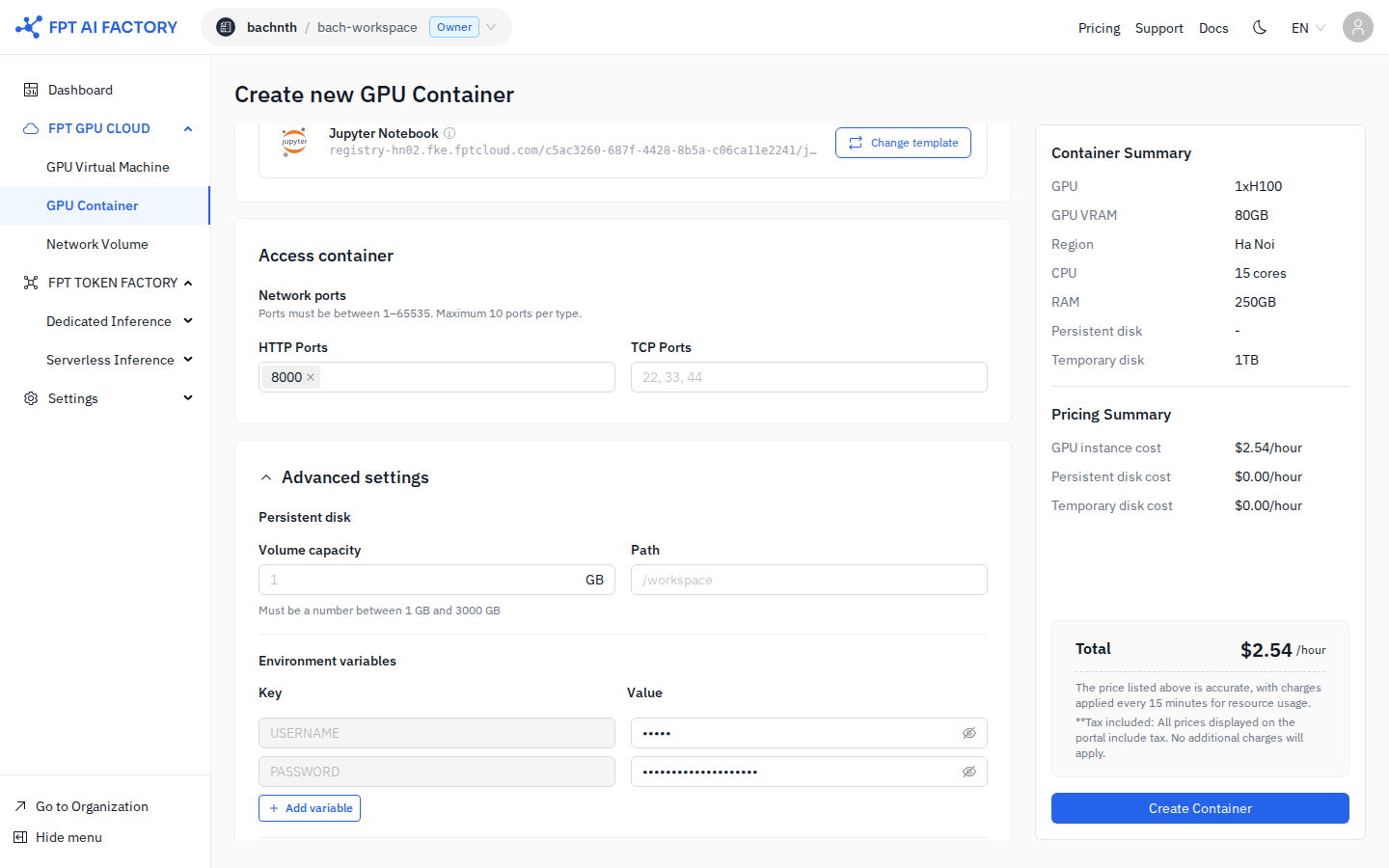
- Review the Container Summary and Pricing Summary in the right panel, then click Create Container.
Provisioning typically takes 1–3 minutes. The container appears in the list with status Starting, then transitions to Running.
Step 3 — Connect to the container
Once the container is Running, click its name to open the detail page. Depending on the ports you configured:
- HTTP endpoint — copy the URL listed next to the HTTP port and open it in a browser.
- SSH / TCP — use the hostname and port shown in the detail page with your SSH client or application.
Step 4 — Stop the container
To avoid unnecessary charges, stop the container when you are not using it.
- Return to the GPU Container list.
- In the Actions column, click Stop next to the container.
- Confirm the action.
warning
Stopping a container preserves data on the Persistent disk but erases data on the Temporary disk. Download or back up any files you need before stopping.
To permanently remove the container, click Delete in the Actions column.