Create a GPU Container
Prerequisites
- An FPT AI Factory account with sufficient credit.
- Owner or Editor role in the target workspace.
Steps
1. Open the create form
- In the left sidebar, click FPT GPU Cloud → GPU Container.
- Click + Create Container.
The Create new GPU Container form opens.
2. Set the container name
Enter a Container name:
- Up to 40 characters.
- Lowercase letters (a–z), numbers, and hyphens only.
- Must start and end with a letter or number.
3. Select a GPU instance
Under GPU Instance, click the tile for the size you need. The right panel updates the Container Summary and Pricing Summary in real time.
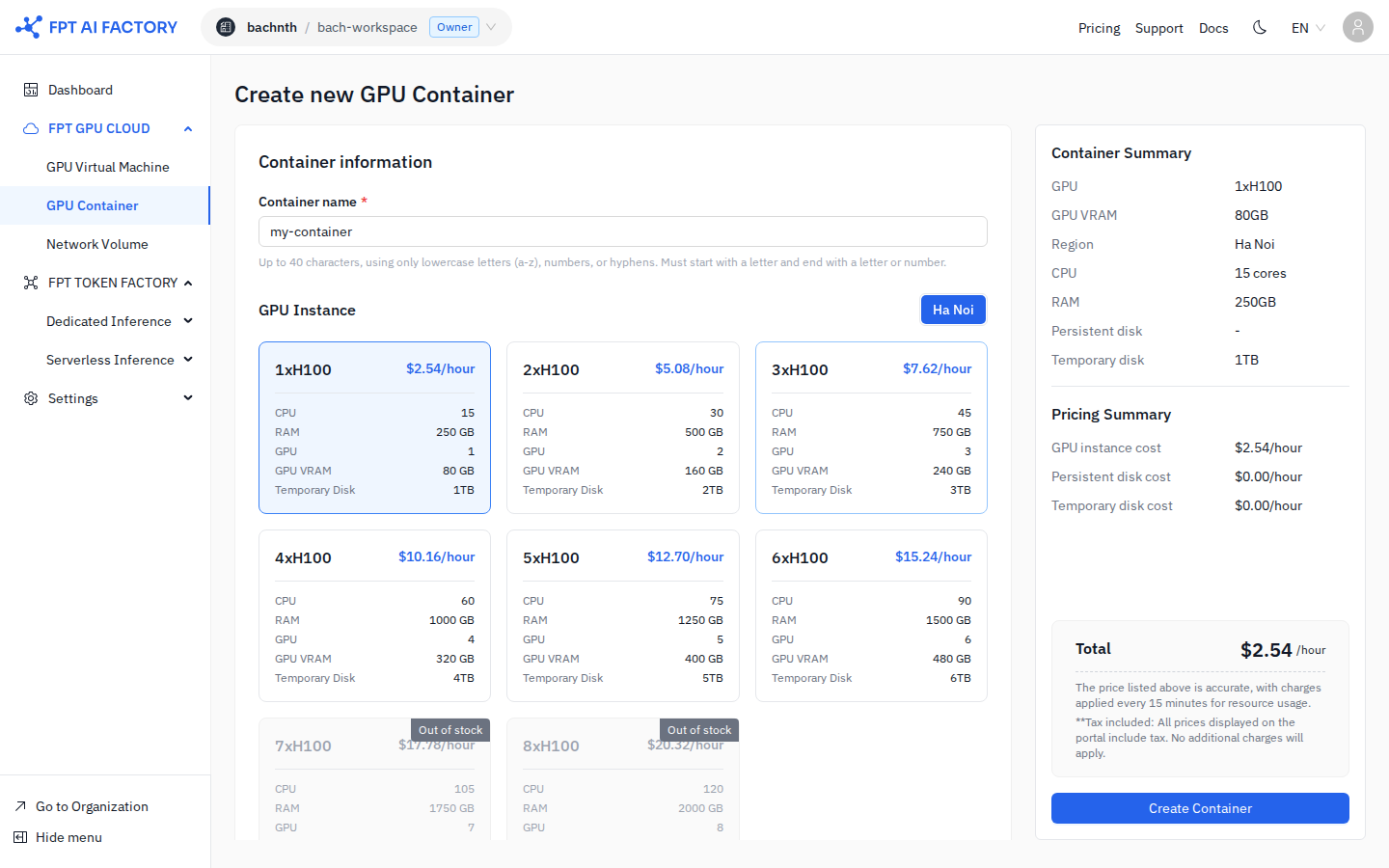
Available sizes (all H100, Ha Noi region):
| Instance | GPU VRAM | CPU | RAM | Temp disk |
|---|---|---|---|---|
| 1×H100 | 80 GB | 15 cores | 250 GB | 1 TB |
| 2×H100 | 160 GB | 30 cores | 500 GB | 2 TB |
| 3×H100 | 240 GB | 45 cores | 750 GB | 3 TB |
| 4×H100 | 320 GB | 60 cores | 1,000 GB | 4 TB |
| 5×H100 | 400 GB | 75 cores | 1,250 GB | 5 TB |
| 6×H100 | 480 GB | 90 cores | 1,500 GB | 6 TB |
| 7×H100 | 560 GB | 105 cores | 1,750 GB | 7 TB |
| 8×H100 | 640 GB | 120 cores | 2,000 GB | 8 TB |
Instances marked Out of stock cannot be selected.
4. Choose a template
Under Template, select one of two options:
Recommended template — A verified image provided by FPT. The default is Jupyter Notebook. Click Change template to pick a different one.
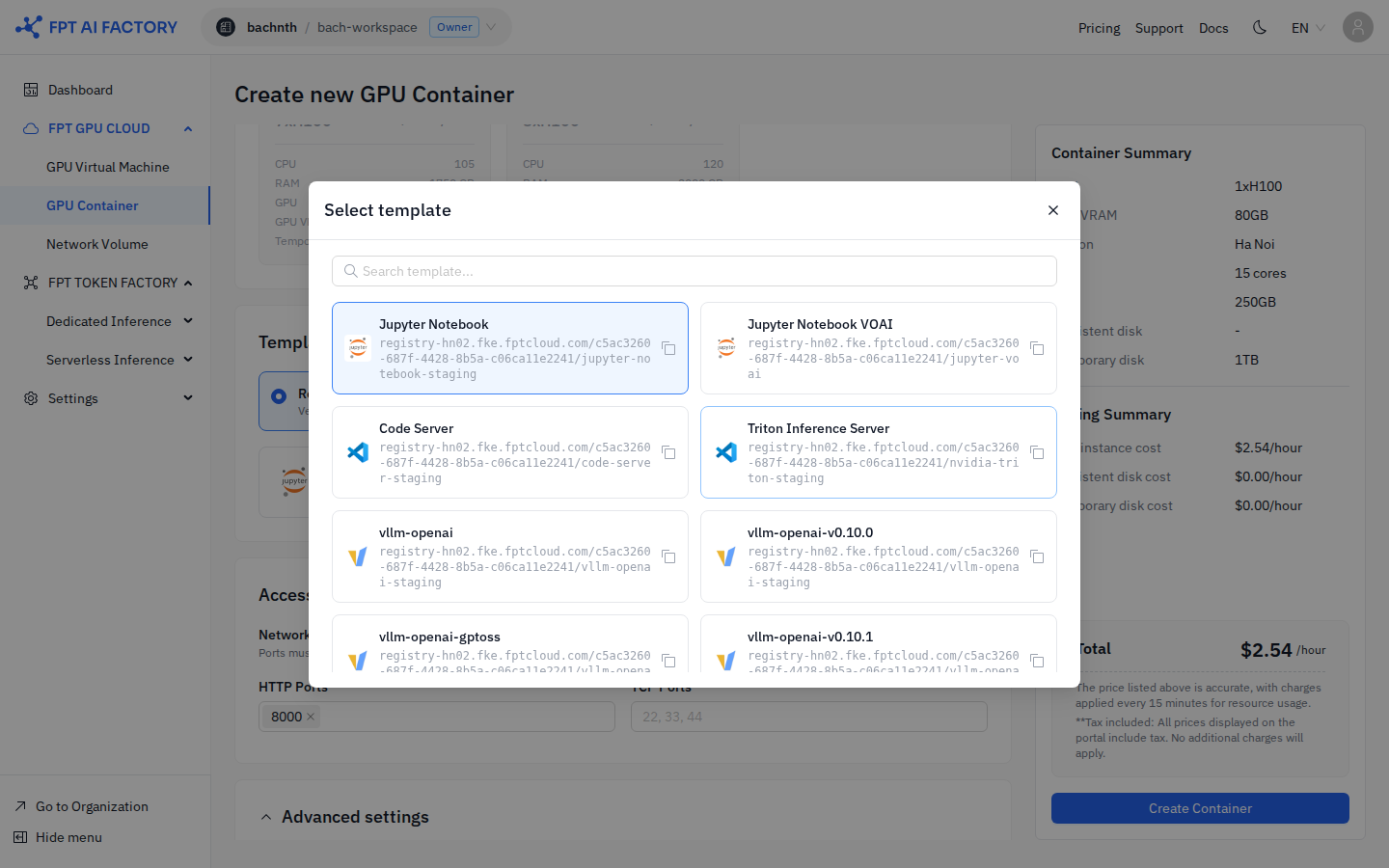
Available recommended templates:
| Template | Description |
|---|---|
| Jupyter Notebook | Interactive notebook environment for Python development |
| Jupyter Notebook VOAI | Jupyter Notebook with VOAI pre-installed |
| Code Server | VS Code in the browser with GPU access |
| Triton Inference Server | NVIDIA Triton for multi-framework model serving |
| vllm-openai | vLLM with OpenAI-compatible API |
| vllm-openai-v0.10.0 | vLLM v0.10.0 with OpenAI-compatible API |
| vllm-openai-gptoss | vLLM with GPT-OSS configuration |
| vllm-openai-v0.10.1 | vLLM v0.10.1 with OpenAI-compatible API |
Bring your own template — Enter the full image URI from any container registry (public or private).
5. Configure network ports
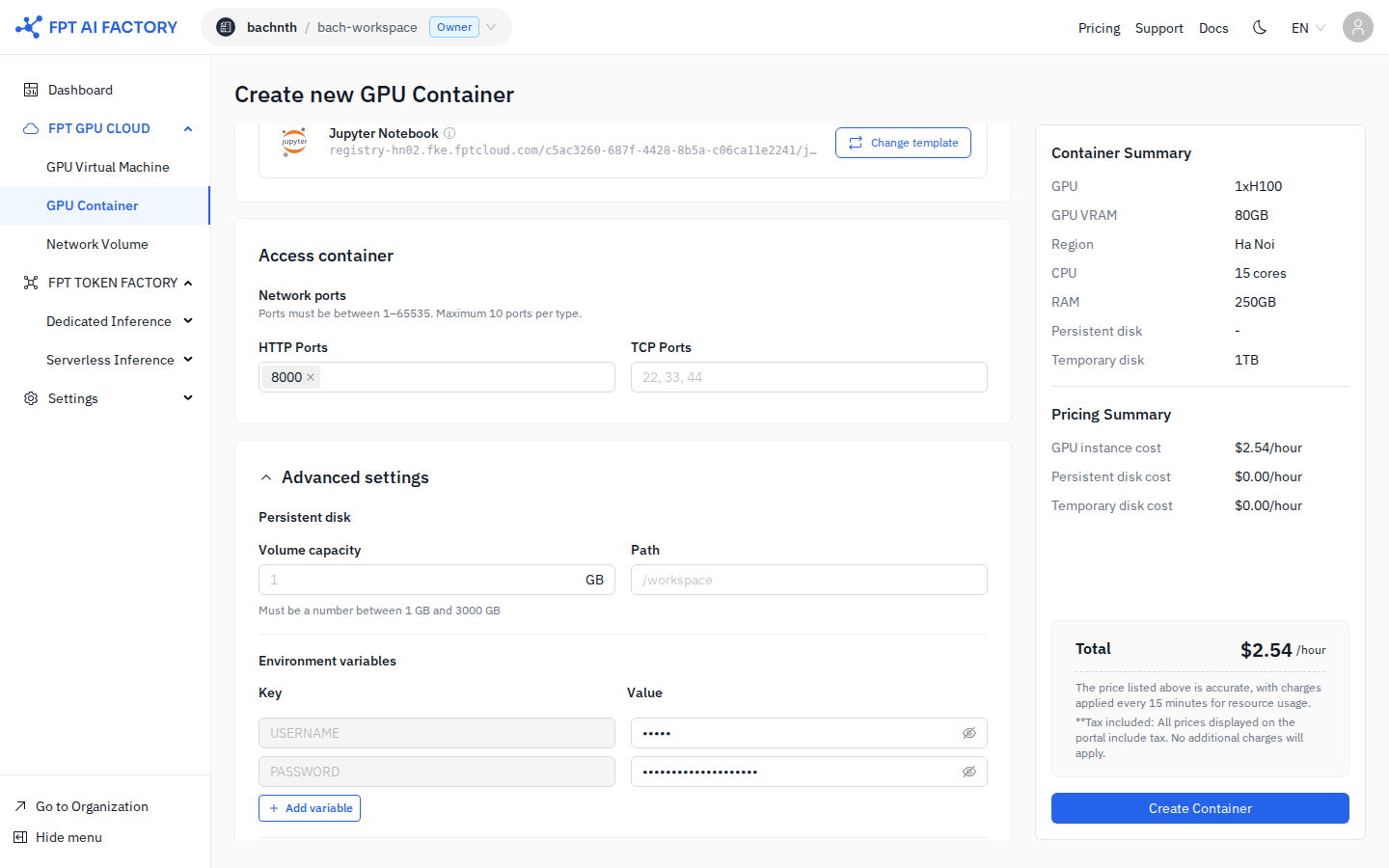
Under Access container, add the ports your application exposes:
- HTTP Ports — Enter one or more port numbers (e.g.,
8000). Each HTTP port gets a public HTTPS URL automatically. - TCP Ports — Enter port numbers for SSH or other TCP services (e.g.,
22).
Ports must be between 1 and 65535. Maximum 10 ports per type.
6. (Optional) Configure advanced settings
Expand Advanced settings for two additional options:
Persistent disk — Attach a block storage volume that survives container stop/delete cycles.
| Field | Description |
|---|---|
| Volume capacity | Size in GB (1–3,000 GB) |
| Path | Mount path inside the container (default: /workspace) |
Persistent disk is billed separately at a per-GB/hour rate shown in the Pricing Summary.
Environment variables — Key–value pairs injected into the container at startup. Click + Add variable to add more.
7. Create the container
Review the Container Summary and Total cost in the right panel, then click Create Container.
Provisioning takes 1–3 minutes. The container appears in the list with status Starting, then transitions to Running.