Manage a GPU Container
After a GPU Container is created, you can manage it from either the container list or the container detail page.
Container list
The GPU Containers page shows all containers in the current workspace, with summary stats at the top (Total Running, Stopped, Processing, Failed) and a list with columns: Name, Template, GPU instance, Region, Status, and Actions.
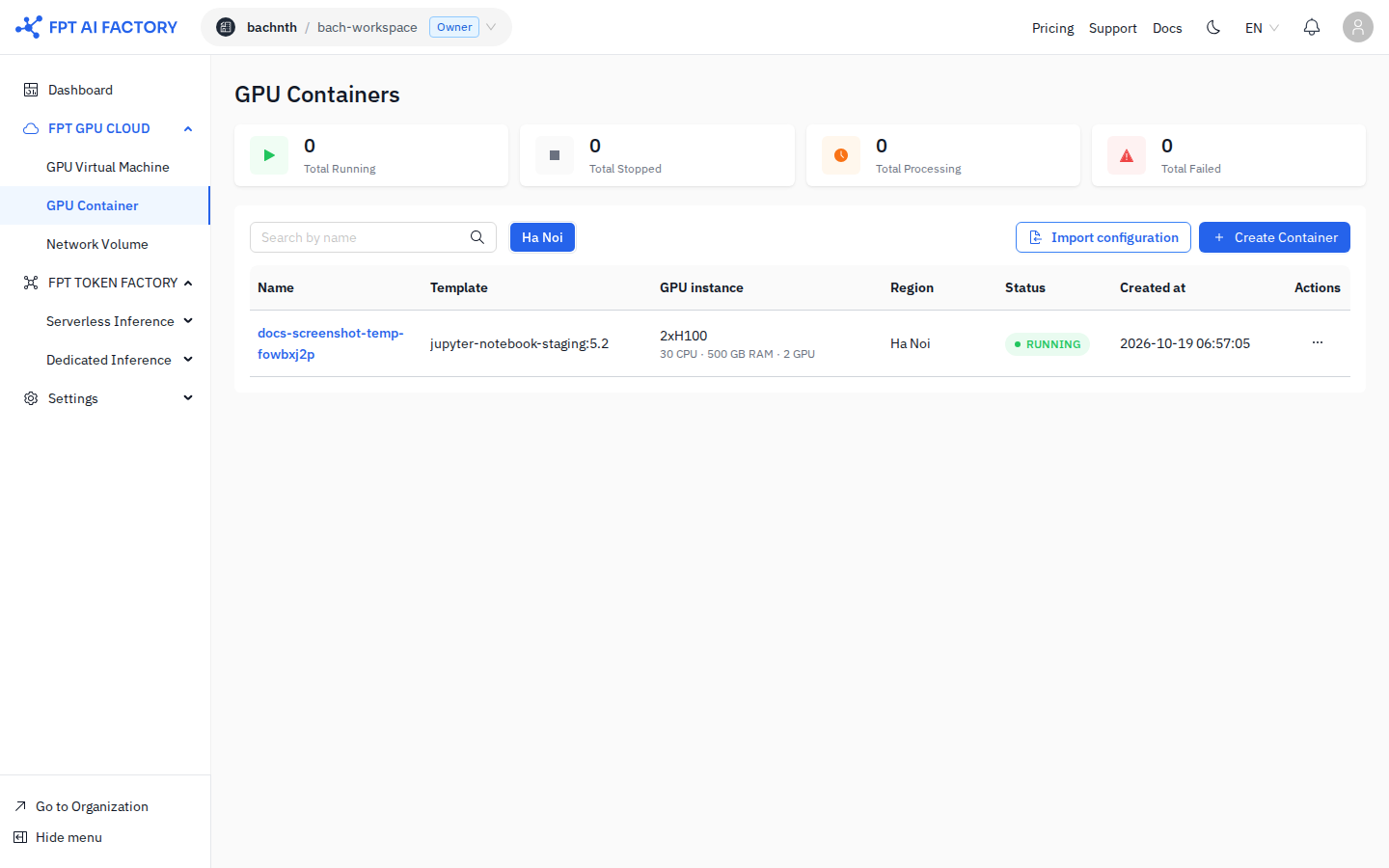
Click the "..." (three-dot) button in the Actions column to open the action menu.
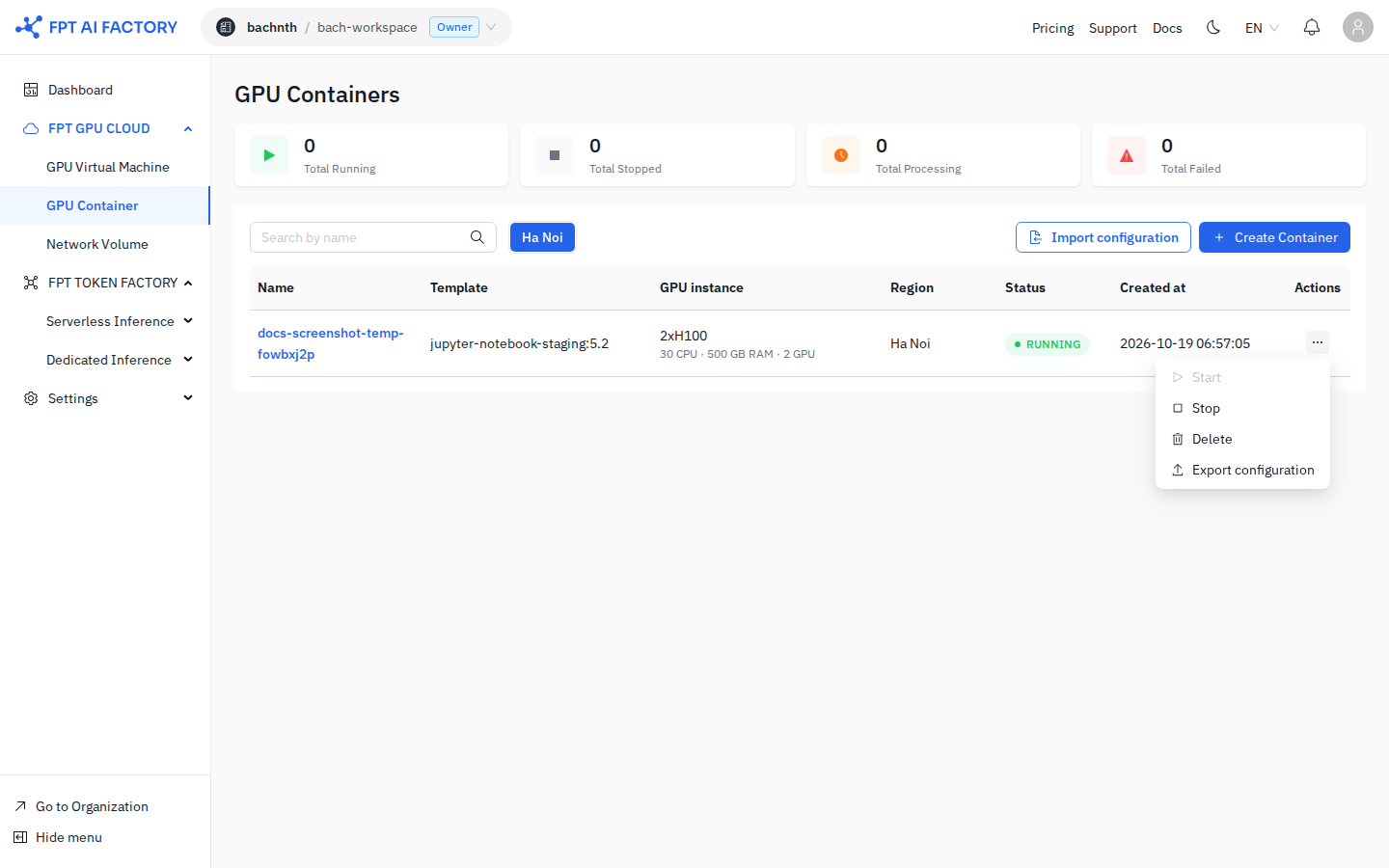
The available actions depend on the container's current status:
| Action | Available when |
|---|---|
| Start | Container is Stopped or Failed |
| Stop | Container is Running |
| Delete | Any status |
| Export configuration | Any status |
Container detail page
Click the container name in the list to open the detail page.
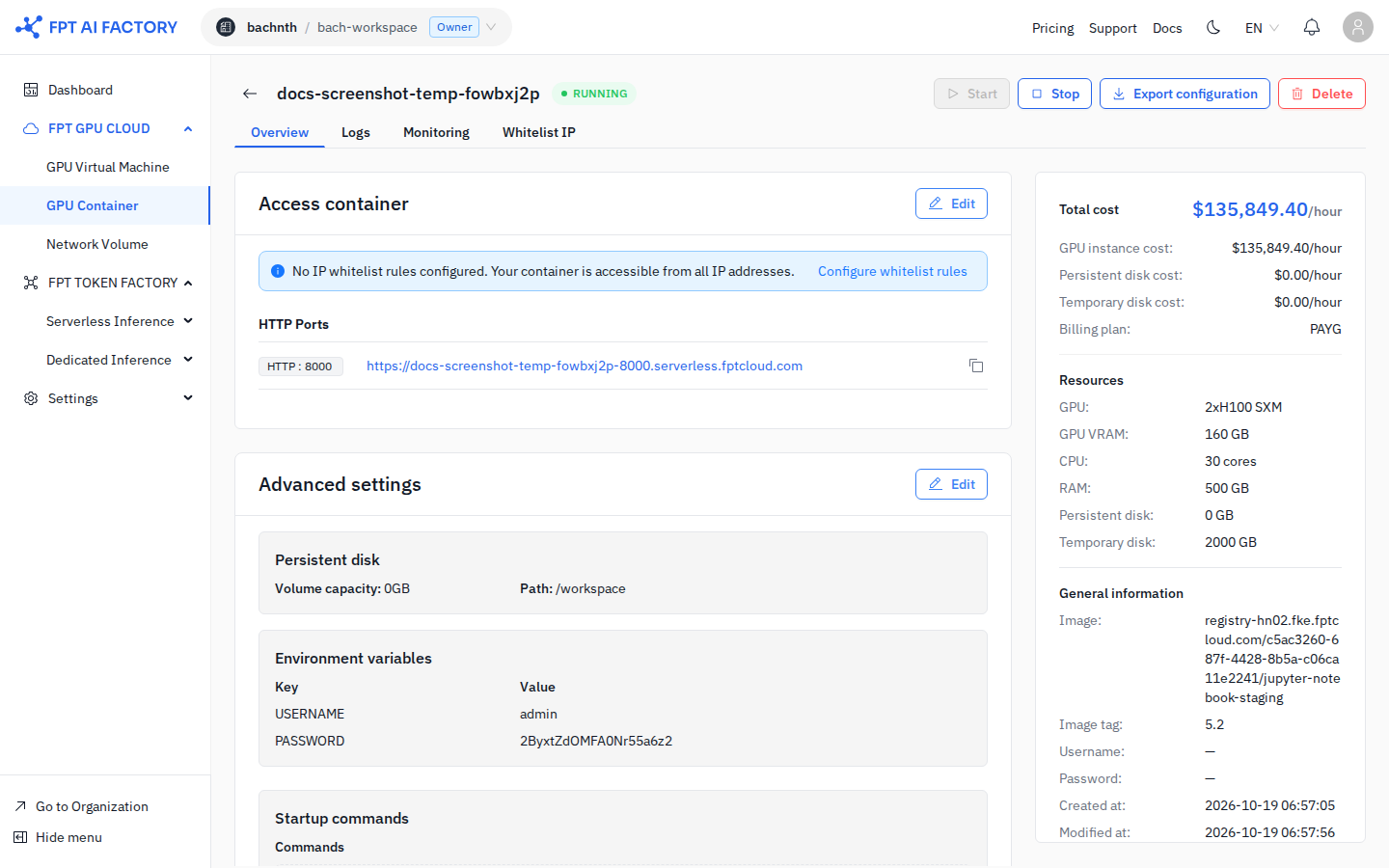
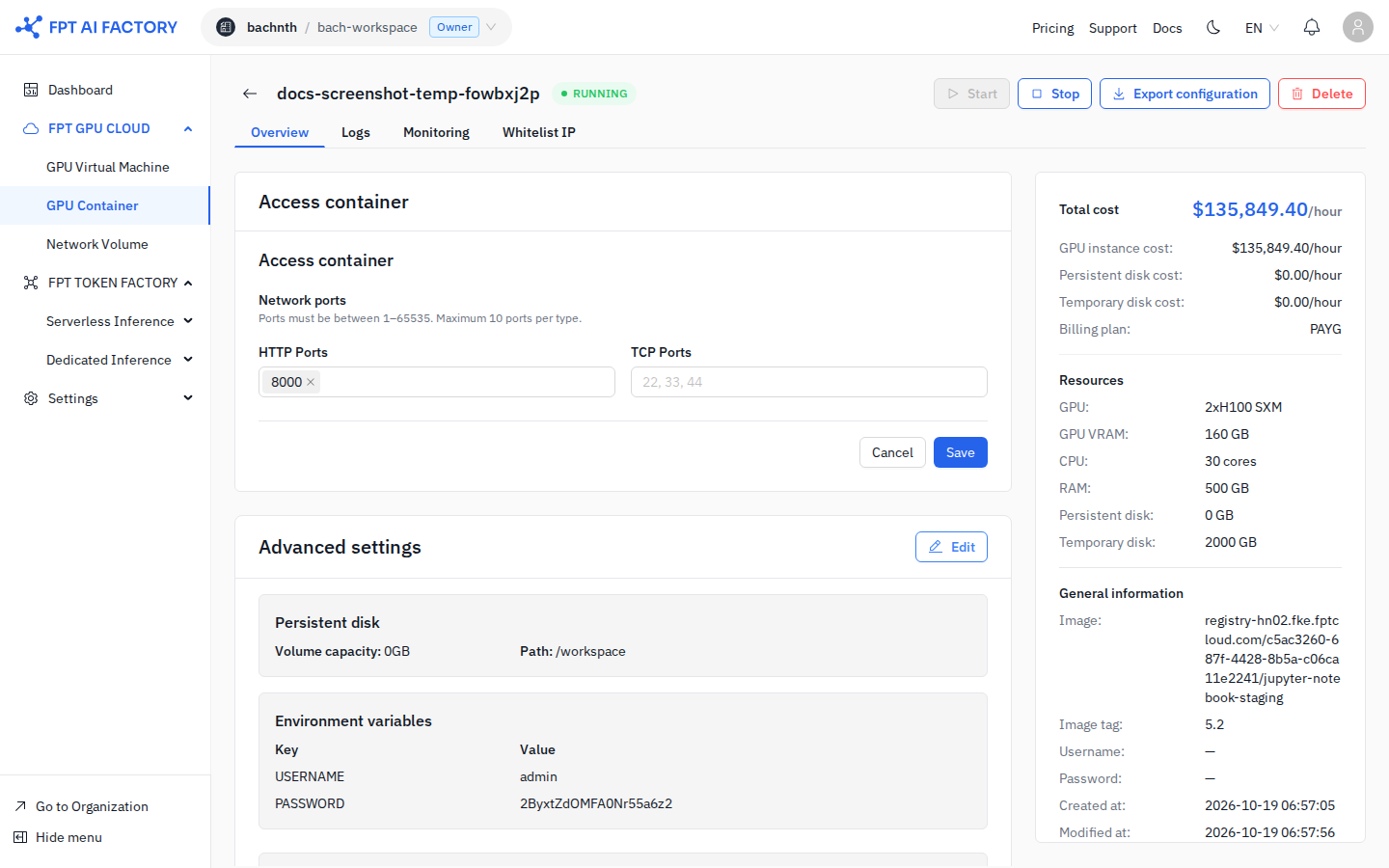
The detail page shows:
- Status badge — current state (e.g., RUNNING) next to the container name.
- Action buttons — Start, Stop, Export configuration, Delete in the top-right area.
- Tabs — Overview, Logs, Monitoring, Whitelist IP.
- Overview tab — two editable sections: Access container (ports, SSH) and Advanced settings (persistent disk, environment variables, startup commands), plus a right sidebar with cost breakdown and resource/general information.
Stop a container
Stopping a container shuts down the workload and releases the GPU.
All data on the temporary disk is permanently lost when the container stops. Save any files you need before stopping. You will still be charged for persistent disk storage while the container is stopped.
- In the container list, click "..." → Stop.
- Review the warning, then click Confirm.
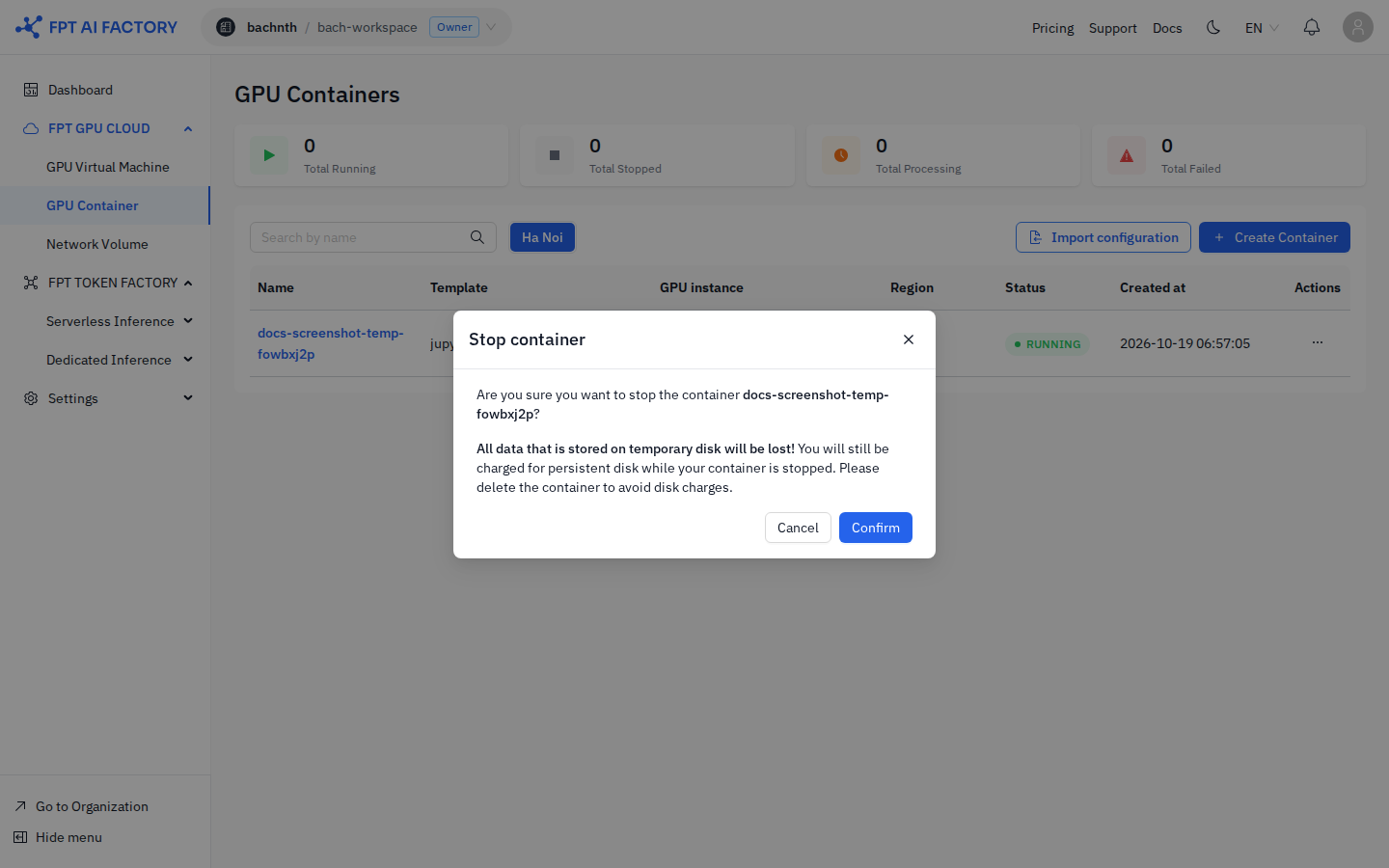
The container status changes to Stopping, then Stopped.
Start a stopped container
- In the container list, click "..." → Start (available only when the container is Stopped or Failed).
- The container restarts with the same configuration. Provisioning takes 1–3 minutes.
Edit a container
You can modify a running or stopped container's access settings and advanced settings from the Overview tab on the detail page.
Saving changes restarts the container. All data on the temporary disk is lost when the container restarts. Save important files to the persistent disk before editing.
Edit access settings (ports and SSH keys)
Access settings include HTTP ports, TCP ports, and SSH public keys.
- Open the container detail page.
- In the Access container section, click Edit.
- Update the HTTP or TCP port numbers, or add/remove SSH public keys.
- Click Save.
Edit advanced settings
Advanced settings include persistent disk capacity and path, environment variables, and startup commands.
- Open the container detail page.
- In the Advanced settings section, click Edit.
- Make the desired changes.
- Click Save.
Export configuration
Export a container's configuration as a YAML file to reuse it for creating a new container with the same settings.
- From the container list: click "..." → Export configuration.
- From the detail page: click the Export configuration button in the top-right area.
The YAML file contains the container name, GPU instance type, image, ports, SSH keys, persistent disk settings, environment variables, and startup commands.
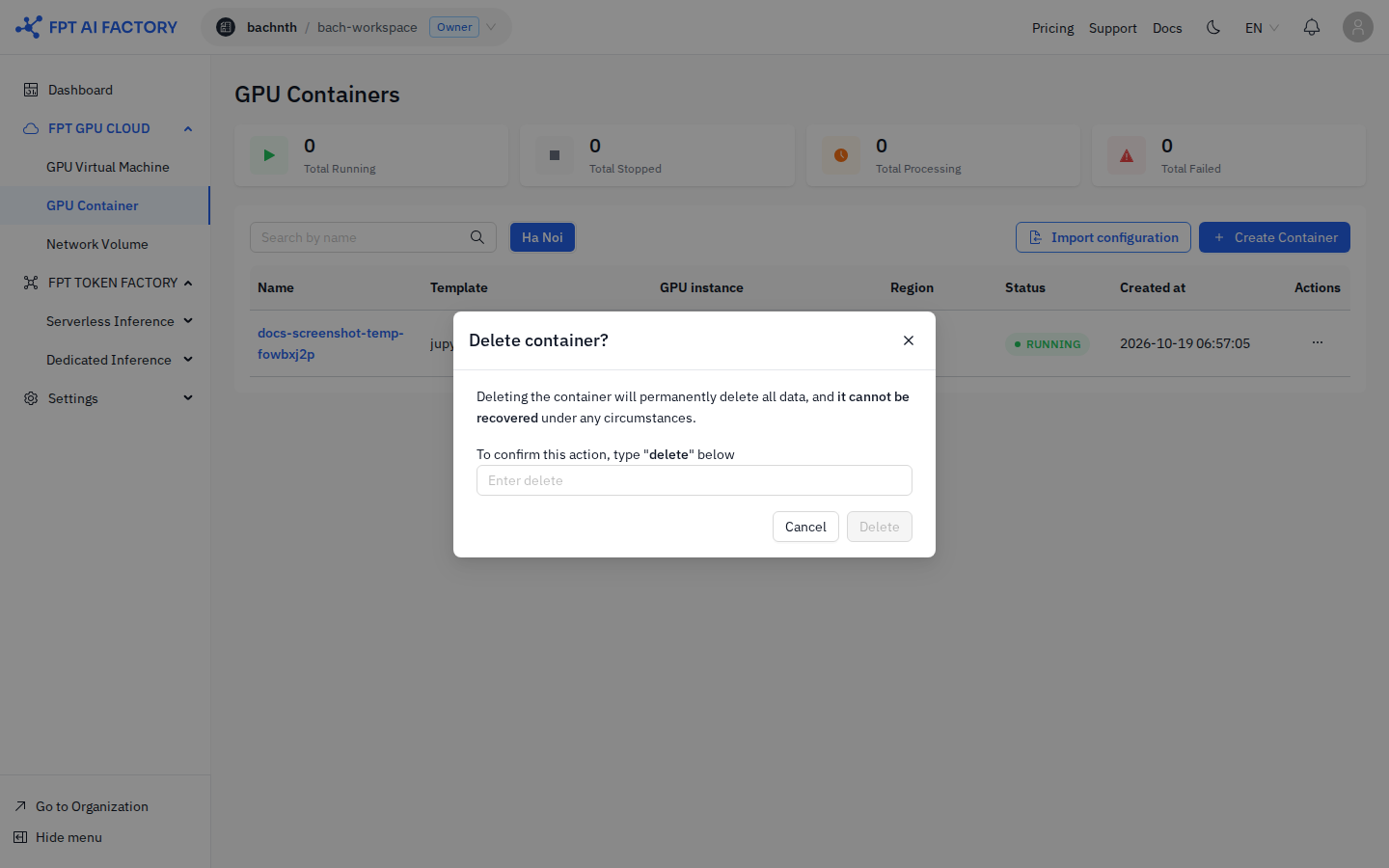
Delete a container
Deleting a container is permanent and cannot be undone.
Deleting permanently removes all data in both the temporary disk and the persistent disk. There is no way to recover this data.
- In the container list, click "..." → Delete.
- In the confirmation dialog, type
deletein the input field to enable the Delete button. - Click Delete.