Quickstart
This guide walks you through creating a Network Volume and attaching it to a GPU VM.
Prerequisites
- An FPT AI Factory account with sufficient credit.
- At least one GPU VM in the same workspace and region where you plan to create the volume.
Step 1 — Navigate to Network Volume
- Log in to FPT AI Factory.
- In the top bar, confirm the correct Organization / Project is selected.
- In the left sidebar, click FPT GPU Cloud → Network Volume.
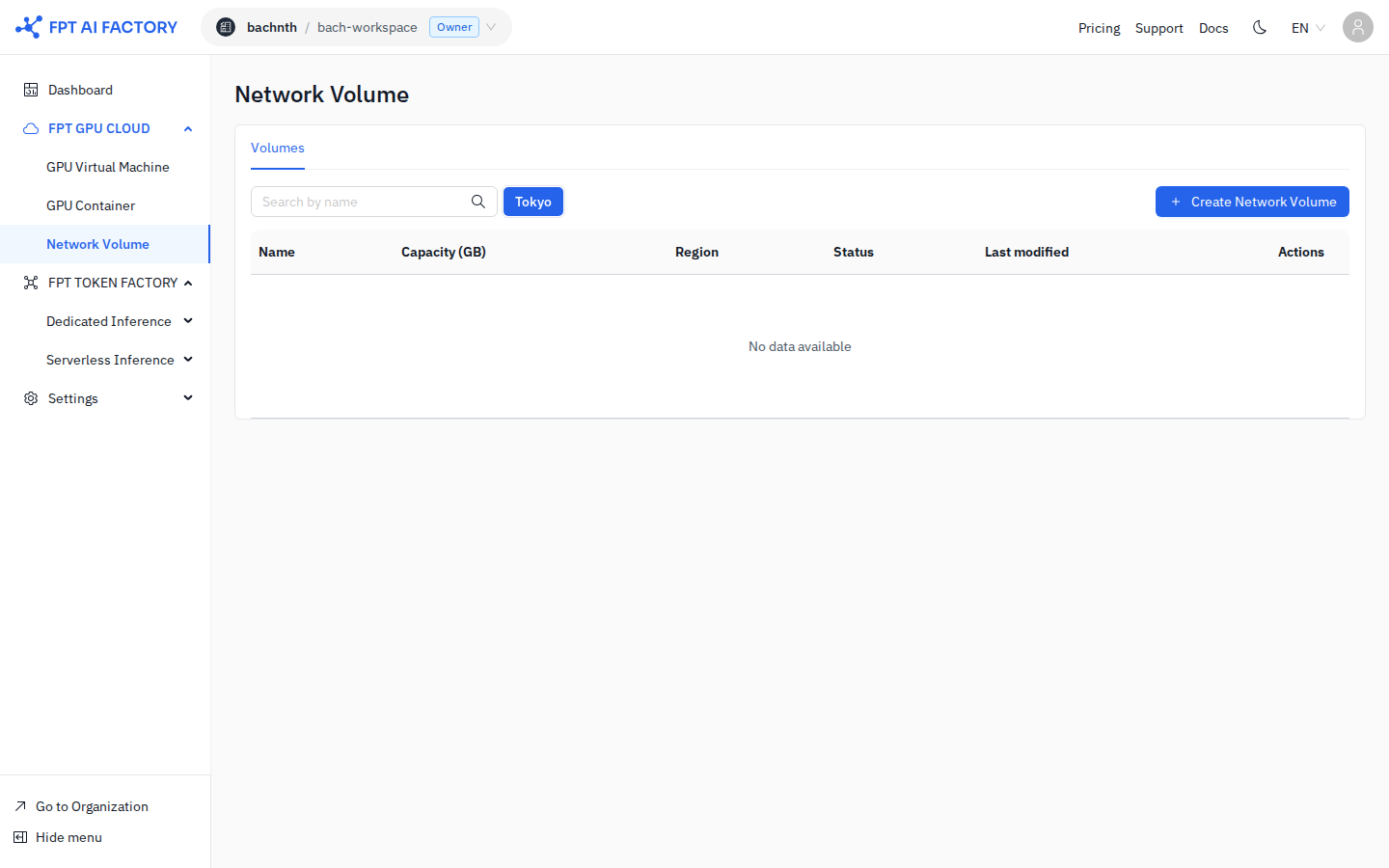
Step 2 — Create a volume
- Click + Create Network Volume.
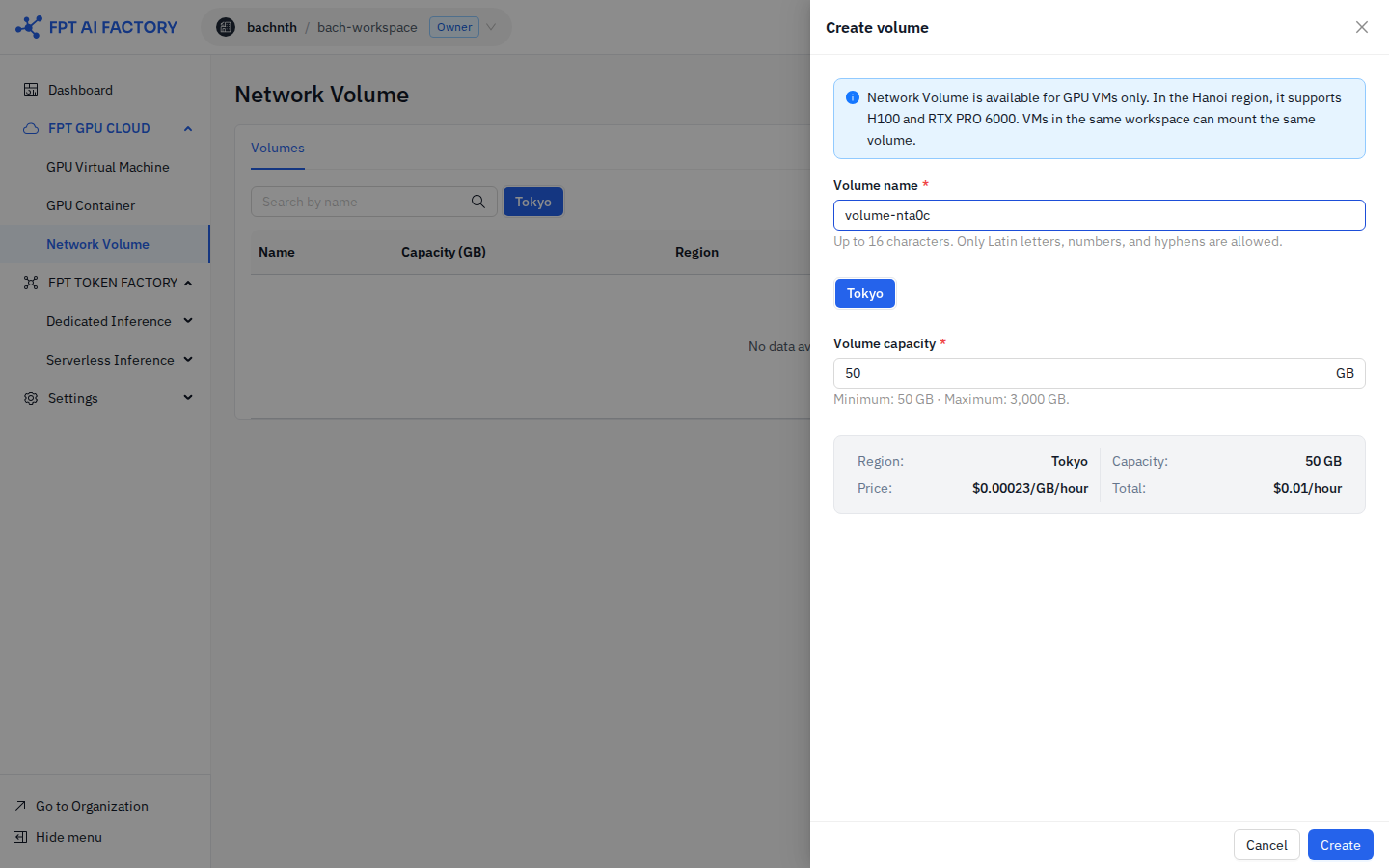
- Fill in the form:
| Field | Description | Constraints |
|---|---|---|
| Volume name | A name for the volume | Up to 16 characters; Latin letters, numbers, and hyphens only |
| Region | The region where the volume will be created | Must match the region of the GPU VM you intend to attach it to |
| Volume capacity | Storage size in GB | 50 GB minimum, 3,000 GB maximum |
- The pricing summary at the bottom of the form shows the estimated cost based on your selected capacity.
- Click Create.
The volume appears in the list with status Creating, then transitions to Available within seconds.
note
Network Volume is available for GPU VMs only. In the Ha Noi region, it supports H100 and RTX PRO 6000. VMs in the same workspace can mount the same volume.
Step 3 — Attach the volume to a GPU VM
After the volume reaches Available status, attach it to your GPU VM:
- In the left sidebar, click FPT GPU Cloud → GPU Virtual Machine.
- Click the name of the VM you want to attach the volume to.
- On the VM detail page, go to the Storage tab.
- Click Attach volume, select the Network Volume you just created, and confirm.
The volume is mounted inside the VM. Use the mount point shown to access it from your workloads.
note
You can attach the same Network Volume to multiple GPU VMs in the same workspace at the same time.