Manage User Quotas
User Quotas lets workspace admins set a monthly budget cap for each member. When a member reaches their cap, further API requests return HTTP 429 until the next billing cycle resets the counter.
Open User Quotas
- In the left sidebar under Serverless Inference, click User Quotas.
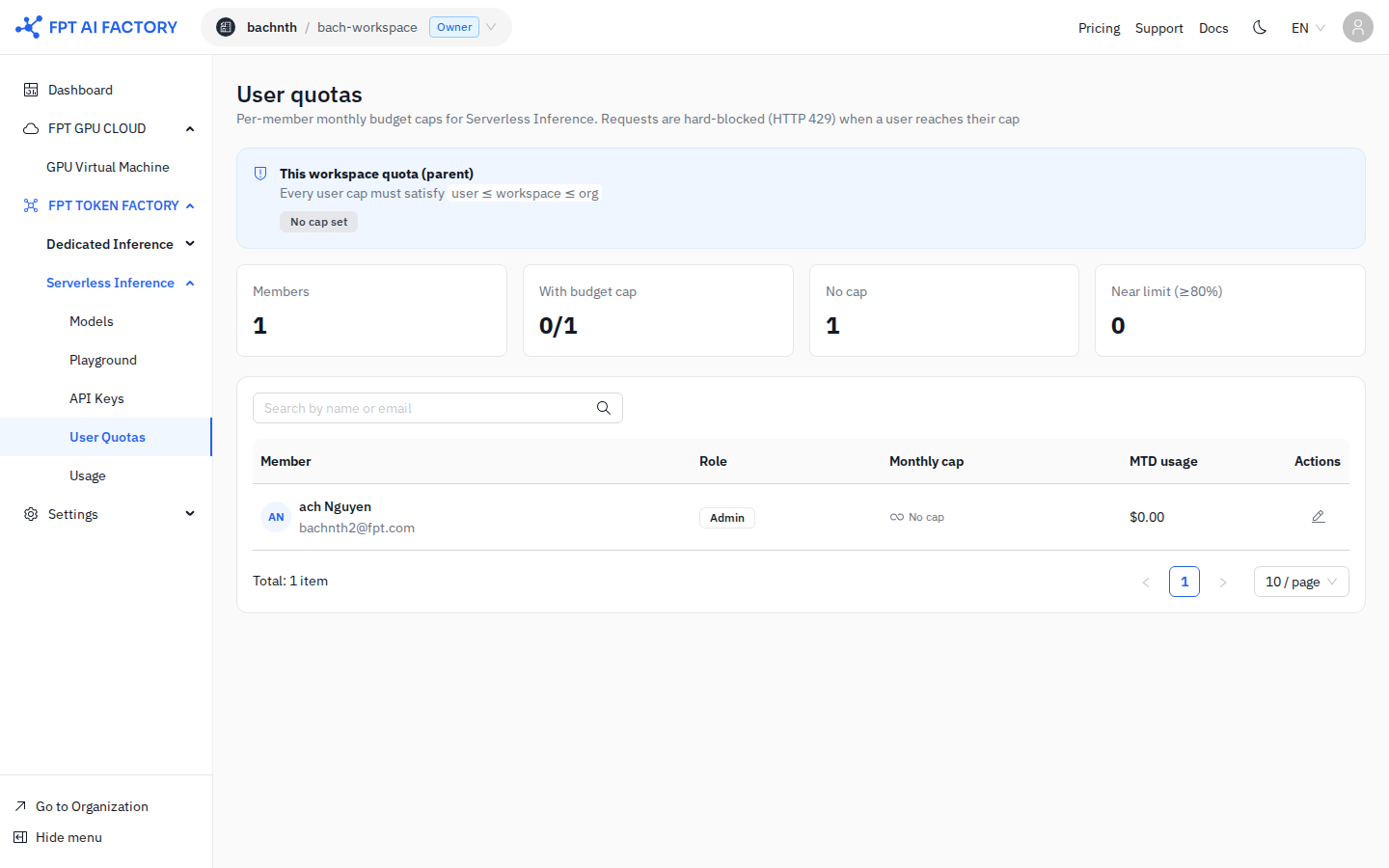
Understand the quota hierarchy
Quotas follow a three-level hierarchy:
Org quota (ceiling)
  └── Workspace quota (parent)
        └── User quota (per-member cap)
Every user cap must satisfy user ≤ workspace ≤ org. If no workspace quota is set, the cap defaults to the organisation limit. If no user quota is set, the member has no individual cap (only the workspace limit applies).
The This workspace quota (parent) banner at the top of the page shows the current workspace cap and whether it is set.
Summary cards
| Card | Description |
|---|---|
| Members | Total number of workspace members |
| With budget cap | Members who have a personal monthly cap configured |
| No cap | Members with no personal cap (workspace limit applies) |
| Near limit (≥80%) | Members who have used ≥80% of their monthly cap |
Set a cap for a member
- Find the member in the table (use the search box to filter by name or email).
- Click the Edit (pencil) icon in the Actions column.
- Enter a monthly cap in USD.
- Save the change.
The cap takes effect immediately. The Monthly cap column updates to show the new value.
Remove a cap
Follow the same steps as setting a cap, but clear the amount field and save. The member's cap reverts to the workspace limit.
Member table columns
| Column | Description |
|---|---|
| Member | Name and email of the workspace member |
| Role | Member's workspace role (Admin, Member, etc.) |
| Monthly cap | Current personal spend cap in USD, or "No cap" |
| MTD usage | Month-to-date spend for this member |
| Actions | Edit the member's cap |
What's next
- Monitor Usage & Billing — see per-member and per-key spend in the Usage tab.
- Create an API Key — create keys scoped to specific models for finer access control.