Invoices
Vietnam Tax Invoices are issued automatically for VNPay payments. Stripe and PayPal payments generate a Receipt only.
1. Set up billing information
Complete this step once, before your first top-up.
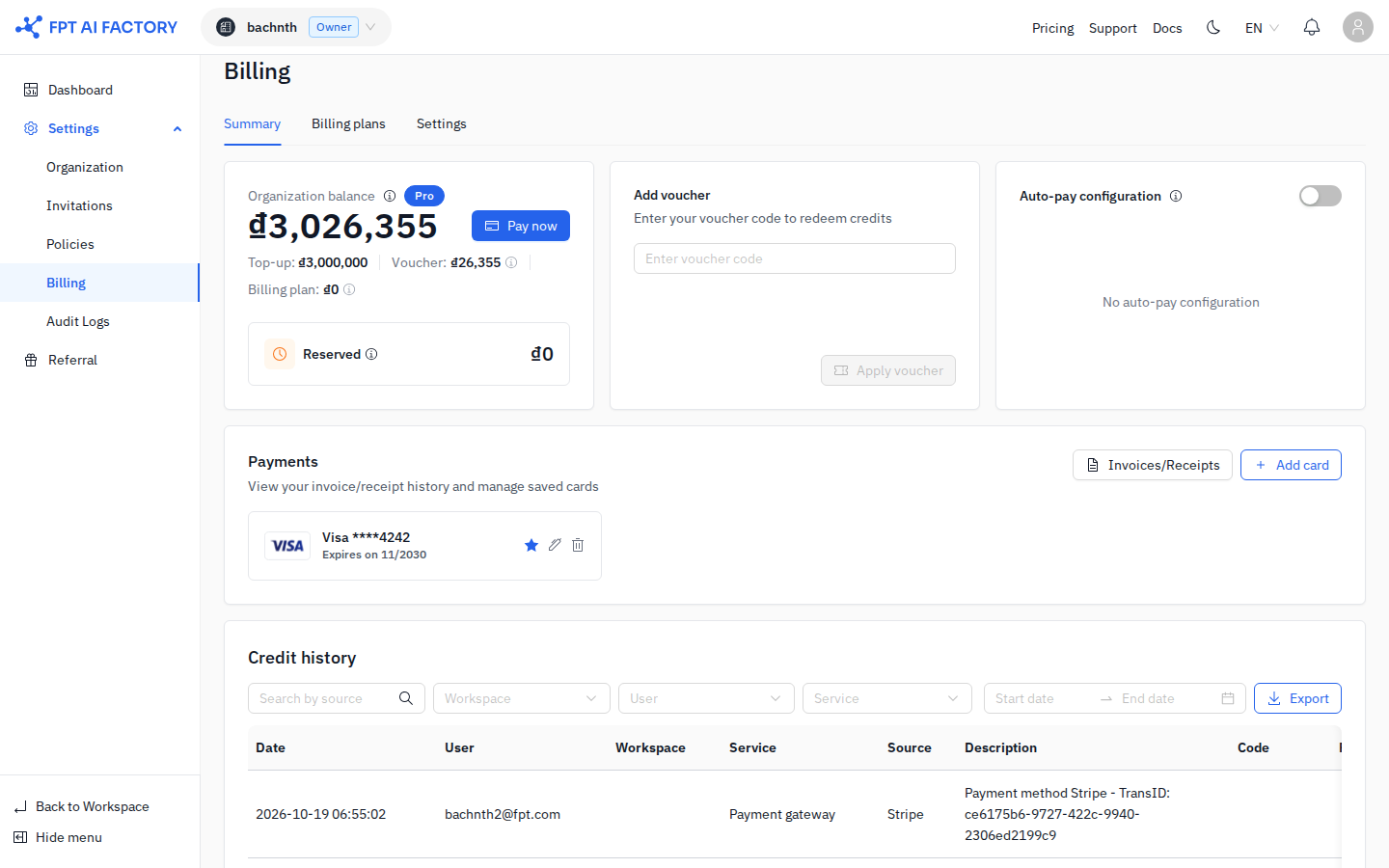
- In the left sidebar, click Billing.
- Click Pay now.
- In the Account information dialog, fill in all required fields.
- Under Country, select Vietnam. The billing currency is automatically set to VND.
- Click Continue.
warning
The billing currency cannot be changed after your first top-up. If you need a Vietnam Tax Invoice, select Vietnam before making any payment.
2. Pay via VNPay
When topping up, select VNPay as your payment method. VNPay supports both Vietnam Tax Invoice and commercial invoice. Complete the payment on the VNPay gateway.
note
Selecting Stripe or PayPal issues a Receipt only, not a tax invoice.
3. Download your invoice
- In the left sidebar, click Billing.
- In the Payments section, click Invoices/Receipts.
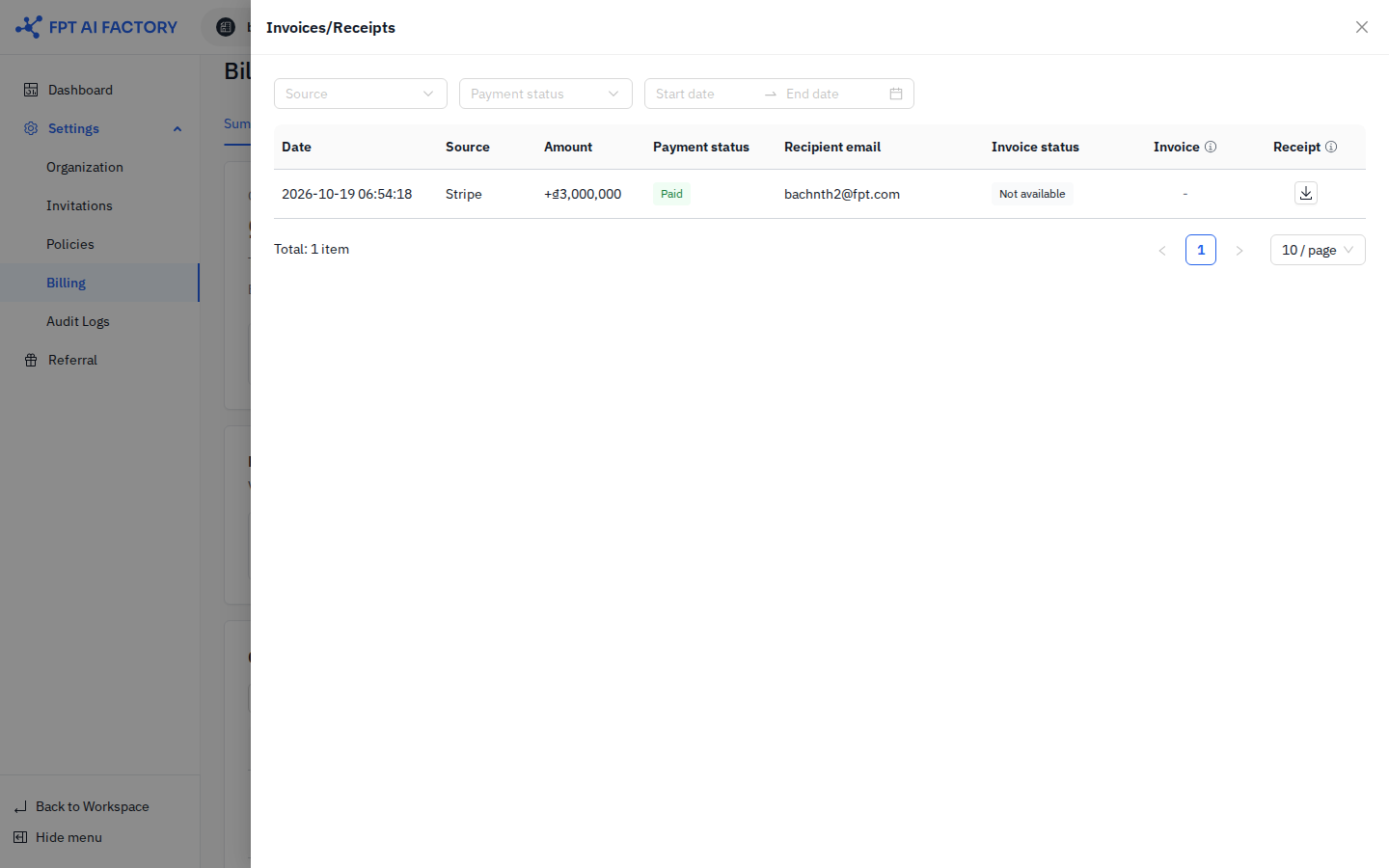
- Find the payment in the list and check the Invoice status column.
- When the status shows Ready, click the download icon in the Invoice column.
note
A newly issued invoice may show Processing for a few minutes while it is being generated.
What's next
- Top Up — add credits to your Organization Wallet.
- Billing Settings — view your billing information and currency.