Payment History
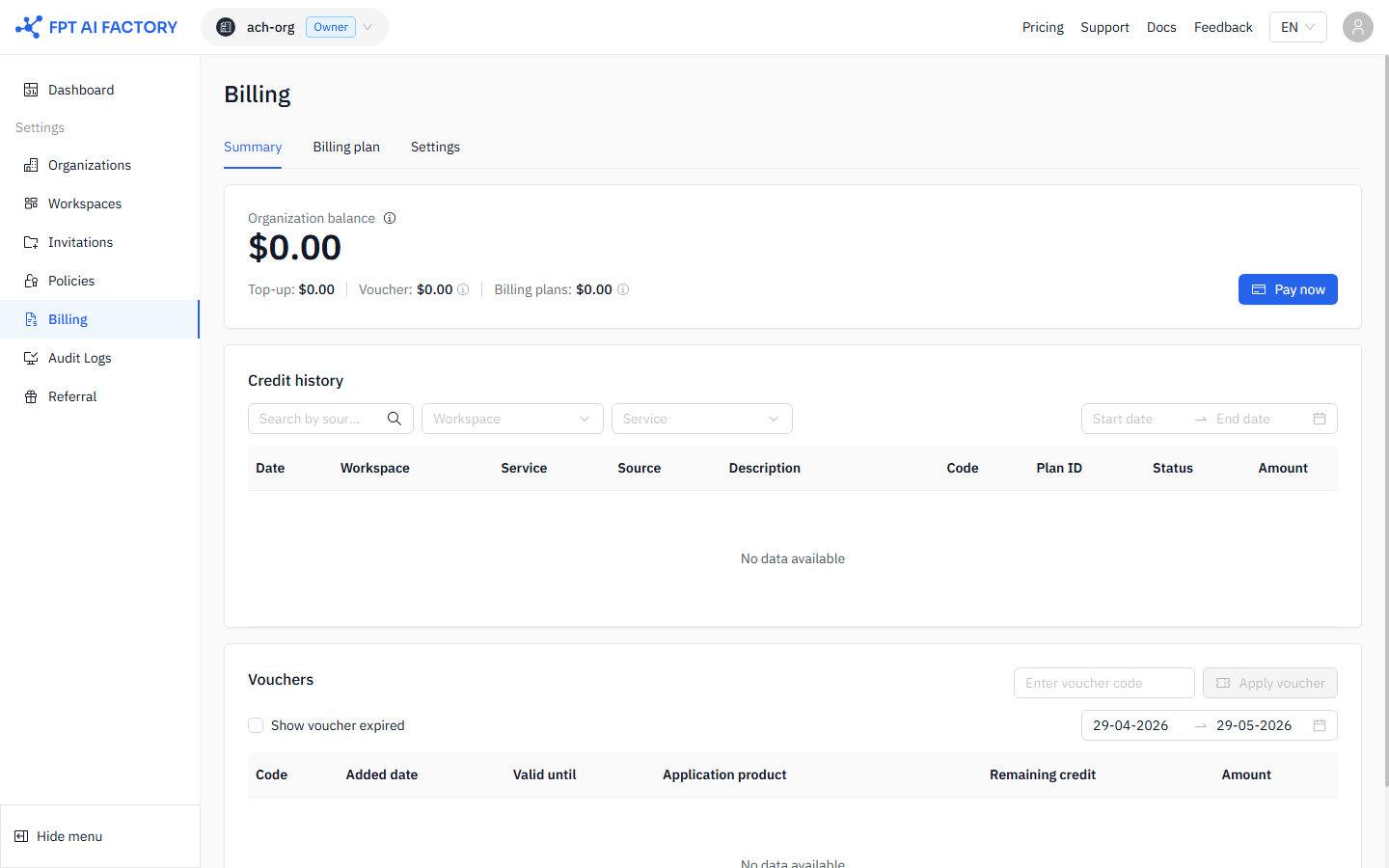
The Payments page shows a record of all top-up transactions for your Organization. You can download an invoice for any payment.
1. Go to Payments
In the left sidebar, click Billing, then click Payments.
2. Find a payment
The table shows the following columns for each transaction:
| Column | What it shows |
|---|---|
| Date | Date and time the payment was processed |
| Source | Payment method used (e.g., VNPAY, Stripe, PayPal) |
| Recipient email | Email address the invoice was sent to |
| Amount | Amount paid |
| Invoice | Download icon — click to download the invoice PDF |
3. Download an invoice
Click the download icon in the Invoice column for the payment you want. The invoice PDF downloads to your browser.
What's next
- Topping up your Wallet — add more credits.
- Understanding billing — how the Wallet and credits work.