Vouchers
Vouchers add promotional credits to your Organization Wallet. This page explains how to redeem a Voucher code and what happens after you apply it.
1. Go to Vouchers
In the left sidebar, click Billing, then click Vouchers.
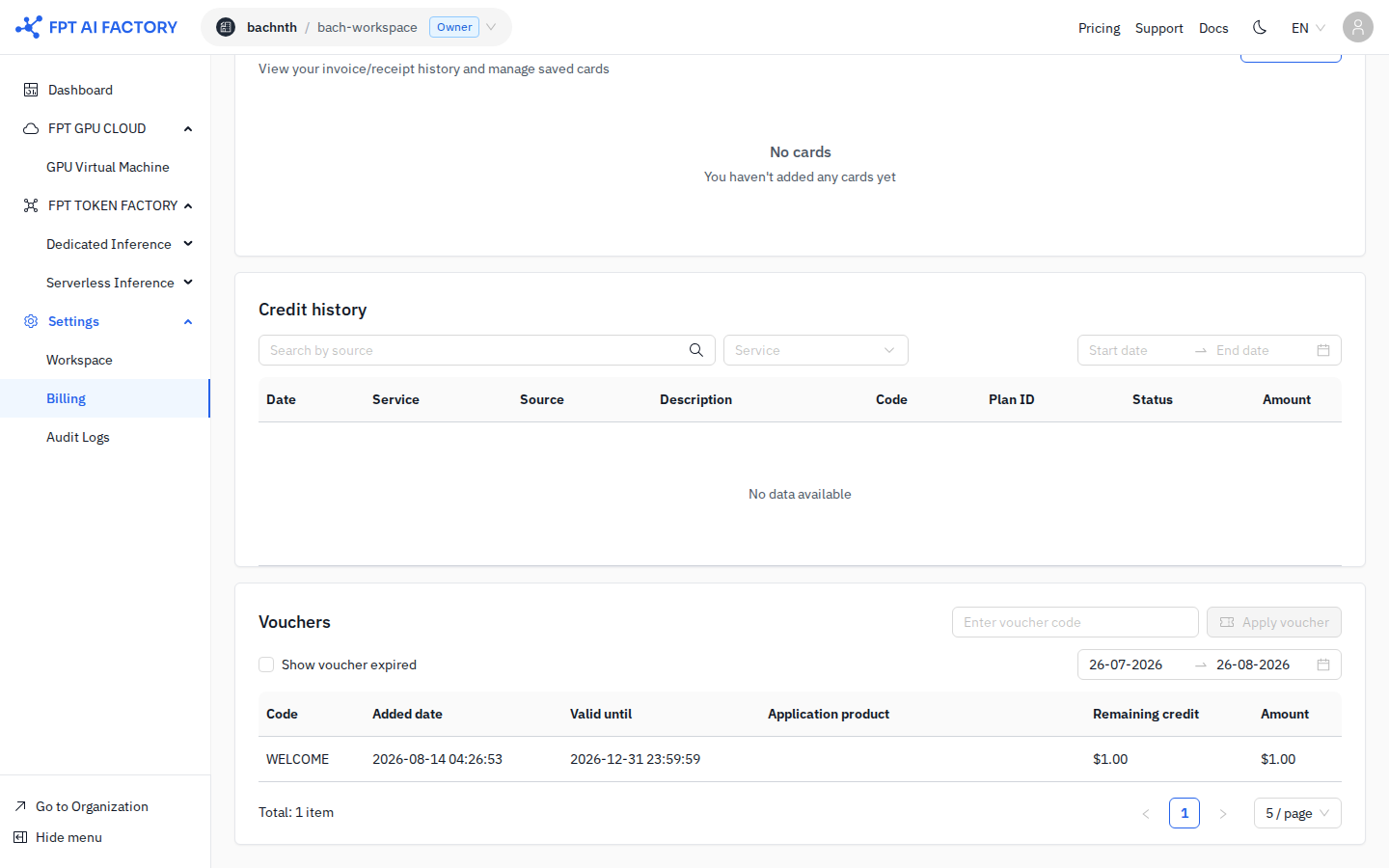
2. Redeem a voucher code
- In the Redeem Voucher section at the top of the page, enter your Voucher code in the input field.
- Click Apply Voucher.
If the code is valid, the credits are added to your Wallet immediately and the Voucher appears in the Voucher list below. If the code is invalid, an error message is shown.
Voucher list
The table below the redeem form shows all Vouchers associated with your Organization:
| Column | What it shows |
|---|---|
| Code | The code used to redeem the voucher |
| Added date | Date the voucher was added to the wallet |
| Valid until | Date when unused credits expire |
| Applicable product | Service the voucher can be used for |
| Remaining credit | Credits not yet consumed |
| Amount | Total credit value added by the voucher |
To see expired Vouchers, use the Show expired Vouchers toggle above the table.
What's next
- Understanding billing — how Voucher credits compare to top-up credits.
- Setting up a low-balance alert — get notified before credits run out.