Invitations
This page covers invitations from both sides: how to invite users to a Workspace, and how to accept an invitation you have received.
Inviting users to your workspace
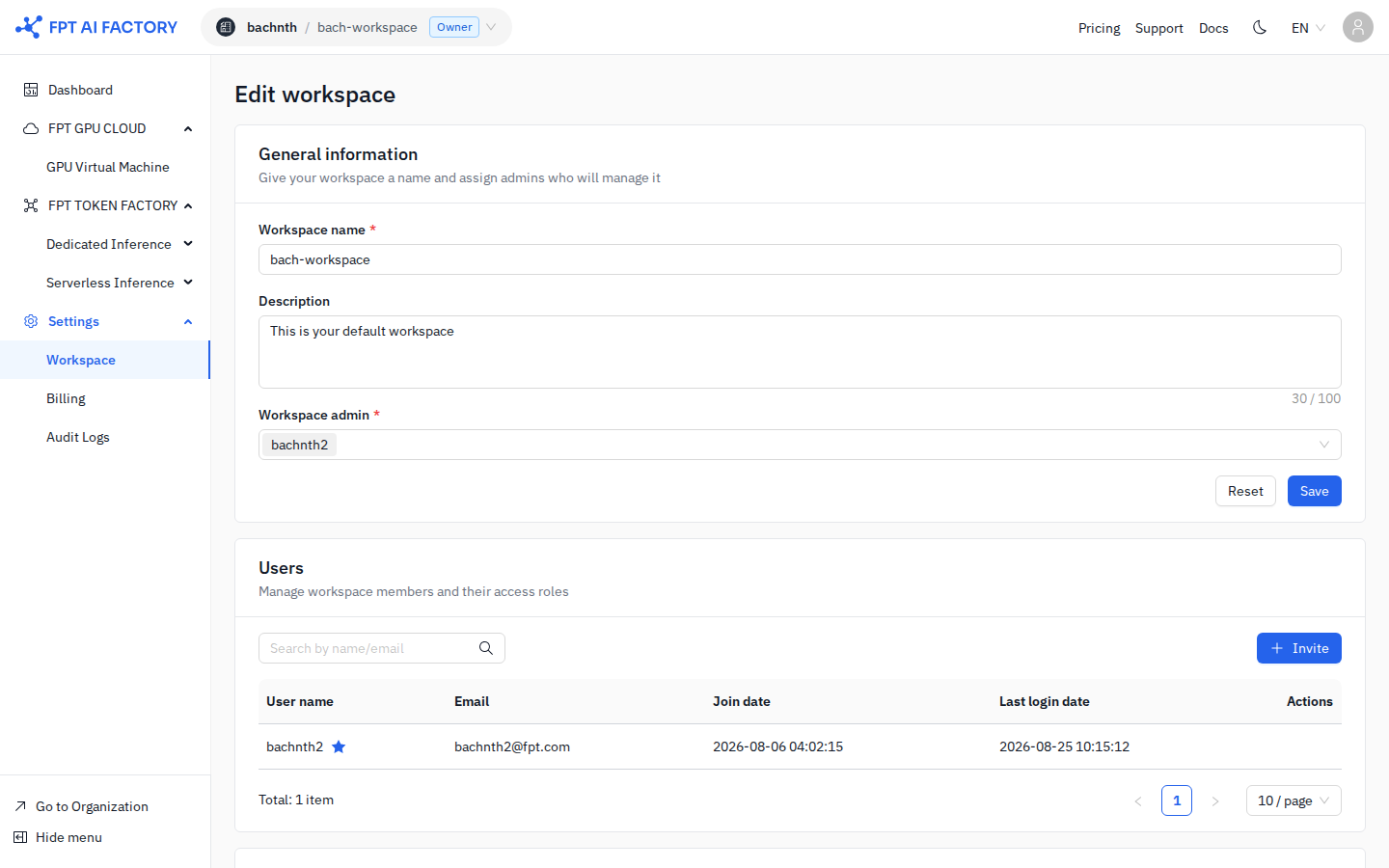
Workspace Admins can invite users directly from Workspace Settings.
To open it: navigate to your workspace, click Settings in the left sidebar, then scroll to the Users section.
Send an invitation
- Click + Invite in the Users section.
- In the Invite users panel, enter one or more email addresses in the User email(s) field. You can select existing organization members from the dropdown or type a new email address.
- Click Send invites.
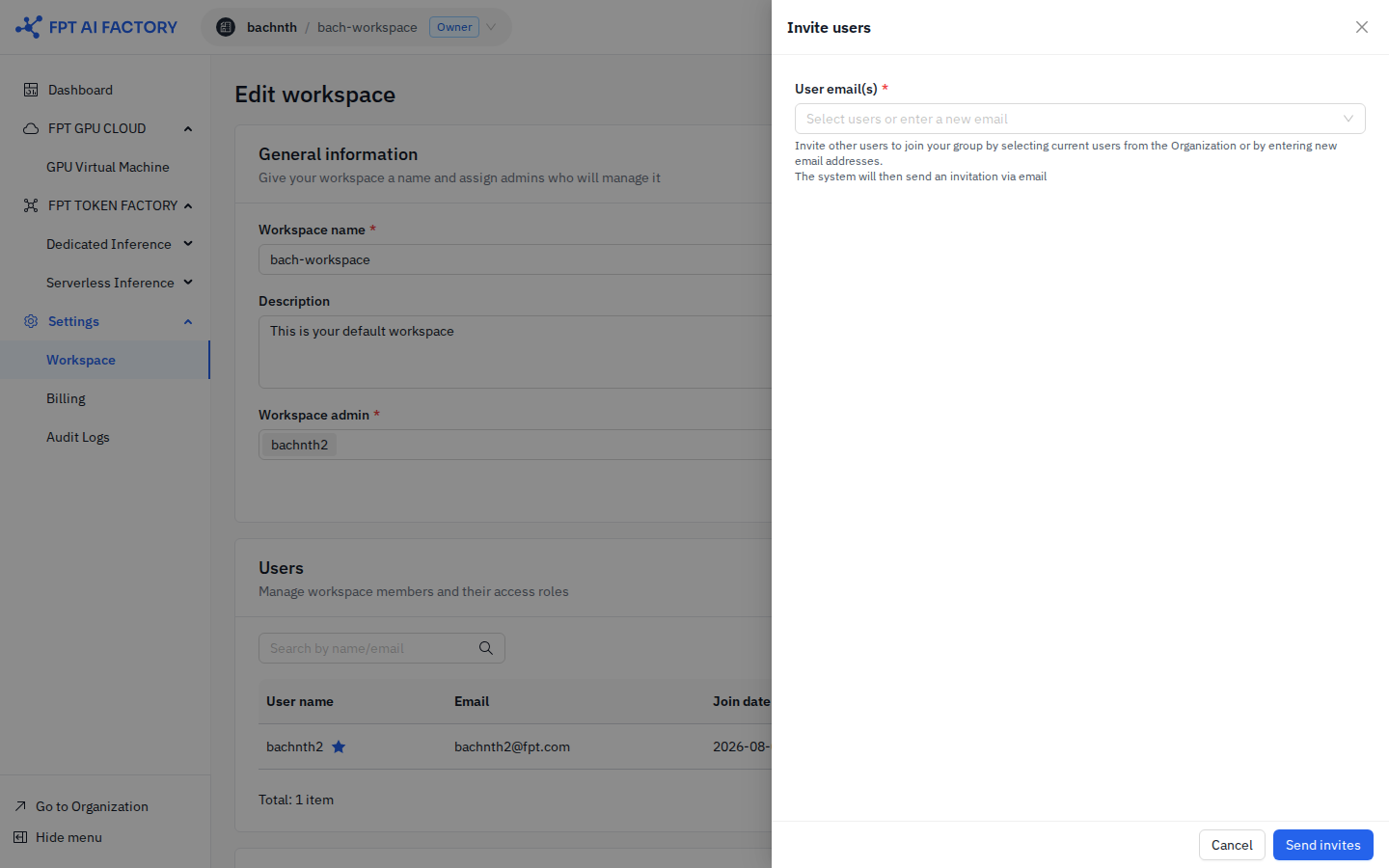
The system sends an invitation email to each address. The invited user appears in the member list with an INVITING status until they accept.
Accepting an invitation
The Invitations page shows all pending workspace invitations sent to your account.
To open it: click Go to Organization at the bottom of the left sidebar, then select Invitations in the Settings menu.
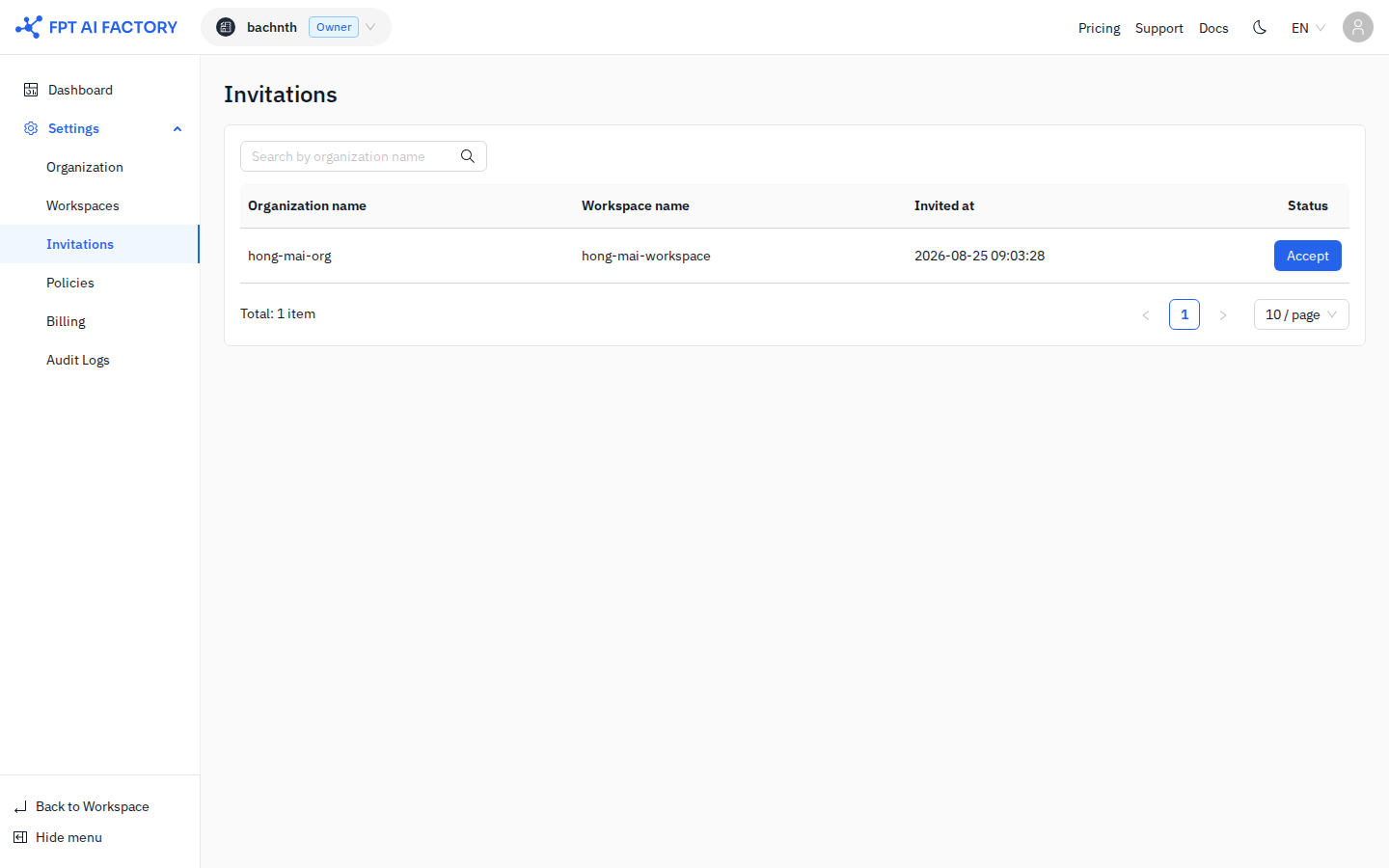
| Column | Description |
|---|---|
| Organization name | The organization that invited you |
| Workspace name | The specific workspace within that organization |
| Invited at | Date and time the invitation was sent |
| Status | Accept button if pending; Access link once accepted |
Use the search box to filter by organization name.
To accept:
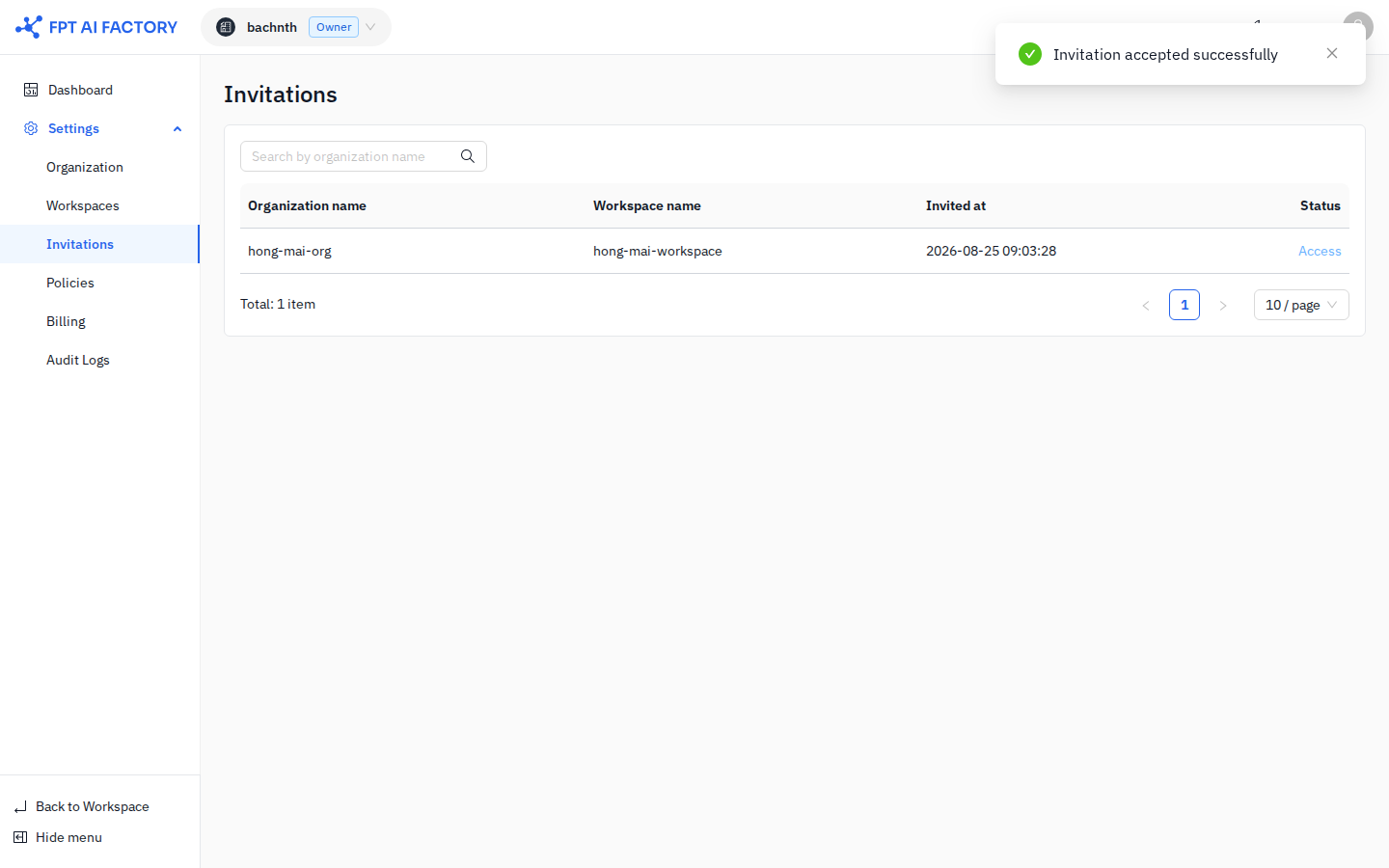
- Find the invitation row and click Accept.
- A "Invitation accepted successfully" toast appears.
- The row's status changes to Access, which links directly to the workspace.
Invitations expire after 24 hours. Only a Workspace Admin or Organization Owner can change your role after you join.
What's next
- Workspaces — manage workspace members, roles, and services.
- Organization — manage organization-level settings and members.
- Policies — control what members can do within your organization.