Policies
Policies control what actions are allowed or denied in a Workspace. Each Policy contains one or more statements — each statement specifies a Service, a region, an effect (Allow or Deny), and a list of actions. You attach Policies to Workspaces to set the maximum permissions Members can exercise.
By default, Workspace Members can use all enabled services freely. Create a Policy when you need to restrict specific actions — for example, allowing read-only access to a service, or blocking resource creation in a sensitive region.
Only the Organization Owner can create, edit, and delete Policies.
To open it: click Go to Organization at the bottom of the left sidebar, then select Policies in the Settings menu.
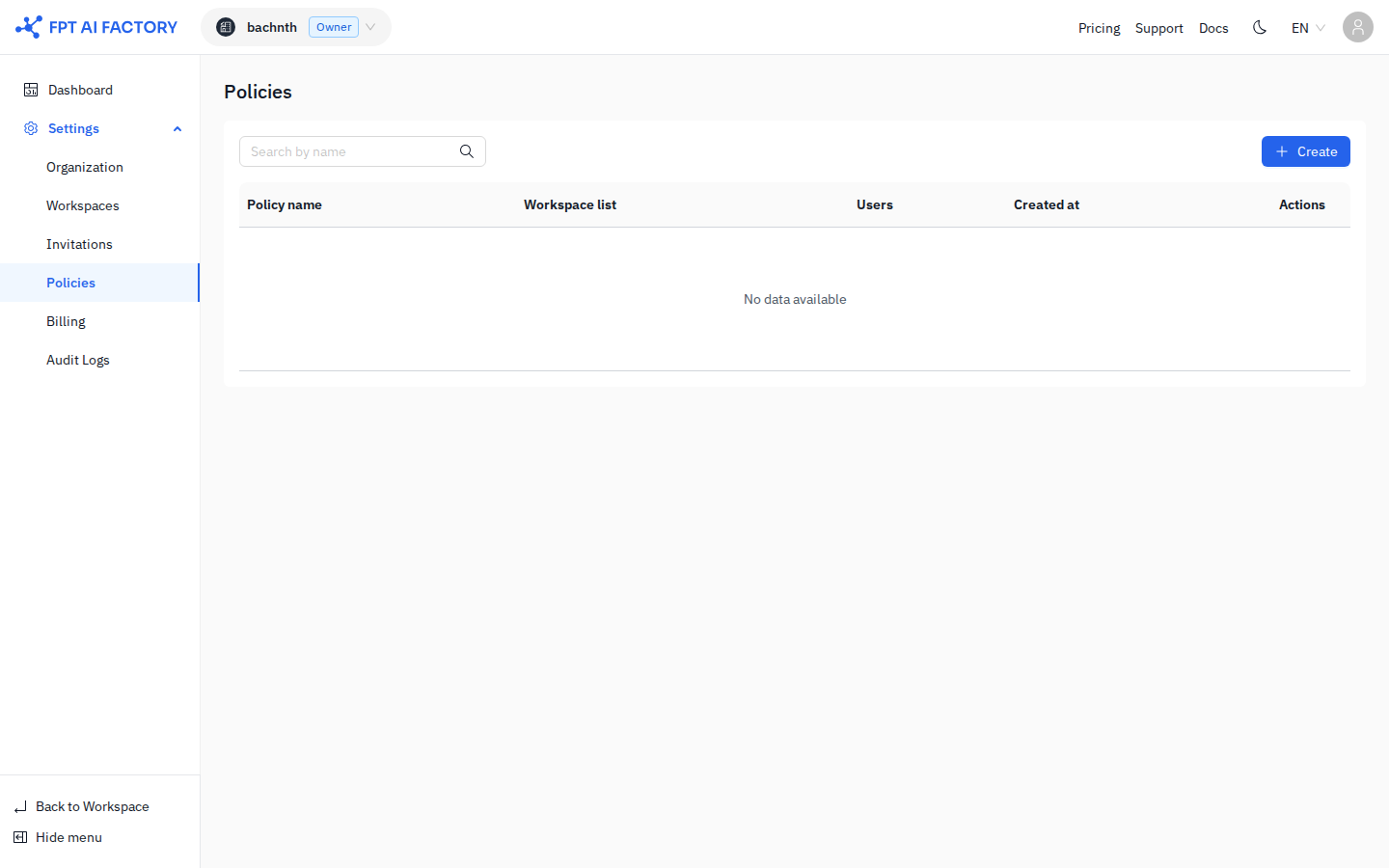
Policy list
The list shows all Policies in your Organization with the following columns:
| Column | Description |
|---|---|
| Policy name | Name of the policy |
| Workspace list | Workspaces this policy is attached to |
| Users | Number of users this policy applies to |
| Created at | Date the policy was created |
| Actions | Edit (pencil) and Delete (trash) icons |
Use the search box to filter by policy name. Click + Create to create a new Policy.
Create a policy
- Click + Create. The Create policy drawer opens on the right.
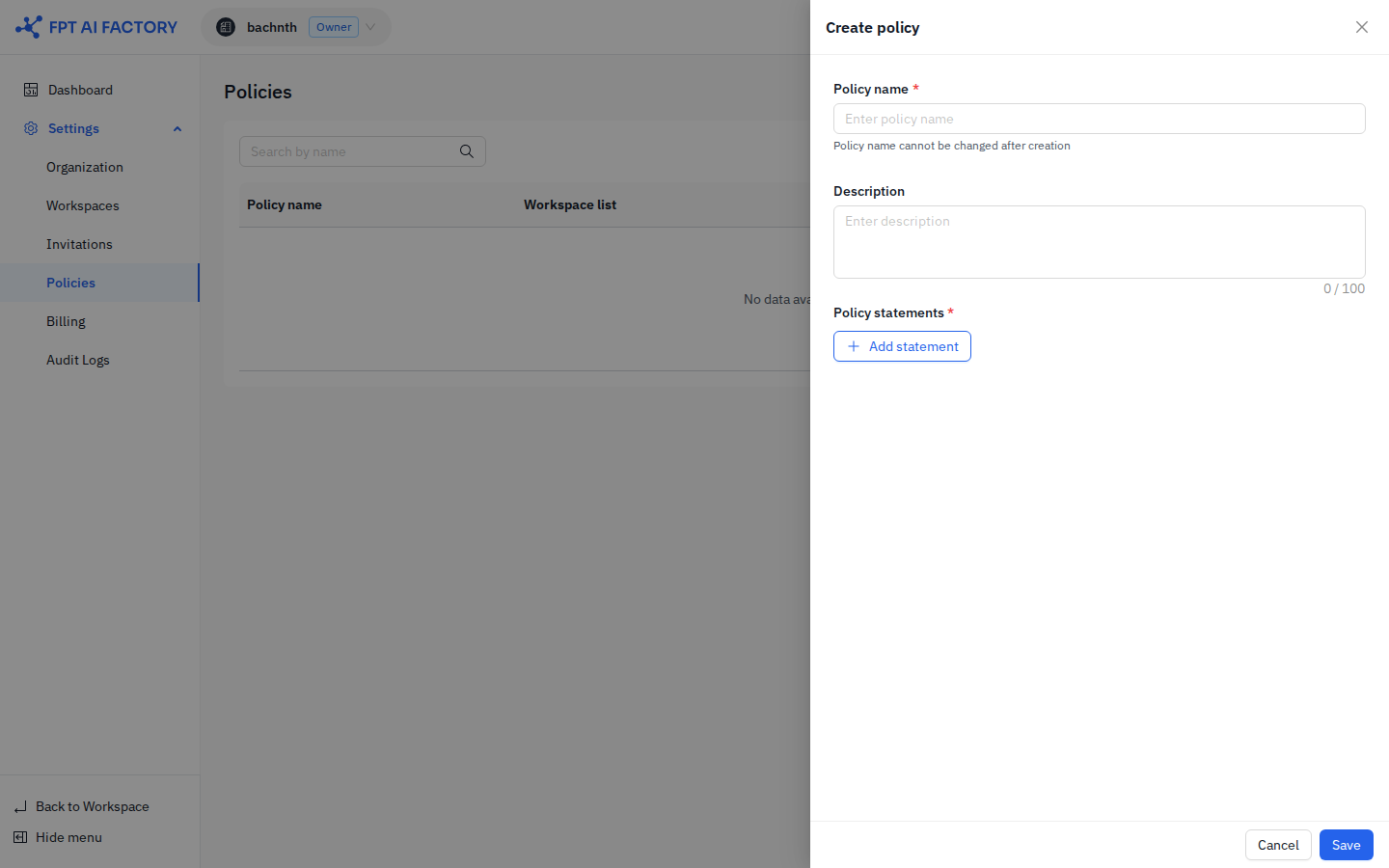
- Enter a Policy name.
- Required. Allowed characters: A–Z, a–z, 0–9,
-,_. No spaces. - The name cannot be changed after creation.
- Required. Allowed characters: A–Z, a–z, 0–9,
- Optionally enter a Description (maximum 100 characters).
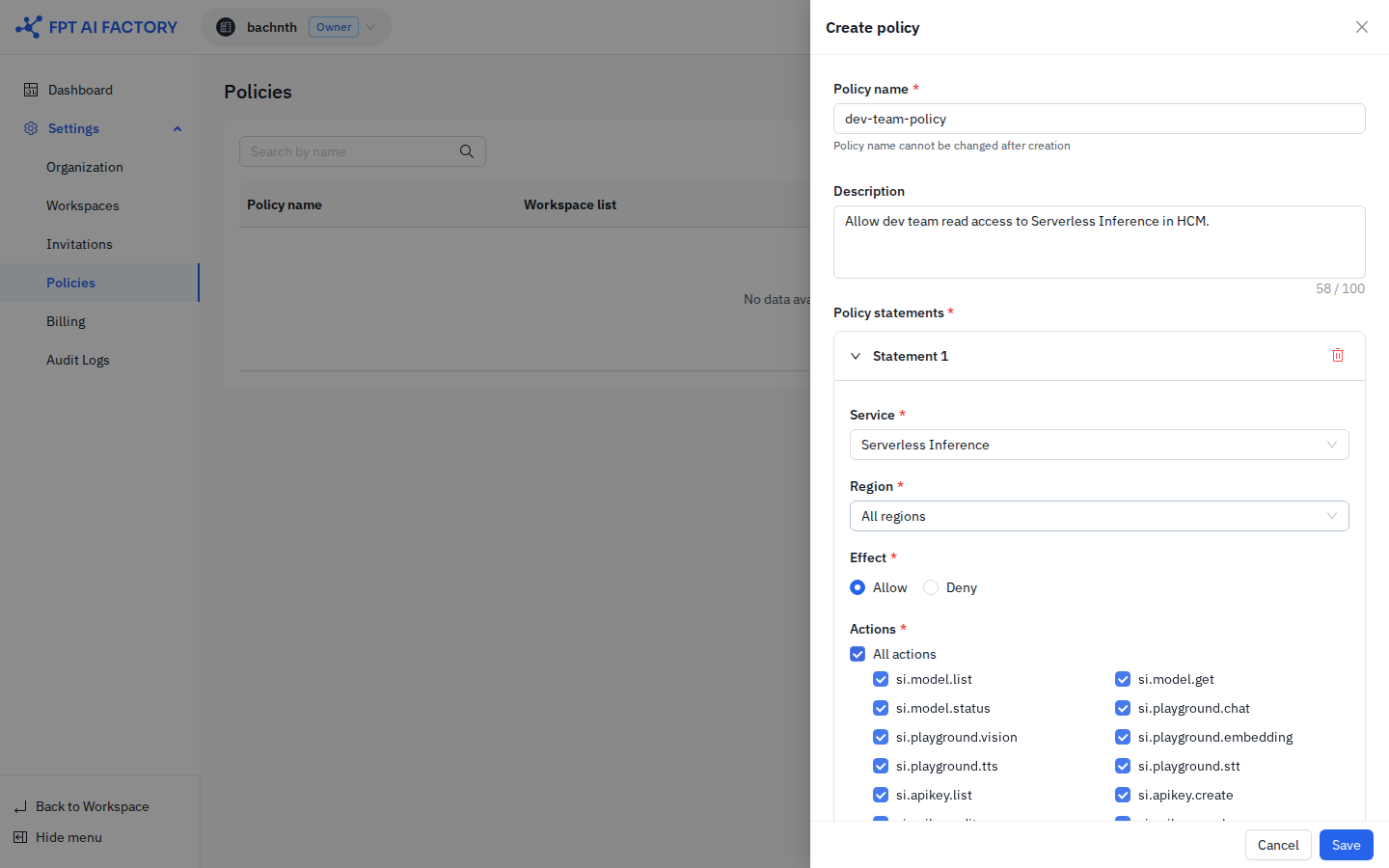
- Click + Add statement to add at least one Policy statement (see below).
- Click Save.
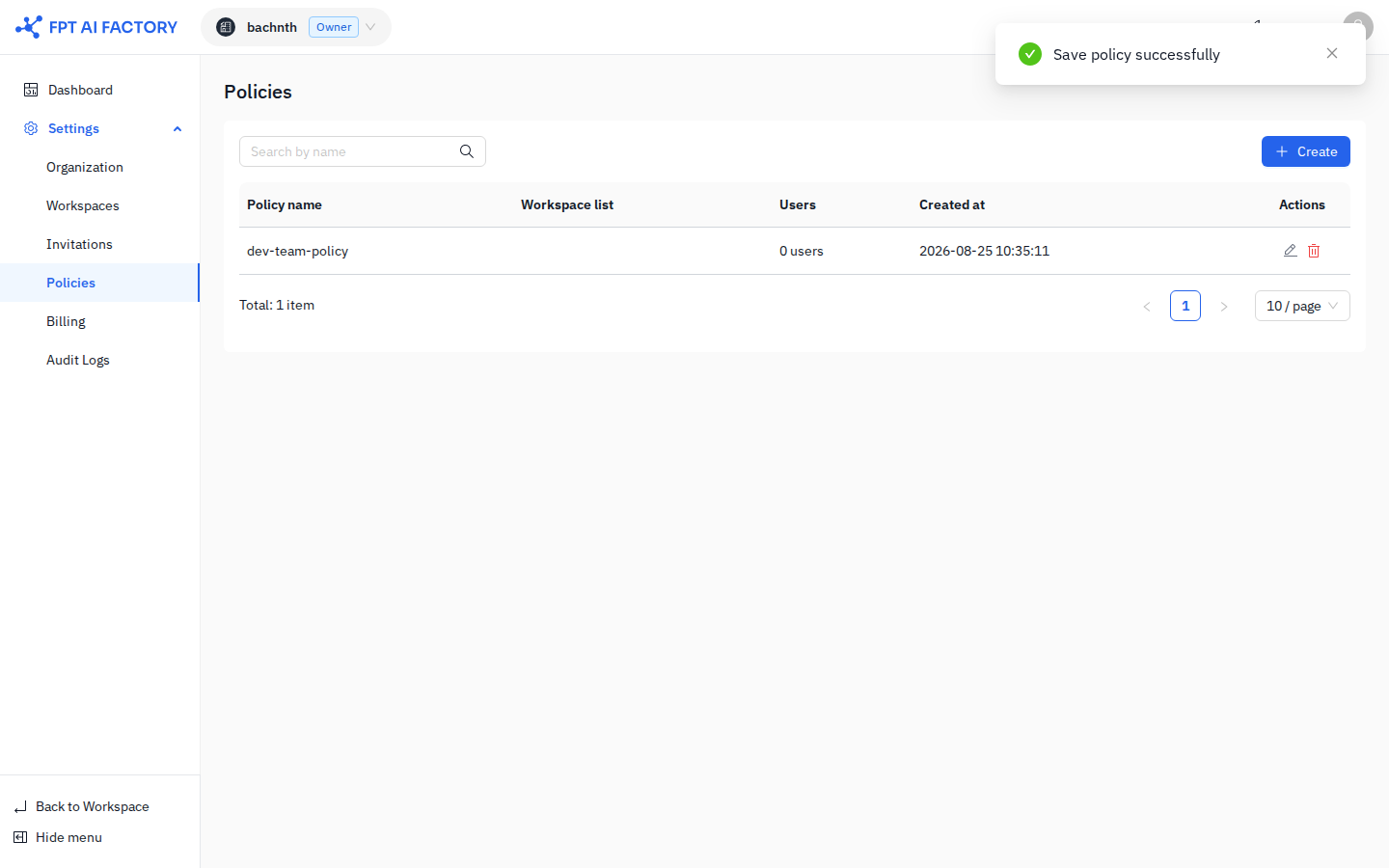
After saving, a "Save policy successfully" confirmation appears and the new policy appears in the list.
Policy statements
Each statement defines one rule. A policy must have at least one statement.
| Field | Details |
|---|---|
| Service | The service this statement applies to: GPU Virtual Machine, Dedicated Inference, or Serverless Inference. Changing the service resets Region and Actions. |
| Region | The region this statement applies to. Select All regions to cover all available regions for the service. |
| Effect | Allow permits the selected actions. Deny blocks them. Deny takes priority over Allow when statements overlap. |
| Actions | Select All actions to apply the statement to every action for the service, or select individual actions. At least one action is required. |
Click + Add statement to add more statements. Click the delete icon on a statement to remove it — at least one statement must remain.
How policies are evaluated
When a user performs an action, the portal evaluates all policies attached to that user and to their current Workspace. The decision follows this precedence:
| Priority | Rule |
|---|---|
| 1 | Explicit Deny — any Deny in any statement of any policy blocks the action |
| 2 | Explicit Allow — at least one Allow (with no Deny overriding it) permits the action |
| 3 | Implicit Deny — no Allow matched at all, action is blocked by default |
Deny always wins. If no Deny exists, Allow wins. If neither, the action is denied.
Example
A Workspace policy has two statements:
- S1: Allow
vm:create,vm:get,vm:listin All regions - S2: Deny
vm:createin region Tokyo
When a user tries to create a VM in Tokyo, both statements match. Because S2 is a Deny, the result is Deny. The user can still create VMs in other regions where no Deny applies.
Edit a policy
Click the Edit (pencil) icon on a policy row to open the Edit policy drawer. The Policy name is read-only and cannot be changed. Modify the description or statements as needed, then click Save.
Policy changes apply immediately to all Workspaces and users currently using the policy.
Delete a policy
Click the Delete (trash) icon on a policy row to open the confirmation dialog, then click Delete to confirm.
A policy that is currently attached to any Workspace or assigned to any user cannot be deleted. Detach it from all Workspaces first, then delete it.
Attach a policy to a workspace
Policies are assigned to Workspaces from the Permission boundaries section in the Workspace edit page.
- Go to Settings → Workspaces.
- Click Edit on a Workspace.
- Scroll to the Permission boundaries section.
- Select the Policies to attach to this Workspace.
- Click Save.
See Workspaces for full Workspace configuration steps.
What's next
- Workspaces — attach policies and set spending limits per Workspace.
- Audit Logs — track policy creation and attachment events.