Using the Cloud Advisor Dashboard
This guide describes how to read the Dashboard overview and perform basic operations such as refreshing data and downloading reports.
Prerequisites
- Signed in to FPT Cloud Console Portal
- Access to Cloud Advisor on the Tenant
Access the Dashboard
In the left navigation menu, select Cloud advisor → Dashboard.
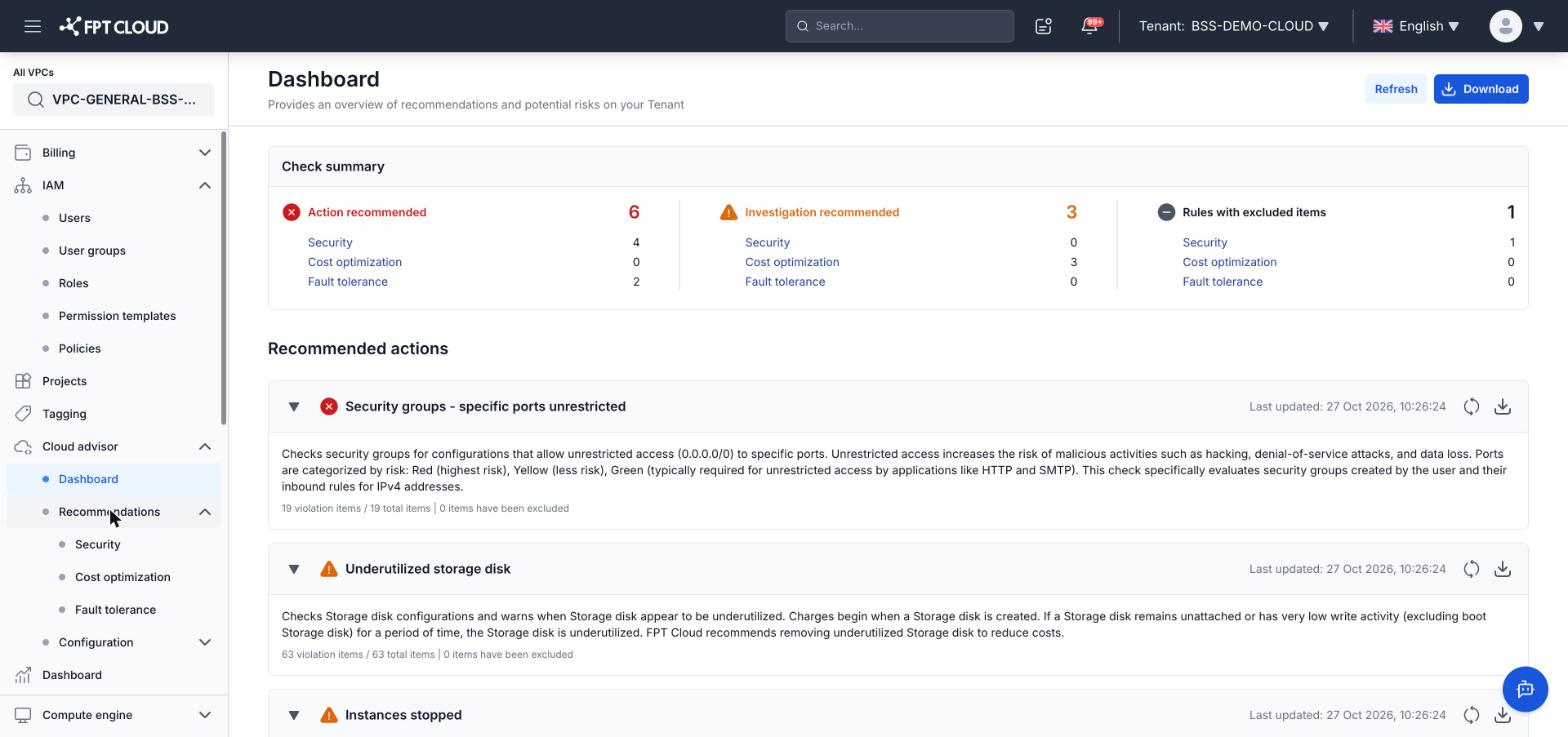
Reading the Check summary
The Check summary panel at the top of the page shows the number of rules per priority level:
| Column | Content |
|---|---|
| Action recommended | Rules requiring immediate action (red). Broken down by Security, Cost optimization, Fault tolerance |
| Investigation recommended | Rules requiring further investigation (yellow). Broken down by category |
| Rules with excluded items | Rules that contain items excluded from the check |
Viewing the Recommended actions list
The Recommended actions section lists all rules with current violations, ordered by priority. Each rule displays:
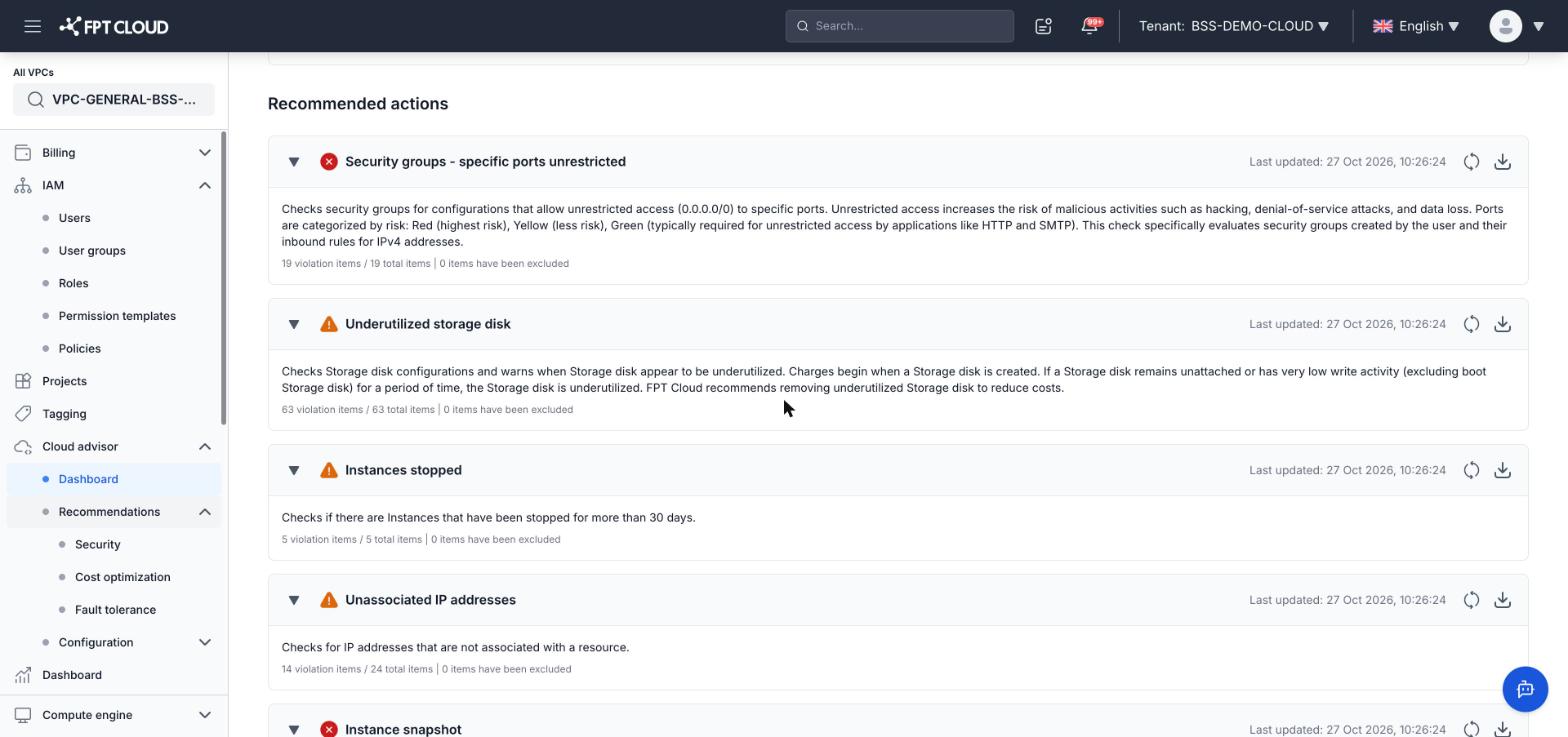
- Rule name and priority level (Action / Investigation recommended)
- Description — what the rule checks and why
- Violation count — for example:
19 violation items / 19 total items | 0 items have been excluded - Last updated timestamp
- Refresh button (🔄) — refreshes data for that specific rule
- Download button (⬇) — downloads the violation list for that rule as a file
Refreshing all data
Click the Refresh button in the top-right corner of the page to update all check data.
Downloading the consolidated report
Click the Download button in the top-right corner of the page to download a consolidated report of all rules as a file.
Viewing details by category
To see violation details per category, select Recommendations in the left menu and choose one of:
- Security — security checks
- Cost optimization — cost reduction checks
- Fault tolerance — resiliency checks