Backup Report
The Report tab lets you track backup usage per target across all VPCs. It provides three functions:
- Get Report — view backup statistics on screen.
- Export to Excel — download the current report as an Excel file.
- Auto report job — have the system generate a report and email it on a schedule.
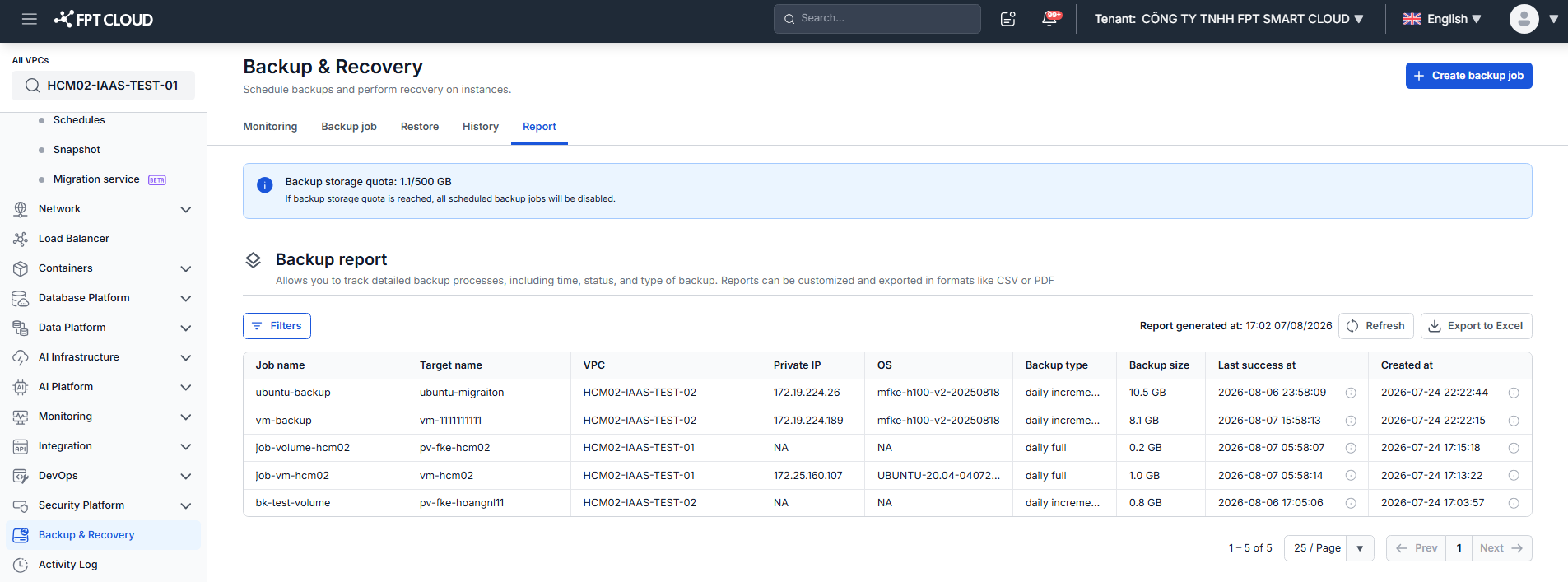
Each report row includes Job name, Target name, VPC, Private IP, OS, Backup type, Backup size, Last success at, and Created at.
To open the Report tab: in the menu, select Backup & Recovery, then open the Report tab.
1. Get Report — view the report
Step 1: In the Backup report section, click Get Report.
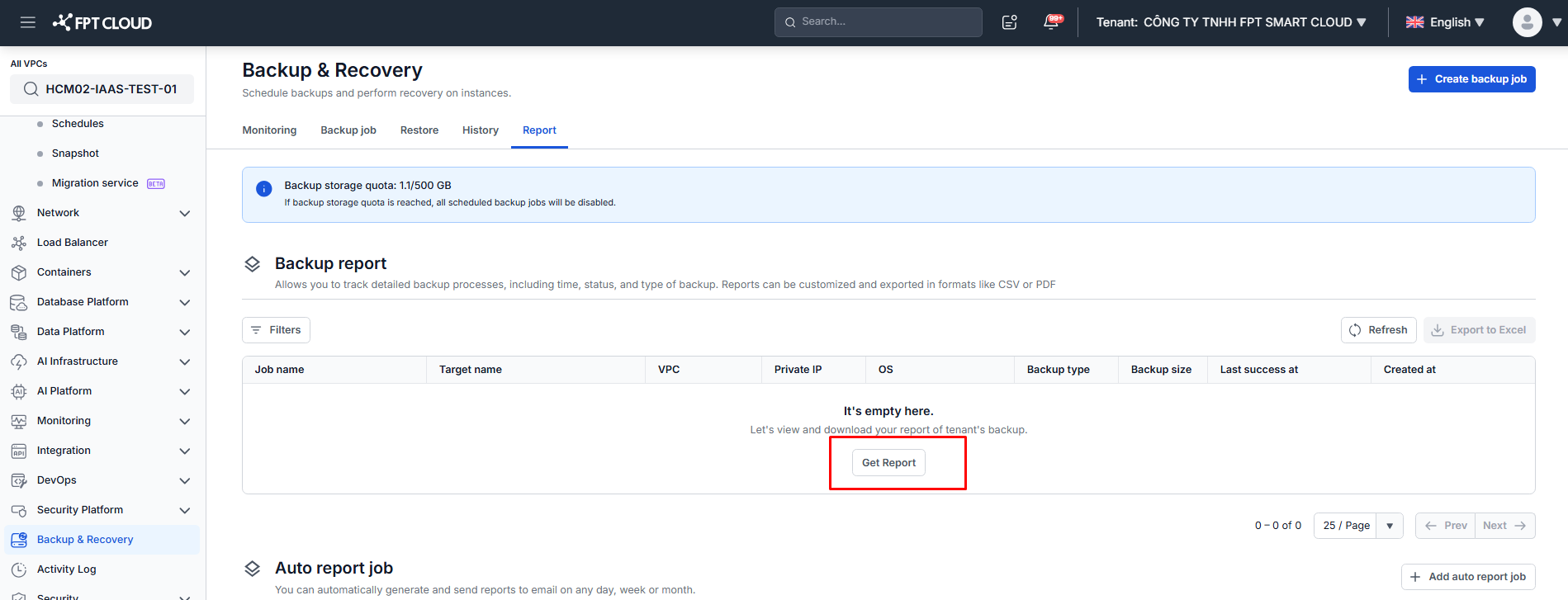
Step 2: In the Report filter panel, select the VPC and the Backup type to retrieve, then click Show results.
| Field | Description |
|---|---|
| VPC | One or more VPCs to include in the report. |
| Backup type | All, Daily full backup, Daily incremental Weekly active full, or Daily incremental Monthly active full. |
Step 3: The report is displayed together with the time it was generated. Click Refresh to regenerate it with the latest data, or Filters to change the selection.
2. Export to Excel — download the report
Once results are displayed, Export to Excel becomes active. Click it to download the current report in Excel format.
The exported file contains the same columns shown on screen, for the VPCs and Backup type selected in the filter.
3. Auto report job — schedule a report by email
Instead of exporting manually, you can have the system generate a report and send it to an email address on a daily, weekly, or monthly basis.
Step 1: In the Auto report job section, click Add auto report job.
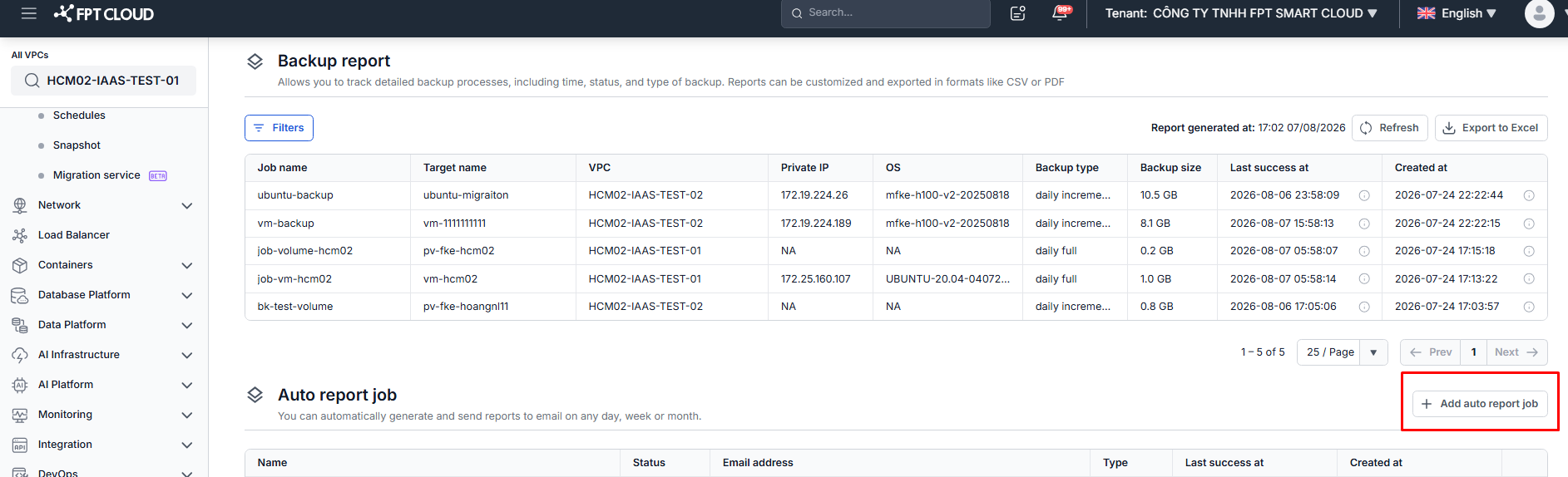
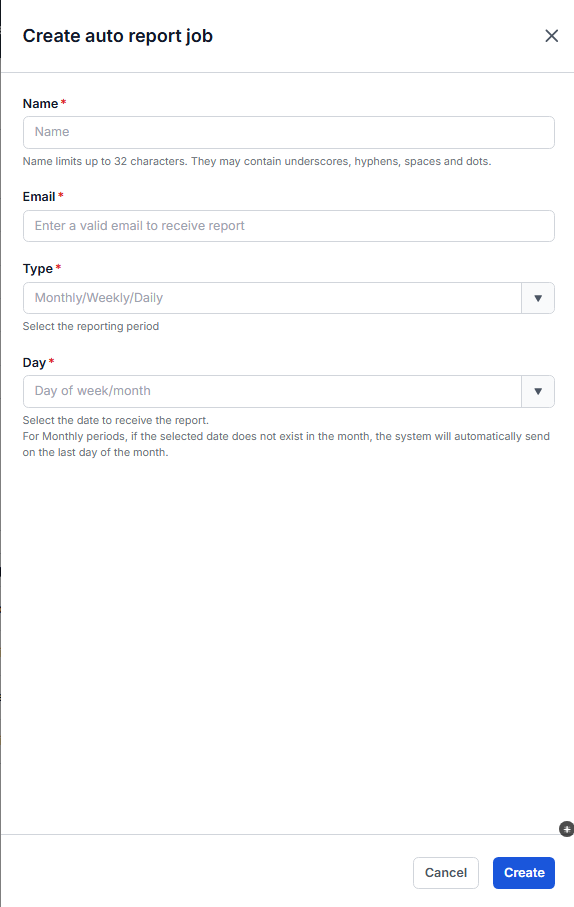
Step 2: Fill in the following fields, then click Create.
| Field | Description |
|---|---|
| Name (required) | Name of the report job. Up to 32 characters; may contain underscores, hyphens, spaces and dots. |
| Email (required) | Email address that receives the report. |
| Type (required) | Reporting period: Monthly, Weekly, or Daily. |
| Day (required) | Day of week/month to receive the report. For Monthly periods, if the selected date does not exist in that month, the system sends the report on the last day of the month. |
Step 3: Manage existing report jobs in the Auto report job list. Each job shows its Status, Email address, Type, Last success at and Created at. Use the Action menu to Modify, Disable, or Delete a job.