Delete Restore Point
Overview
While using FPT Backup, you can delete the Restore Points of a target (VM or Volume) to save storage capacity and clean up backup copies that are no longer needed.
The delete operation removes all Restore Points of a single target at the same time. Once deleted, those Restore Points cannot be recovered.
Prerequisites
- Logged in to the FPT Cloud Portal.
- The Backup service for the VPC is in Enable status.
- Your account has permission to delete Restore Points on the corresponding Backup Job.
- The target (VM/Volume) has at least one Restore Point successfully created.
Steps
Step 1: Select a target and open the Delete action
- In the menu, select Backup & Recovery.
- Open the Restore tab to view the list of protected targets.
- Identify the target name whose Restore Points you want to delete.
- In the Action column of that target, select Delete all restore point.
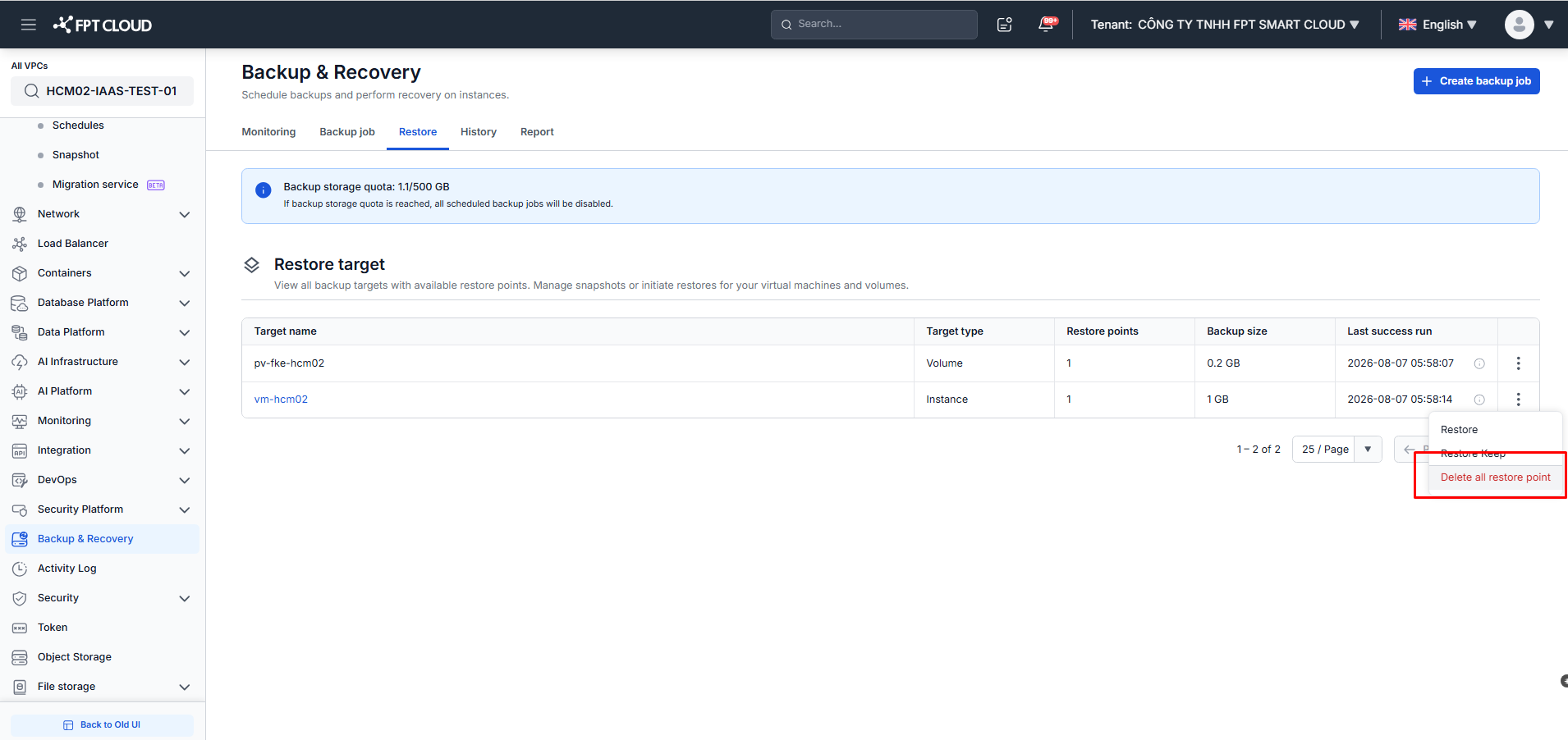
The Restore target list shows the Target type, number of Restore points, Backup size, and Last success run of each target, so you can confirm you selected the right one before deleting.
Step 2: Confirm deletion
- The Delete all restore points dialog appears. It shows the target name and how much backup storage quota will be freed, and warns that the action is irreversible.
- Type
deleteinto the confirmation field to unlock the action. - Click Delete all restore points.
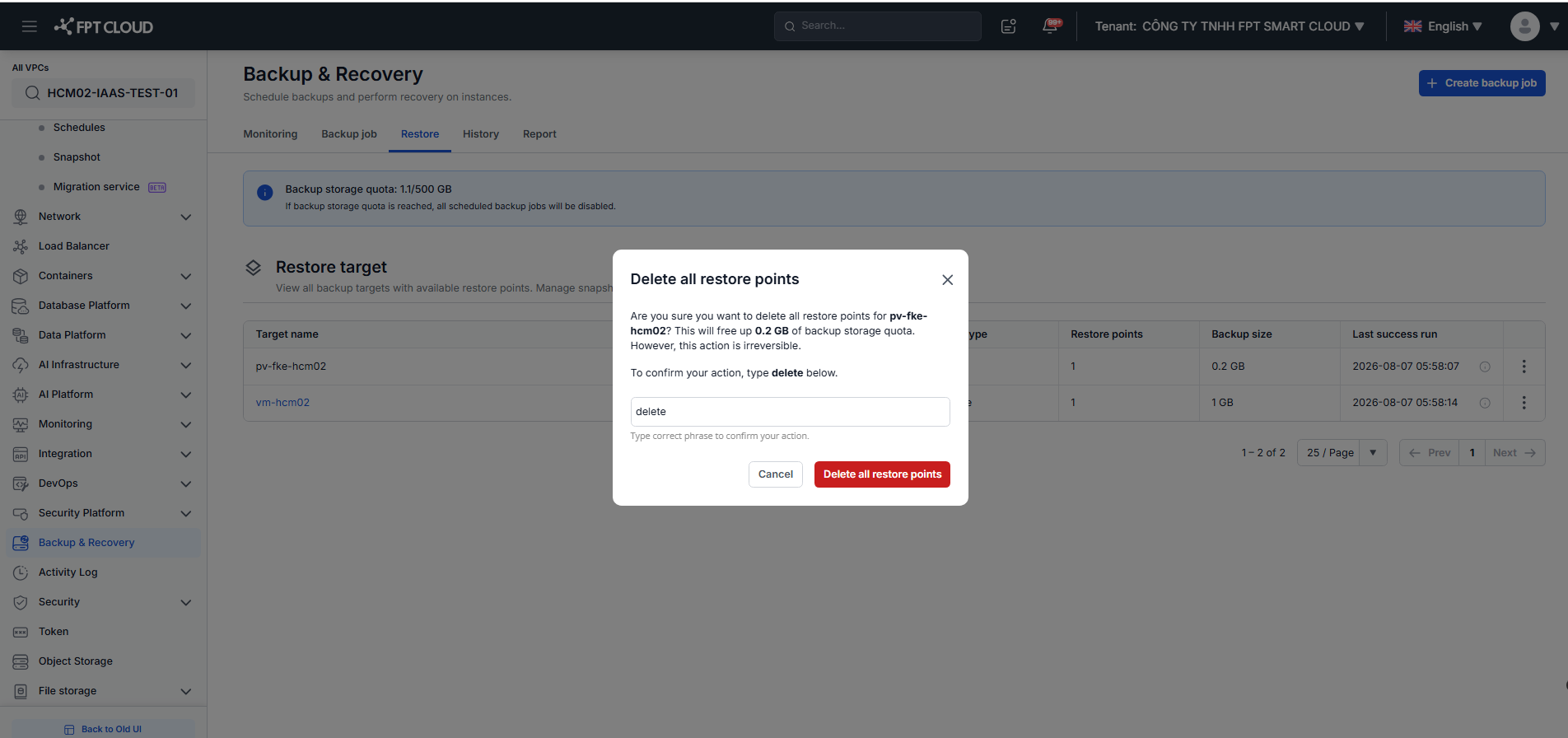
The system will then delete all Restore Points of the selected target. Progress and results are updated on the Backup & Recovery screen.
Important Notes
- This action removes all Restore Points of a target at once.
- Deleted Restore Points cannot be recovered.
- After deletion, the Backup Job continues to run on schedule unless it is Disabled; new Restore Points will be created on subsequent runs.
- If you want to stop backing up this target entirely, Disable or Delete the corresponding Backup Job (see Manage Backup Jobs).