Restore a VM from Restore Points
Overview
VMs protected by a Backup Job have restore points created periodically at times when the system is running stably. If the system encounters a problem, you only need to restore the VM to the most recent stable point.
Restore vs Restore Keep
A VM has two restore actions, both in the same Action menu on the Restore tab. They do very different things:
| Action | What it does | Result |
|---|---|---|
| Restore | Overwrites the data of the running VM with the data from the selected restore point. | The same VM, rolled back to that point in time. Its name, IPs and configuration stay unchanged. Data written after the restore point is lost. |
| Restore Keep | Creates a brand new VM from the selected restore point. | A new VM with the same disk data. The running VM is not touched. |
This page covers Restore. For Restore Keep, see Restore Keep a VM from Restore Points.
Steps
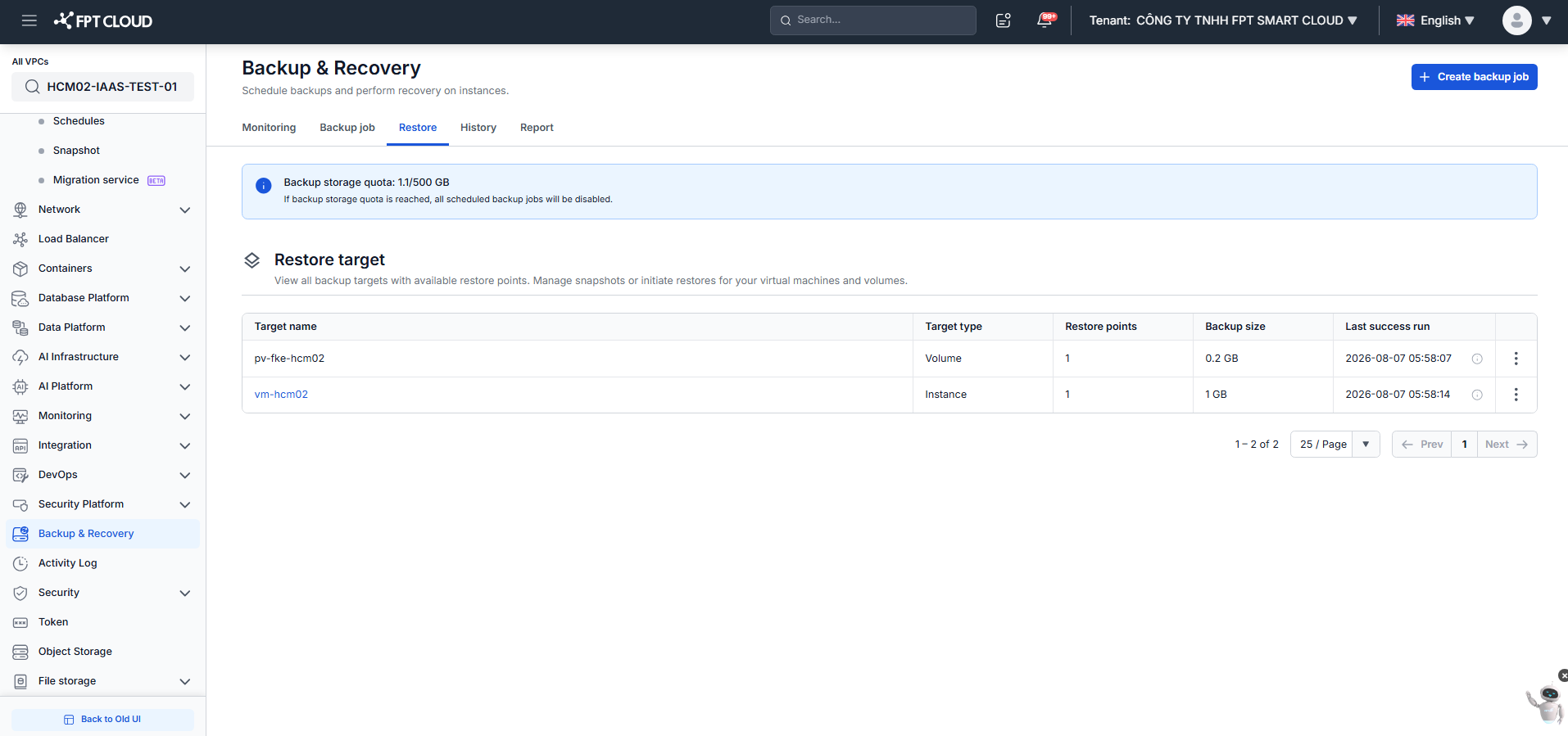
Step 1: In the menu, select Backup & Recovery. Open the Restore tab. This displays the targets currently being protected, their Target type, the number of Restore points, Backup size, and Last success run.
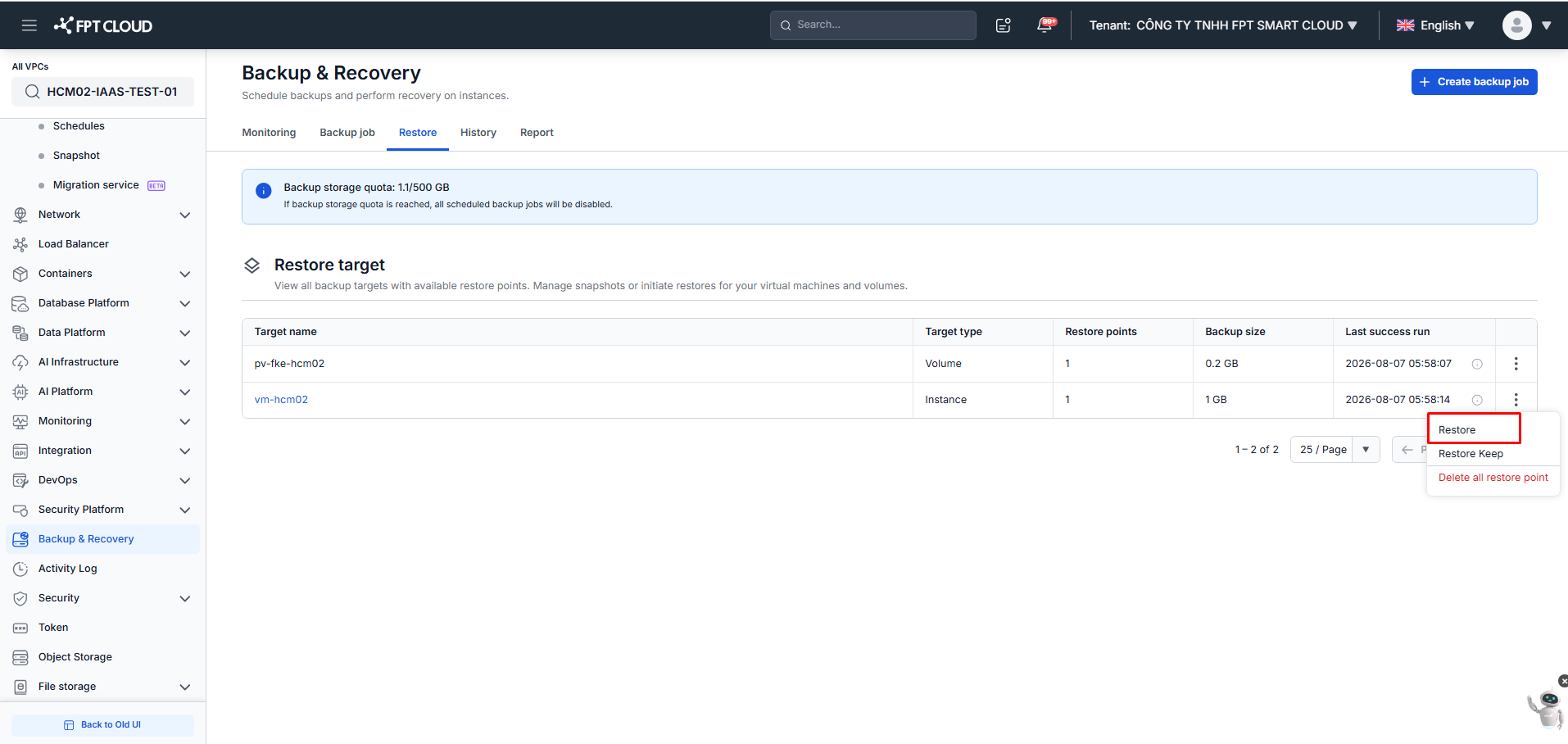
Step 2: In the Action column of the VM to restore, select Restore.
Step 3: The Instance restore panel displays the New instance name and the list of Restore points for that VM. Select the Restore point to restore to, then click Restore instance.
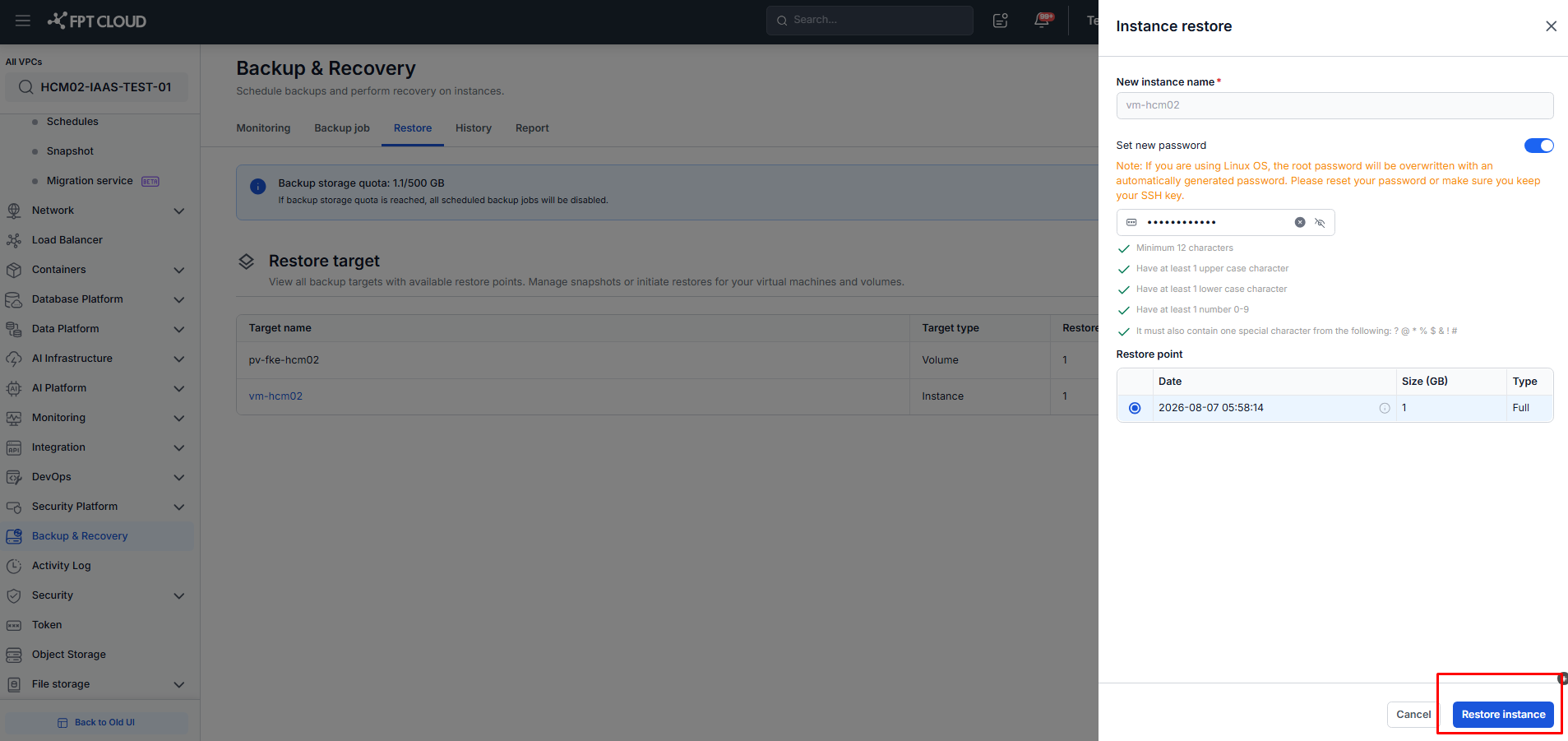
If you turn on Set new password, the administrator password of the VM is overwritten with the password you enter.
The password must be at least 12 characters and contain an upper case letter, a lower case letter, a number, and one special character from ? @ * % $ & ! #.
Step 4: A confirmation dialog appears. Select Restore instance to proceed with restoring the VM.
See also
- Restore Keep a VM from Restore Points
- Delete Restore Point — remove all restore points of a target.