Restore a Volume from Restore Points
Volumes protected by a Backup Volume job have restore points created on the job schedule. From a restore point you can create a new volume containing the data as it was at that time.
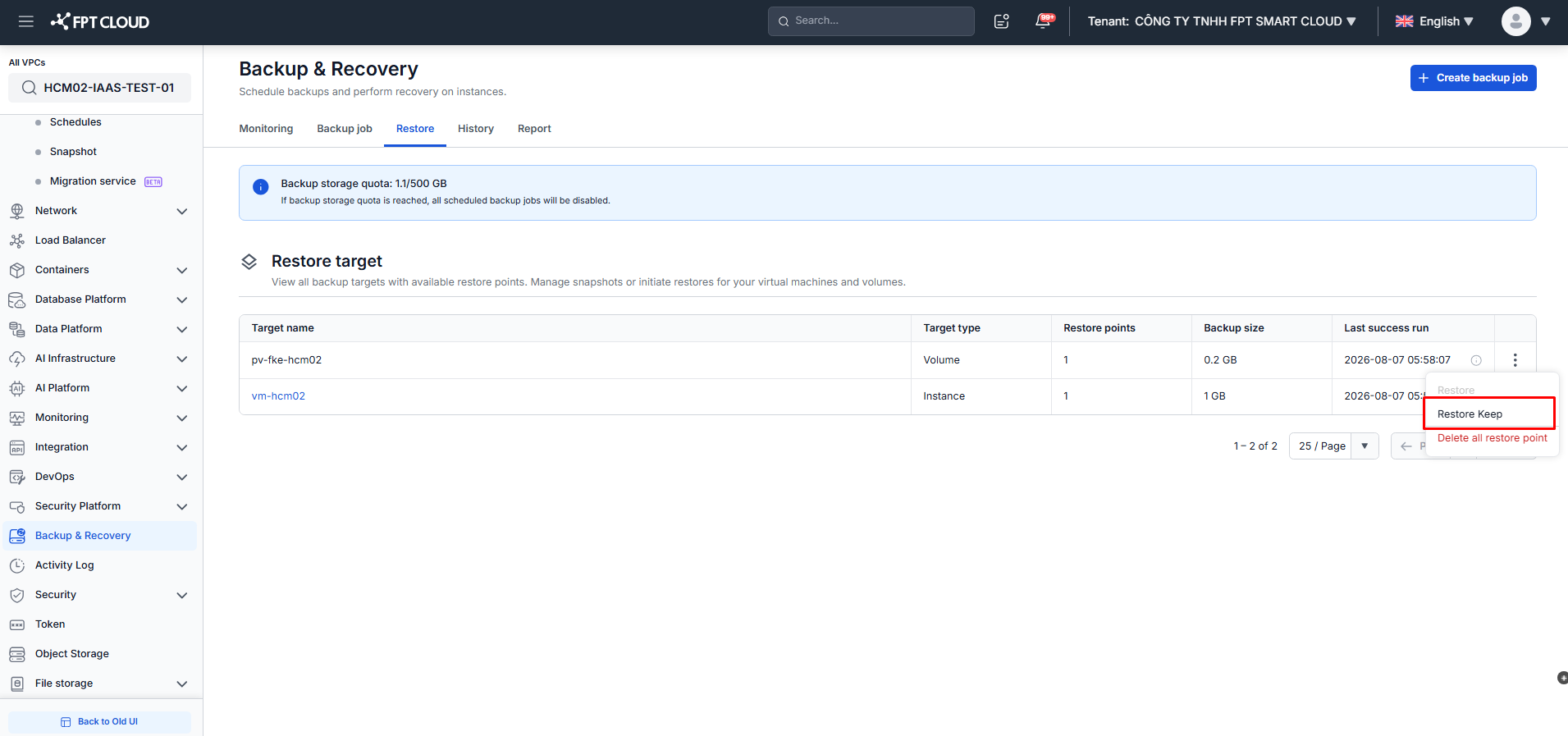
For volumes, only Restore Keep is available — a restore point is always restored into a new volume. The original volume is never overwritten. This differs from a VM, which can also be restored in place with the Restore action.
Prerequisites
- Logged in to the FPT Cloud Portal.
- The Backup service for the VPC is in Enable status.
- The volume has at least one Restore point successfully created.
Steps
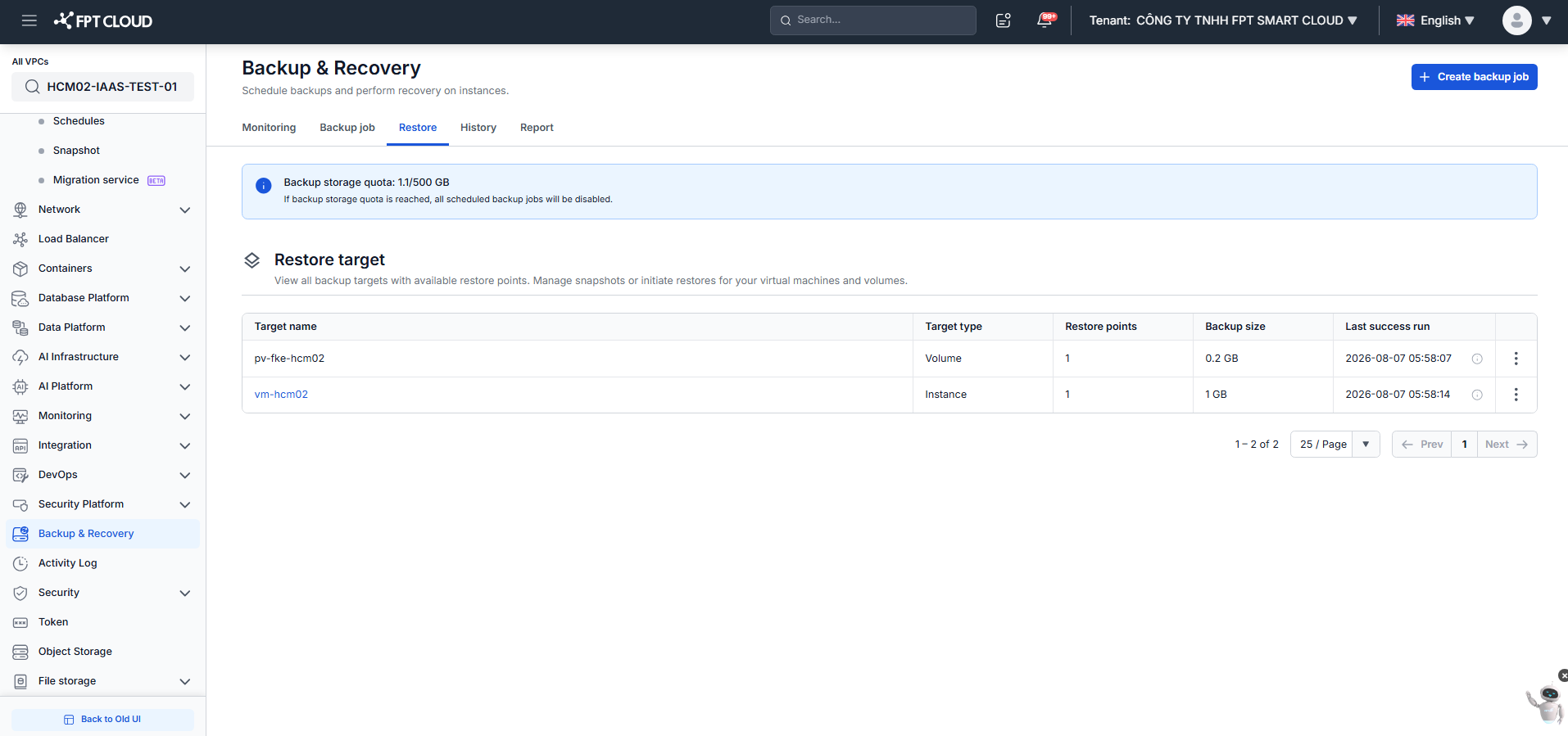
Step 1: In the menu, select Backup & Recovery. Open the Restore tab. Volumes appear in the list with Target type = Volume.
Step 2: In the Action column of the volume, select Restore Keep.
Step 3: The New volume from restore point panel appears. It shows the Original volume details (current name and size) and asks for the new volume details:
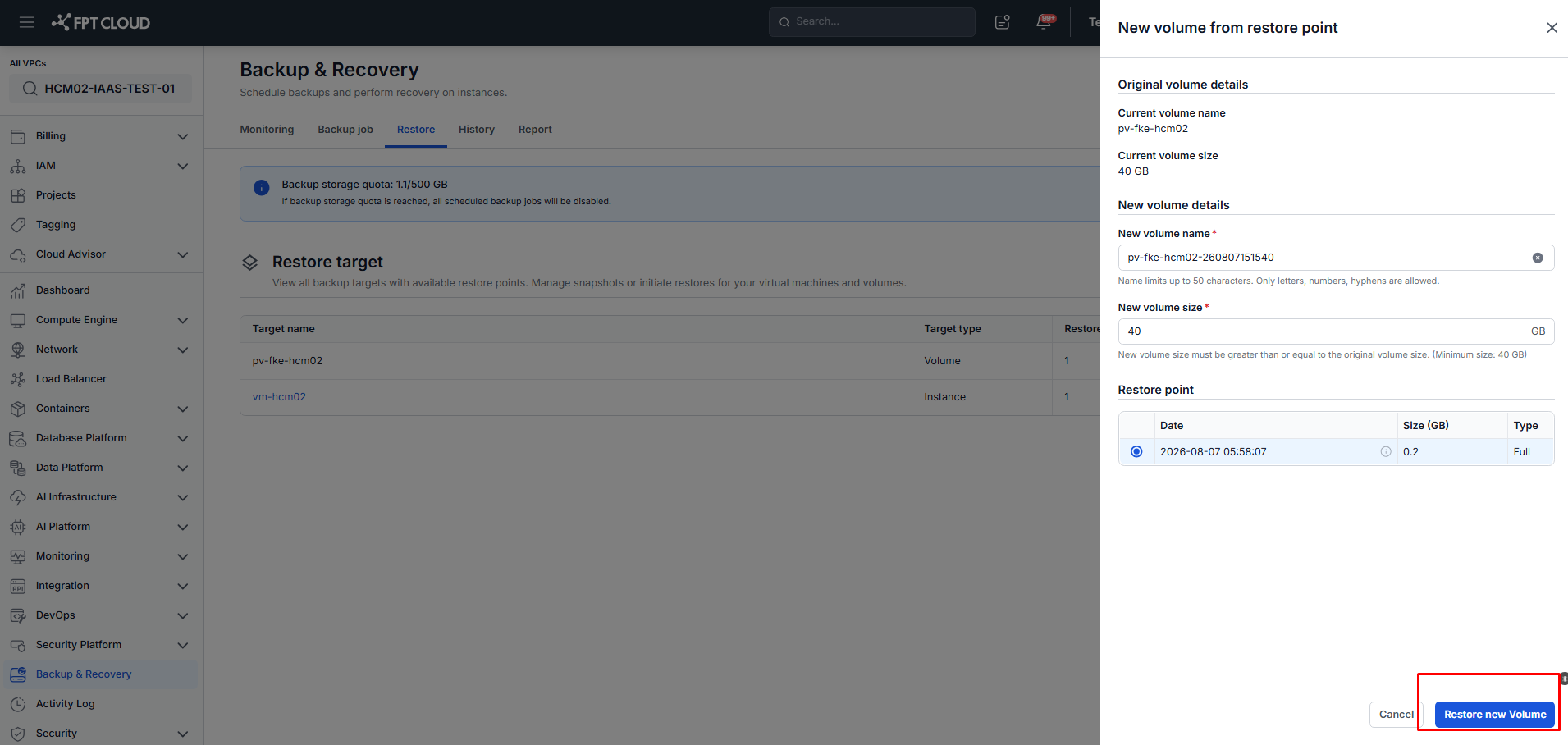
| Field | Description |
|---|---|
| New volume name (required) | Name of the new volume. Up to 50 characters; only letters, numbers and hyphens are allowed. |
| New volume size (required) | Size of the new volume in GB. Must be greater than or equal to the original volume size. |
| Restore point (required) | The restore point to use as the data source. The table shows its Date, Size (GB) and Type (Full or Incremental). |
Step 4: Click Restore new Volume to create the volume.
Important Notes
- Restoring always creates a new volume; the original volume is not modified.
- The new volume cannot be smaller than the original volume.
- The new volume is not attached to any VM automatically — attach it from Compute Engine after it is created.
- To remove backup copies of a volume, see Delete Restore Point.