Use Global Search
This guide walks you through searching for resources, viewing full results, and exporting the list to an Excel file.
Before you begin
- Signed in to FPT Cloud Console Portal
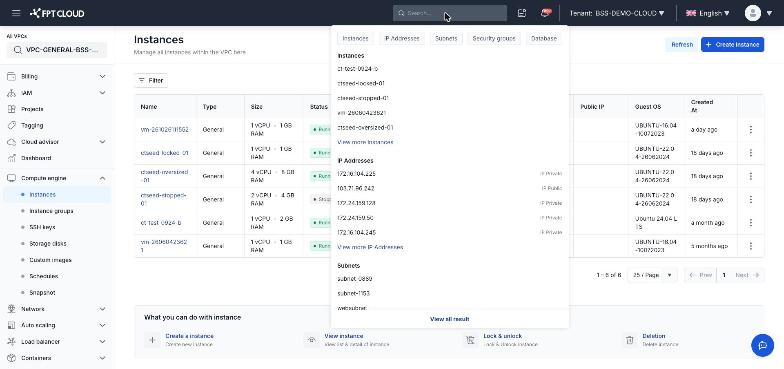
Enter a keyword
Click the search bar at the top of the FPT Cloud interface and type the name or IP address of the resource you want to find.
Select a resource type tab
Choose a tab to view results by resource type:
- Instances
- IP Addresses
- Subnets
- Security Groups
- Database
Results under each tab show the resources of that type that match your keyword.
Note: The IP Addresses tab searches both Public IPs and Private IPs, including addresses attached to an Instance's NIC.
Click a result to go to that resource's detail page. If the resource has no detail page, the system navigates to the resource type's list screen.
View all results
Click View all result to open the full results screen showing every match.
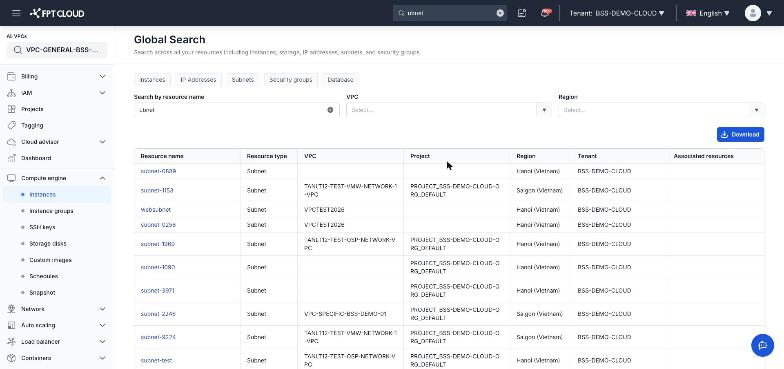
Filter results
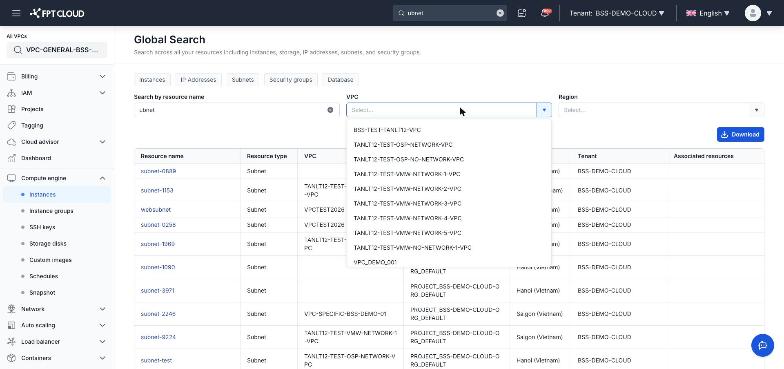
On the full results screen, narrow the list using:
| Filter | Description |
|---|---|
| VPC | Show only resources in the selected VPC |
| Region | Show only resources in the selected Region |
| Search by resource name | Filter further by resource name within the current results |
Export the list (optional)
Click Download to download the results as an Excel file.

The Excel file contains 6 sheets:
| Sheet | Contents |
|---|---|
| Summary | All results (Instances, Floating IPs, Subnets, Security Groups, Database) |
| Instances | Instances from Summary |
| Floating IPs | Floating IPs from Summary |
| Subnets | Subnets from Summary |
| Security Groups | Security Groups from Summary |
| Database | Databases from Summary |
Note: Resource type sheets are empty if no matching resources appear in Summary.