Tutorial: Fill in organization info and initialize Tenant
This is the final step of onboarding — the system creates your dedicated workspace (Tenant) on FPT Cloud.
📝 Before you begin: Complete OTP verification. The Onboarding screen appears automatically after that step.
Step 1: Choose account type and fill in your details
The Welcome to FPT Cloud Portal screen shows a 2-step flow: ① Basic information → ② Review & Create.
On the Basic information step, choose your account type:
| Type | For |
|---|---|
| Individual | Individuals using FPT Cloud for personal use or testing. |
| Company | Businesses or organizations managing resources as a company entity. |
💡 Tip: If you need a VAT invoice in your company's name, choose Company.
If you choose Individual
Fill in the following fields:
| Field | Notes |
|---|---|
| Phone number | Pre-filled from your OTP verification step — cannot be changed. |
| Identity card number | Your national ID number. |
| Address | Your current contact address. |
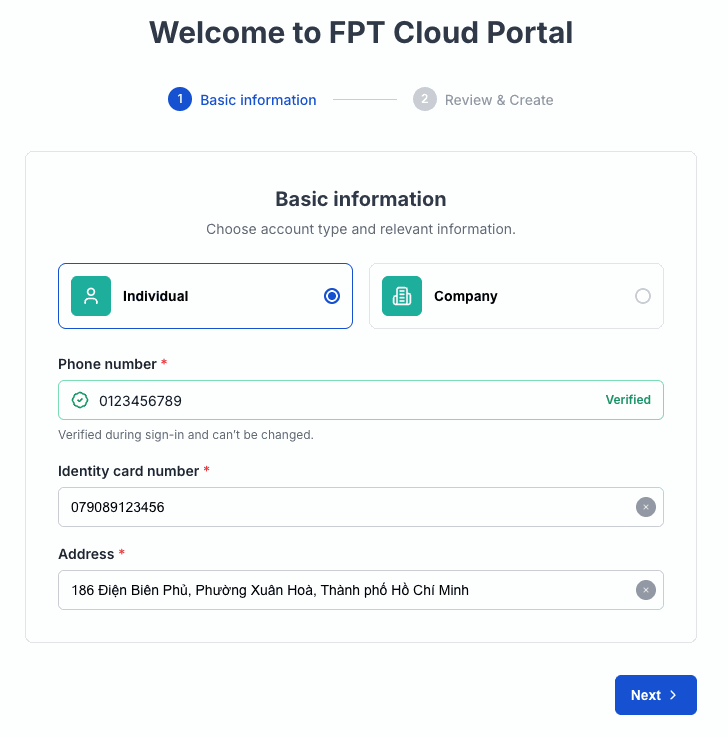
If you choose Company
Fill in the following fields:
| Field | Notes |
|---|---|
| Company name | Full company name as shown on your business license. |
| Phone number | Pre-filled from your verified number — can be edited if your company uses a different number. |
| Company Email | Company contact email. |
| Tax code | Business tax identification number (e.g., 0312345678-001). |
| Company address | Registered business address (optional). |
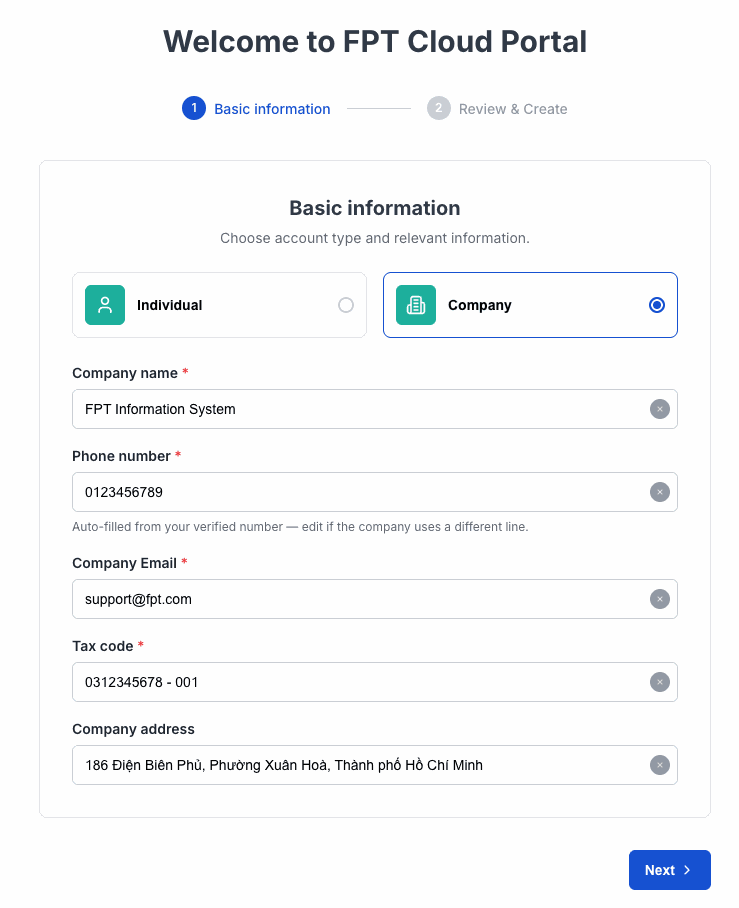
After filling in, click Next >.
Step 2: Review your information (Review & Create)
The Confirm information screen shows all the details you entered for a final review.
- Check all the displayed information carefully.
- If you need to make changes, click < Previous to go back to step 1.
- If everything is correct, click Confirm & Start.
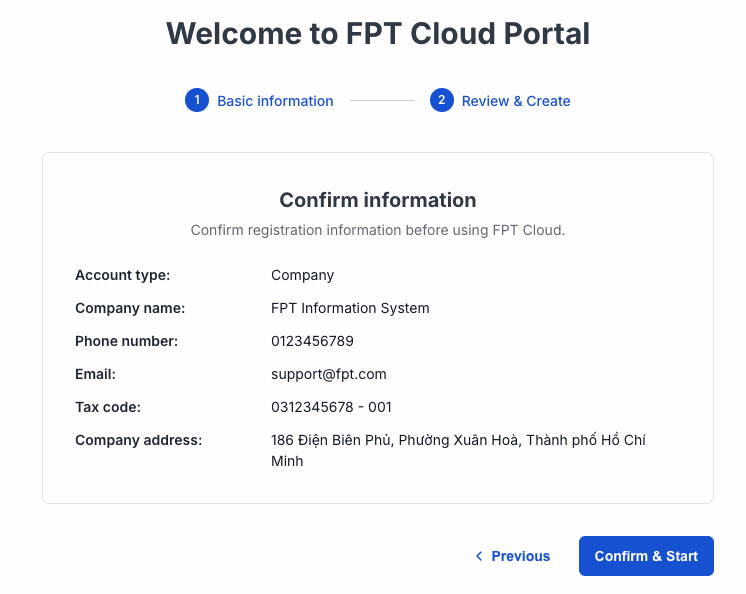
⚠️ Note: Some information (such as Tax code for Company accounts) may not be editable after confirmation. Review carefully before clicking Confirm & Start.
Step 3: Wait for Tenant initialization
After clicking Confirm & Start, the system begins creating your Tenant.
The screen shows "Initiating....." with the message "Please wait while your system is set up." and a progress indicator.
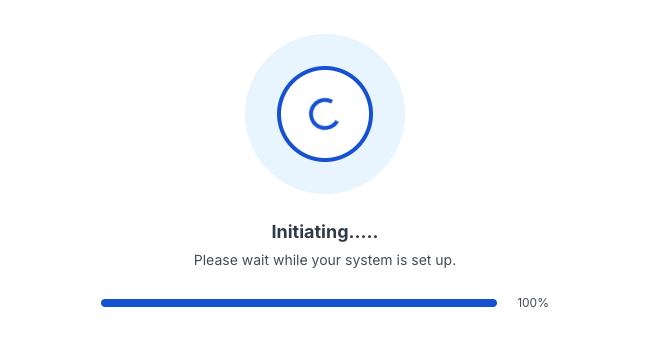
This typically takes 10 to 30 seconds. Do not close the browser or refresh the page during this time.
⚠️ If the screen is stuck for more than 2 minutes: See Troubleshooting onboarding.
Result
Tenant initialized successfully — the system automatically redirects you to the FPT Cloud Homepage.
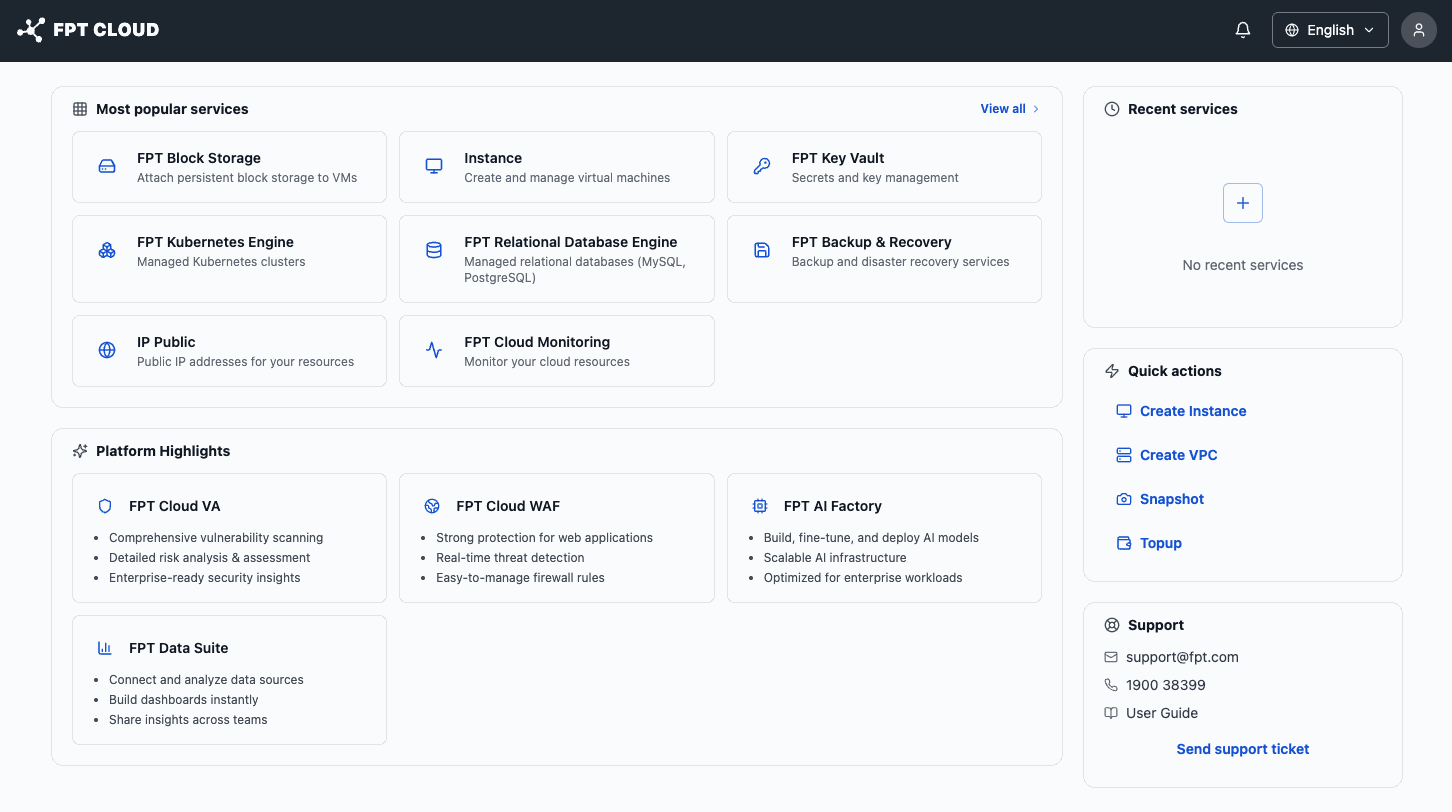
You've completed onboarding. Top up your wallet to start creating resources.