Allocate a public IP address
You can allocate a public IP address (Floating IP) to access your Instance from the internet or assign it to services that need a fixed IP.
⚠️ Important — Different from Instance and Storage Disk: IP addresses are billed monthly and the amount is deducted immediately on allocation — there is no hold mechanism. Ensure your wallet has sufficient balance before proceeding.
Prerequisites
- Signed in to FPT Cloud Portal.
- Wallet has sufficient balance to cover the monthly IP cost.
- An Instance you want to assign the IP to (if assigning immediately).
Allocate a new IP address
-
From the left navigation bar, select Network → Floating IPs.
-
Click the allocate IP button in the top-right corner of the list.
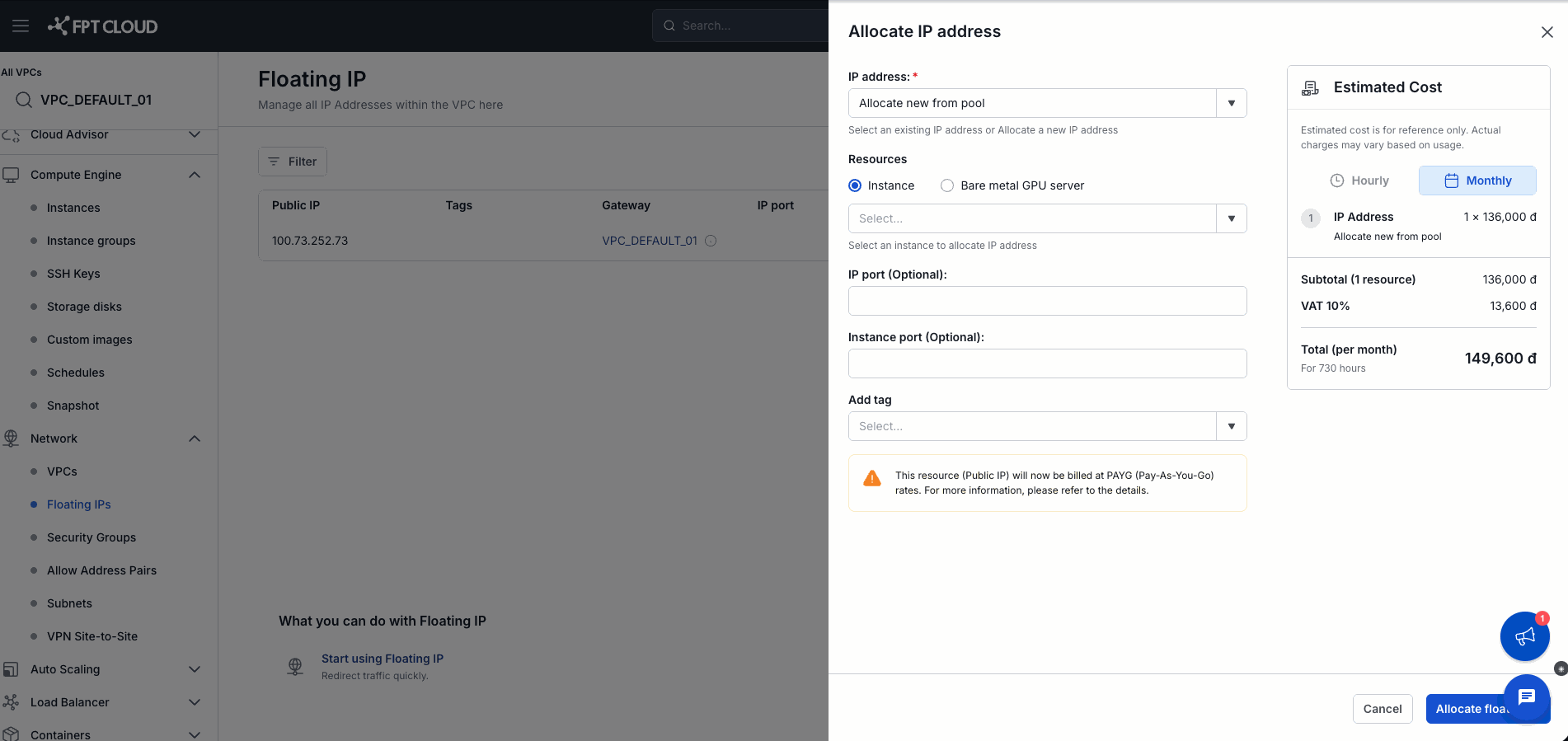
The Allocate IP address panel slides out on the right side of the screen.
-
Fill in the details in the panel:
| Field | Guidance |
|---|---|
| IP address * | Select "Allocate new from pool" to get a new IP, or choose an existing one. |
| Resources | Select Instance (default) or Bare metal GPU server. |
| Instance | Select the Instance to assign the IP to from the dropdown. |
| IP port | Optional. |
| Instance port | Optional. |
| Add tag | Optional — add a tag for management. |
-
Review the Estimated Cost panel on the right:
- Cost is calculated Monthly.
- Example: IP Address = 136,000đ + 10% VAT = 149,600đ/month (for 730 hours).
⚠️ Important billing note: The panel shows a warning: "This resource (Public IP) will now be billed at PAYG (Pay-As-You-Go) rates." The amount is deducted immediately on allocation — no hold mechanism like Instance or Storage Disk. Check your wallet balance before proceeding.
-
Click Allocate floating IP to confirm.
The system deducts immediately from your wallet and allocates the IP address. The new IP appears in the Floating IPs list.
Assign an IP to an Instance
If you didn't select an Instance during allocation, you can assign it afterward:
-
In the Floating IPs list, find the IP you just allocated.
-
Click the assign action in the action column.
-
Select the Instance and port from the dropdowns.
-
Confirm.
The IP is assigned to the Instance. You can use this IP to SSH or access services on the Instance.
Release an IP address
When you no longer need it, release the IP to stop billing from the next month:
- In the Floating IPs list, select the IP to delete.
- If the IP is currently assigned, unassign it first.
- Click the release action and confirm.
⚠️ Note: The monthly fee is deducted immediately on allocation. Releasing the IP within the month only stops billing from the next month.
IP address billing
| Time | What happens |
|---|---|
| Immediately on allocation | Full 1-month fee deducted from wallet — no hold |
| Start of each subsequent month | Monthly fee deducted again |
| When IP is released | Billing stops from the next month |