View and monitor your wallet balance
This guide helps you read your wallet balance accurately and understand what each number means for effective cost management.
View your wallet balance
Your balance is displayed directly in the top navigation bar with the My Balance label. Click that area to open the details page.
Or navigate from the left menu: Billing → Balance & Transactions.
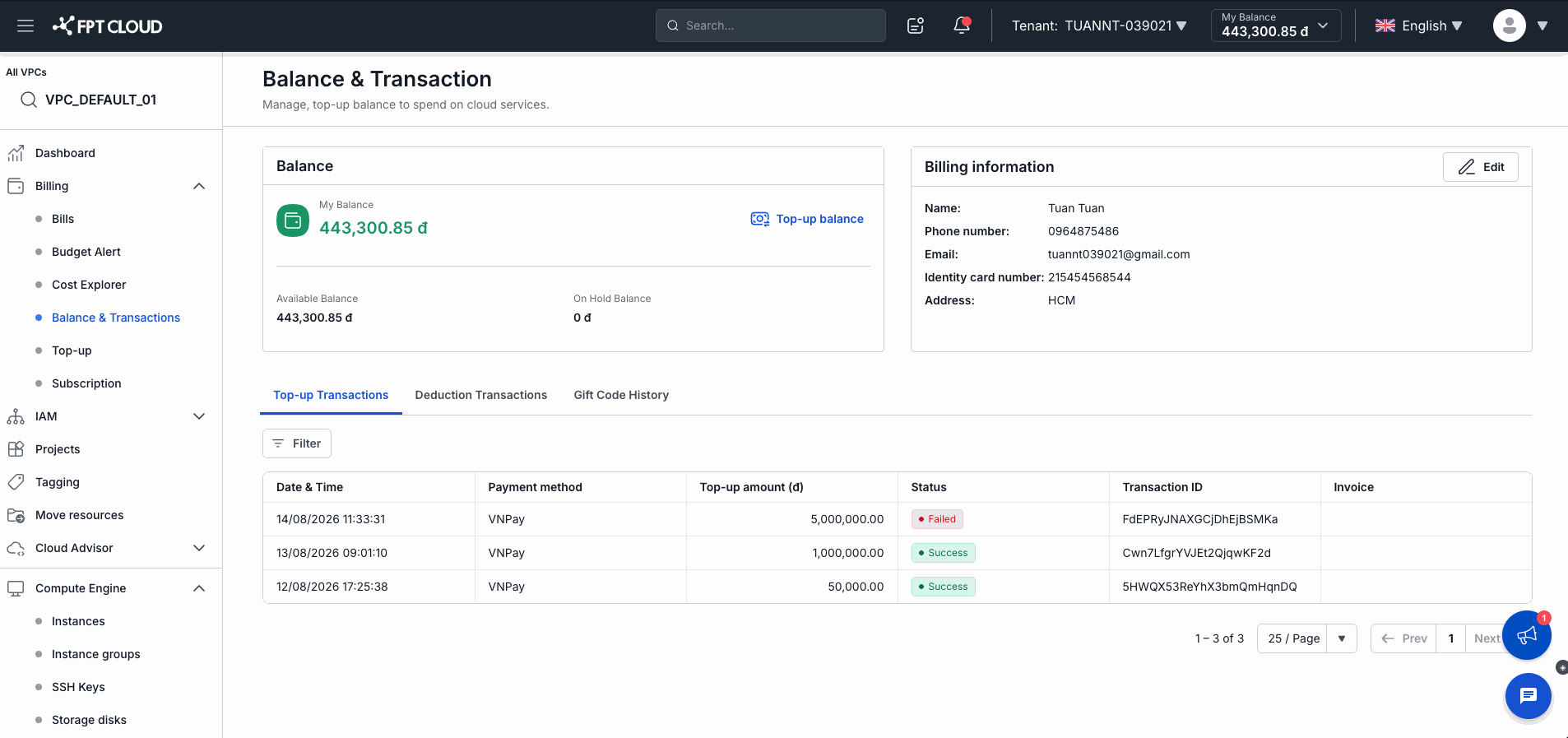
The Balance & Transaction page has two main areas:
| Area | Content |
|---|---|
| Balance (left) | Wallet balance, Top-up balance button, Available Balance and On Hold Balance breakdown. |
| Billing information (right) | Account details (name, phone, email, ID number, address). Click Edit to update. |
Understanding the three balance figures
| Metric | Location on UI | Meaning |
|---|---|---|
| My Balance | Large number, green | Total current wallet balance (= Available Balance + On Hold Balance). |
| Available Balance | Below, left | The amount you can use right now to create new resources. |
| On Hold Balance | Below, right | Amount the system is temporarily holding for resources running in the current hour. |
📝 Note: When the system checks Estimated Cost before you create a resource, it compares against Available Balance — not My Balance. On-hold amounts are not counted as usable funds.
Transaction history
The bottom of the page has 3 tabs:
| Tab | Content |
|---|---|
| Top-up Transactions | Wallet top-up history: time, payment method (VNPay, etc.), amount, status (Success / Failed), Transaction ID. |
| Deduction Transactions | Hourly deduction history for running resources. |
| Gift Code History | History of applied gift codes (if any). |
Example
Scenario: You create 1 Instance at 10,000đ/hour with a wallet balance of 100,000đ.
| Time | Available Balance | On Hold Balance |
|---|---|---|
| Before creation | 100,000đ | 0đ |
| Right after creation | 90,000đ | 10,000đ |
| After 1 hour (deducted) | 90,000đ | 0đ |
| Next hour (held again) | 80,000đ | 10,000đ |
Each hour: the system holds 10,000đ → deducts 10,000đ → holds 10,000đ again for the next hour.
When to top up
Top up your wallet when:
- The Create button is disabled (Estimated Cost exceeds Available Balance).
- Available Balance is running low — risk of the system being unable to deduct and suspending your Instance.
Click Top-up balance on the Balance & Transactions page to top up immediately.