Create an Instance (virtual machine)
This guide walks you through every step to create a virtual machine (Instance) on FPT Cloud Portal using the prepaid model.
Prerequisites
- Signed in to FPT Cloud Portal.
- Wallet has sufficient balance to cover the Instance's estimated cost. See View wallet balance.
- At least one VPC and subnet exist in your account.
Steps
Step 1: Open the create Instance page
-
From the left navigation bar, select Compute Engine → Instances.
-
Click the create Instance button in the top-right corner of the list page.
The Configuration page appears with the Instance creation form and an Estimated Cost panel on the right.
Step 2: Fill in configuration details
The Configuration page includes the following fields:
Instance name * — Display name for the Instance. The system pre-fills a suggested name (e.g., vm-2608142219). Only letters, numbers, and hyphens are allowed; maximum 50 characters.
OS Hostname — Optional. If left blank, the system uses the Instance name as the hostname.
Instance type * — Choose the Instance type:
| Type | Description |
|---|---|
| General | General-purpose virtual machine, suitable for most workloads. |
| GPU | GPU-equipped server for graphics processing and AI — requires a postpaid contract. |
💡 Tip: Choose General to create a prepaid Instance immediately. Choosing GPU requires you to register for postpaid service first.
Image * — Choose an operating system from 4 tabs:
- OS: select from available OS options (Windows, Ubuntu, CentOS, Debian, etc.) and the corresponding version.
- Image: use a custom image you've uploaded.
- Snapshot: initialize from a snapshot of an existing Instance.
- Live resize: create an Instance with the live-resize feature (no shutdown required).
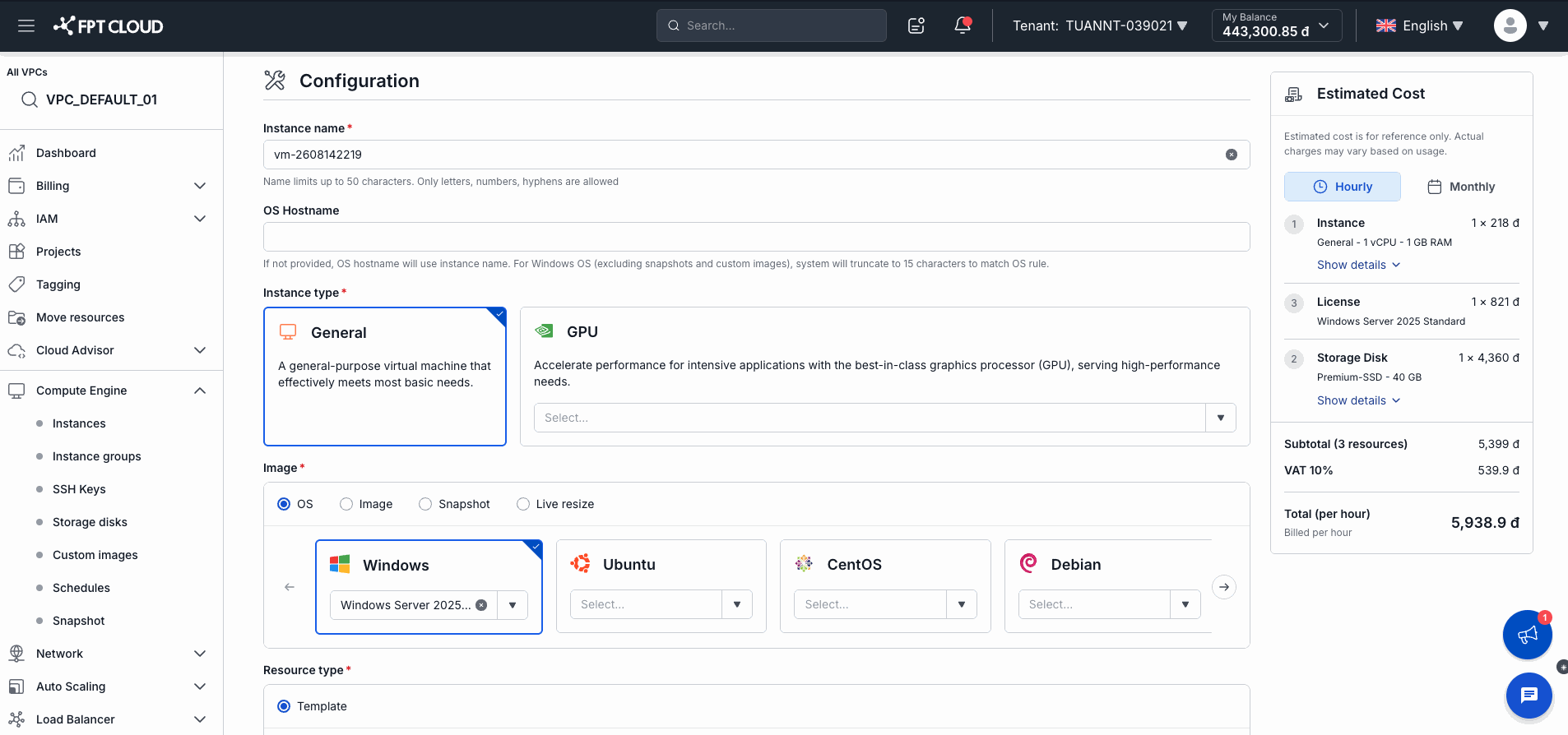
Resource type * — Select Template (default) to use a standard hardware configuration.
Step 3: Monitor Estimated Cost
The Estimated Cost panel on the right updates in real time as you change the configuration:
| Cost line | Meaning |
|---|---|
| Instance | vCPU and RAM cost per hour. |
| License | OS license cost (if using Windows). |
| Storage Disk | Attached disk cost per hour. |
| VAT 10% | Value-added tax. |
| Total (per hour) | Total hourly cost (VAT included). |
⚠️ Important: If Total (per hour) exceeds My Balance shown in the top bar, you cannot create the Instance. Top up your wallet or choose a smaller configuration.
Step 4: Confirm creation
- Review all configuration details and the estimated cost.
- Click the confirm button to create the Instance.
Result
After confirming:
- The Instance appears in the list with Building status.
- The system holds an amount equal to 1 hour of usage from your wallet — this shows under On Hold in your wallet.
- After 1–3 minutes, the Instance transitions to Running and is ready to use.
- Every hour, the system automatically deducts the actual cost from your wallet and holds again for the next hour.
📝 Note: If your wallet has insufficient funds for a deduction, the system may suspend the Instance. Keep a healthy wallet balance to avoid service interruption.