Tutorial: View subscription information
This tutorial shows you how to view subscription details and billing history on FPT Cloud Portal.
Prerequisites
- Signed in to FPT Cloud Portal.
View the subscription list
-
From the left navigation, go to Billing → Subscription.
The Subscriptions page lists all subscriptions for your organization:
| Column | Meaning |
|---|---|
| Subscription name | Subscription name |
| Subscription ID | Unique identifier |
| Payment Method | Pre-paid or Post-paid |
| Current Month Spending (₫) | Current month charges |
| Status | Status (Active) |
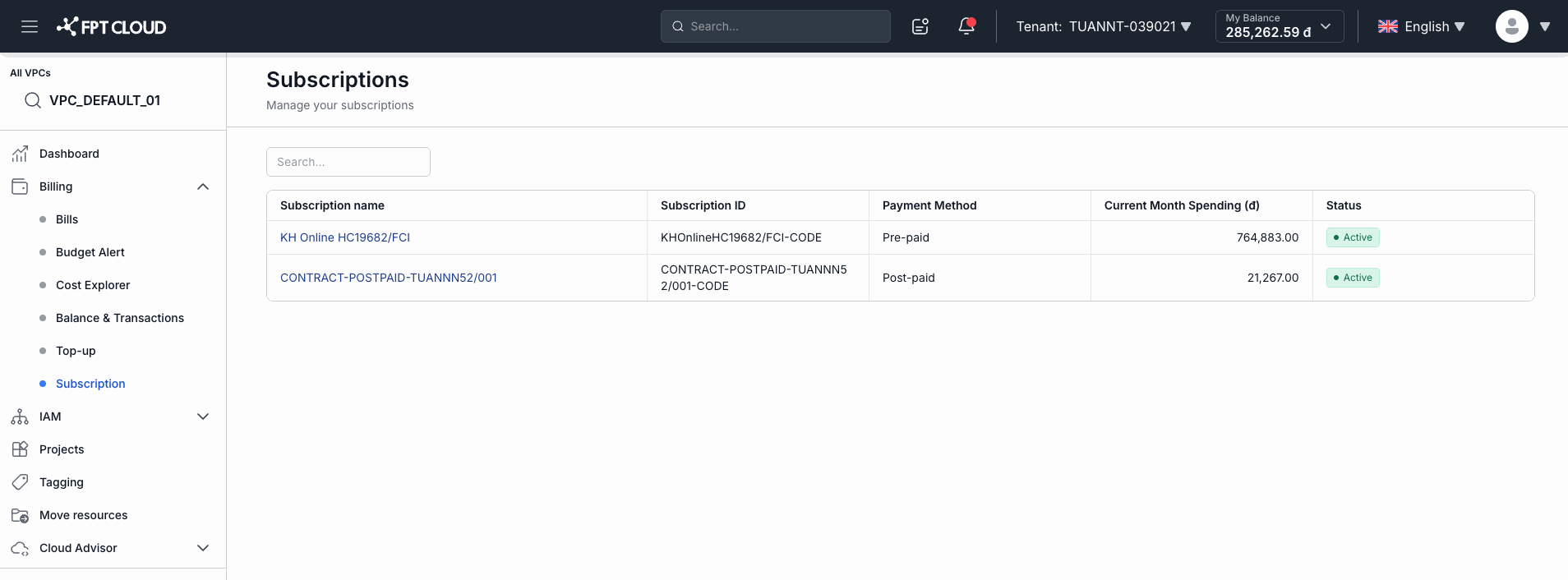
- Use the Search field to find a subscription by name.
View subscription details
-
Click a subscription name in the list.
-
The Overview tab shows two sections:
Subscription Details:
| Field | Description |
|---|---|
| Subscription Name | Subscription name (editable via the ✏️ button) |
| Subscription ID | Unique identifier |
| Status | Active |
| Currency | VND |
| Payment Method | Pre-paid or Post-paid |
| Billing Method | PAYG |
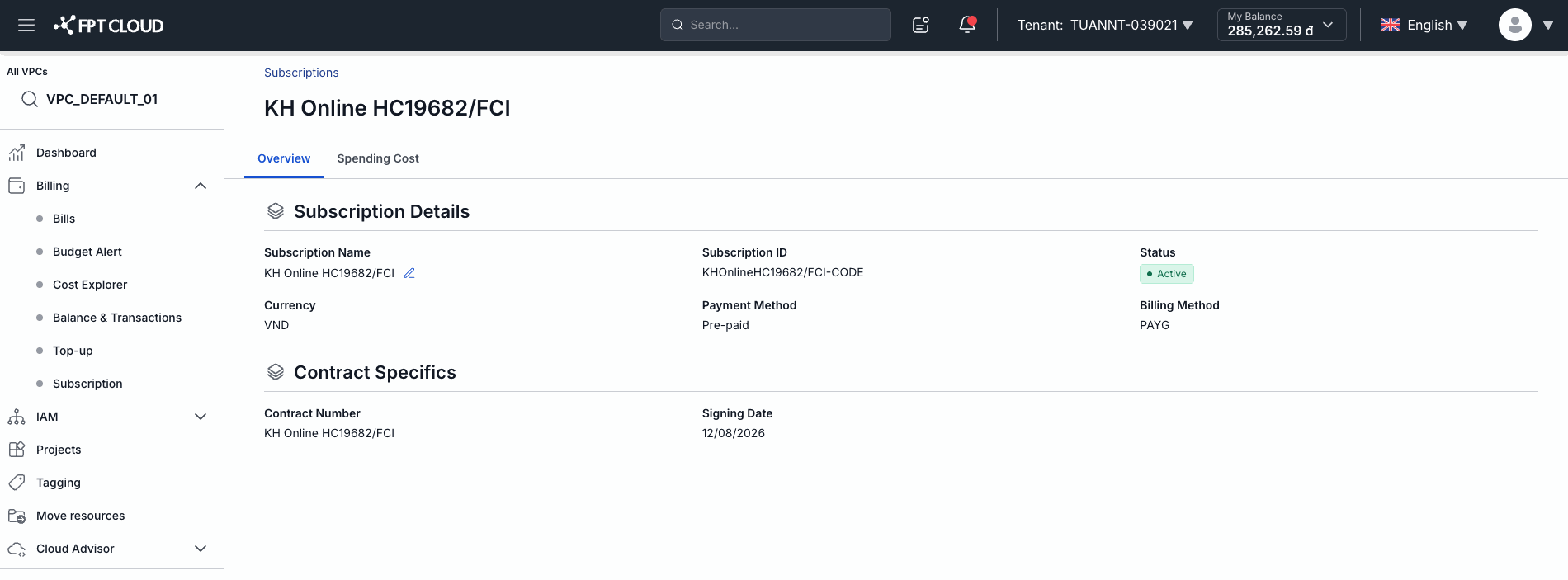
Contract Specifics:
| Field | Description |
|---|---|
| Contract Number | Contract number |
| Signing Date | Date the contract was signed |
-
Select the Spending Cost tab to view billing statement history:
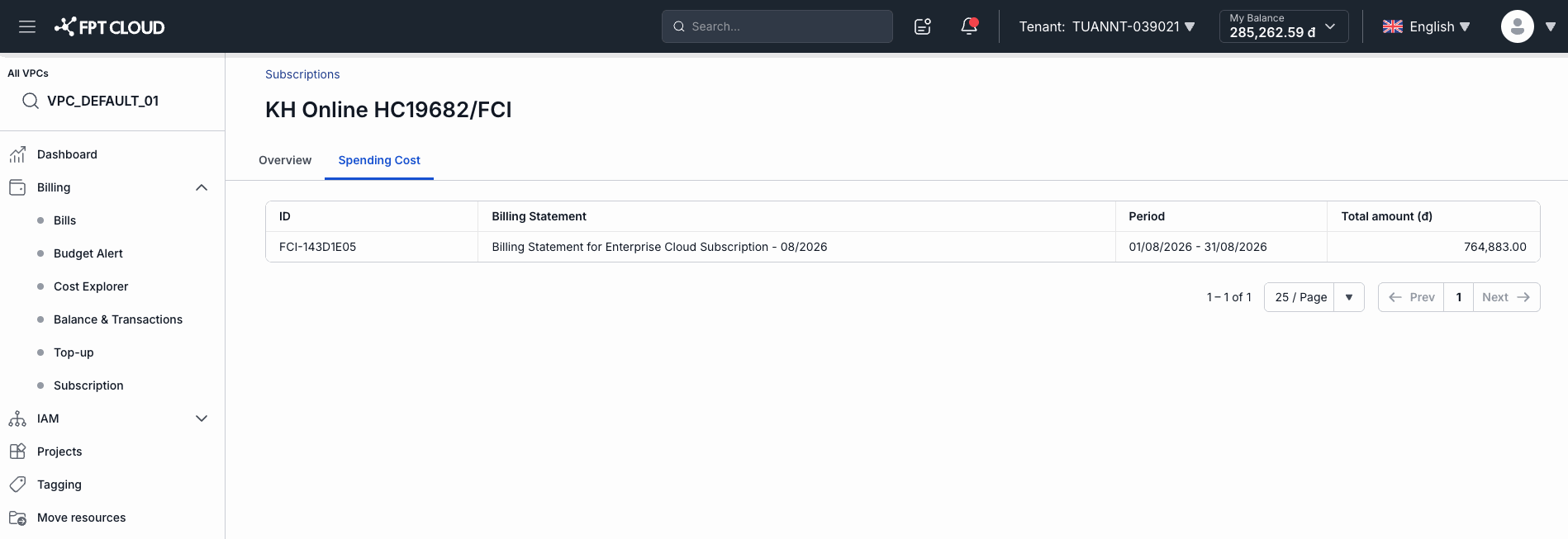
| Column | Meaning |
|---|---|
| ID | Billing statement ID |
| Billing Statement | Billing period description |
| Period | Billing date range |
| Total amount (₫) | Total charges for the period |
Result
After this tutorial, you know how to:
- View the subscription list and status
- Read contract details
- Look up monthly spending history