Manage Firewall rules
This guide describes how to view and manage firewall rules in the Firewall feature on a Specific VPC.
Prerequisites
- Your account must be specially configured by FPT Cloud to use the Firewall feature.
- The VPC you are working with must be a Specific VPC.
- You must have permission to manage network resources in the corresponding VPC.
Note: If the Firewall menu does not appear in the navigation interface, your account has not been configured for this feature. Please use Security Groups to control network traffic, or contact FPT Cloud support to request activation.
Step 1 — Navigate to Firewall
- Log in to the FPT Cloud management portal.
- Select the Specific VPC whose firewall you want to manage.
- In the left navigation panel, select Network → Firewall.
The Firewall page displays three tabs: Firewall Rules, IP Sets, and Application Port Profiles.
Step 2 — View the Firewall Rules list
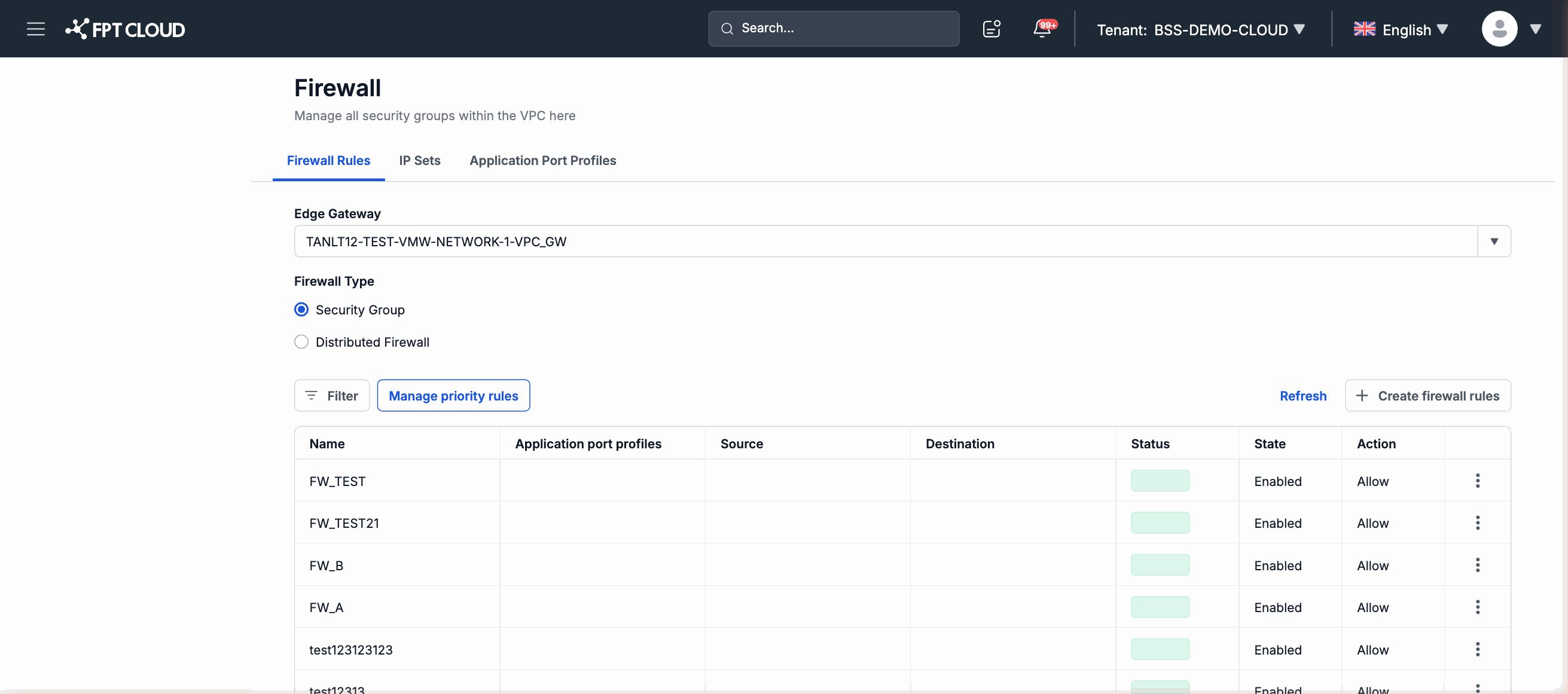
The Firewall Rules tab (default) lists all rules currently configured. Each rule shows: name, Application Port Profile applied, source (Sources), destination (Destinations), status (Status), enabled/disabled state (State), and action (Action: Allow/Deny).
You can click Manage priority rules to adjust the application priority order between rules.
Step 3 — Create a new Firewall rule
- Click Create firewall rules.
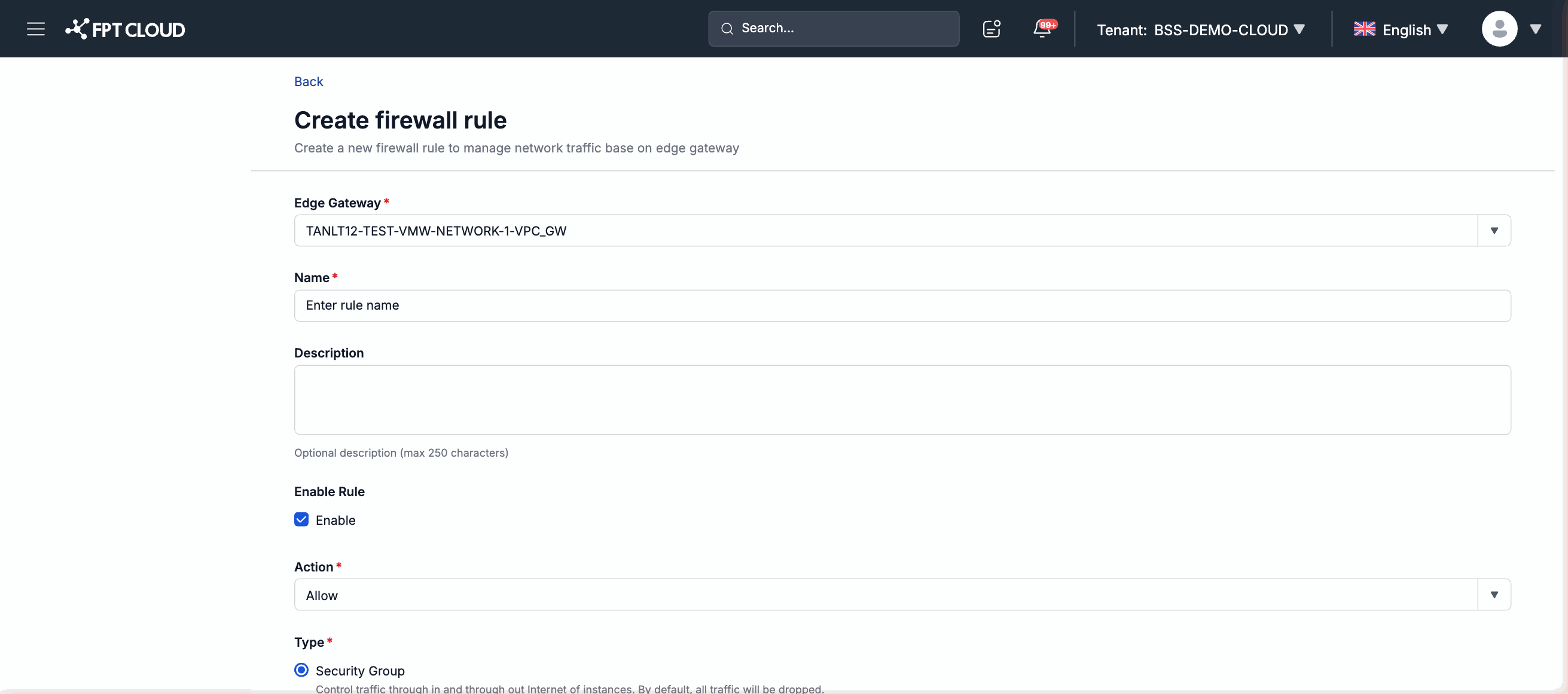
- Fill in the form:
| Field | Required | Description |
|---|---|---|
| Edge Gateway | Yes | The gateway this rule applies to. |
| Name | Yes | The identifying name of the rule. |
| Description | No | A note describing the purpose of the rule. |
| Enable Rule | — | Enable or disable the rule immediately after creation. Default: enabled. |
| Action | Yes | Allow — permit matching traffic. Deny — block matching traffic. |
| Type | Yes | The firewall type (see table below). |
| Sources | No | Traffic source — IP address, CIDR range, or IP Set. |
| Destinations | No | Traffic destination — IP address, CIDR range, or IP Set. |
| Application Port Profiles | No | Pre-defined port/protocol profiles (from the Application Port Profiles tab). |
- Click Save to create the rule.
Type field explained
| Type value | Description | Default behavior |
|---|---|---|
| Security Group | Controls Internet-facing traffic to and from Instances. | Default drop — all traffic blocked by default. |
| Distributed Firewall | Controls internal traffic between Instances within the VPC. | Default allow — all traffic permitted by default. |
Step 4 — Edit an existing rule
- In the Firewall Rules tab, locate the rule you want to modify.
- Click the edit icon or select Edit from the action menu.
- Update the fields you want to change.
- Click Save to confirm.
Step 5 — Delete a rule
- In the Firewall Rules tab, locate the rule you want to delete.
- Click the delete icon or select Delete from the action menu.
- Confirm the action in the confirmation dialog.
Warning: Deleting a rule immediately stops that rule from being enforced on network traffic. Review carefully before deleting.
Managing IP Sets and Application Port Profiles
- IP Sets (second tab): create named sets of IP addresses/CIDRs for reuse across multiple rules, rather than entering them manually each time.
- Application Port Profiles (third tab): create named sets of ports and protocols to reference in the Application Port Profiles field when creating rules.