Guide: View Gateway List and Details
This guide describes how to view gateway information within a Specific VPC.
Note: Gateway is a read-only feature. Users can only view information — they cannot create, edit, or delete gateways. To request configuration changes, please contact your system administrator.
Prerequisites
- You must be in the context of a Specific VPC.
- If the Gateway menu is not visible, verify that the current VPC is a Specific VPC (see Troubleshooting).
Step 1 — Navigate to Gateway
- In the left navigation bar, select Network.
- Select Gateway from the submenu.
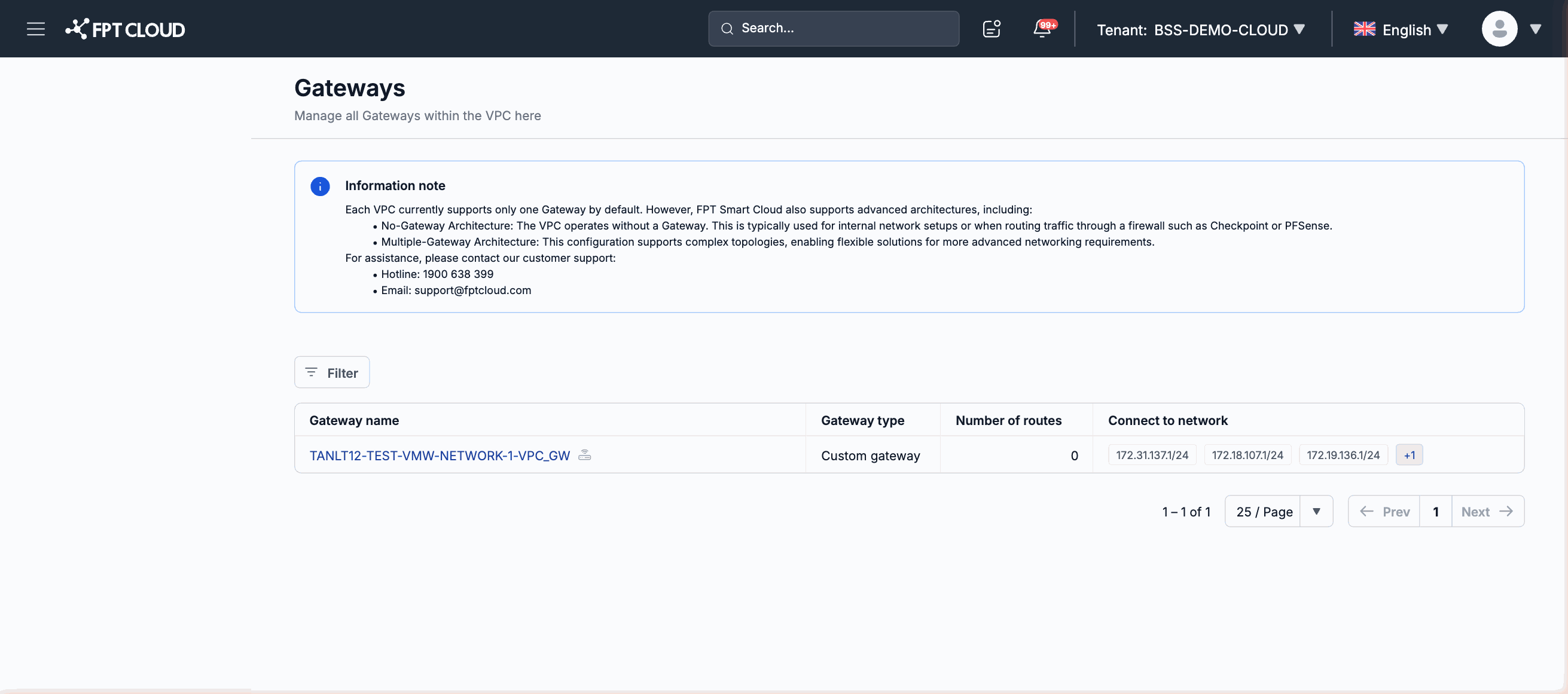
The gateway list page appears.
Step 2 — View the gateway list
The list table shows all gateways provisioned for the current VPC. Typical columns include:
| Column | Description |
|---|---|
| Gateway name | The gateway's identifier, set by the infrastructure team when provisioned. |
| Gateway type | The gateway type, e.g. Custom gateway. |
| Number of routes | The number of routes configured through this gateway. |
| Connect to network | The CIDR ranges that this gateway connects to. |
If the list is empty, no gateways have been provisioned for this VPC — contact your administrator.
Step 3 — View gateway details
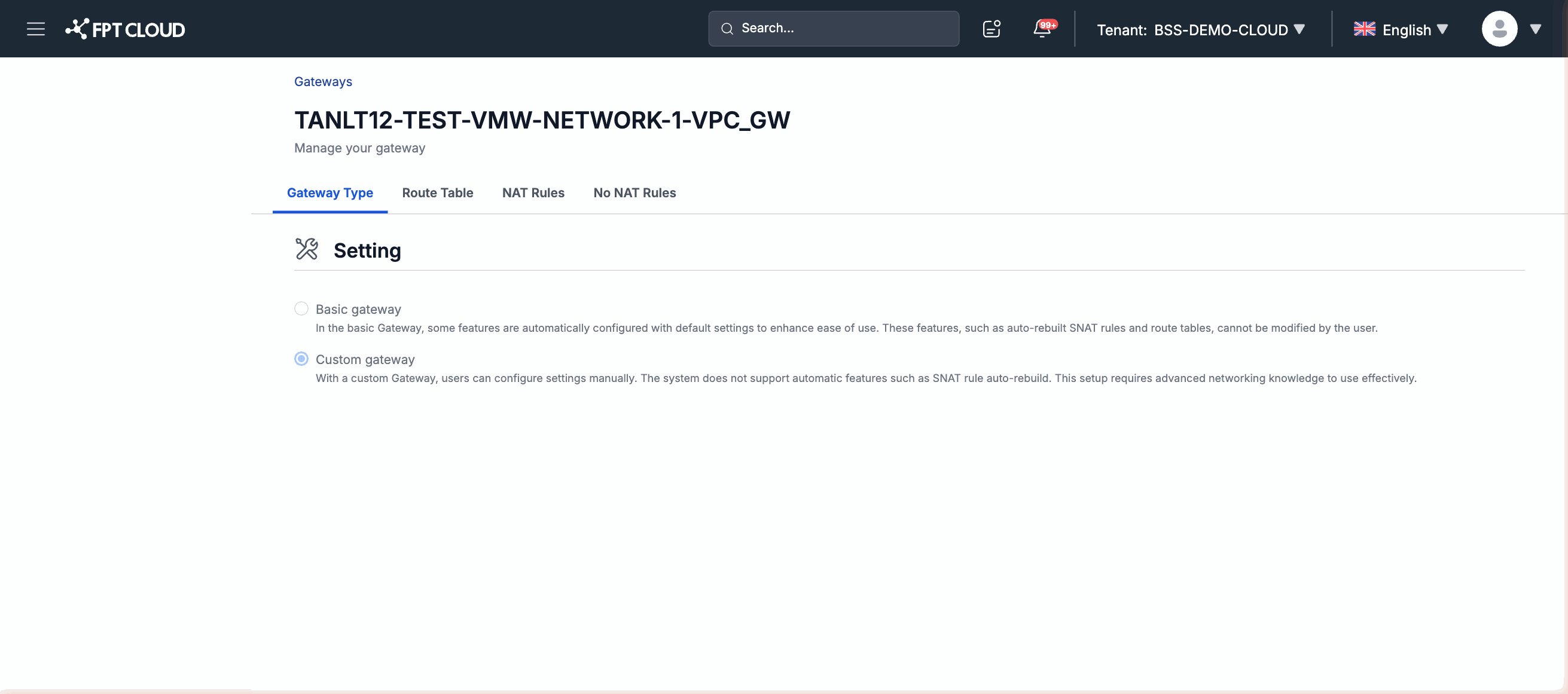
- In the list, click the name of the gateway you want to view.
- The detail page displays the full configuration information for that gateway.
Unavailable Actions
The Gateway interface does not provide the following buttons or options:
- Create a new gateway
- Edit gateway configuration
- Delete a gateway
If you need to perform any of these actions, please contact your organization's system administrator.