Create an Instance Group
An Instance Group requires a minimum of 2 Instances and you must choose an Affinity policy at creation time. The policy cannot be changed after the group is created — if you need to change the policy, delete the old group and create a new one.
Before You Begin
- The VPC must have at least 2 Instances that do not already belong to another group.
- Current quota: maximum 10 groups per VPC and 10 instances per group.
Steps
Step 1. From the sidebar, select Compute Engine → Instance groups.
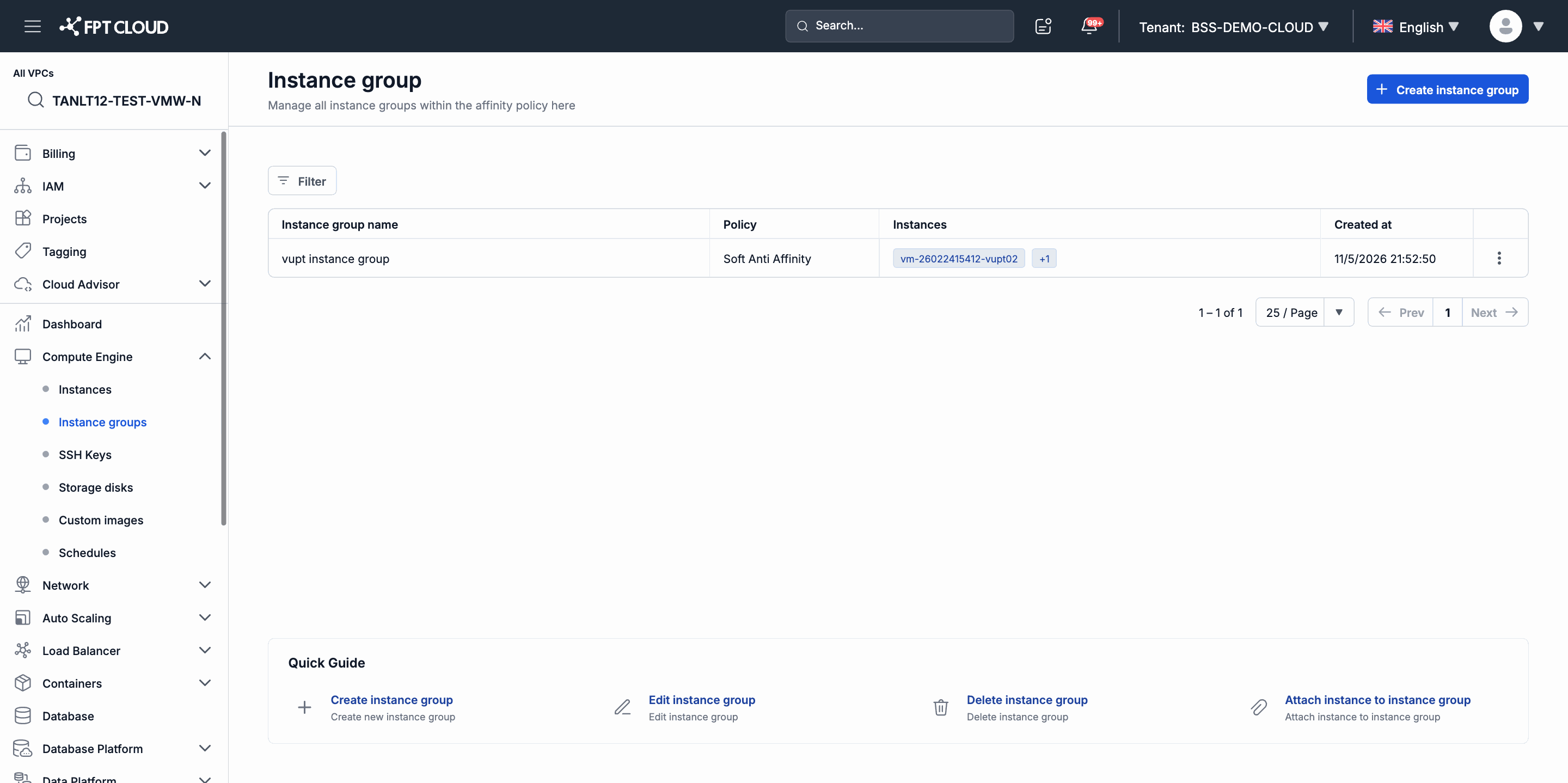
Step 2. Click + Create instance group in the upper-right corner.
Step 3. Enter a Name for the group.
A valid name consists of letters, digits, underscores, hyphens, spaces, and periods.
Step 4. Choose a Policy:
| Policy | Behavior |
|---|---|
| Soft Anti Affinity | Requires all Instances in the group to run on the same physical host server. The system rejects creating a new Instance if the host server does not have sufficient resources. |
| Soft Affinity | Prefers to place Instances on the same physical host server. If resources are insufficient, Instances are still created on a different server. |
Step 5. In the Instances section, select at least 2 Instances to add to the group.
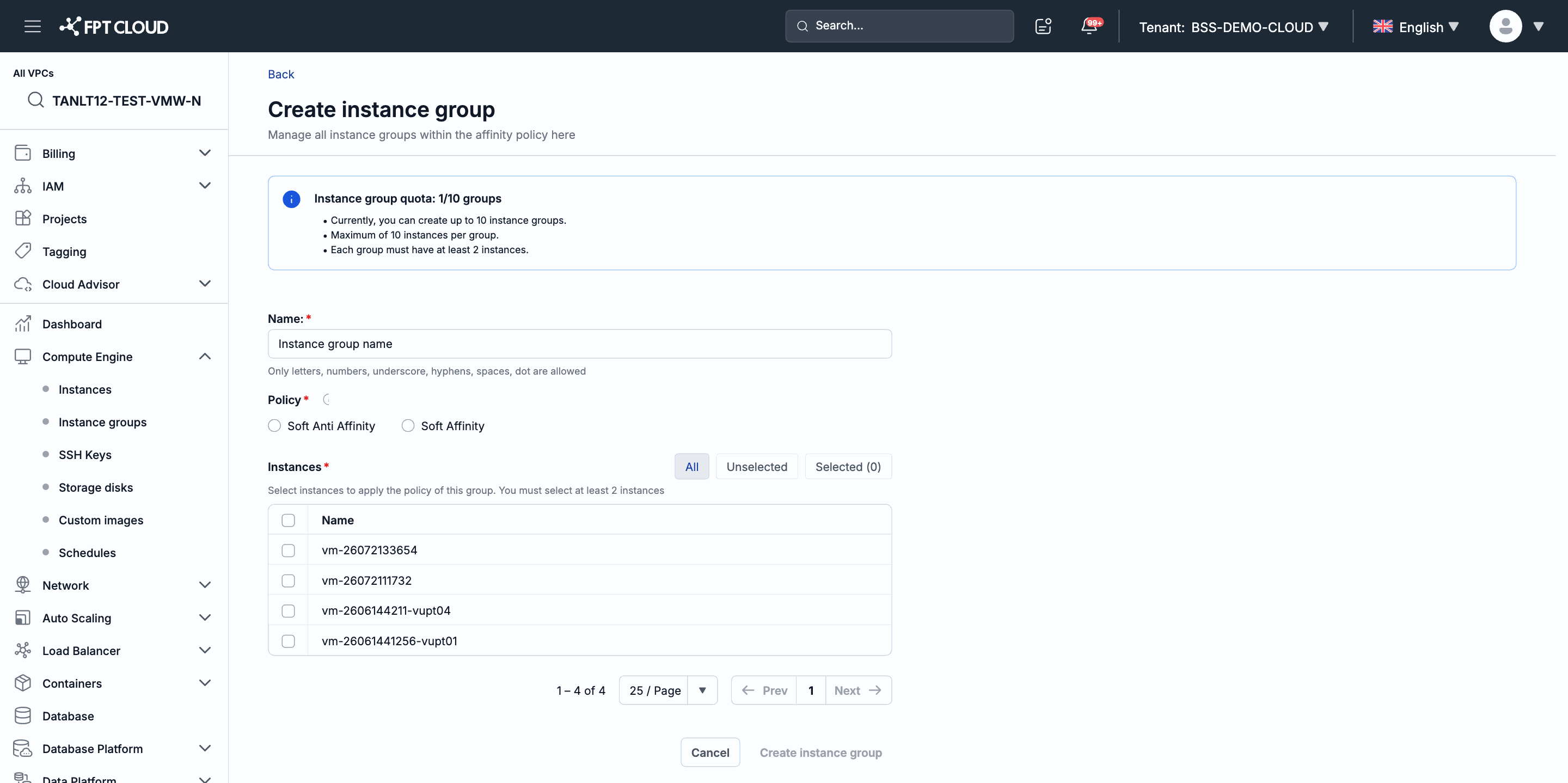
Note: Only Instances that do not currently belong to any group appear in the selection list. Instances that already belong to another group cannot be added to this group.
Step 6. Click Create instance group to confirm.
The system returns you to the list page. The new group appears with the policy and the list of Instances you selected.
Next Steps
To add Instances to the group after creation or to delete the group, see Manage Instance Groups.