Access the Console
The Console lets you access an Instance directly from your browser without SSH. It is an important fallback access channel when standard network connection methods are unavailable.
When to Use the Console
- SSH cannot connect due to a firewall blocking port 22 or a network issue.
- You have lost the SSH key and have no other way to log in over the network.
- A newly created Instance does not yet have an IP address or network configuration.
- You need to intervene in the operating system at a low level to troubleshoot boot issues.
- You want to check the Instance status immediately after creation.
Open the Console
Step 1: From the Instance list or the detail page, click the action menu.
Step 2: Select Console.
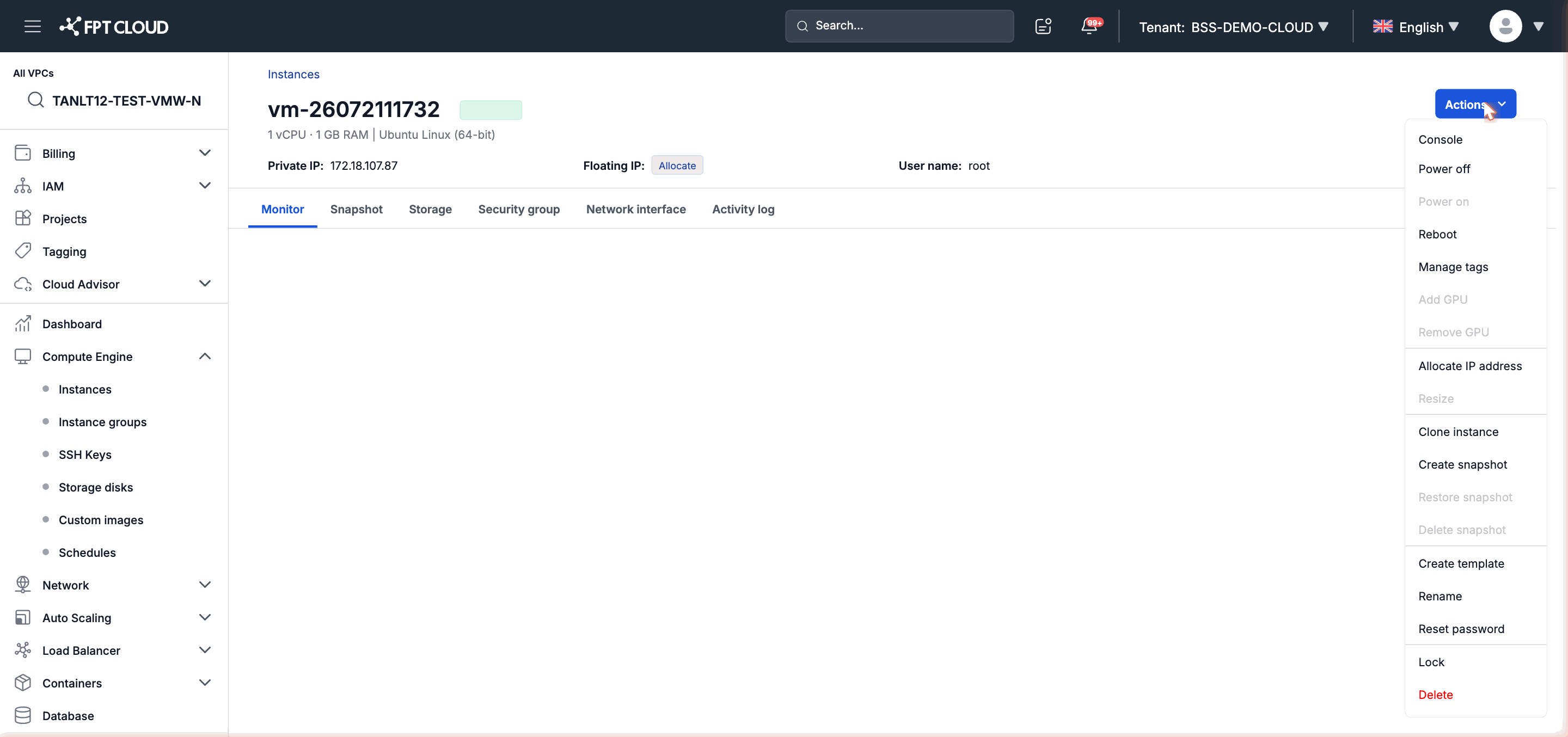
Step 3: A new browser tab opens with a web terminal interface. The Console is ready for you to interact with.
Note: The Console uses a temporary session token. If the session is interrupted or the tab is unresponsive, press refresh (F5) to obtain a new session.
Log In to the Instance via Console
After the Console opens, you see the operating system login screen.
- Username: The default login name for the Image selected when creating the Instance (for example:
root,ubuntu,centos), or the username configured via User Data. - Password: The password you set when creating the Instance, or the new password if you have performed a Reset Password.
If you have forgotten the password, see Rename, Reset Password, and Lock an Instance to reset the password before accessing the Console.
Notes When Using the Console
- The Console may not support copy/paste with the standard keyboard shortcuts in all browsers. Try right-click → Paste if Ctrl+V does not work.
- The Console directly reflects the Instance output. If the Instance is booting, you may see boot log messages.
- Multiple Console sessions can be open at the same time but all share the same Instance screen (like VNC).
Next Steps
- If the Console is also unresponsive after refreshing: see Troubleshooting Common Issues.
- To reset the login password: see Reset Password.