Create a Template from an Instance (Specific VPC)
A Template is a standardized image created from an existing Instance and saved to the Custom Images module. When you want to deploy multiple Instances with the same operating system configuration, software, and initial setup, creating a Template saves you from having to reconfigure everything from scratch.
This feature is only available for Instances in Specific VPC.
Before You Begin
- The Instance must belong to Specific VPC.
- Instances in both Running and Stopped state can have a Template created from them.
- You need permission to perform operations on the Instance in the corresponding Project.
Steps to Create a Template
1. Open the Action Menu
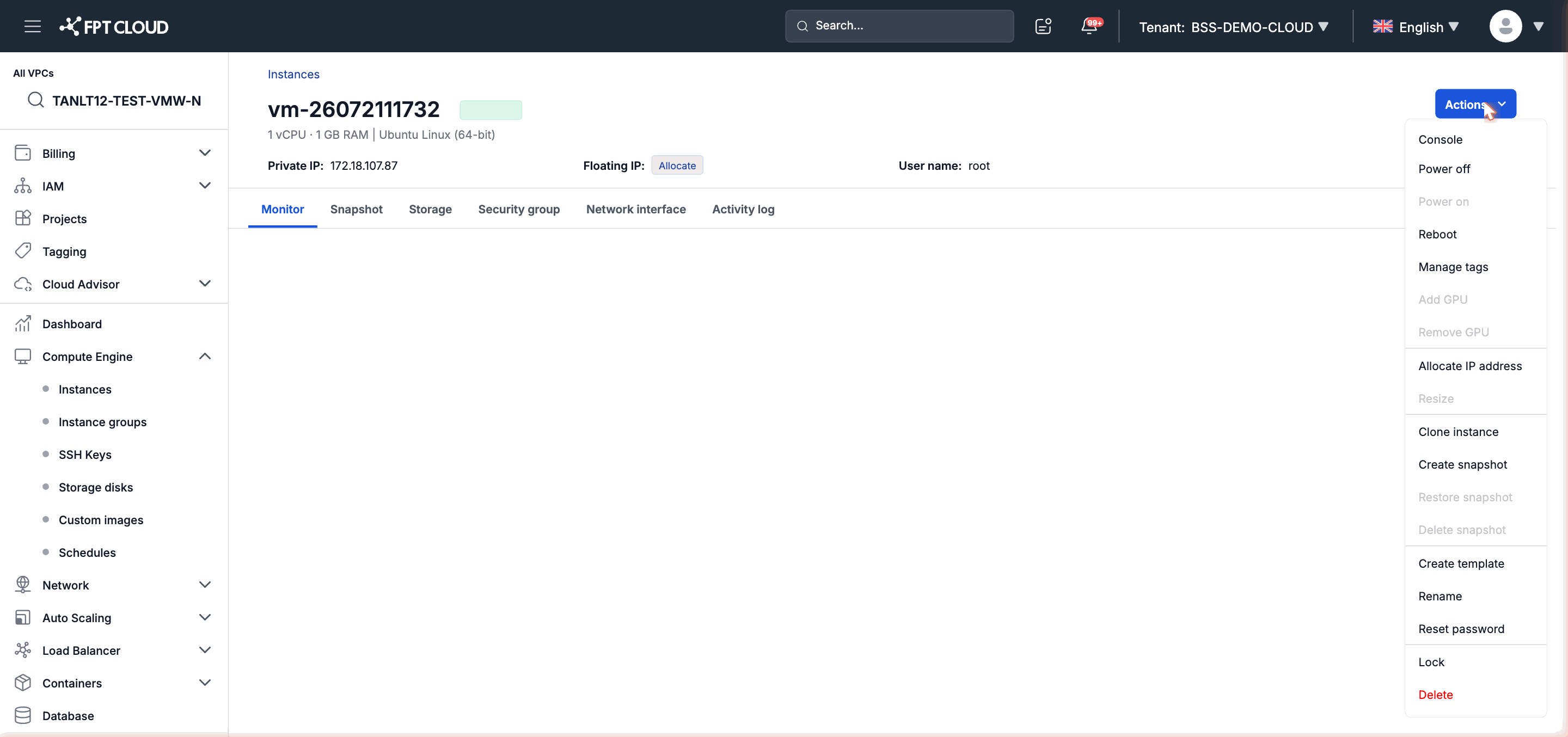
From the Instance list, click the action menu (three-dot icon) on the row of the Instance you want to create a Template from. Or go to the Instance detail page and select the action button in the top-right corner.
Select Create Template.
2. Enter the Template Name
In the dialog that appears, enter a name for the Template. The name should clearly describe the purpose or version so it is easy to identify later.
Click Confirm to begin creation.
3. Wait for the System to Process
The Template creation process runs asynchronously. The system records the request and begins processing immediately after you confirm. You can continue working while you wait.
The Template will appear in the Custom Images module when complete.
Note: Templates are stored in the Custom Images module, not in the Instance list. To use a Template, go to Create New Instance → Image section → select Custom Image and find the Template you just created.
Next Steps
- View and manage Templates in the Custom Images module.
- Create a new Instance from the Template you just created: see Create Instance Guide and select Custom Image at the Image selection step.