View and Filter the Instance List
The Instance list is where you monitor all Instances in a Project, perform quick actions, and navigate to the detail page of each Instance.
Access the Instance List
- Log in to the FPT Cloud Customer Portal.
- Select the Project you want to view from the navigation bar.
- In the left menu, select Compute then select Instance.
The Instance list page displays all Instances belonging to that Project.
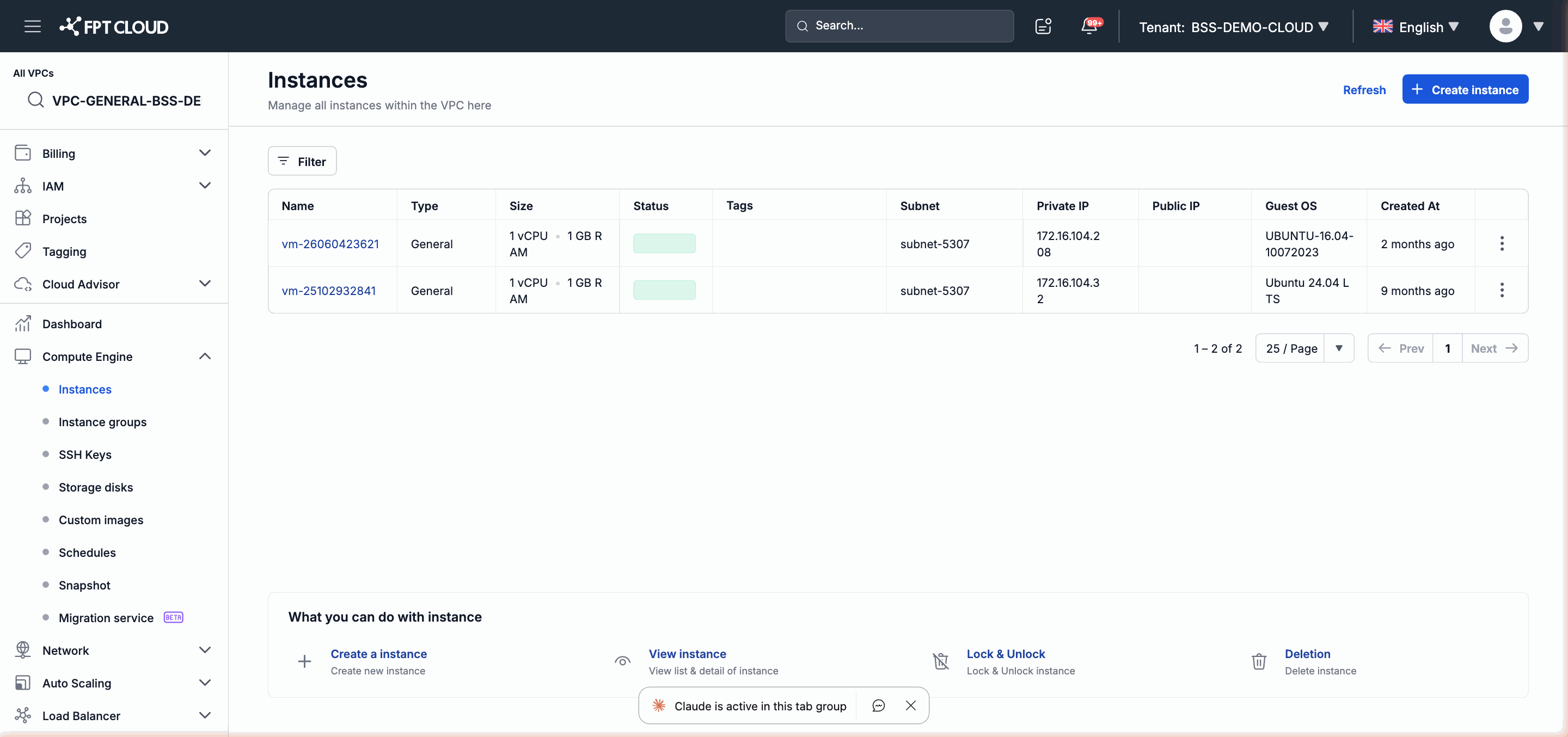
Column Meanings
| Column | Meaning |
|---|---|
| Name | Instance name. Click the name to open the detail page |
| Type | Instance type: standard, GPU, NAT, etc. |
| Size | Flavor configuration: number of vCPUs and RAM capacity |
| Status | Current status of the Instance (see table below) |
| Tags | List of Tags attached to the Instance |
| Subnet | The Subnet the Instance's primary NIC is connected to |
| Private IP | Internal IP address within the Subnet |
| Public IP | Attached Floating IP (if any) |
| Guest OS | Operating system running inside the Instance |
| Created At | The date and time the Instance was created |
Common Status Values
| Status | Meaning |
|---|---|
| Running | Instance is powered on and operating normally (POWERED_ON) |
| Stopped | Instance is powered off (POWERED_OFF) |
| Starting | Instance is in the process of starting |
| Stopping | Instance is in the process of stopping |
| Rebooting | Instance is restarting |
| Resizing | Instance is performing a Resize |
| Creating | Instance is being newly created or cloned |
| Error | Instance has encountered an error and needs attention |
Filter the List
You can combine multiple filters at the same time to narrow the search results.
- Click the Filter area above the list.
- Enter or select values for one or more of the following filter fields:
| Filter Field | Description |
|---|---|
| Name | Search by Instance name (supports partial matching) |
| IP Address | Filter by Private IP or Public IP address |
| Subnet | Filter Instances belonging to a specific Subnet |
| Status | Filter by status: Running, Stopped, Error, etc. |
| Create Date From | Show only Instances created from this date onward |
| Create Date To | Show only Instances created on or before this date |
| Tags | Filter Instances that have a specific Tag attached |
- Click Apply to view the filtered results.
- Click Clear filters to return to the full list.
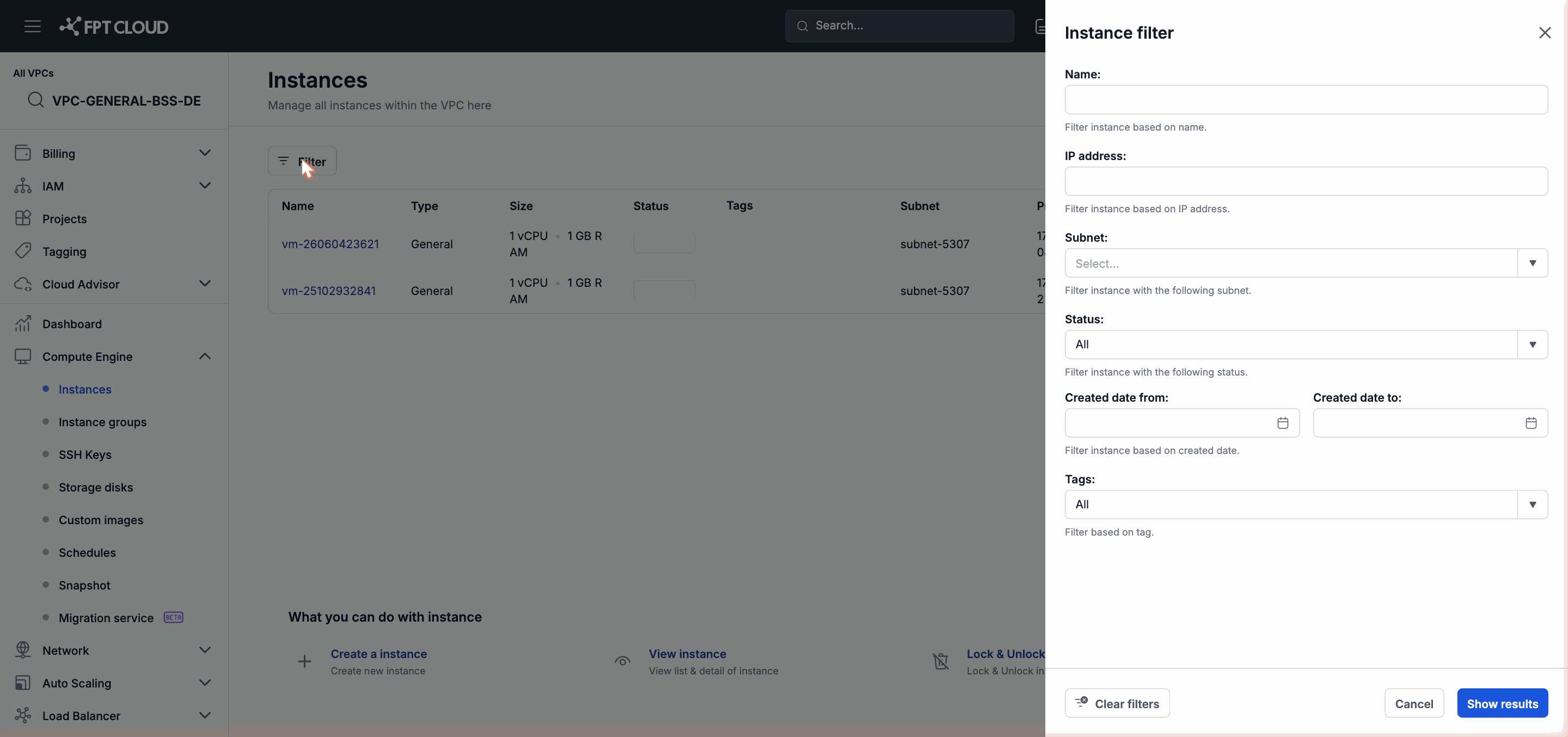
Note: Combining the Status and Tag filters helps you quickly identify Instances that need maintenance or are experiencing issues.
Perform Actions from the List
For each Instance in the list, click the action icon (...) at the end of the row to see the available options.
| Action | Description | Specific VPC Only |
|---|---|---|
| Console | Open a Console to connect directly to the Instance | |
| Power On | Power on a stopped Instance | |
| Power Off | Power off a running Instance | |
| Reboot | Restart the Instance | |
| Manage Tags | Add or remove Tags on the Instance | |
| Add/Remove GPU | Attach or detach a GPU from the Instance | |
| Allocate IP | Assign a Floating IP to the Instance | Yes |
| Resize | Change the Flavor of the Instance | |
| Clone | Replicate the Instance as a new Instance | Yes |
| Create Snapshot | Create a Snapshot from the Instance's current state | Yes |
| Restore Snapshot | Restore the Instance to a Snapshot | Yes |
| Delete Snapshot | Delete a created Snapshot | Yes |
| Create Template | Create a Template from the Instance | Yes |
| Rename | Rename the Instance | |
| Reset Password | Reset the OS login password | |
| Lock | Lock the Instance to prevent all operations | |
| Delete | Permanently delete the Instance | |
| Edit GPU Plan | Change the GPU Plan configuration in use |
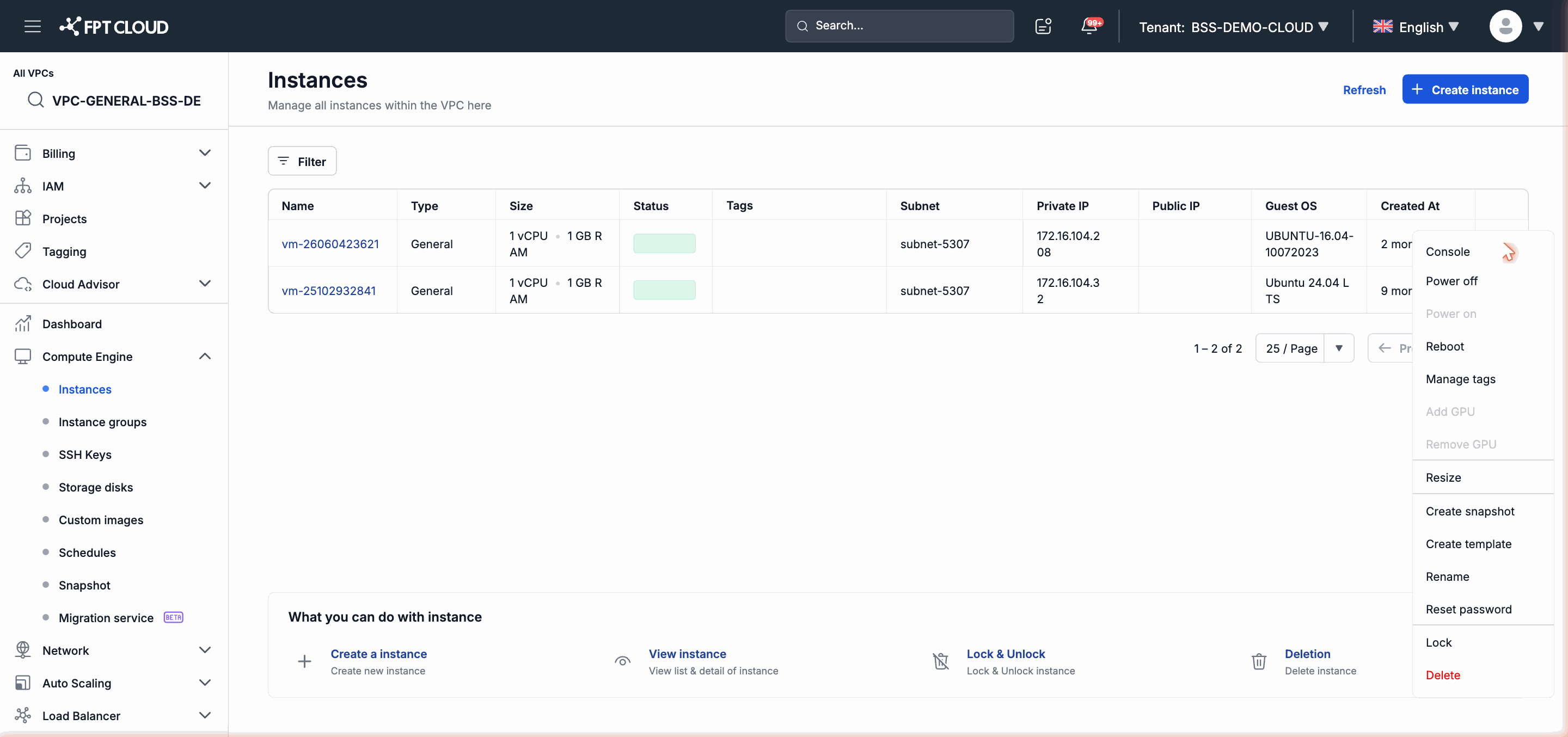
Note: Actions labeled "Specific VPC Only" only appear when the Instance belongs to Specific VPC. Instances in General VPC will not see these options.
Refresh Data
The Instance list does not update automatically. To see the latest status after performing an action, click the Refresh button (circular arrow icon) in the top-right corner of the list.
Next Steps
- Click the Instance name to view its full details including configuration, network, disks, and activity history.
- To power on, power off, or restart: see Power On, Power Off, and Reboot an Instance.