Manage GPU (Specific VPC)
GPU enables an Instance to handle high-performance parallel compute tasks such as AI/ML model training, inference, and graphics rendering. You can select a GPU Instance type at creation time, or add a GPU to an existing standard Instance after it has been created.
GPU management is only available for Instances in Specific VPC.
Add a GPU to an Instance
Requirements
- The Instance must belong to Specific VPC.
- The Instance must be in Stopped (POWERED_OFF) state.
- The Image must have GPU drivers installed — when selecting an image, prefer images labeled GPU to ensure driver compatibility.
Steps
Step 1: Power off the Instance
If the Instance is running, perform a Power Off first. See Power Operations Guide.
Step 2: Open the Add GPU dialog
From the Instance list or detail page, click the action menu → select Add GPU.
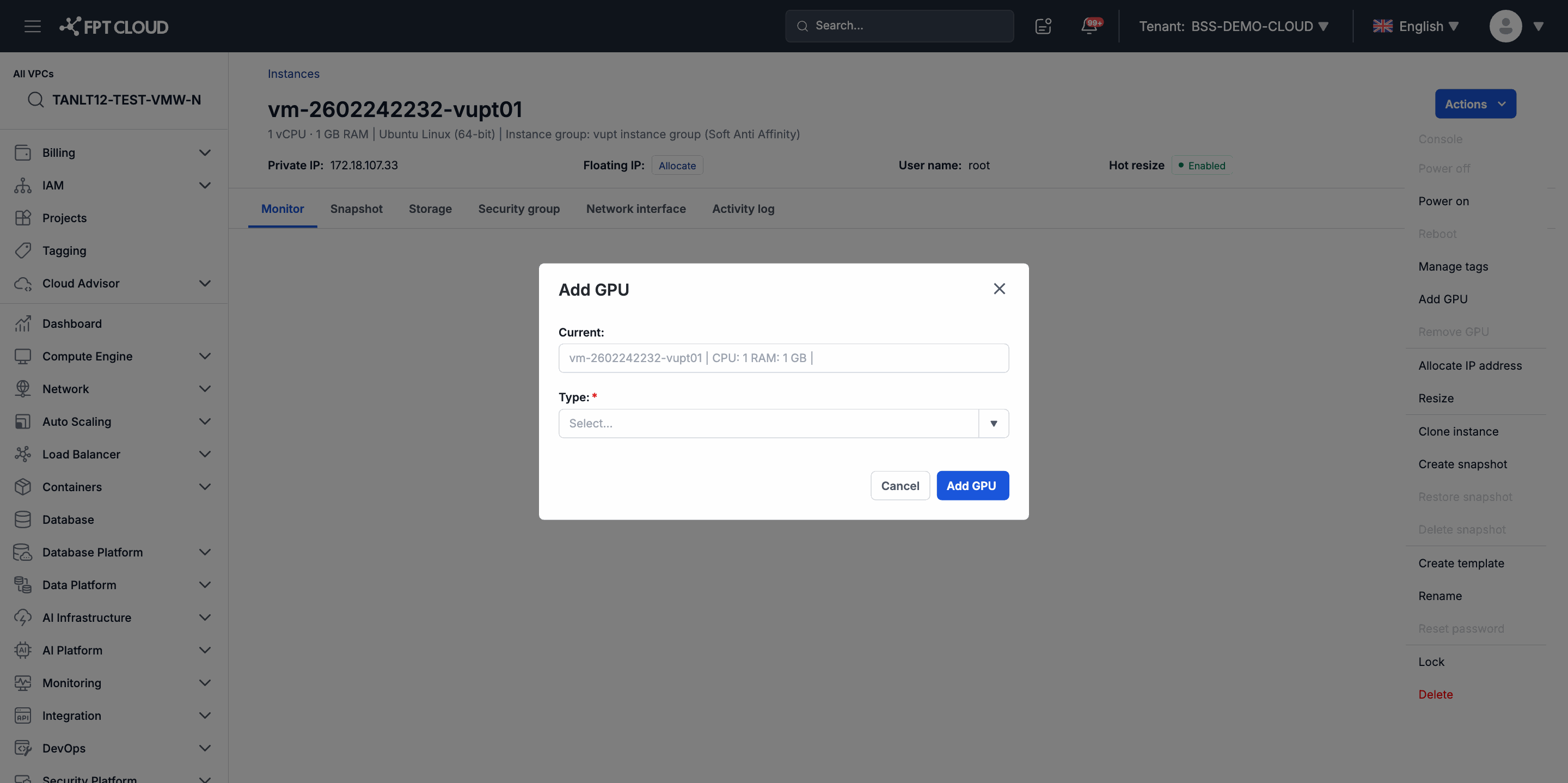
Step 3: Select the vGPU type
The system displays a list of vGPU types compatible with the Instance's current Flavor. Select the type that suits your workload.
Important: The vGPU list is filtered by the Instance's Flavor. If the current Flavor is not compatible with any vGPU type, you need to resize the Instance to a compatible Flavor first.
Step 4: Confirm
Click Confirm. After the operation completes, power the Instance back on using Power On.
Important: Adding a GPU requires the Instance to be in Stopped state. If the Instance is running when this operation is performed, the system will reject the request.
Remove a GPU from an Instance
Step 1: Power off the Instance (if running).
Step 2: From the action menu → select Remove GPU.
Step 3: Confirm in the dialog. The system will remove the GPU and the Instance reverts to its original Flavor configuration.
Change the GPU Type (Edit GPU Plan)
If the Instance already has a GPU and you want to switch to a different vGPU type:
Step 1: Power off the Instance (if running).
Step 2: From the action menu → select Edit GPU Plan.
Step 3: Select the new vGPU type from the list → click Confirm.
Next Steps
- View the list of actions and their corresponding state requirements in Quick Reference.
- If you need to change the Flavor before adding a GPU: see Resize Guide.