Upgrade an Instance Without Downtime (Live Resize)
Live Resize lets you increase the vCPU count and RAM of a running Instance without powering it off, losing data, or interrupting your services.
Prerequisite: The Instance Must Be Created with the Live Resize Option
Important: The Live Resize action is only available on Instances that were created with the Live Resize option selected at creation time. If the Instance was created using the standard OS, Image, or Snapshot tab, the Live Resize action will be permanently disabled on that Instance and cannot be enabled afterward.
When creating a new Instance, in the Image section, select the Live resize tab instead of the default OS or Image tab. The system will show only OS images and flavors that are compatible with Live Resize.
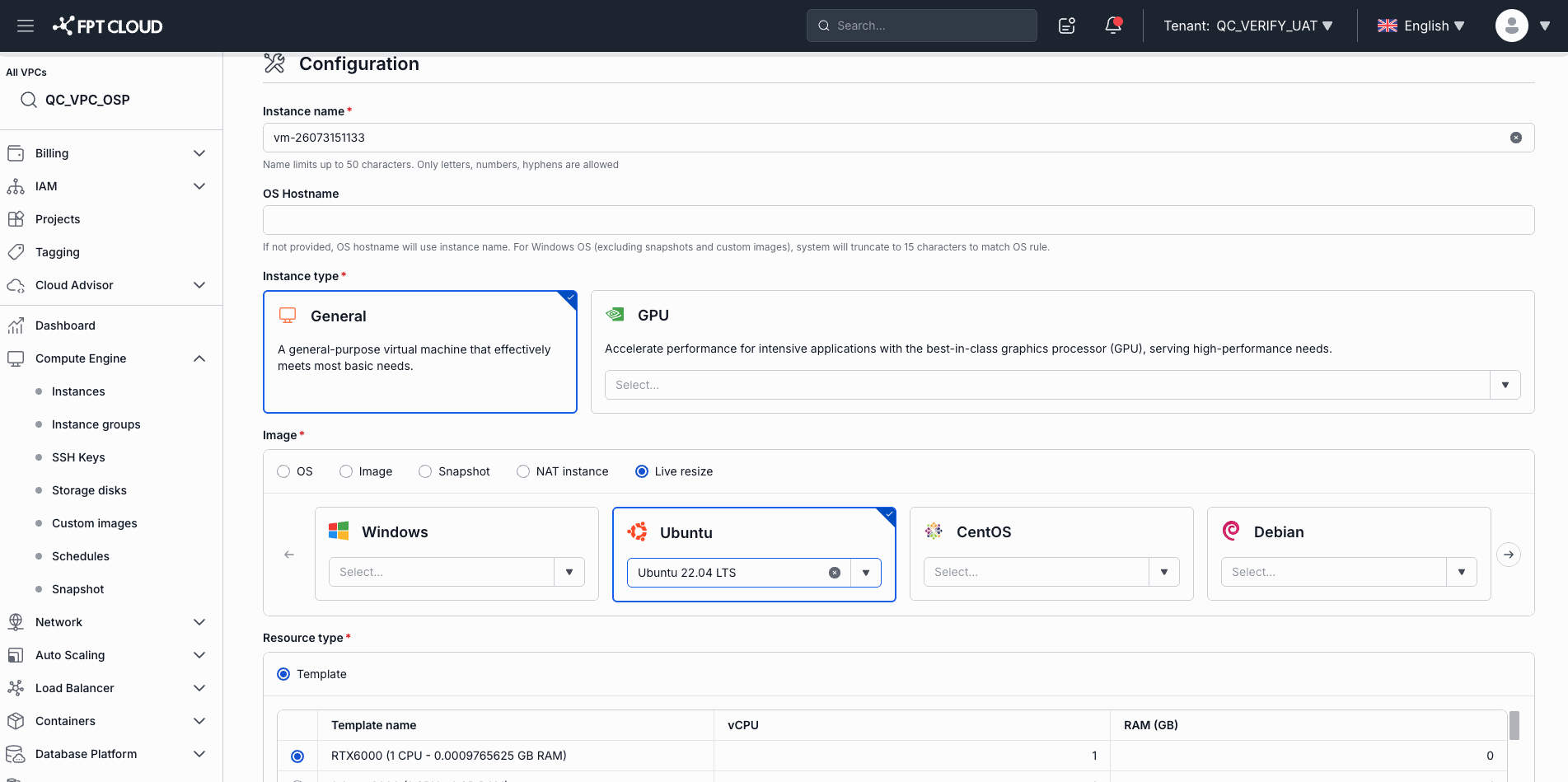
Once the Instance is created with the Live Resize option, the Live Resize action will appear in its action menu — provided the Instance is in Running state with no ongoing operation.
If the Live Resize action appears grayed out, hover over it to see the specific reason.
Note: Live Resize is only supported for General instances. GPU instances do not support this feature.
Rules for Selecting the Target Flavor
The new Flavor must meet the following rules:
- Scale up only: New vCPU ≥ current and new RAM ≥ current, with at least one value strictly larger. You cannot reduce vCPU or RAM through Live Resize.
- Same disk configuration: The target Flavor must have the same root disk and ephemeral disk capacity as the current Flavor.
- Same topology configuration: The target Flavor must match the current Flavor's NUMA and CPU pinning settings.
The system automatically filters and shows only valid Flavors — you do not need to verify these technical details manually.
Steps to Perform Live Resize
Step 1: Open the Live Resize Action
You can access Live Resize from two locations:
From the Instance list page:
- Find the Instance you want to upgrade in the list.
- Open the action menu (three-dot icon or Actions column).
- Select Live Resize.
From the Instance detail page:
- Go to the Instance detail page.
- Open the action menu in the top-right corner.
- Select Live Resize.
Step 2: Select the New Flavor
The system displays the Instance's current Flavor and a list of valid Flavors for upgrade.
- Review the current Flavor shown in the dialog.
- Select a new Flavor with a higher vCPU count or more RAM.
- If the system shows a warning "The current host may not have enough resources for this upgrade", the current host may not have sufficient free capacity. You can still proceed — if the host truly lacks resources, the system will return an error after you confirm.
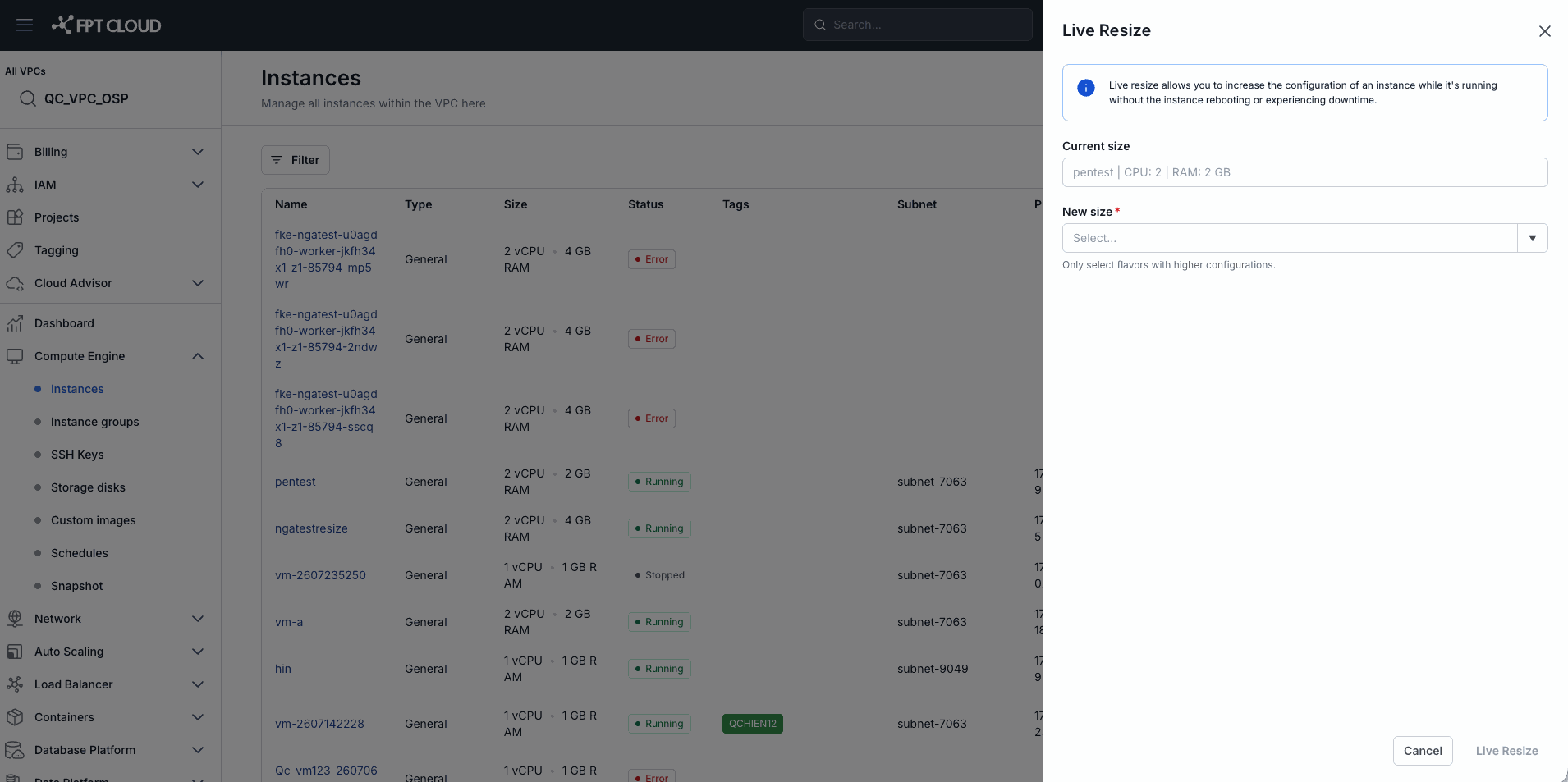
Note: If the Flavor you want does not appear in the list, it does not meet one of the validity rules (its disk or topology configuration differs from the current Flavor).
Step 3: Confirm the Upgrade
- Review the selected Flavor.
- Click Confirm upgrade to start.
- The Instance enters an upgrading state — all other actions are temporarily locked. The Instance Console remains accessible throughout.
- When complete, the Instance returns to Running state with the new Flavor. You do not need to power the Instance back on.
Verify the Result
After Live Resize completes, confirm the upgrade by:
- Checking the Flavor information on the Instance detail page — the vCPU and RAM counts should match the Flavor you selected.
- Logging into the Instance and checking resources with
lscpu,free -h(Linux), or Task Manager (Windows).
Common Errors
| Situation | Cause | Resolution |
|---|---|---|
| Live Resize action is disabled | Instance is a GPU instance, or the image/flavor does not support Live Resize, or the Instance is not in Running state | Hover over the action to see the specific reason |
| Live Resize action is temporarily disabled | Another operation is in progress on the Instance | Wait for the current operation to complete, then try again |
| "vCPU Quota exceeded" | The new Flavor exceeds your account's vCPU quota | Select a Flavor with fewer vCPUs, or contact support to increase your quota |
| "RAM Quota exceeded" | The new Flavor exceeds your account's RAM quota | Select a Flavor with less RAM, or contact support to increase your quota |
| "vCPU & RAM Quota exceeded" | The new Flavor exceeds both vCPU and RAM quotas | Contact support to increase your quota |
| "The instance did not respond. Please try again." | The host did not have enough resources at the time of processing | Try again later or contact support |
Live Resize vs. Standard Resize
| Criteria | Live Resize | Standard Resize |
|---|---|---|
| Instance state required | Must be Running | Must be Stopped |
| Reboot required | No | Yes — power off first, then power on after |
| Service interruption | None | Yes (during power off and startup) |
| Allowed changes | Scale up only (increase) | Scale up or scale down |
| Image/flavor requirement | Both must support Live Resize | No special requirement |
| GPU instances | Not supported | Supported (after removing GPU) |