Monitor and Activity Log
The Instance detail page provides two tabs to observe the current state and activity history: Monitor displays real-time operational metrics, and Activity Log records all operations performed on the Instance.
Monitor Tab
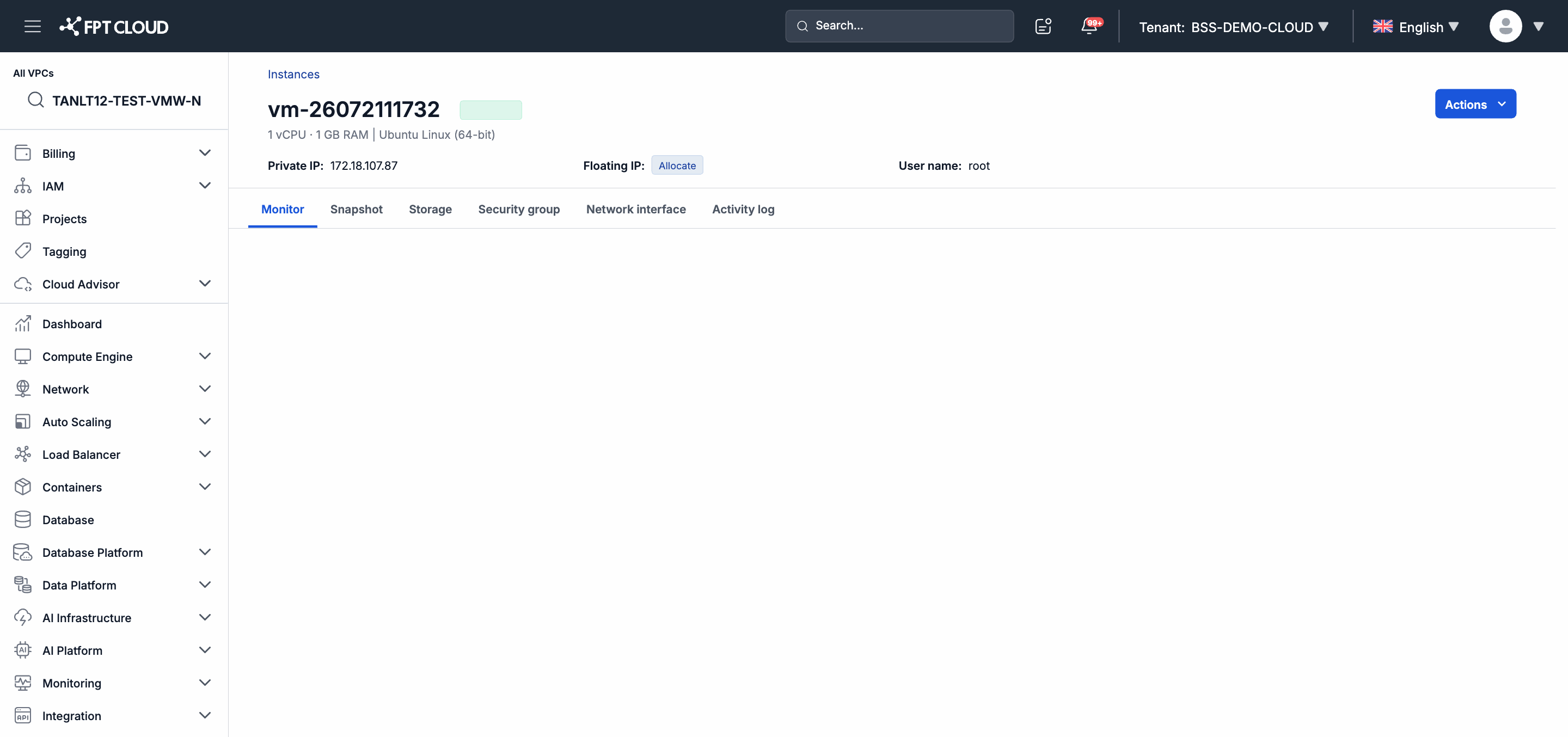
Access: Go to the Instance detail page → select the Monitor tab.
The Monitor tab displays key operational metrics:
| Metric | Description |
|---|---|
| CPU Usage | CPU utilization percentage |
| RAM Usage | Memory currently in use |
| Network In/Out | Inbound and outbound network traffic |
| Disk I/O | Disk read/write speed |
How to Use These Metrics
- Consistently high CPU and RAM: Consider Resizing the Instance to a Flavor with more resources.
- Abnormally high network traffic: Check your application or Security Group configuration — something may be exploiting the Instance.
- High Disk I/O: The application may be experiencing a storage-layer bottleneck — consider optimizing queries or adding a Storage Disk.
- All metrics at 0 or not updating: The Instance may have been powered off or lost connection with the monitoring infrastructure.
Activity Log Tab
Access: Go to the Instance detail page → select the Activity Log tab.
The Activity Log tab records the history of all operations performed on this Instance, in chronological order from newest to oldest.
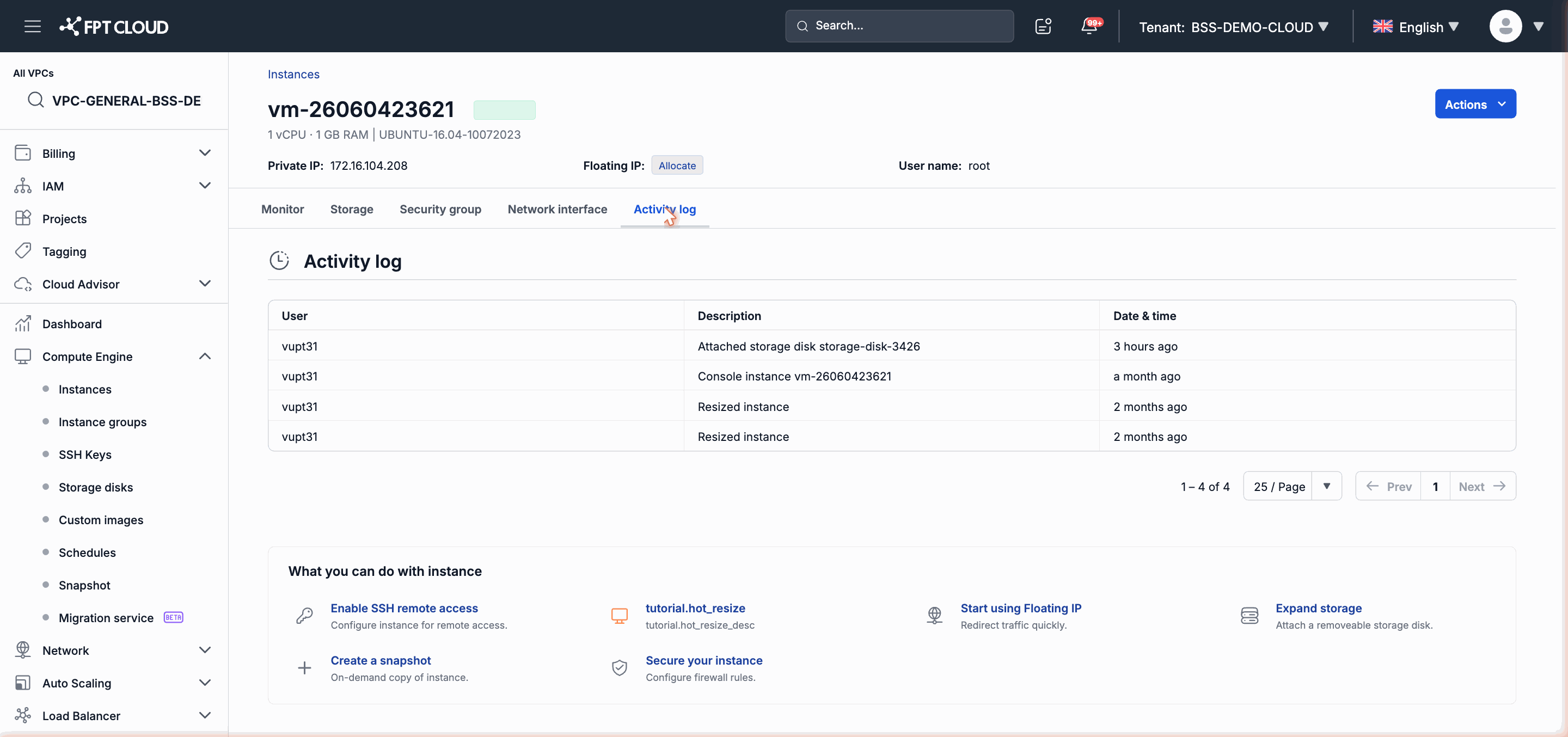
Each entry in the Activity Log contains:
| Column | Content |
|---|---|
| Time | The time the operation started or completed |
| Action | The name of the operation (Power On, Power Off, Resize, Snapshot, etc.) |
| Performed by | The username or system (if triggered by an automated schedule) |
| Result | Success, Failed, or currently processing status |
When to Use Activity Log
- Check the most recent operation: Confirm whether a Power Off or Resize command was completed successfully.
- Find the root cause of an issue: See who performed what operation just before the Instance encountered a problem.
- Verify automated schedules: Check whether a ScheduleJob ran on time and succeeded.
- Audit trail: Record change history to meet audit or internal compliance requirements.
Next Steps
- If you find a failed operation in the Activity Log: see Troubleshooting Common Issues.
- If Monitor metrics indicate the Instance needs more resources: see Resize Guide.