Power On, Power Off, and Reboot an Instance
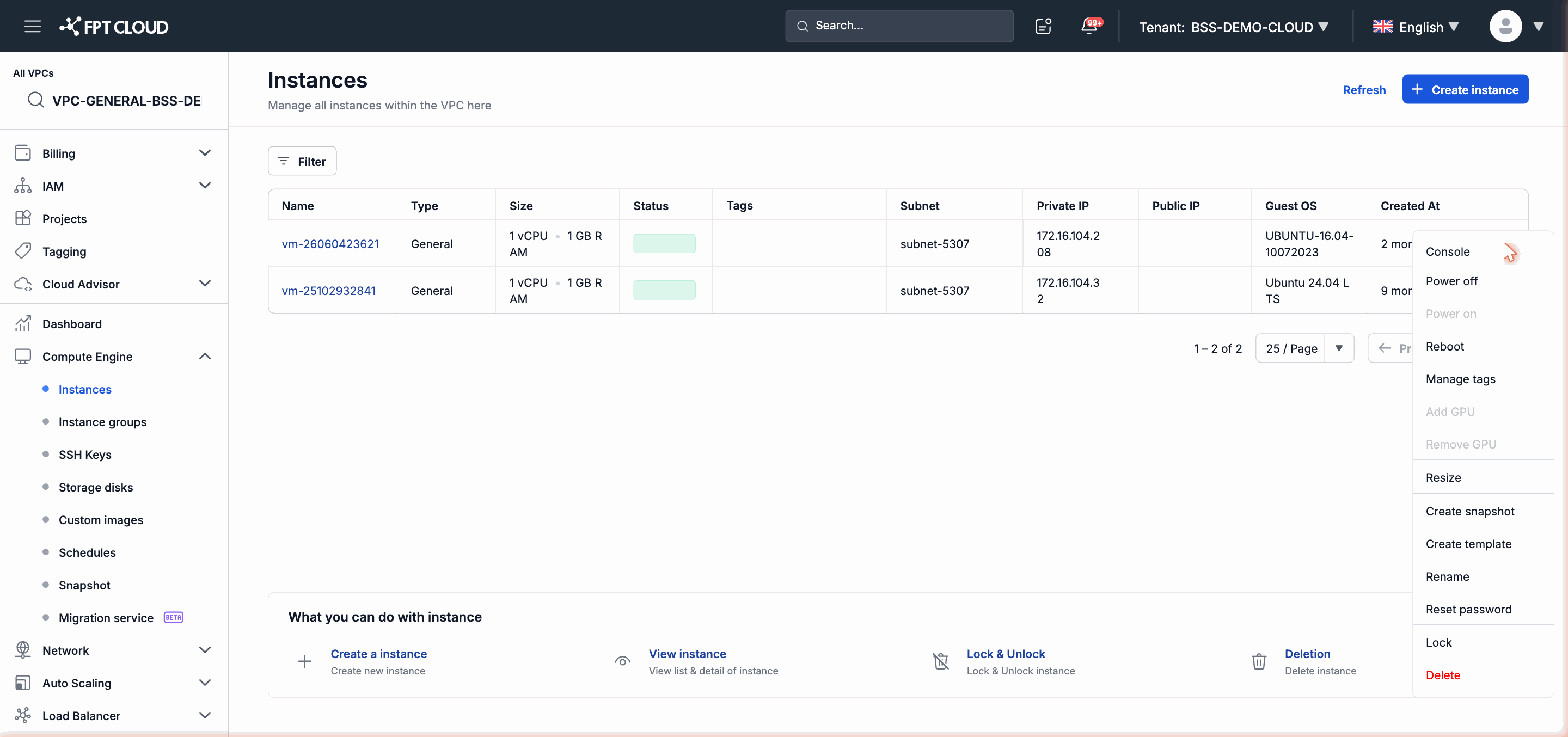
You can control the power state of an Instance from both the Instance list page and the Instance detail page. All power on, power off, and reboot operations run asynchronously — the system accepts the command and executes it in the background, and the Instance status will update once the operation is complete.
Power On
Use this when the Instance is in Stopped state and you want to start it.
From the Instance List
- Find the Instance you want to power on in the list.
- Click the action icon (...) at the end of the row.
- Select Power On.
From the Instance Detail Page
- Open the Instance detail page.
- Click the action menu in the top-right corner.
- Select Power On.
After confirmation, the Instance transitions to Starting state. When the process completes, the status changes to Running.
Power Off
Use this when you need to stop an Instance for maintenance, or to prepare for tasks that require the Instance to be in a stopped state such as Resize or Add GPU.
From the Instance List
- Find the Instance you want to power off in the list.
- Click the action icon (...) at the end of the row.
- Select Power Off.
From the Instance Detail Page
- Open the Instance detail page.
- Click the action menu in the top-right corner.
- Select Power Off.
After confirmation, the Instance transitions to Stopping state. When the process completes, the status changes to Stopped.
Note: Some tasks such as Resize and Add GPU require the Instance to be in Stopped state before they can be performed. Power off the Instance before starting those operations.
Reboot
Use this when the Instance is running but needs to restart to apply configuration changes, install kernel updates, or recover when the Instance is responding abnormally slowly.
From the Instance List
- Find the Instance you want to restart.
- Click the action icon (...) at the end of the row.
- Select Reboot.
From the Instance Detail Page
- Open the Instance detail page.
- Click the action menu in the top-right corner.
- Select Reboot.
After confirmation, the Instance transitions to Rebooting state. When complete, the Instance returns to Running state.
Blocked Operations
In some situations, all power control operations will be rejected. There are two main reasons:
1. Instance Is Locked
If the Instance has the locked state enabled (is_locked = true), all operations including Power On, Power Off, and Reboot are rejected until you unlock it.
To unlock the Instance, see the guide at Rename, Reset Password, and Lock an Instance.
2. Instance Is Executing Another Task
If the Instance is in the middle of executing an operation (indicated by a transient state such as Starting, Stopping, Resizing, Creating), the system will reject all new commands until the current task completes.
In this case, wait for the Instance to return to a stable state (Running or Stopped) before retrying the operation.
Important: When an Instance is executing a task (indicated by a transient state such as Starting, Stopping, Resizing), all other operations will be rejected until the task completes. This is a protection mechanism to avoid command conflicts during operation.
Next Steps
- If an Instance is stuck in a transient state for an extended period and cannot self-resolve, see Instance Troubleshooting.
- To perform a Resize after the Instance has been powered off, see the Resize Instance guide.