Rename, Reset Password, and Lock an Instance
This guide describes three basic management operations on an Instance: renaming the display name, resetting the login password, and locking/unlocking to control operations.
Rename an Instance
Rename changes the display name of the Instance in the FPT Cloud Portal interface.
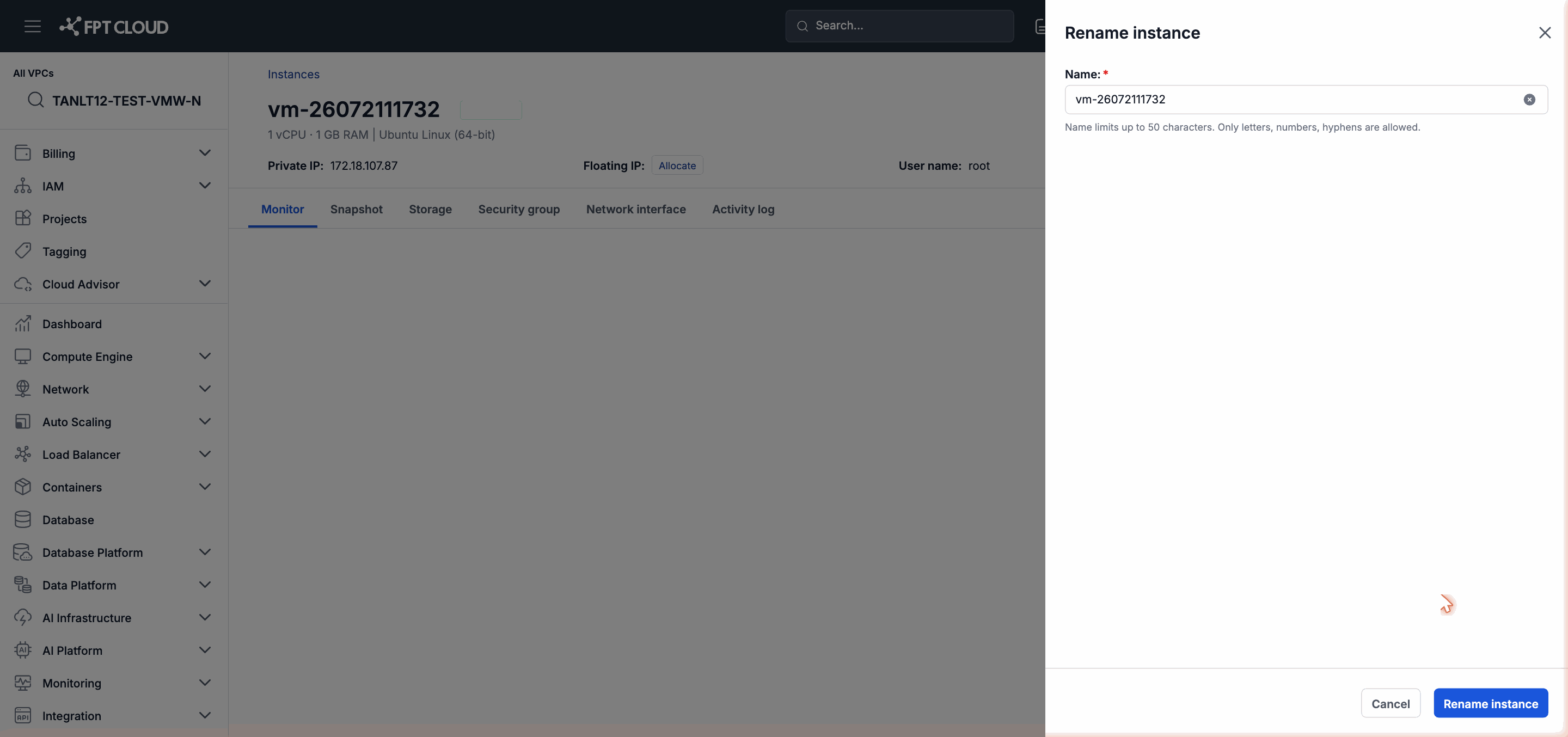
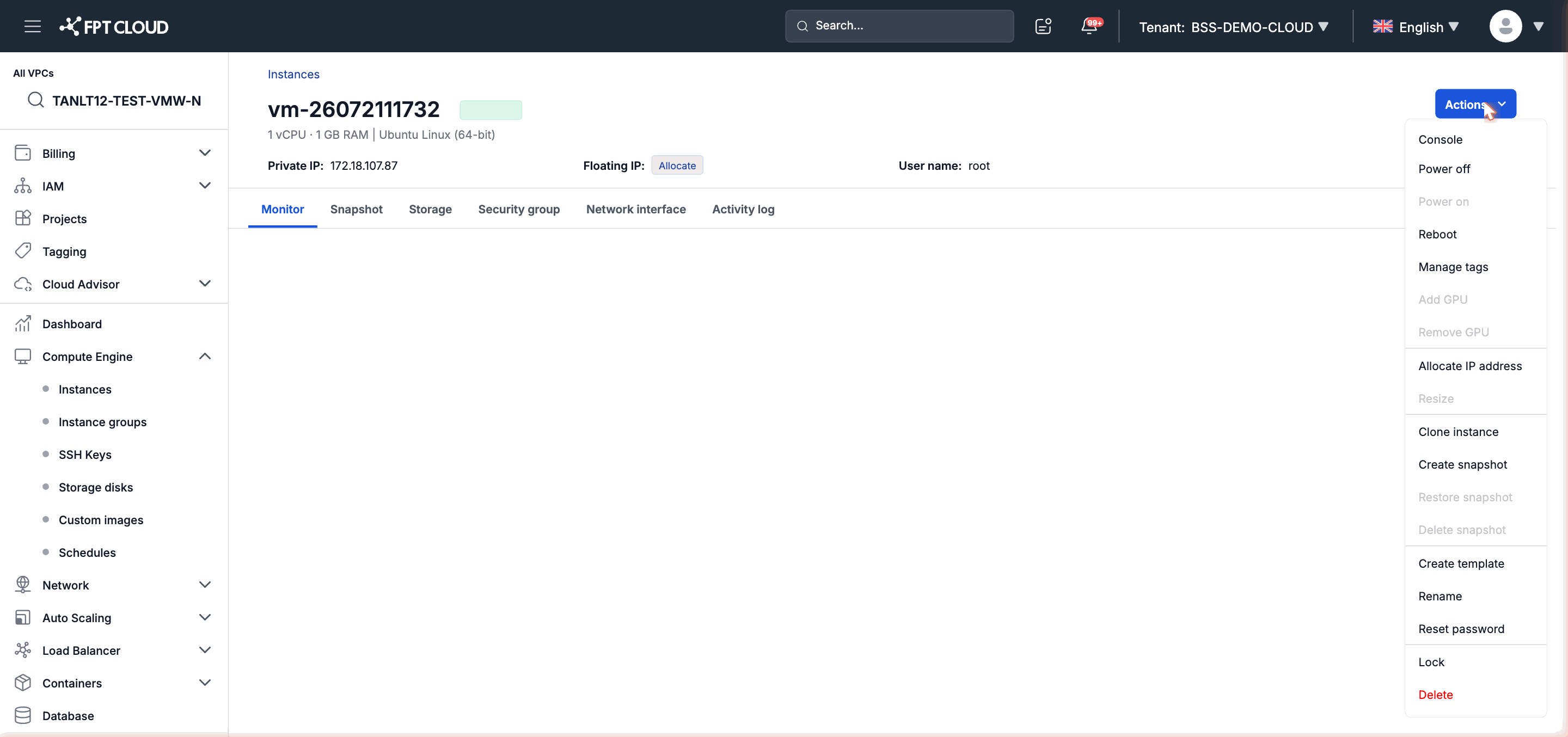
Step 1: From the Instance action menu → select Rename.
Step 2: Enter the new name in the dialog → click Save.
Note: Renaming only changes the display name in the Portal. The hostname inside the Instance's operating system is not affected.
Reset Password
Reset Password instructs the system to automatically generate a new password and send it to the email address registered with the FPT Cloud account. You do not enter the new password directly on the form.
Step 1: From the action menu → select Reset Password.
Step 2: Confirm in the dialog → click Confirm.
After confirmation:
- The system automatically generates a new random password.
- The new password is sent to the registered email address of your FPT Cloud account.
Note: Check your Spam/Junk folder if you do not see the email after a few minutes. If you still have not received it, see Troubleshooting Common Issues.
Lock an Instance
Lock prevents all operations on the Instance — including Power On/Off, Reboot, Resize, Delete, and other actions. Use Lock to protect a production Instance from accidental operations.
Step 1: From the action menu → select Lock.
Step 2: Confirm in the dialog.
When the Instance is locked, its status displays an additional Locked label and all operations are disabled.
Common use cases for Lock:
- Protect an Instance running production services from being accidentally stopped or deleted.
- Prevent team members from performing operations on critical Instances outside of maintenance windows.
Unlock an Instance
Step 1: From the action menu of the locked Instance → select Unlock.
Step 2: Confirm in the dialog.
After unlocking, all normal operations are restored.
Next Steps
- If you cannot perform an operation after unlocking: see Troubleshooting Common Issues.
- View the full list of operations and their state requirements in Quick Reference.