Restore an Instance from Backup
Restoring from Backup returns an Instance to its state at a point in the past by using a BackupRestorePoint — a recovery point created by the Backup system. This feature differs from restoring from a manual Snapshot: Backup operates independently, runs automatically on a schedule, and stores multiple recovery points including both full and incremental backups.
Note: This guide describes the Restore from Backup operation. If you want to restore from a manual Snapshot, see the corresponding Snapshot documentation.
Requirements
- The Instance must already have Backup configured (see the Backup module documentation to set it up).
- At least one BackupRestorePoint must be in an available state.
Steps
Step 1: Open the Restore from Backup Feature
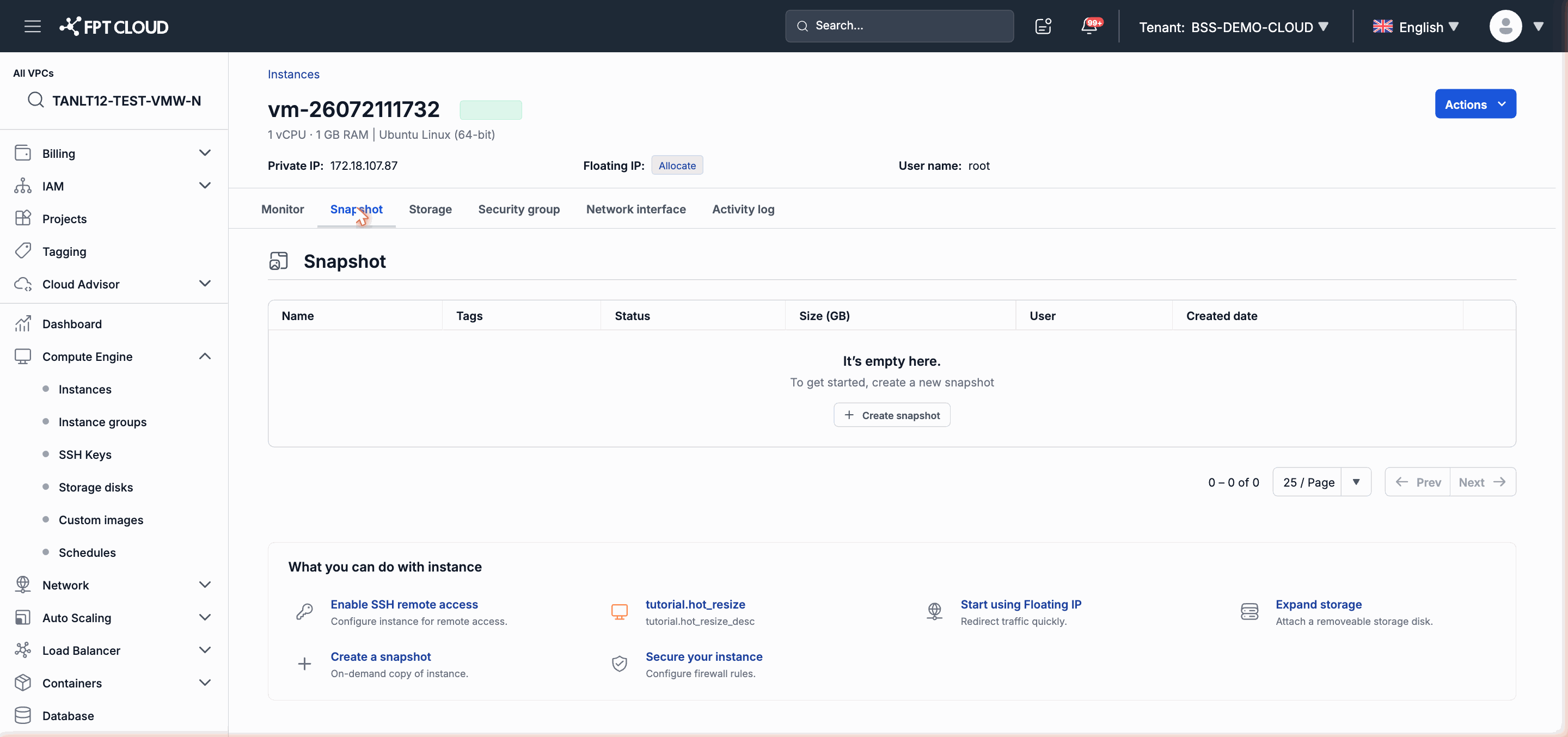
From the Instance list or the Instance detail page, click the action menu → select Restore from Backup.
Step 2: Select a Recovery Point
The system displays the list of available BackupRestorePoints. Each recovery point shows:
- Time of creation
- Type (full or incremental)
- Size
Select the recovery point that corresponds to the point in time you want to restore the Instance to.
Step 3: Confirm the Restore
Read the confirmation message carefully before proceeding. Click Confirm to begin.
Important: The restore will return the Instance to its state at the time of the backup. All data created after that point — including files, configuration, and databases — will be lost and cannot be recovered.
Step 4: Monitor the Progress
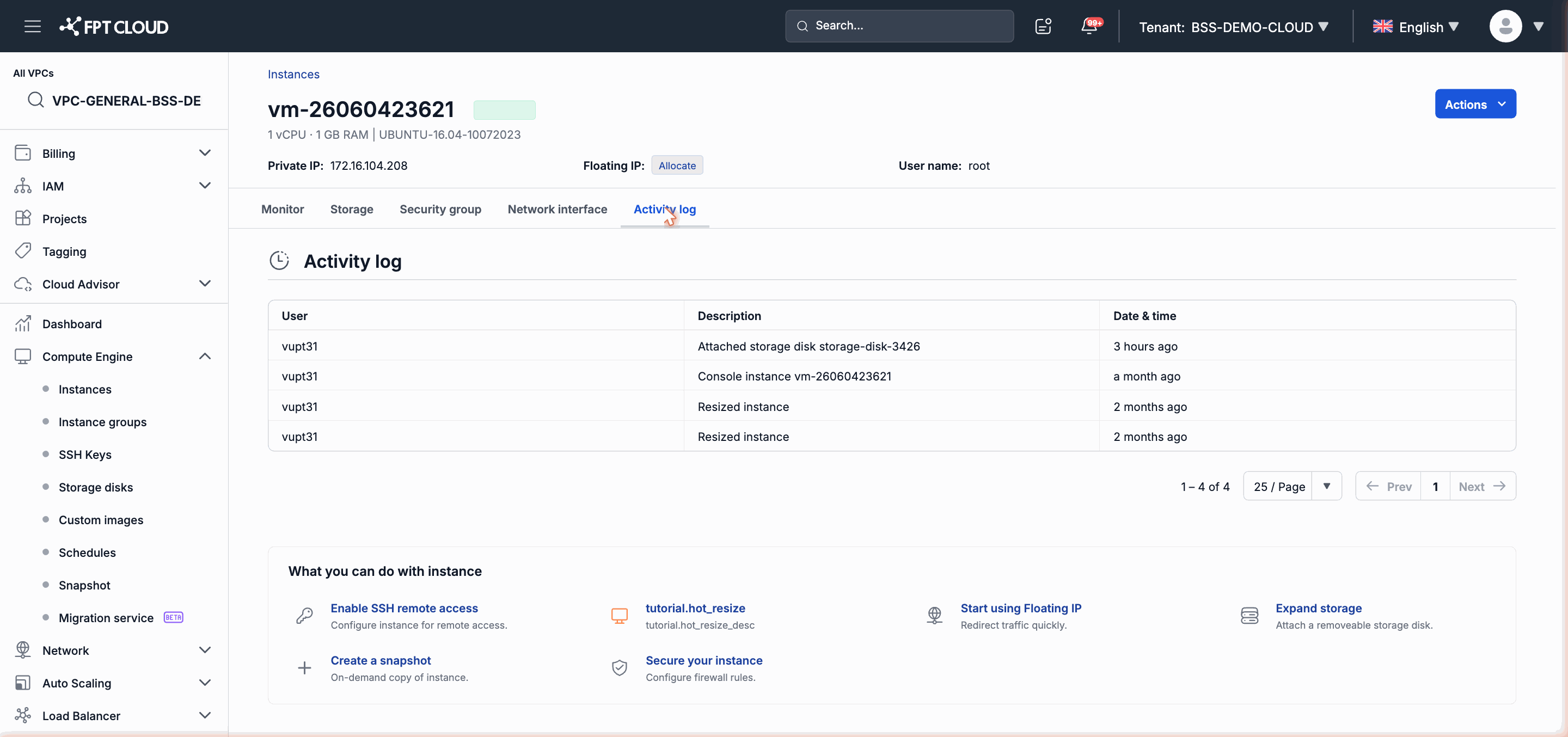
The system performs the restore through the sequence: PENDING → RUNNING → SUCCESS or FAILED.
You can monitor the progress in:
- The Instance's Activity Log tab.
- The Backup module (if it has a dedicated monitoring interface).
When the restore completes with a SUCCESS status, the Instance is ready to use.
Note: During the restore, the Instance cannot perform any other operations. Avoid operating on the Instance until the restore is complete.
Next Steps
- Check the data after restoring to confirm the Instance is working correctly.
- See Monitor and Activity Log to review operation history.
- See the Backup module documentation to configure an automatic backup schedule if not yet set up.