Schedule Automatic Instance Power On/Off
ScheduleJob allows the system to automatically power on and power off Instances on a predefined schedule. This feature is suitable for reducing costs in environments that do not need to run continuously — for example, shutting down dev/test Instances overnight and on weekends, then powering them back on during work hours.
Create a New Schedule (ScheduleJob)
Steps
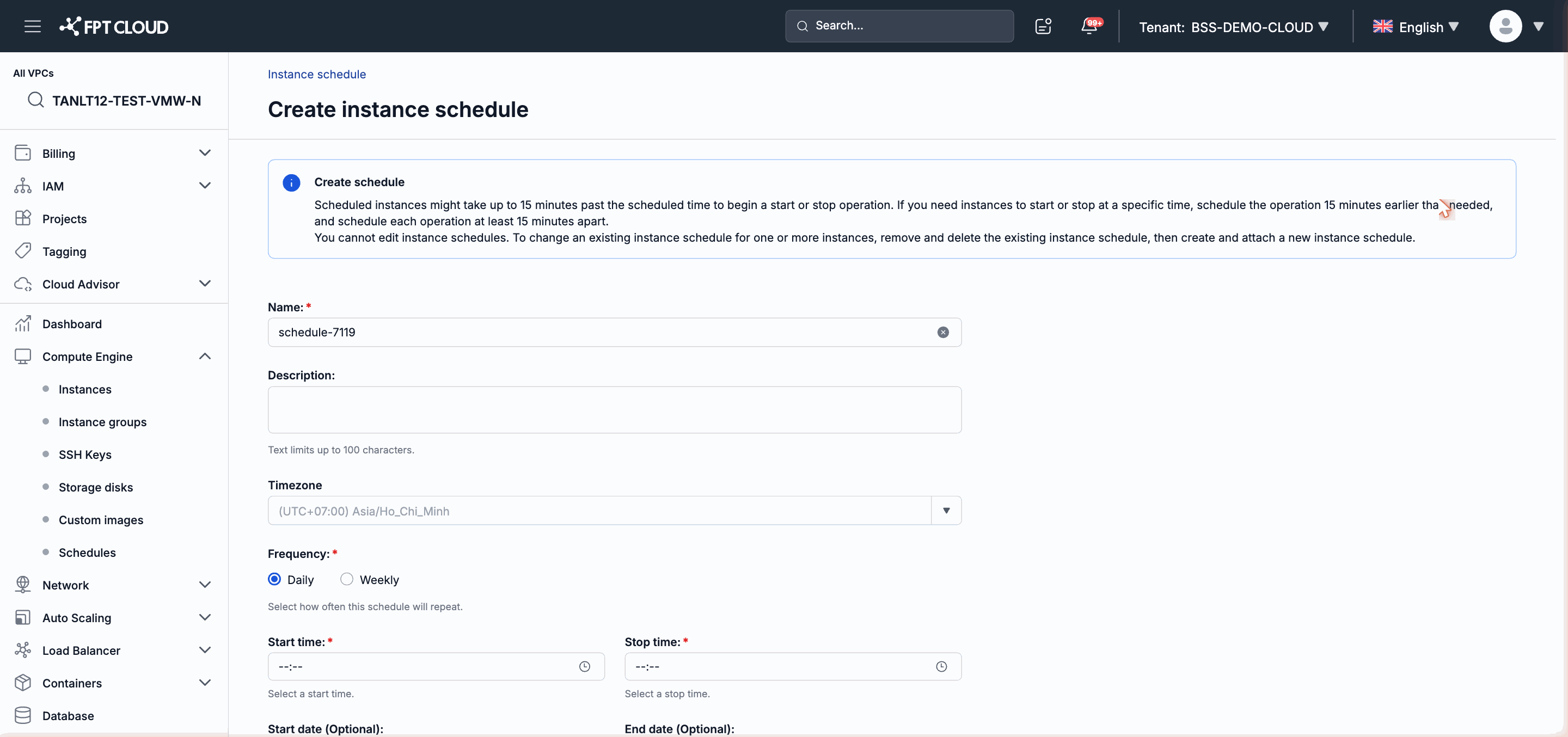
Step 1: In the Instance or VPC management interface, go to Schedule → click Create schedule.
Step 2: Fill in the schedule information:
| Field | Description |
|---|---|
| Schedule name | Display name; should clearly describe the purpose |
| Start time | The time the system performs Power On |
| Stop time | The time the system performs Power Off |
| Frequency | Daily or weekly |
| Timezone | The timezone applied to the schedule |
Step 3: Click Confirm to create the schedule.
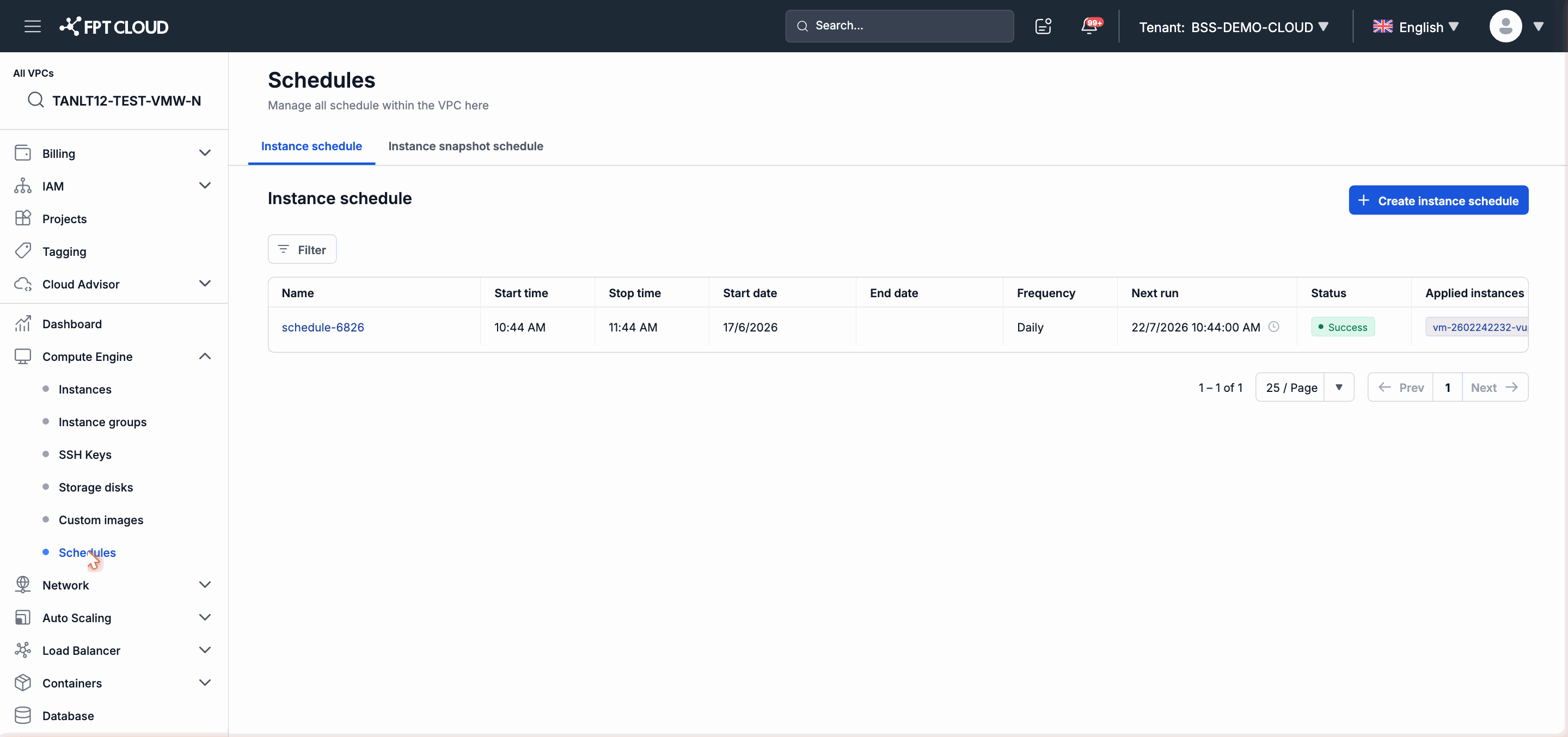
Note: The schedule takes effect immediately after creation. The Next Run At field in the schedule list displays the next scheduled run based on the configured timezone and frequency.
Assign Instances to a Schedule
After creating a schedule, you need to assign the Instances you want to automate to that schedule.
Step 1: Open the created schedule → click Assign Instance.
Step 2: Select one or more Instances from the list.
Step 3: Click Confirm.
Note: Each Instance can only be assigned to one power schedule at a time. If an Instance already belongs to another schedule, you need to remove it from the old schedule before assigning it to the new one.
Edit a Schedule
To change the run time, frequency, or timezone:
Step 1: From the schedule list, click the schedule you want to edit → select Edit.
Step 2: Update the necessary fields → click Save.
Changes take effect from the next scheduled run.
Delete a Schedule
Step 1: From the schedule list, select the schedule to delete → click Delete.
Step 2: Confirm in the dialog.
Warning: Deleting a schedule will unassign all Instances from that schedule. The associated Instances will no longer be automatically powered on/off by this schedule.
Receive Email Notifications When a Schedule Runs
If your FPT Cloud account has email notifications configured (send_mail), the system will send an email after each schedule execution, including the result (success or failure) and the actual run time.
Check the notification settings in Account Settings if you are not receiving emails.
Next Steps
- If an Instance is not powering on/off at the right time: see Troubleshooting Common Issues.
- To automatically create Snapshots on a schedule: see Schedule Automatic Snapshot.