Schedule Automatic Snapshots
ScheduleSnapshotJob allows the system to automatically create Snapshots on a recurring schedule, instead of requiring you to remember to create them manually. This is a simple way to maintain regular recovery points for an Instance without manual intervention.
Unlike manual Snapshots (which you create on demand), scheduled Snapshots run automatically based on the frequency and time you configure, ensuring that a recent backup is always available.
Create a Snapshot Schedule
Steps
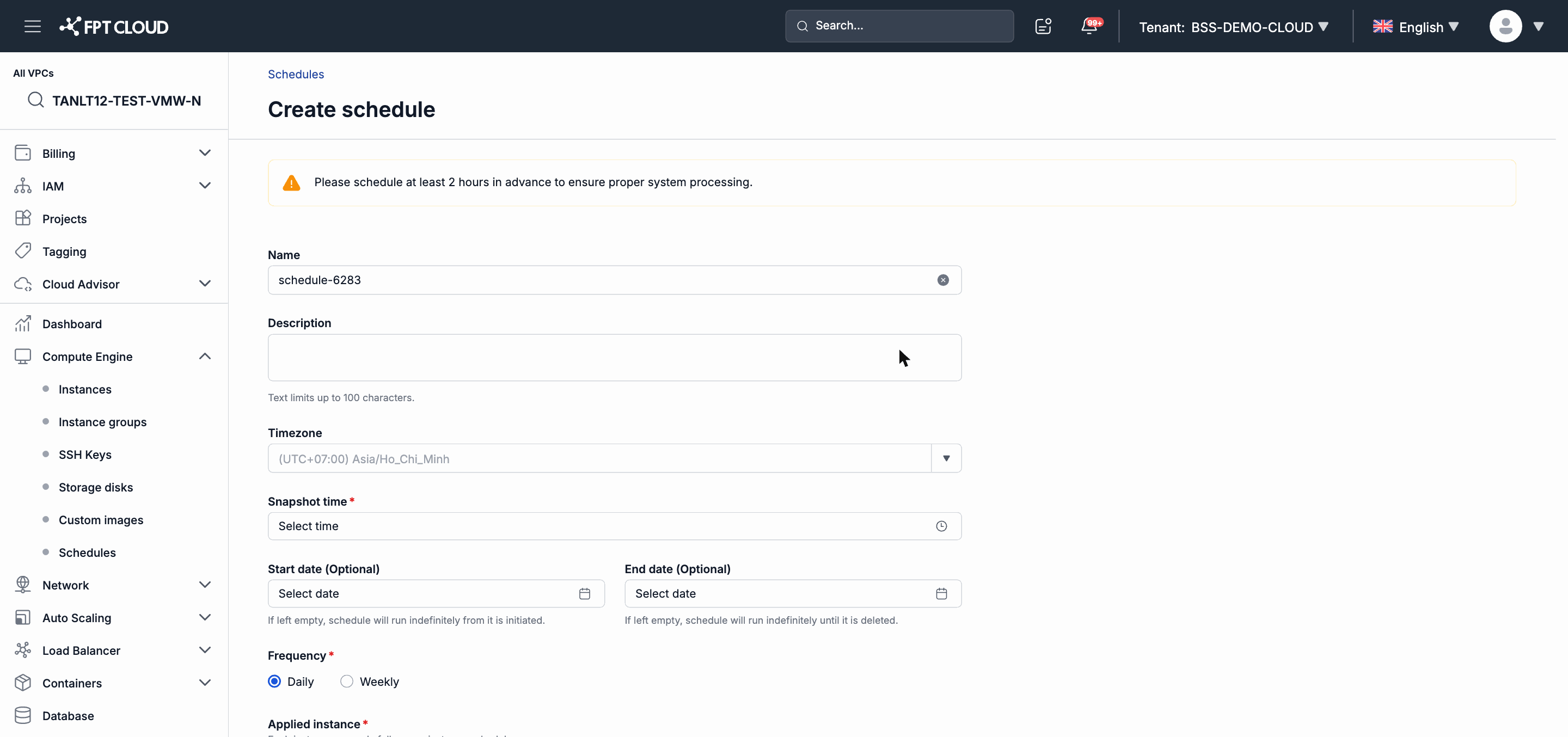
Step 1: Go to Schedule Snapshot in the Instance or VPC management interface → click Create Snapshot schedule.
Step 2: Fill in the information:
| Field | Description |
|---|---|
| Schedule name | Display name; should clearly describe the purpose |
| Resource type | Select Instance |
| Frequency | Daily or weekly |
| Run time | The time the system creates the Snapshot |
| Start date | The date the schedule becomes active (optional) |
| End date | The date the schedule stops running (optional) |
Step 3: Click Confirm to create the schedule.
Assign Instances to a Snapshot Schedule
After creating a schedule, you need to specify which Instances will be snapshotted according to this schedule.
Step 1: Open the newly created schedule → click Assign Instance.
Step 2: Select Instances from the list → click Confirm.
Note: Each Instance can only be assigned to one Snapshot schedule at a time. If the Instance already belongs to another schedule, you need to remove it from the old schedule first.
After assigning, the Next Run At field shows the next Snapshot creation time. The Latest Run At field updates after each successful schedule run.
Manage a Snapshot Schedule
Edit a schedule: From the Snapshot schedule list → select the schedule → click Edit → update the frequency, run time, or end date → click Save. Changes take effect from the next scheduled run.
Delete a schedule: From the Snapshot schedule list → select the schedule → click Delete → confirm. Deleting a schedule unassigns all Instances, but previously created Snapshots are not deleted.
Next Steps
- To create a Snapshot immediately instead of on a schedule: see Manage Manual Snapshots.
- To restore an Instance from a Backup: see Restore an Instance from Backup.