Create an Instance from a Windows Image
When you create an Instance from a Windows image, the system automatically checks the Windows License quota for the selected VPC before allowing you to proceed. This document explains how to read the quota indicator, what the BYOL (Bring Your Own License) label means, and what to do when the quota is full.
How Windows Licensing Works
FPT Cloud provides two types of Windows License when creating an Instance:
- FCI License — A license provided by FPT Cloud, counted against the VPC's Windows quota. Applies when you select an image from the FPT Cloud OS catalog, or an image/snapshot created from an existing Windows Instance using an FCI License.
- BYOL (Bring Your Own License) — You supply your own license. Applies when you upload a Windows image directly. Instances of this type do not count against the quota.
Note: Windows License quota is tracked per VPC. Each VPC has its own independent Windows slot limit.
Identifying the License Type When Selecting an Image
In the Image step of the Instance creation flow:
| Image type | Label displayed | Counts toward quota? |
|---|---|---|
| FPT Cloud OS catalog | (no special label) | Yes |
| Image created by FPT Cloud from your VM | (no special label) | Yes |
| Snapshot of an Instance using FCI License | (no special label) | Yes |
| Image you uploaded yourself | BYOL (Bring Your Own License) | No |
| ISO you uploaded yourself | BYOL (Bring Your Own License) | No |
If the system cannot automatically detect the OS type from your uploaded image, a prompt will appear asking you to select the OS Type manually:
"The system cannot automatically detect the OS type. Please select it manually."
Quota Indicator on the Create Instance Form
When you select a Windows image using an FCI License, an information banner appears directly below the image selection area:

The banner uses the following format:
Windows License
VPC quota: {used}/{total} used · {remaining} remaining
For example, VPC quota: 8/11 used · 3 remaining means the VPC has 3 slots available.
Note: This indicator reflects the quota for the currently selected VPC. Switching to a different VPC may show a different quota depending on each VPC's configuration.
Create a Windows Instance (FCI License)
- Start the Instance creation flow as usual.
- In the Image section, select the OS tab, then select Windows.
- Check the Windows License banner below — confirm that at least 1 slot is available (
VPC quota). - Complete the Flavor, Storage, and Network information then click Create Instance.
- The system automatically places the Instance in the correct Windows resource zone — no additional action is required on your part.
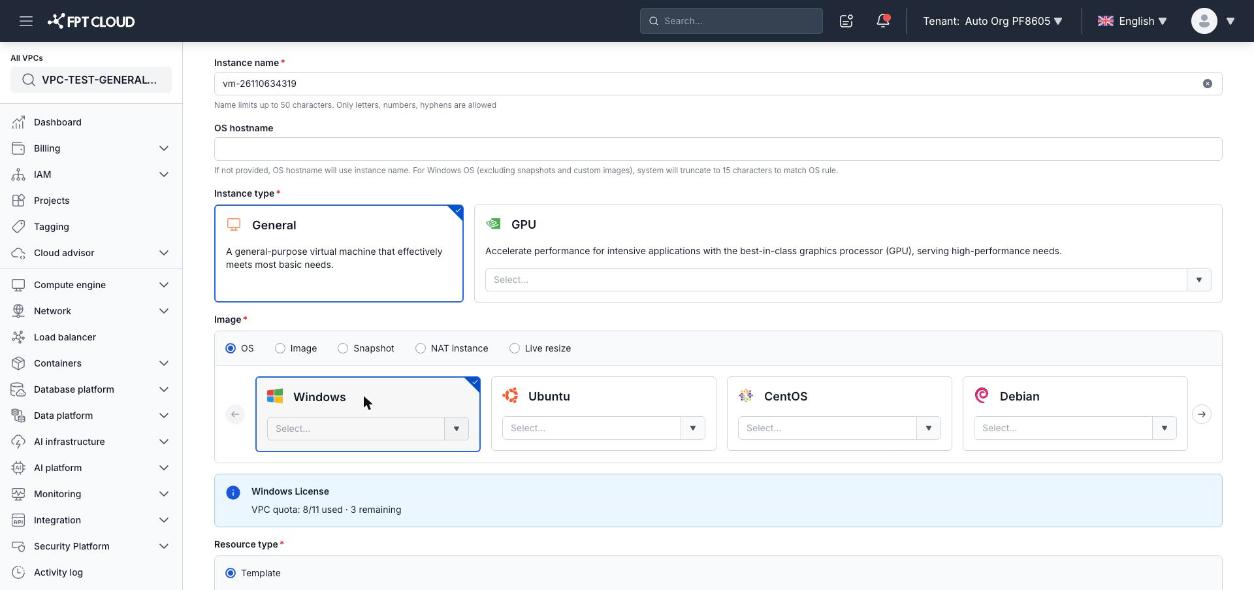
After the Instance is created successfully, the Windows License count increases by 1. When you delete a Windows Instance, the count decreases accordingly.
Create a Windows Instance with BYOL
- Start the Instance creation flow.
- In the Image section, select the Image tab, then select Custom image.
- Choose your Windows image from the Image dropdown.
- The OS Type field is automatically filled in if the system can detect the OS from the image. If not, select Windows manually from the OS Type dropdown.
- Complete the remaining information then click Create Instance.
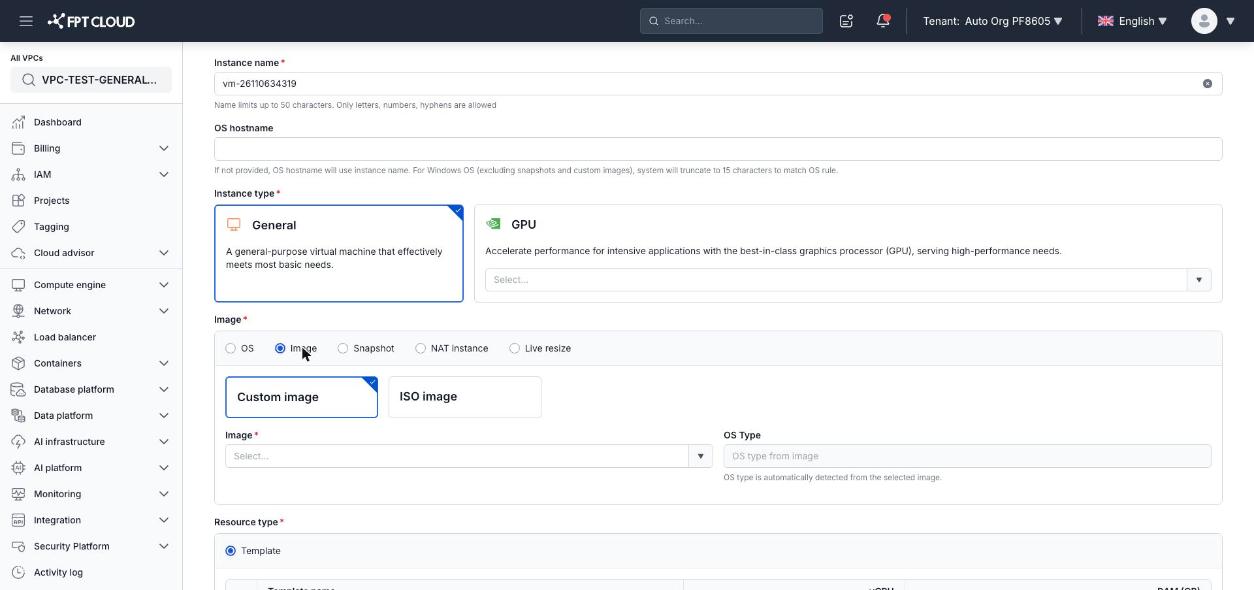
A BYOL Instance is still placed in the correct Windows resource zone, the same as an FCI License Instance. The Windows License banner and quota indicator do not appear because BYOL Instances are not counted against the quota.
What to Do When the Quota Is Full
If the VPC has used all of its Windows License quota, the system will display an error and refuse to create the Instance.
Options in this situation:
- Use BYOL — If you have your own Windows license, upload the image directly and create the Instance from that image.
- Delete unused Windows Instances — Each FCI License Windows Instance that is deleted frees up 1 slot in that VPC's quota.
- Contact FPT Cloud to increase the quota — If your requirements exceed the current limit, contact the support team to request additional quota for the VPC.