Troubleshooting Common Issues
Instance Stuck in a Transient State (CREATING, POWERING ON, POWERING OFF...)
Symptom: The Instance displays CREATING, POWERING ON, or POWERING OFF status for more than 15 minutes without transitioning to the next state.
Cause: An asynchronous task with the infrastructure encountered a problem during processing.
Resolution:
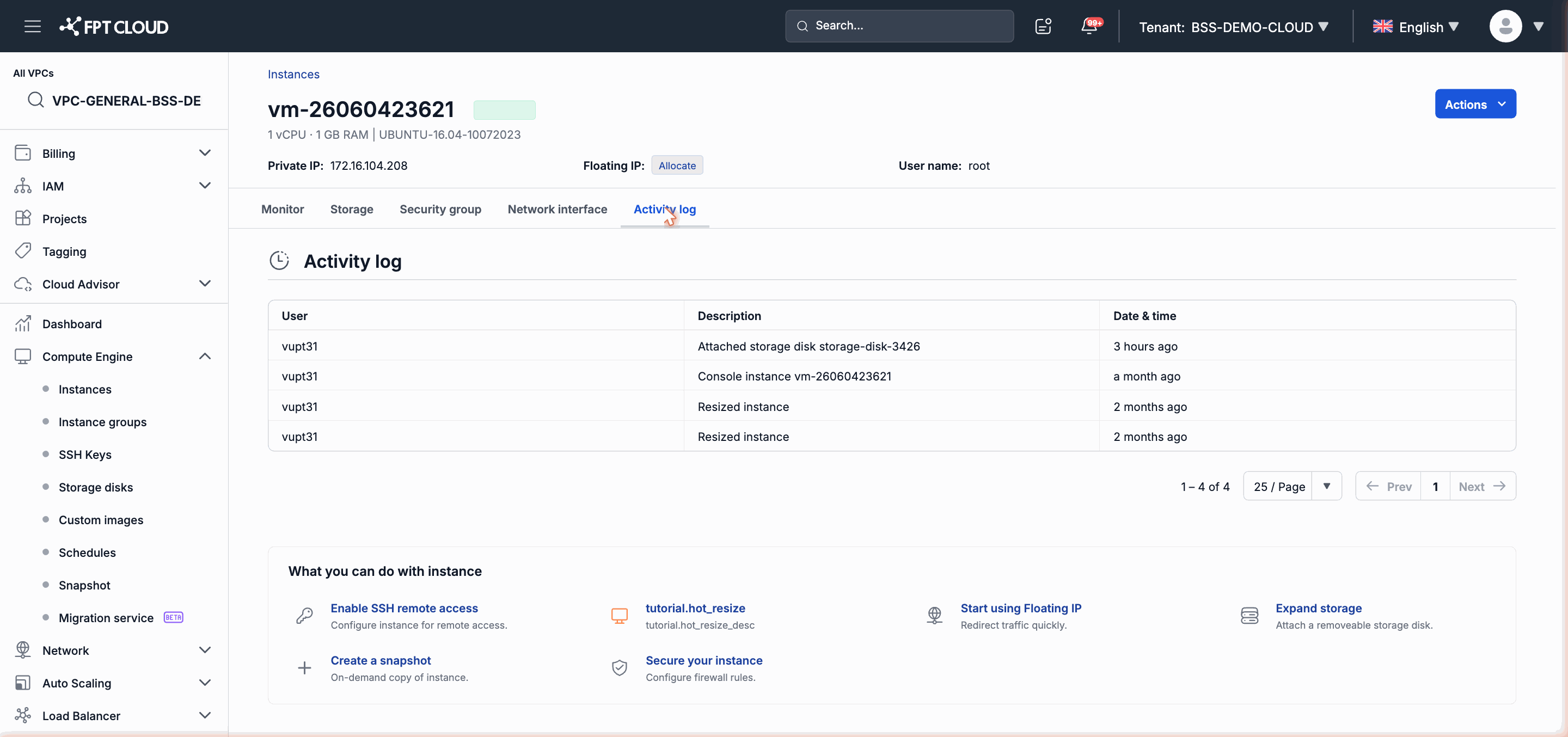
- Go to the Instance detail page → Activity Log tab to check for any specific error messages.
- Reload the page to confirm the displayed status is updating correctly.
- Wait an additional 5–10 minutes.
- If the Instance is still stuck after 30 minutes, contact FPT Cloud support and provide the Instance ID along with the time the problem started.
Cannot Perform an Operation (Rejected)
Symptom: Clicking Power On/Off, Resize, or other operations results in the system displaying a rejection message or a disabled button.
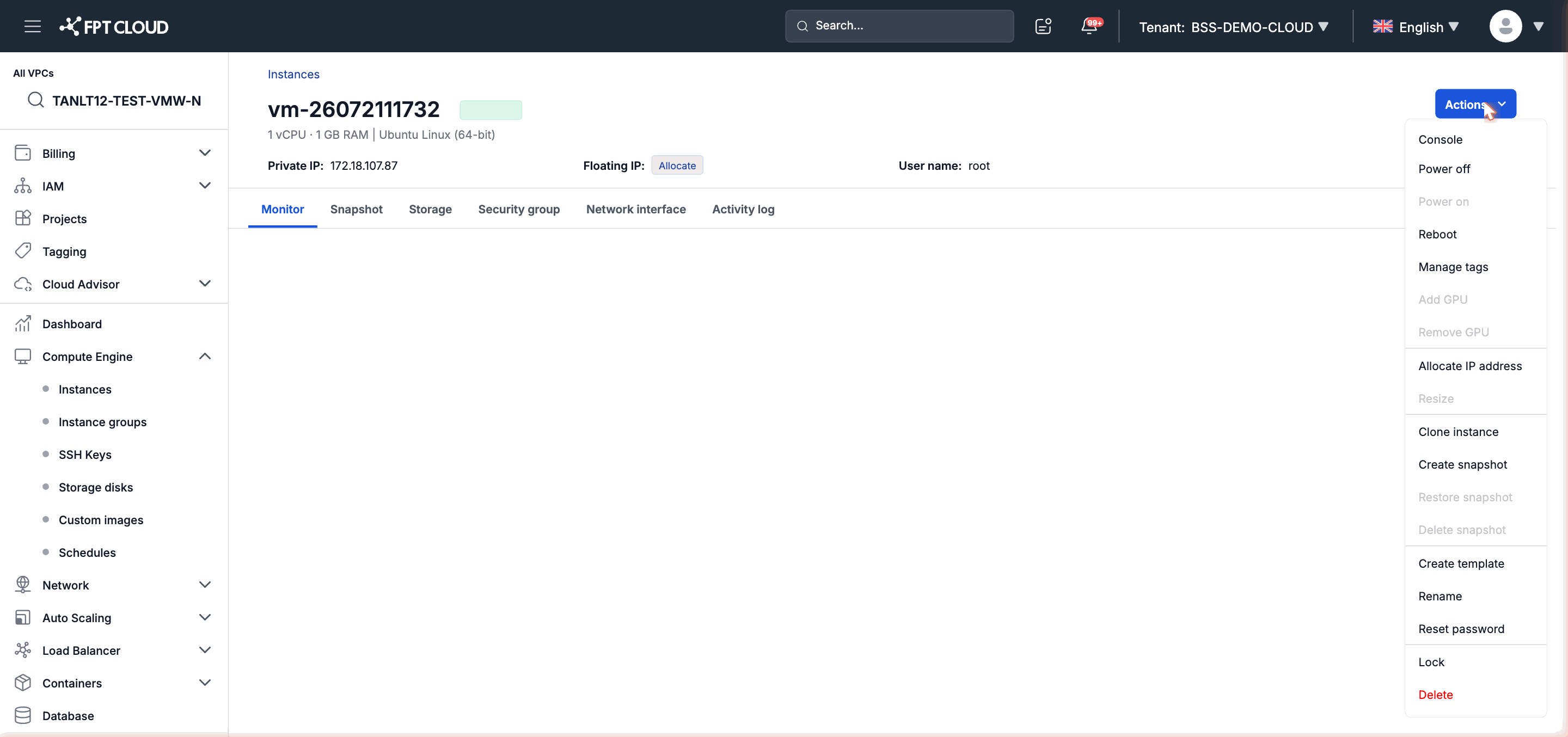
Cause 1 — Instance is Locked: Check whether the Instance status has a Locked label. If so: action menu → Unlock → retry the operation.
Cause 2 — Instance is executing another process: The Instance is processing another task (for example, currently RESIZING or restoring). Wait for the current task to complete before performing a new operation.
Cause 3 — Required state does not match: Some operations are only available in a specific state (for example: Resize requires the Instance to be Stopped). See Quick Reference to check state requirements.
NIC Not Connected After Cloning
Symptom: A recently Cloned Instance has no network, cannot be pinged, and cannot be connected to via SSH.
Cause: The NIC is automatically disabled after Cloning to avoid IP address conflicts with the original Instance.
Resolution:
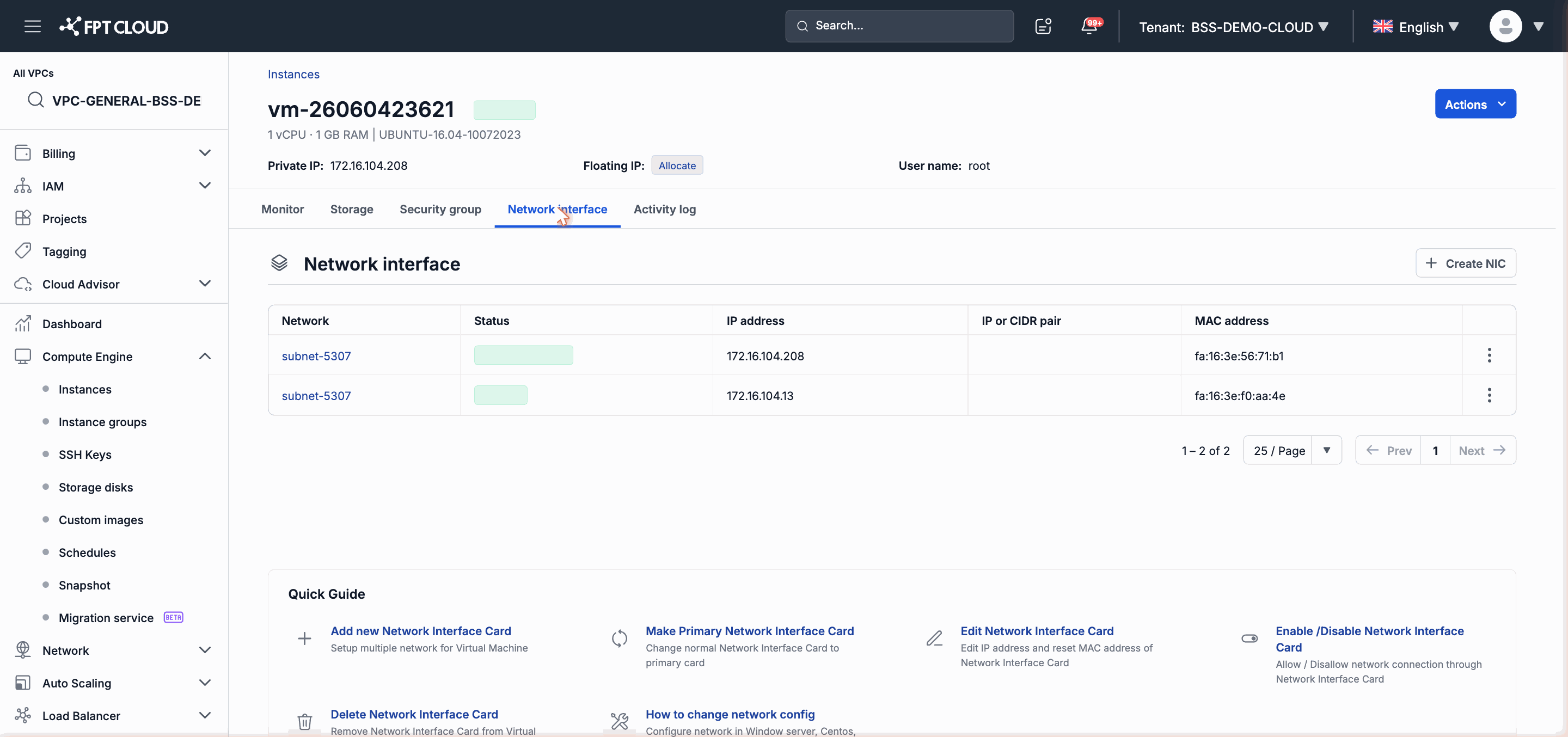
- Go to the detail page of the newly Cloned Instance.
- Select the Network Interface tab.
- Find the NIC with Disabled status.
- Click Enable to reactivate it.
Clone Rejected
Symptom: The system rejects the Clone Instance operation.
Cause: The Instance has a Storage Disk (additional local disk) attached beyond the root disk. Clone only supports Instances with a root disk only.
Resolution:
- Go to the Storage Disk tab of the Instance.
- Detach or delete the local disks that are attached.
- Try Cloning again.
Warning: Deleting a disk will permanently erase the data on that disk. Back up important data before deleting.
Cannot Resize
Symptom: The Resize button is disabled or the system rejects the resize request.
Cause 1 — Instance is running: Resize requires the Instance to be in Stopped state. Perform a Power Off first, then Resize.
Cause 2 — Instance has a GPU attached: Resize is not possible when the Instance has a GPU. The correct sequence is: Remove GPU → Resize to the new Flavor → Add GPU back.
Did Not Receive Reset Password Email
Symptom: Reset Password was performed successfully but no email appears in the inbox.
Resolution:
- Check the Spam or Junk folder in your email inbox.
- Wait an additional 5 minutes — the email may be delayed due to the mail delivery system.
- Confirm the FPT Cloud account's registered email address is still active and can receive mail from
@fptcloud.comaddresses. - If you still have not received it after 15 minutes, contact FPT Cloud support to verify the email address on the account.
Schedule Is Not Running at the Right Time
Symptom: The Instance is not powering on or powering off at the time configured in the ScheduleJob.
Cause 1 — Incorrect timezone configuration:
Check the Timezone field in the ScheduleJob. Vietnam's timezone is Asia/Ho_Chi_Minh (UTC+7). Update if incorrect → save → check the Next Run At field.
Cause 2 — Instance is stuck in a transient state: If a schedule is due to run while the Instance is in POWERING ON or POWERING OFF state, the schedule may skip that run. Resolve the stuck state first (see the first section of this page).
Cause 3 — Instance is Locked: When an Instance is Locked, the ScheduleJob also cannot perform operations. Unlock the Instance and check again.
Console Is Unresponsive
Symptom: Opening the Console results in a blank screen, no input is accepted, or the tab fails to load.
Resolution:
- Press F5 to refresh the Console tab and obtain a new session token.
- Check that the Instance is in Running state — the Console cannot connect when the Instance is powered off.
- Try opening the Console in a private/Incognito tab to rule out browser cache issues.
- If the Instance is Running but the Console is still unresponsive after refreshing, the Instance may be experiencing an internal OS error. Contact FPT Cloud support and provide the Instance ID.
Contact Support
If the steps above do not resolve the issue, contact FPT Cloud support through the support portal with the following information to speed up resolution:
- Instance ID (displayed on the detail page).
- Instance status at the time the issue occurred.
- The time the problem started.
- Screenshots of any error messages (if available).