Guide — Create an Instance Snapshot
Note: Snapshots are not created from the Snapshots page. To create a snapshot of an Instance, you must do so from the detail page of that Instance. The Snapshots page is only used to view and manage snapshots that have already been created.
Note: This feature is only available on General VPC.
Create an Instance Snapshot From the Instance Detail Page
-
In the left navigation bar, select Compute Engine → Instances.
-
Click the name of the Instance you want to snapshot to open the detail page.
-
On the Instance detail page, find the Create snapshot option (or Snapshot in the action menu).
-
Enter a name for the snapshot (if prompted).
-
Confirm to start the snapshot process.
-
The system processes this in the background — the snapshot status will change to Active when complete.
For more details on the steps to create a snapshot from an Instance, see the Instance module documentation — the "Create a snapshot" section.
View the Snapshot You Just Created
-
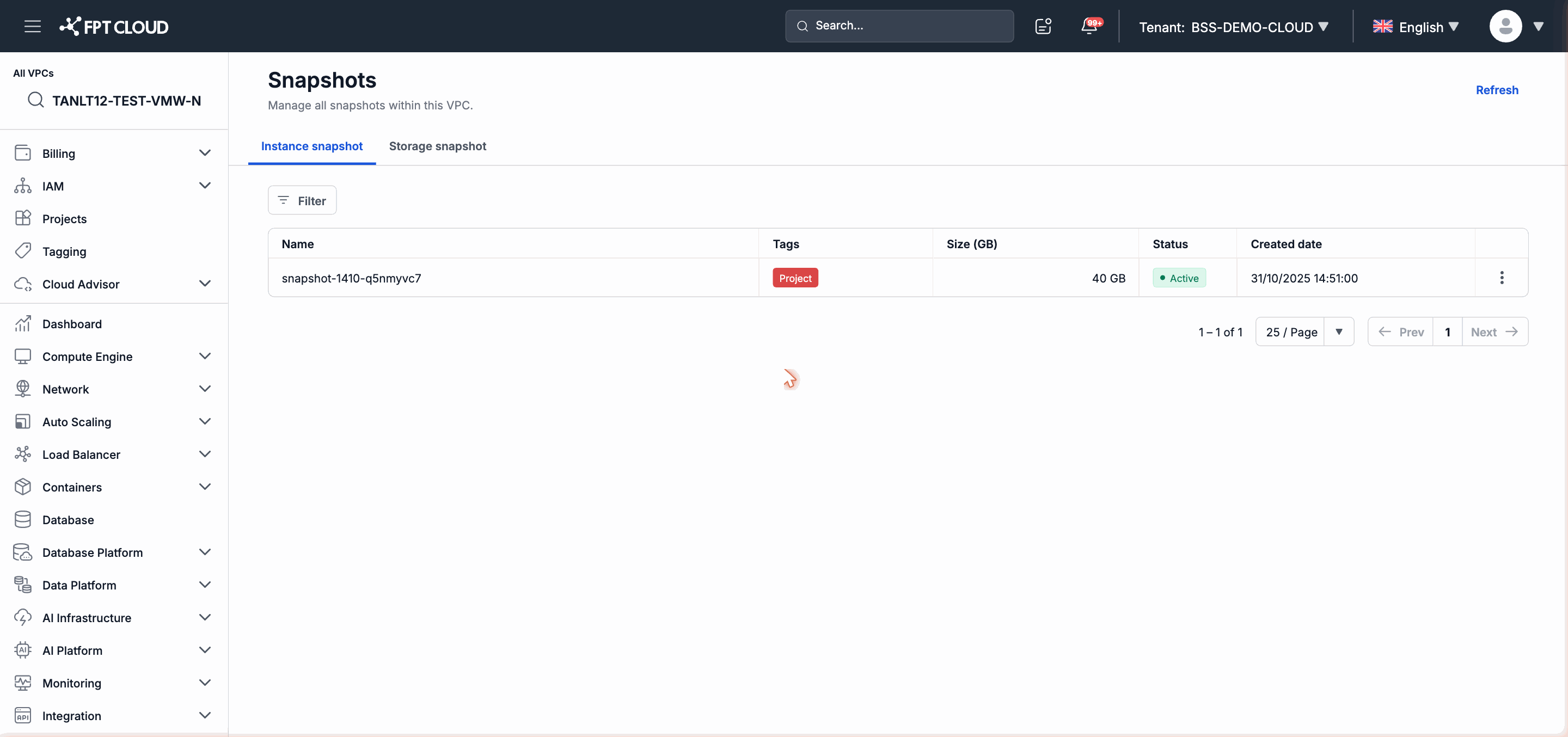
In the left navigation bar, select Compute Engine → Snapshots.
-
Select the Instance snapshot tab.
-
The newly created snapshot appears in the list with Active status when the process is complete.
Create a Storage Snapshot
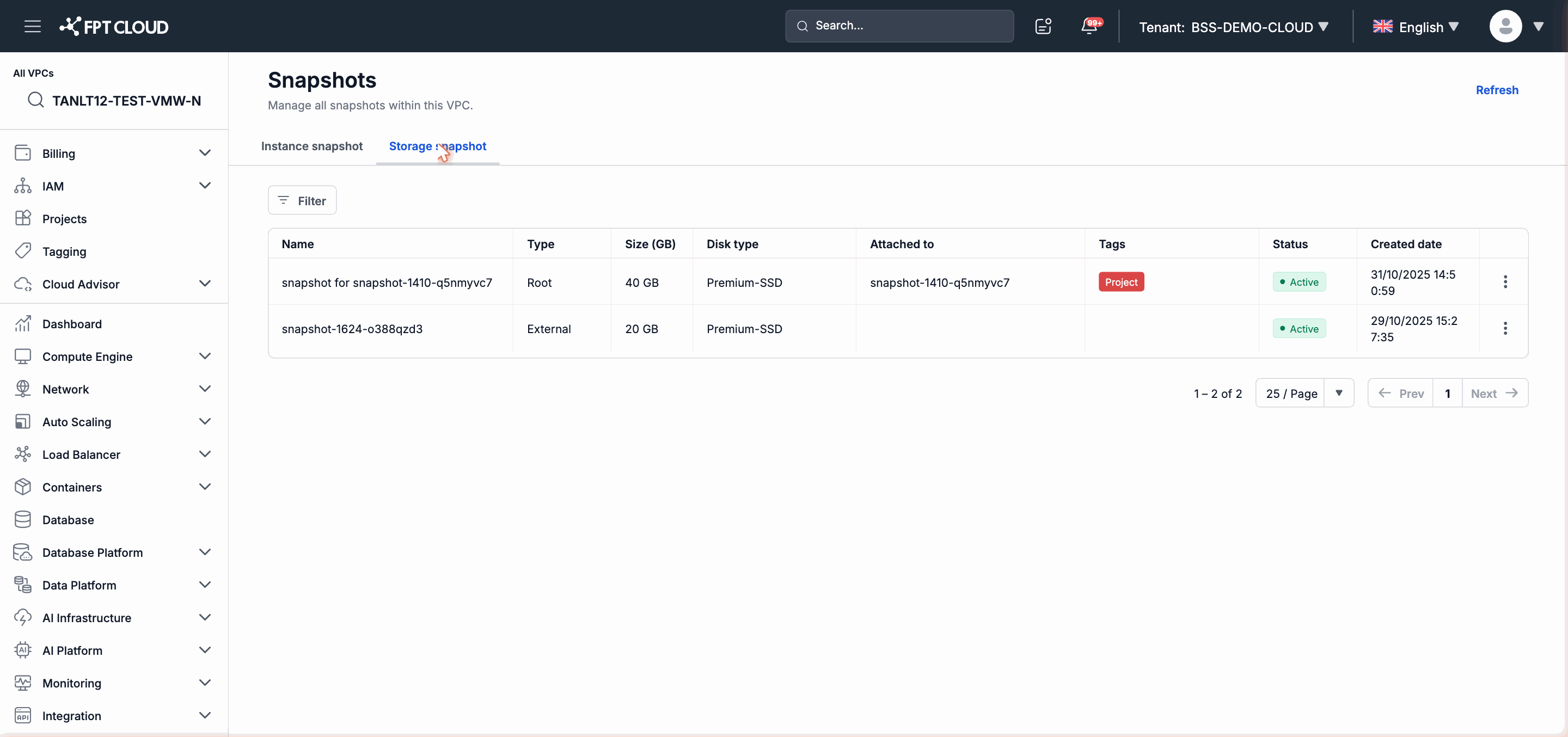
A Storage Disk snapshot is also created from the Storage Disk detail page (not from the Snapshots page).
After creation, the snapshot appears in the Storage snapshot tab under Compute Engine → Snapshots.
For more details, see the Storage Disks module documentation — the "Create a snapshot" section.