Create a New SSH Key
This guide describes how to have the system generate an SSH key pair (public + private key) and save the public key to the portal. The private key is downloaded to your machine exactly once.
Before You Begin
- Access required: Editor or Owner role on the project
- Prepare a secure location to store the private key (for example, the
~/.ssh/directory on your local machine)
Important: The private key can only be downloaded once, immediately at the time of creation. After that, the portal does not store the private key and does not allow you to download it again. If you lose the private key, you must create a new keypair.
Steps
Step 1. From the left navigation bar, select Compute Engine → SSH Keys.
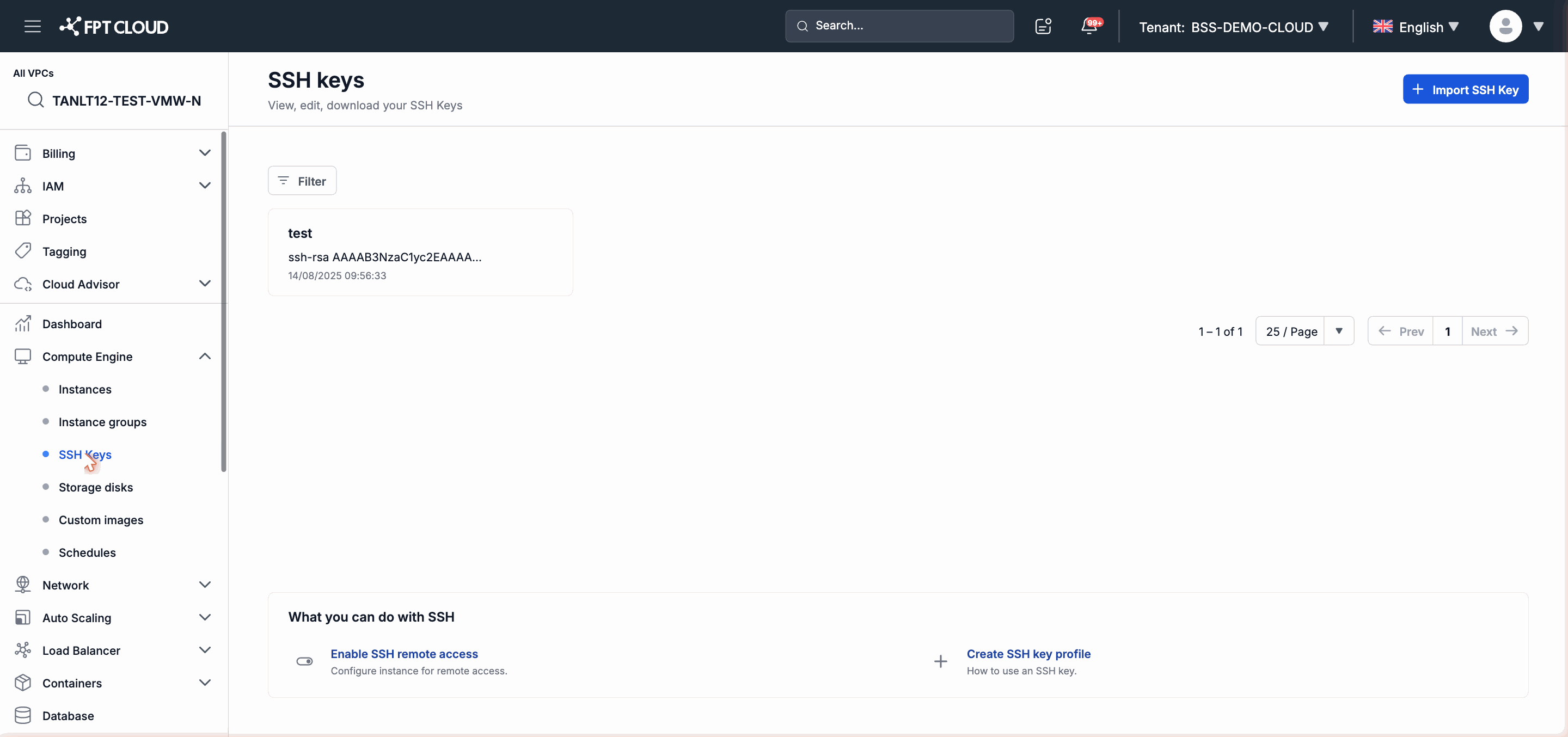
Step 2. Click the Create SSH Key button in the upper-right corner of the list page.
Step 3. In the dialog, select the Create new keypair option.
Step 4. Enter an identifier name in the Key name field.
Note: The key name may only contain letters, digits, and hyphens (
-). This name is used to identify the key when creating an Instance — choose a meaningful name (for example,dev-team-2026,prod-access).
Step 5. Click Create.
Step 6. The dialog displays the private key content. Click Download to save the .pem file to your machine.
Warning: Click Download right now — after you close this dialog, the private key cannot be recovered.
Step 7. After downloading, click Close.
The corresponding public key appears in the SSH Keys list with its fingerprint for verification.
Using the Key When Creating an Instance
When creating a new Instance, at the security configuration step, select the key name you just created from the SSH Key dropdown. The system will install the public key into the Instance so you can connect with:
ssh -i ~/.ssh/<your-private-key>.pem <username>@<instance-ip>