Delete an SSH Key
This guide describes how to delete an SSH Key from the portal when you no longer need it.
Before You Begin
Important: Deleting a key from the portal does not revoke SSH access to Instances that were provisioned with this key. The public key has already been installed in the
~/.ssh/authorized_keysfile inside the Instance's operating system and remains active after deletion from the portal.If your goal is to revoke SSH access, read the Revoke Access section at the bottom of this page before deleting.
Steps to Delete an SSH Key
Step 1. From the left navigation bar, select Compute Engine → SSH Keys.
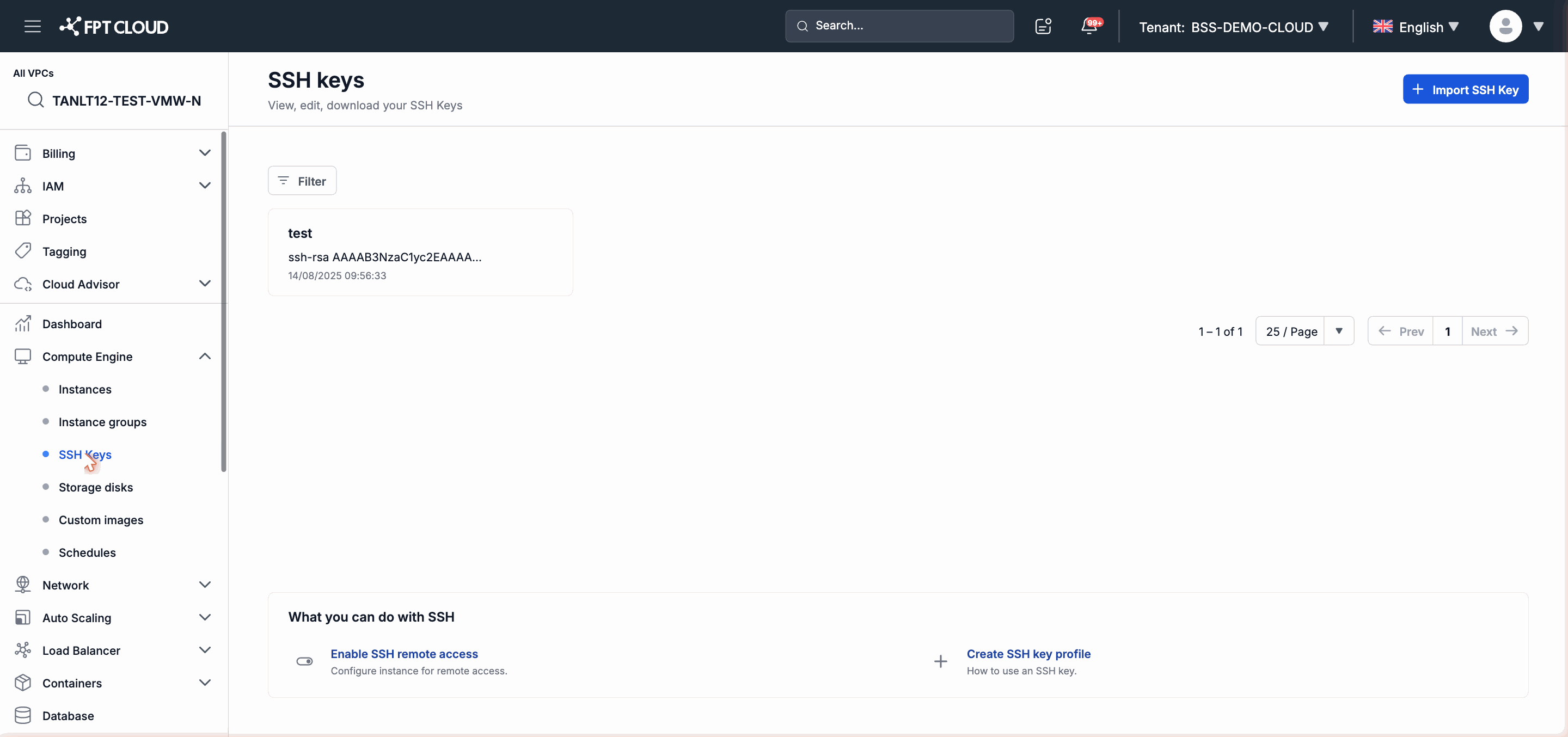
Step 2. On the row of the key you want to delete, click the Delete icon (trash can) or select Delete from the action menu.
Step 3. Read the confirmation message — the system will remind you that Instance access is not revoked.
Step 4. Click Delete to confirm.
The key is removed from the list immediately. This key will no longer appear in the selection list when creating new Instances.
Revoke SSH Access on an Instance
If you need to prevent a specific key from connecting to an Instance, perform the following steps manually on each Instance:
Step 1. Connect to the Instance using a different method (another key or console access).
Step 2. Open the ~/.ssh/authorized_keys file of the user whose access you want to revoke.
Step 3. Delete the line containing the public key to be revoked (the line starting with ssh-rsa, ssh-ed25519, etc.).
Step 4. Save the file. The change takes effect immediately — no SSH daemon restart is required.