Import an SSH Key
This guide describes how to register an existing SSH public key with the portal. Use this feature if you already have a keypair created with ssh-keygen or a similar tool and want to reuse the public key.
Before You Begin
- You need the public key content on hand (typically found in
~/.ssh/id_rsa.pubor~/.ssh/id_ed25519.pub) - Access required: Editor or Owner role on the project
- Supported public key formats: RSA (minimum 2048-bit), Ed25519
Steps
Step 1. From the left navigation bar, select Compute Engine → SSH Keys.
Step 2. Click the Create SSH Key button in the upper-right corner of the list page.
Step 3. In the dialog, select the Import public key option.
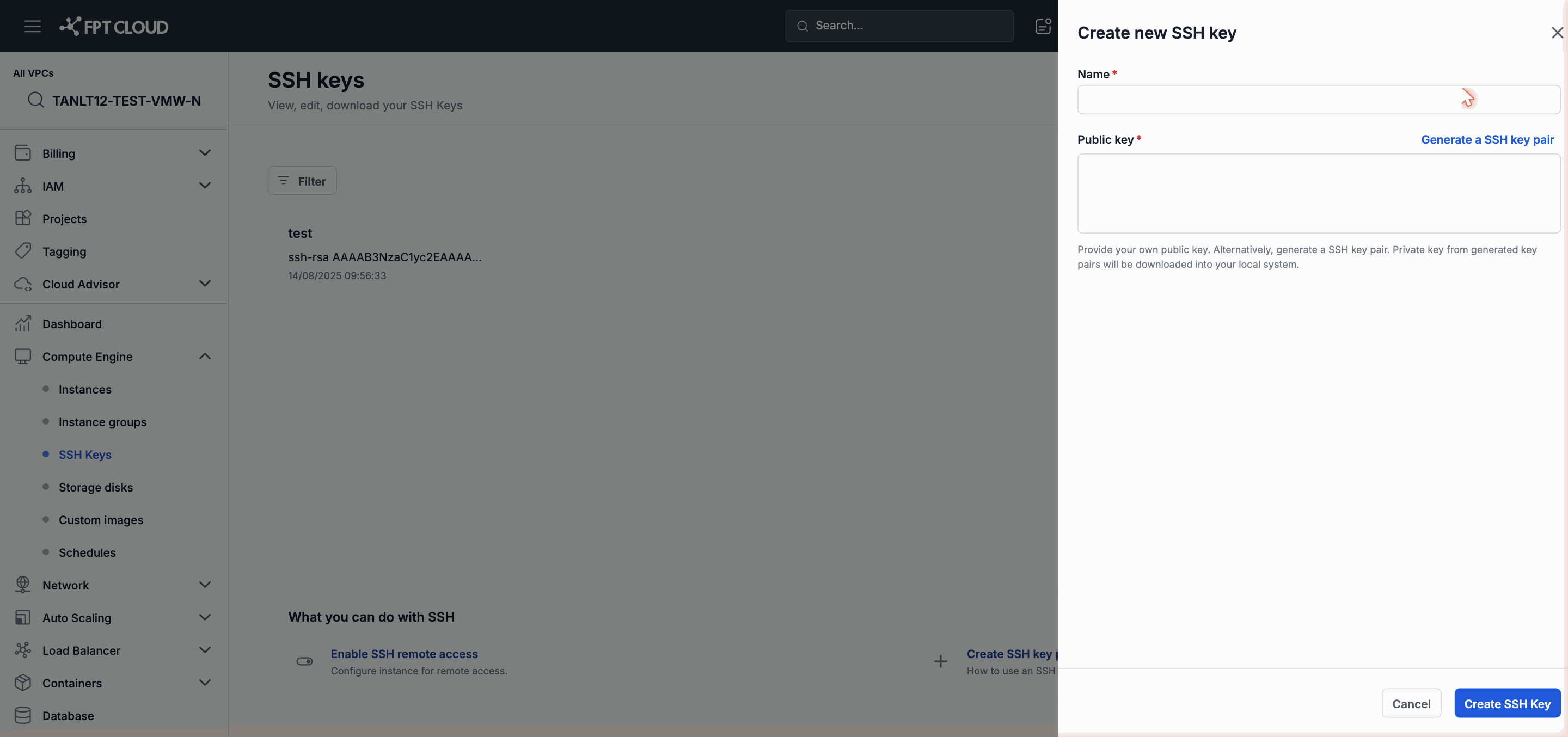
Step 4. Enter an identifier name in the Key name field.
Step 5. Paste the public key content into the Public key field.
Example of a valid format:
ssh-ed25519 AAAAC3NzaC1lZDI1NTE5AAAAI... user@hostname
Note: Only paste the public key (the content of the
.pubfile). Never paste a private key to the portal or any other service.
Step 6. Click Import to confirm.
The system validates the key format and saves it. The new key appears in the list along with its fingerprint.
Verify the Imported Key
After importing, you can view the details of any public key at any time:
Step 1. Click the key name in the list.
Step 2. A detail panel slides out from the right, displaying the fingerprint and the full public key content.
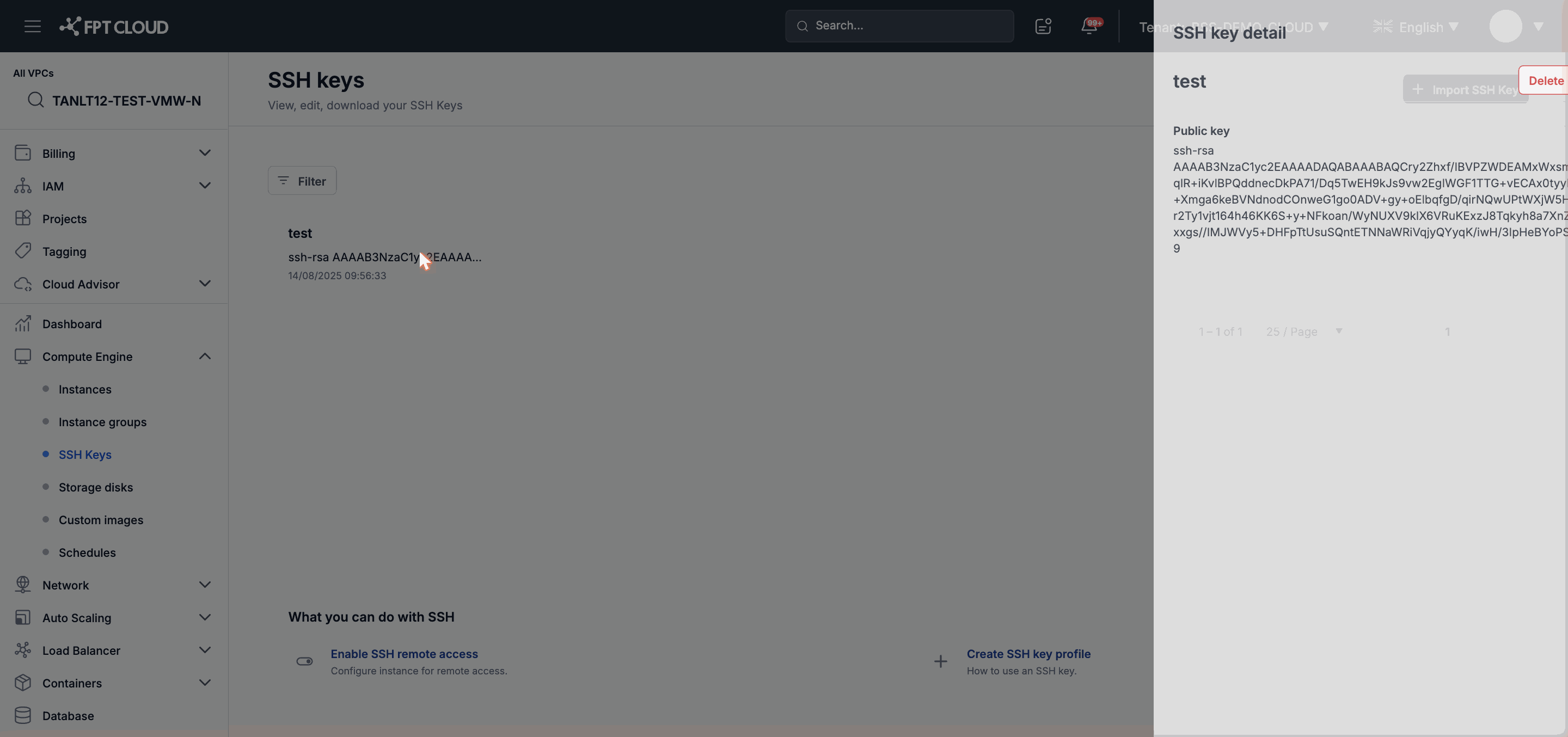
Compare the fingerprint with the output of the following command on your local machine to confirm they match:
ssh-keygen -lf ~/.ssh/id_ed25519.pub