Guide: Delete a Storage Disk
This guide describes how to permanently delete a Storage Disk from a Project.
Before You Begin
- The disk to be deleted must be in Available status (not currently attached to any Instance).
- If the disk is in In-use status, detach it first.
Warning: Deleting a disk is irreversible. All data on the disk will be permanently deleted. Back up any necessary data before proceeding.
Steps
-
In the left navigation bar, select Compute Engine → Storage disks.
-
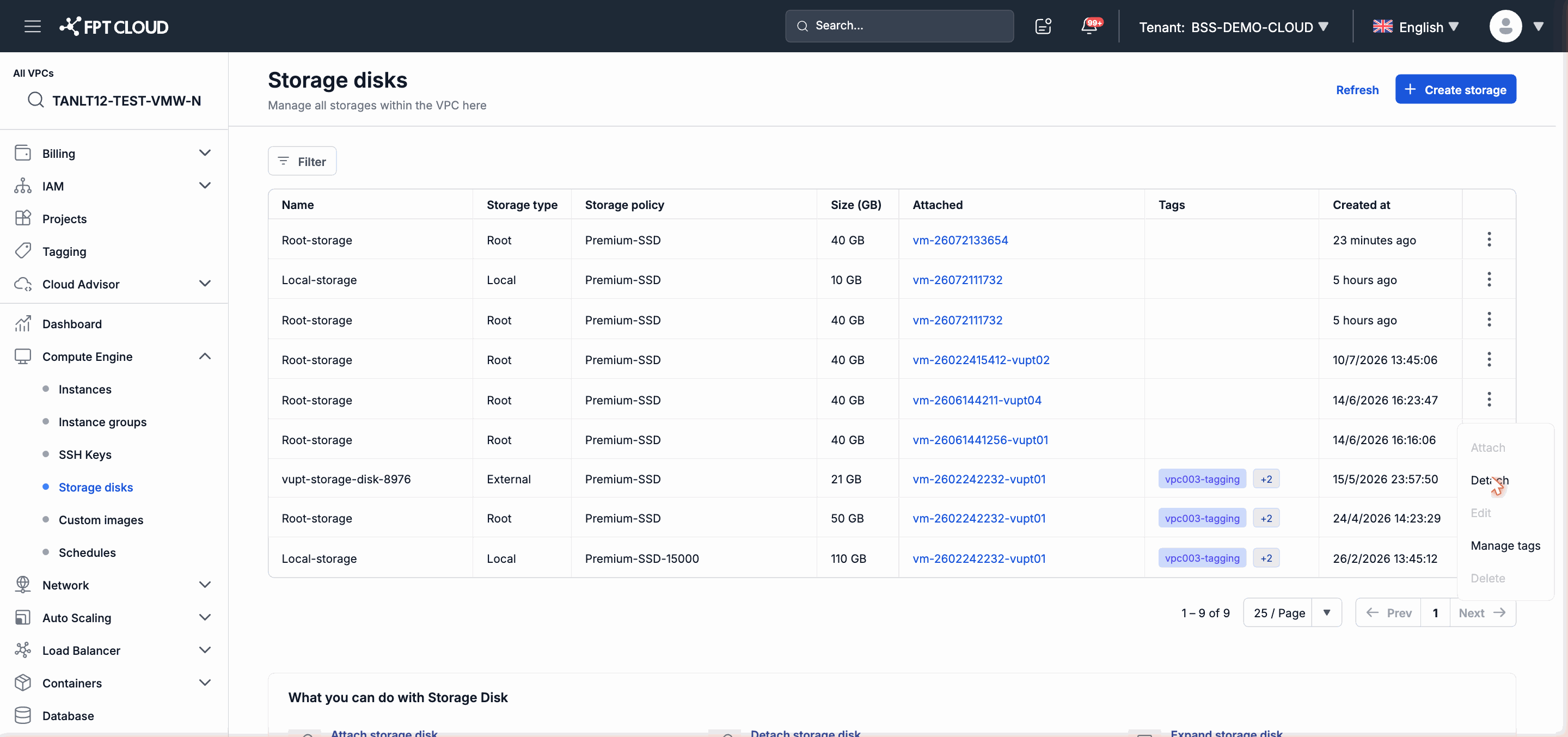
Find the disk to delete in the list, then click the action menu icon (⋮) at the end of the row.
-
Select Delete from the menu.
-
Read the confirmation message and enter the disk name to confirm (if the portal requires it).
-
Click Confirm Delete to complete.
-
The disk disappears from the list immediately after successful deletion.
Note: If the Delete option is grayed out (disabled), check whether the disk is in In-use status — you must detach it before deleting.