Guide: Completing the Periodic Evaluation Form
This guide describes how to complete the automatic experience evaluation form and the follow-up detail form when they appear on the Console Portal.
When the form appears
The evaluation form appears automatically on a fixed schedule:
- First time: on day 30 after account activation, between 10:00–18:00. If you are not logged in during that window, the form appears on your next login within a valid time window.
- Quarterly: on the 15th of the first month of each quarter (Jan 15, Apr 15, Jul 15, Oct 15), at most once per quarter. If you have not completed it, the form reappears on the 15th of the next month in the same quarter until you respond or the quarter ends.
Part 1 — Complete the "Customer experience metrics" form
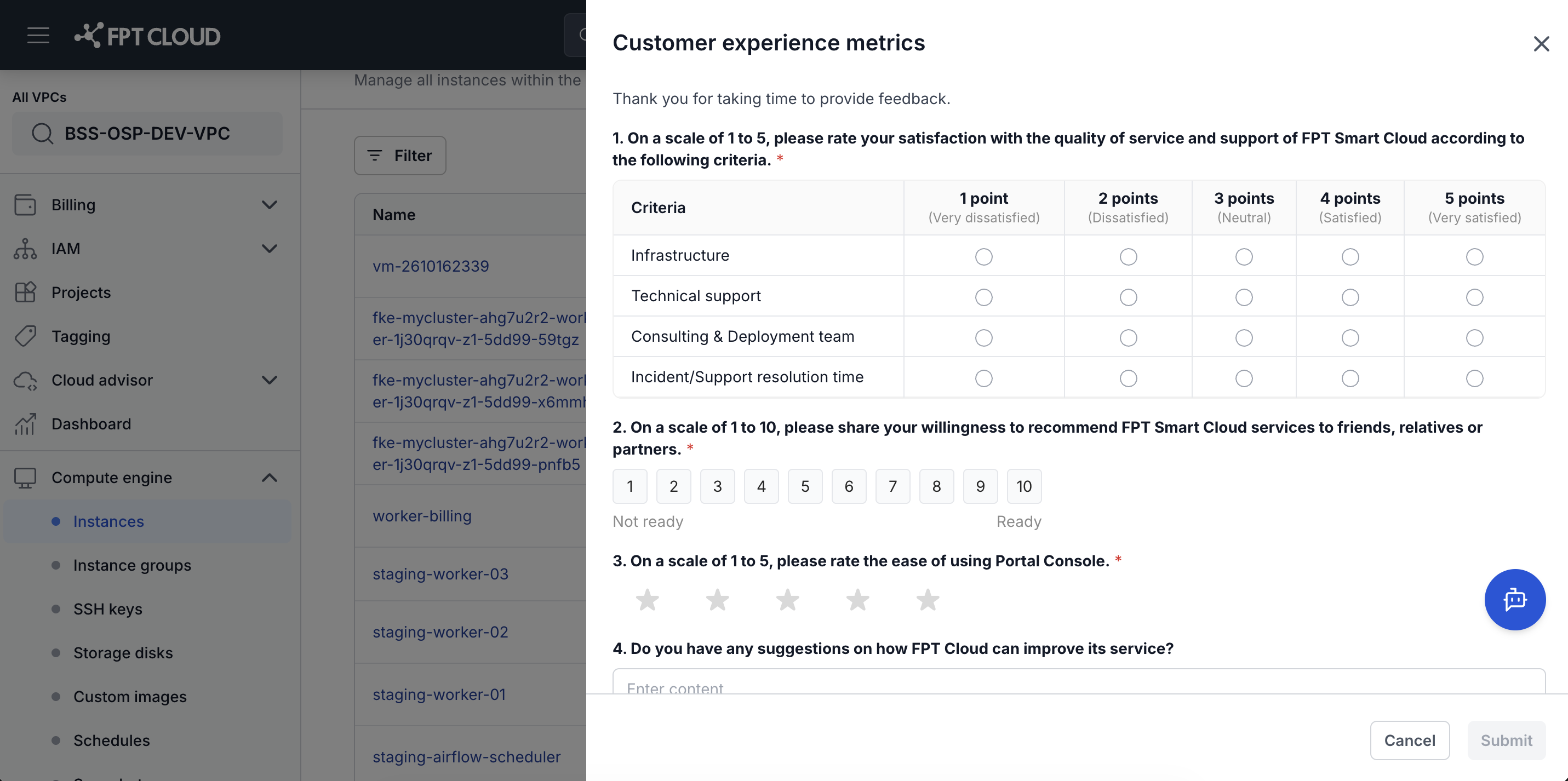
Question 1 — Rate service quality (required)
Select a score from 1 to 5 for each criterion:
| Criterion | Description |
|---|---|
| Infrastructure | Infrastructure quality (performance, stability) |
| Technical support | Technical support quality |
| Consulting & Deployment team | Consulting and deployment quality |
| Incident/Support resolution time | Time taken to resolve incidents and support requests |
Scale: 1 (Very dissatisfied) · 2 (Dissatisfied) · 3 (Neutral) · 4 (Satisfied) · 5 (Very satisfied).
Question 2 — Net Promoter Score (required)
Select a score from 1 to 10 for the question: "On a scale of 1 to 10, please share your willingness to recommend FPT Smart Cloud services to friends, relatives or partners."
- 1 = Not ready · 10 = Ready
Question 3 — Rate Portal Console (required)
Select 1 to 5 stars to rate the ease of using Portal Console.
Question 4 — Suggestions for improvement (optional)
Enter your suggestions in the "Do you have any suggestions on how FPT Cloud can improve its service?" field.
Submit the form
Click Submit. Questions 1–3 are required — if any are unanswered, an error message appears and the form cannot be submitted.
Part 2 — "Help us understand better" form
This form appears automatically immediately after submitting Part 1 if any of the following conditions are met:
| Condition | Issue group shown |
|---|---|
| Any criterion in Question 1 ≤ 3/5 | The corresponding group (Infrastructure / Technical support / Consulting & deployment / Incident resolution time) |
| Question 3 (star rating) ≤ 3/5 | Portal Console |
| Question 2 (NPS) ≤ 6/10 — only when no condition above is triggered | Why I wouldn't recommend yet |
If no condition is triggered, you proceed directly to the success confirmation screen.
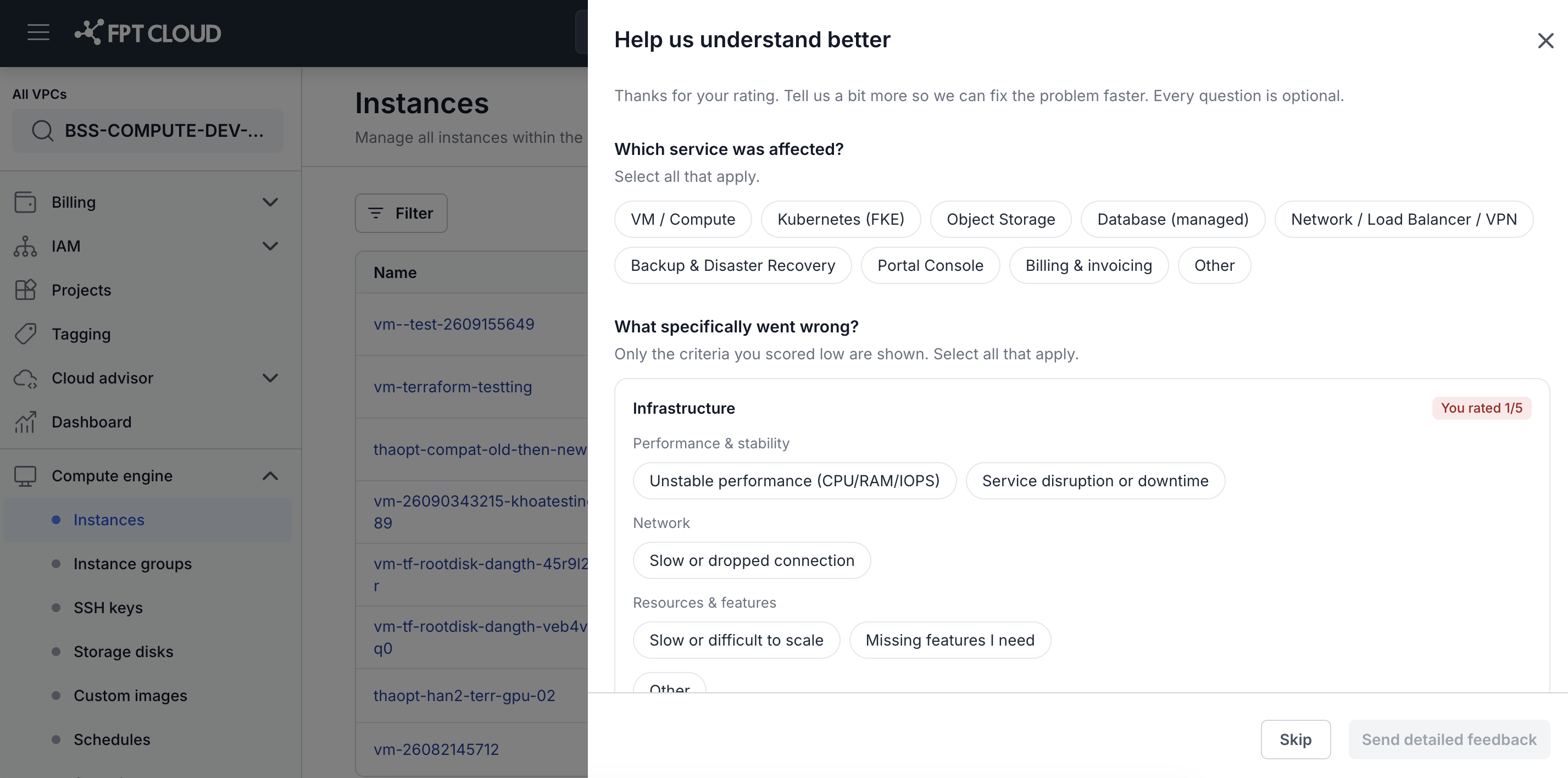
Every question in Part 2 is optional. You can click Skip to bypass the entire form.
Section 1 — Which service was affected?
Select one or more services that were affected:
VM / Compute · Kubernetes (FKE) · Object Storage · Database (managed) · Network / Load Balancer / VPN · Backup & Disaster Recovery · Portal Console · Billing & invoicing · Other
If you select Other, enter the service name in the text field that appears below.
Section 2 — What specifically went wrong?
Only the criteria you scored low are shown. Select the chips that describe the issue you experienced. If no chip fits, select Other and enter a free-text description.
Section 3 — When did this happen?
Select when the issue occurred: This week · This month · More than a month ago
Additional optional fields:
- This issue has occurred multiple times (higher priority) — check this if the issue has recurred.
- Ticket ID (optional) — enter a related ticket number (e.g.,
TCK-2026-01234). - Affected resource name (optional) — enter the name of the affected resource (e.g.,
vm-prod-web-01).
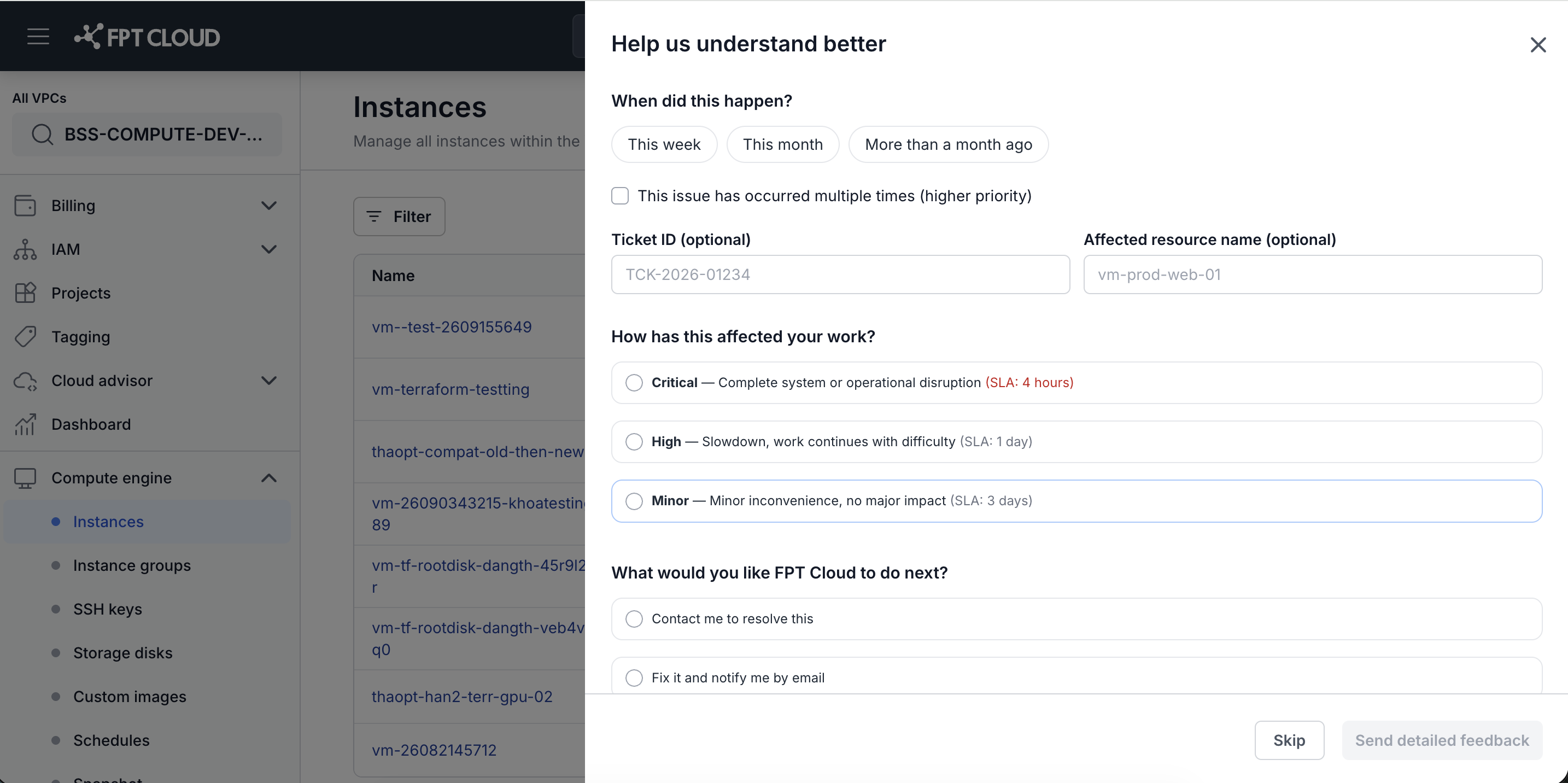
Section 4 — How has this affected your work?
Select the impact level:
| Level | UI description | SLA |
|---|---|---|
| Critical | Complete system or operational disruption | 4 hours |
| High | Slowdown, work continues with difficulty | 1 day |
| Minor | Minor inconvenience, no major impact | 3 days |
If you select Critical and the incident is ongoing: "If this incident is ongoing, create an urgent ticket or call 1800 6139." Create an urgent ticket or call 1800 6139 to receive handling within the 4-hour SLA.
Section 5 — What would you like FPT Cloud to do next?
Select how you would like FPT Cloud to respond:
| Option | What FPT Cloud will do |
|---|---|
| Contact me to resolve this | The CX team will contact you directly using the information you provide |
| Fix it and notify me by email | The system sends the resolution result by email when complete |
| No follow-up needed, just feedback | Recorded for service improvement; no follow-up contact |
If you select Contact me to resolve this, also enter:
- Contact information: your phone number or email address.
- Preferred time: your preferred contact window (
Morning 9AM–12PM/Afternoon 1PM–5PM/Any time).
Submit or skip
- Click Send detailed feedback to submit the detail information.
- Click Skip to bypass all of Part 2 and finish.
Confirmation screen
After completing the form, a success confirmation screen appears. Your feedback is sent to the Customer Experience team within 2 seconds.