Guide: Sending Feedback Manually
This guide describes how to send feedback to the FPT Cloud Customer Experience team from the Console Portal at any time.
Prerequisites
- You are logged in to FPT Cloud Console Portal.
Step 1 — Open the feedback form
-
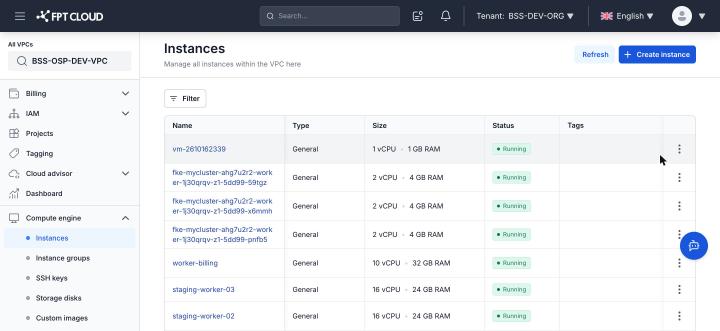
Click your account name or avatar in the top-right corner of the screen.
-
Select Send feedback from the dropdown menu.
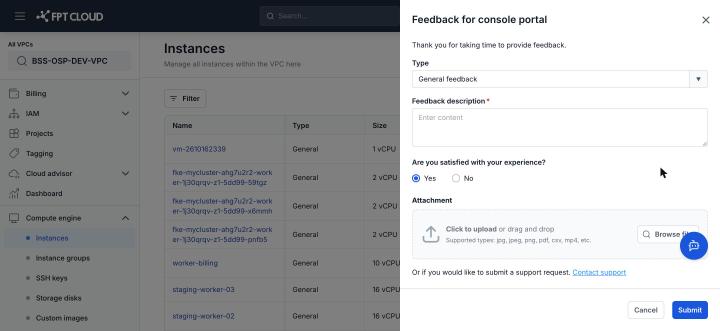
The Feedback for console portal form appears.
Step 2 — Select a feedback type
-
Open the Type dropdown and choose the appropriate type:
Option Use when General feedback General comments that do not fit the categories below Feature request You want to propose a new feature or improvement Report an issue You encountered a problem or error UI feedback You want to share comments about the interface 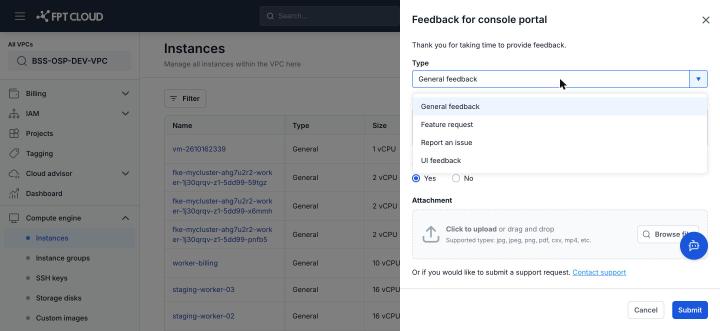
Step 3 — Enter a description
-
Type your feedback in the Feedback description field.
The more specific your description (including the feature name, steps taken, and the result you received), the faster the CX team can process it.
Step 4 — Rate your satisfaction
- Under Are you satisfied with your experience?, select Yes or No.
Step 5 — Attach files (optional)
-
Click Browse file and select a file from your computer, or drag and drop a file into the upload area.
Supported formats: jpg, jpeg, png, pdf, csv, mp4, and more.
Step 6 — Submit your feedback
-
Click Submit.
A confirmation message appears. Your feedback is recorded and sent to the CX team within 2 seconds.
Rate limit
You can submit a maximum of 3 times within any 12-hour period. If you have reached the limit, the following message appears:
You can only submit feedback 3 times within 12 hours. Please try again later.
When to create a support ticket instead
Feedback is best suited for non-urgent comments and reports. If you are experiencing a serious issue that needs immediate attention, click Contact support at the bottom of the form to create a support ticket and receive priority handling under SLA.