Guide: Manage VPC
This document guides you through VPC management operations after creation, including: editing the name, managing tags, and filtering the VPC list.
1. Edit VPC Name
You can rename a VPC at any time without affecting the resources inside it.
Steps
-
In the left navigation bar, select Network → VPC.
-
Locate the VPC you want to edit in the list.
-
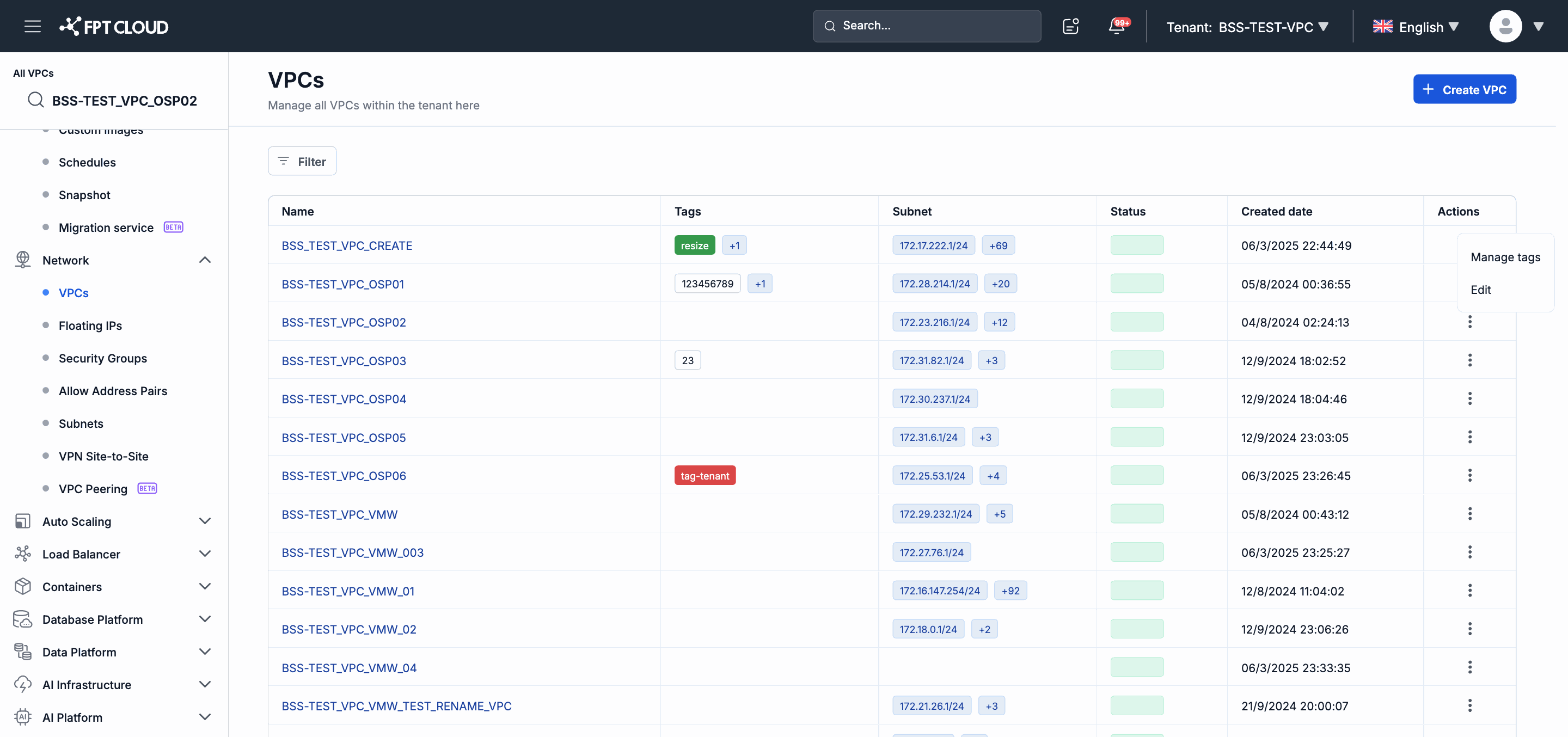
Click the action menu icon (⋮) in the last column of the corresponding row.
-
Select Edit from the menu.
-
In the dialog that appears, update the value in the Name field.
-
Click Confirm to save the changes.
-
The new name is updated immediately in the VPC list.
Note: Only the VPC name can be edited through this action. The VPC type (Type), Owner, and Project cannot be changed after creation.
2. Manage VPC Tags
Tags help you classify, search, and manage VPCs according to your organization's criteria. You can add, edit, or remove tags at any time.
Steps
-
In the left navigation bar, select Network → VPC.
-
Locate the VPC whose tags you want to manage in the list.
-
Click the action menu icon (⋮) in the last column of the corresponding row.
-
Select Manage tags from the menu.
-
In the tag management dialog:
- To add a new tag: enter a
keyandvaluepair in the corresponding fields, then click Add. - To remove a tag: click the remove icon (×) next to the tag you want to remove.
- To add a new tag: enter a
-
Click Confirm to save the changes.
-
The Tags column in the VPC list is updated immediately to reflect the current tags.
Note: Tags do not affect the network configuration or behavior of the VPC — tags are used for management and classification purposes only.
3. Filter the VPC List
Filters help you quickly find a VPC by name or other criteria when the list contains many entries.
Steps
-
In the left navigation bar, select Network → VPC.
-
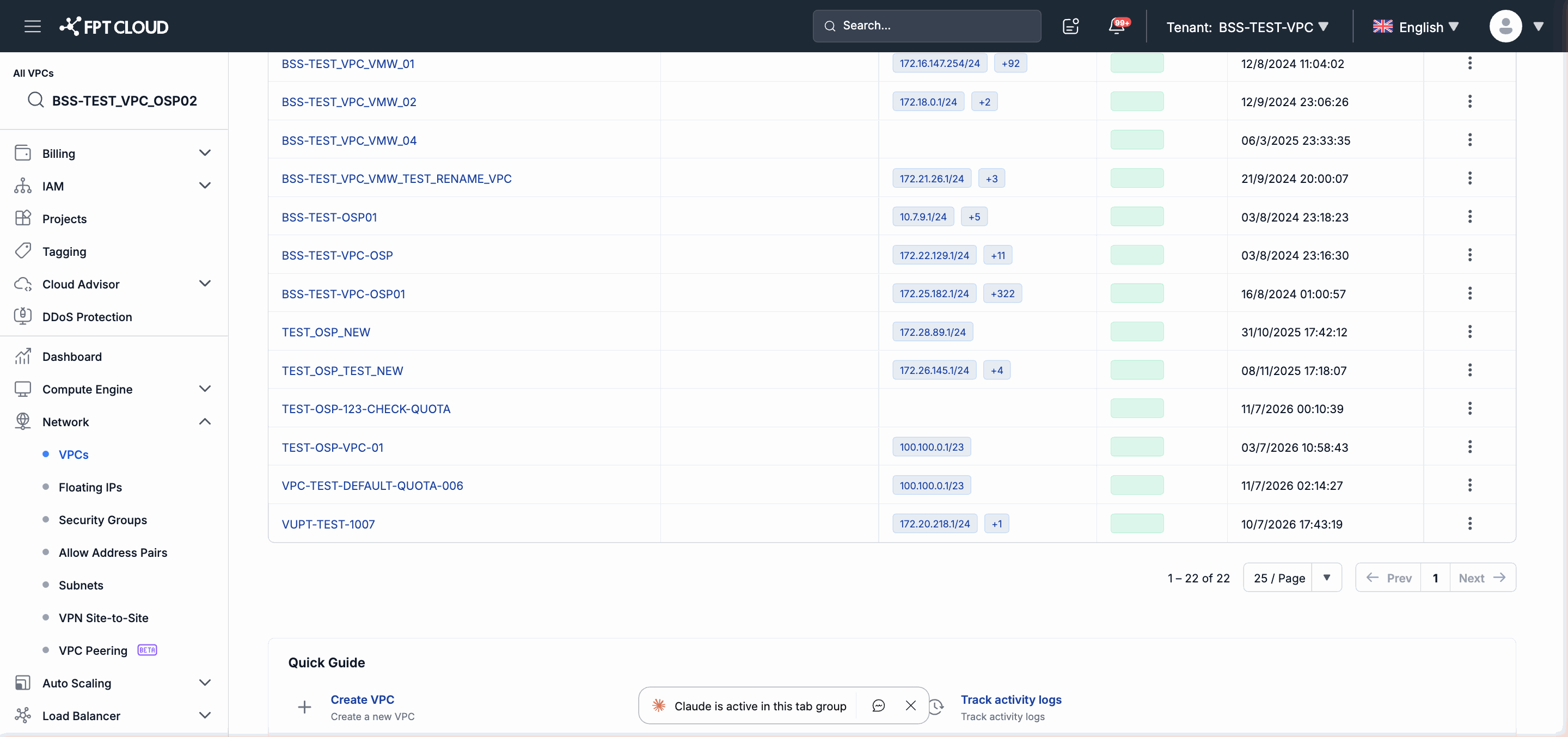
Click the Filter button (or the filter icon) above the list.
-
Enter or select the desired filter criteria (e.g., filter by VPC name or Status).
-
The list updates automatically and displays only the VPCs that match the selected filter.
-
To clear the filter and view the full list again, click Clear or delete the text entered in the filter field.
Note: Filters apply only to the current session — when you reload the page, the full list will be displayed again.