Docker CLI usage (login, tag & push, pull)
This tutorial walks you through the basic operations with FPT Container Registry through the Docker CLI, including login, tagging, and pushing or pulling images.
Prerequisites
- You activated FPT Container Registry. See Activate the service.
- You have the Docker CLI installed on your machine.
Log in with the Docker CLI
-
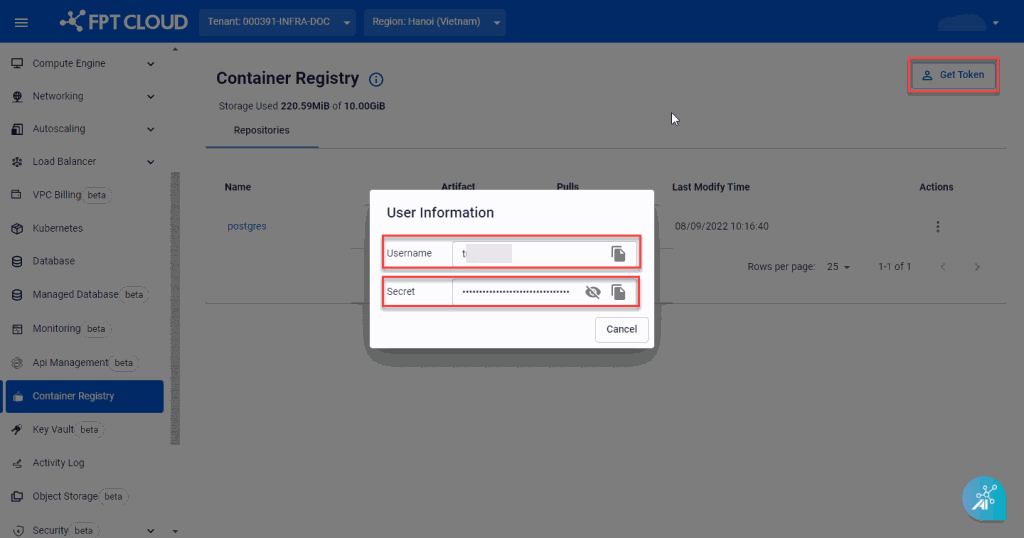
On the sidebar menu, choose Container Registry, then click Get Token to get the authorization details, Username and Secret Key.
-
Hover on the Help Icon to get the
docker login, tag, and push image commands.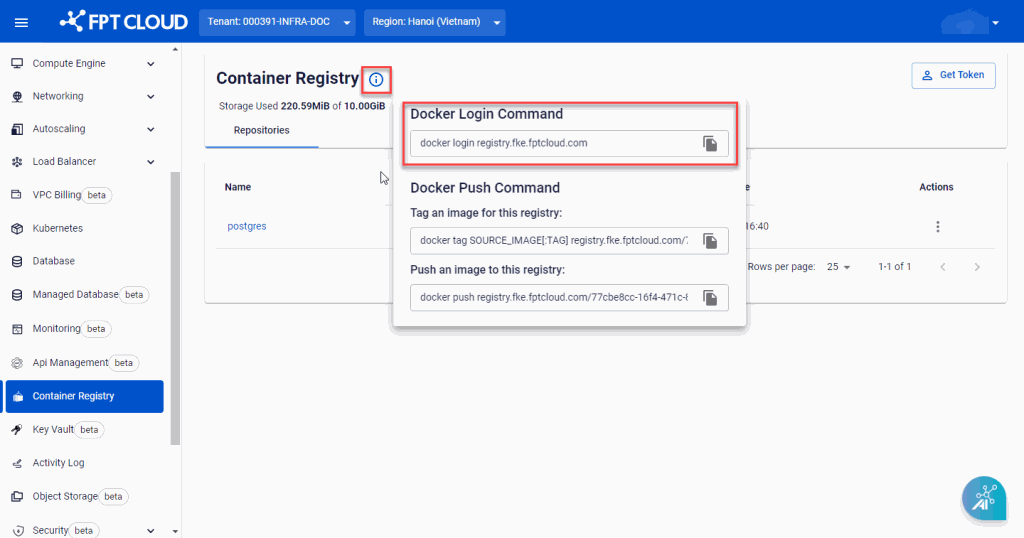
-
On the Docker CLI, use the
docker logincommand to sign in with the authorization details above.Example:
docker login registry.fke.fptcloud.com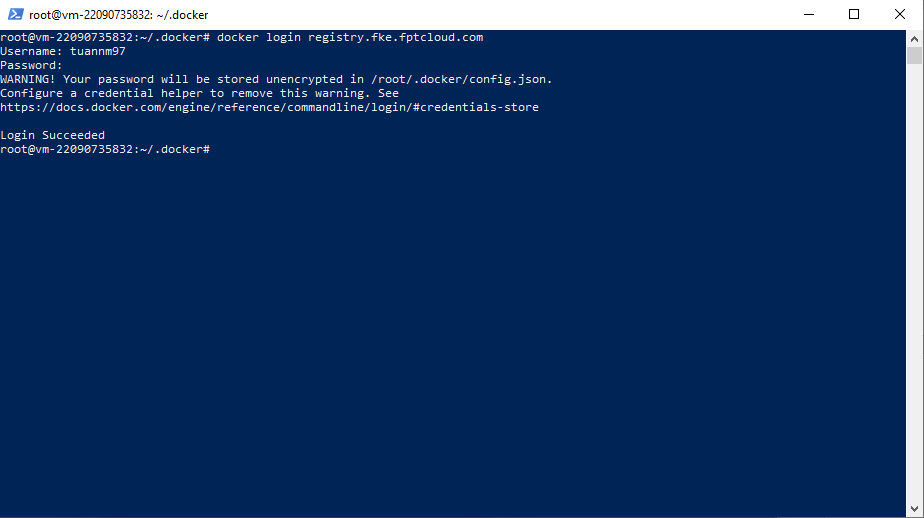


Tag and push an image
After logging in successfully, tag your local image with the FPT Container Registry URI before pushing. This tells Docker the destination when performing the push.
-
Tag the local image with the FPT Container Registry URI.
docker tag SOURCE_IMAGE[:TAG] registry.fke.fptcloud.com/<registry-id>/REPOSITORY[:TAG]The
<registry-id>is auto-filled if you copy the command from the FPT Portal.Example:
docker tag docker:20.10.12-dind registry.fke.fptcloud.com/088b6c2e-7fb9-4fd7-b906-779e99c63e32/docker:20.10.12-dind -
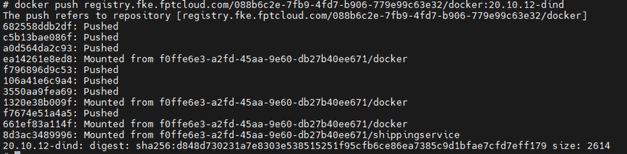
Push the image to FPT Container Registry.
docker push registry.fke.fptcloud.com/<registry-id>/REPOSITORY[:TAG]Example:
docker push registry.fke.fptcloud.com/088b6c2e-7fb9-4fd7-b906-779e99c63e32/docker:20.10.12-dind -
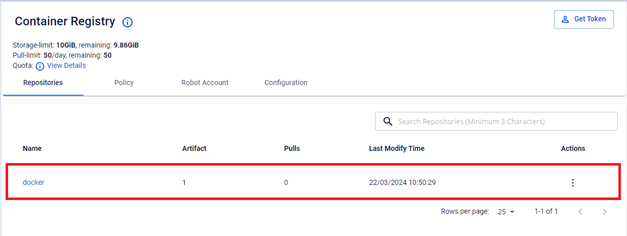
Verify the image push result on the Portal.


Pull an image
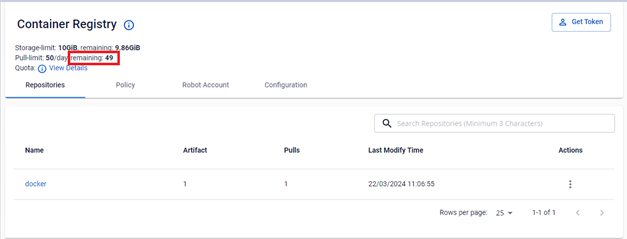
After pushing an image to the registry, you can pull it to any machine with access. Each pull counts against the Pull-limit of your current Service Plan.
-
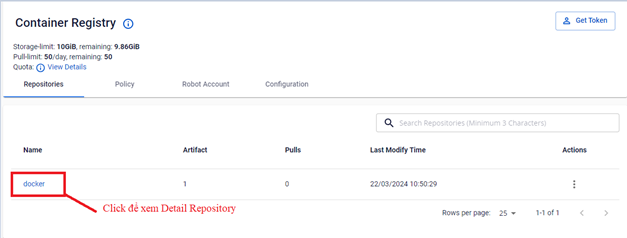
On the Repository screen, click the image you want to pull to view its details.
-
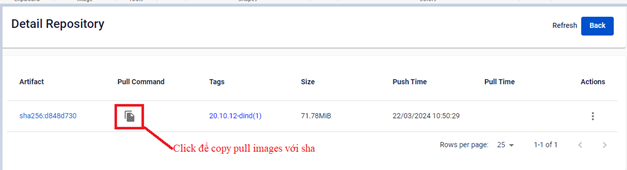
Select Detail Repository to view the image details, then click the copy icon to copy the pull command.
FPT Cloud supports pulling by Tag or by SHA.
-
Pull by SHA:
-
Pull by Tag:
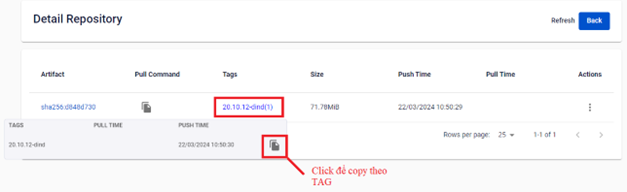
Example:
docker pull registry.fke.fptcloud.com/088b6c2e-7fb9-4fd7-b906-779e99c63e32/docker:20.10.12-dind -
-
Use the Docker CLI to pull the image to your local machine.
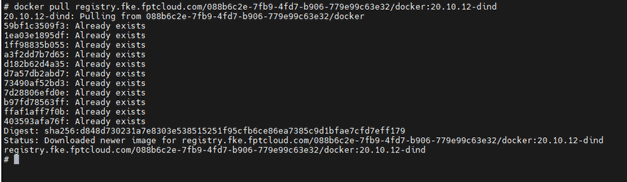
After each pull, the Pull-limit is updated.


Next steps
- Create an imagePullSecret with kubectl — let a Kubernetes cluster pull the images you pushed.
- Manage repositories — view and clean up the Repositories you pushed to.
- Create a robot account — grant your CI/CD pipeline its own credentials instead of reusing a personal login.