Manage robot accounts
A Robot Account is a service account used for automated authentication in CI/CD pipelines or integrated systems. Instead of using a user account, a Robot Account provides independent credentials with strictly controlled permissions.
Prerequisites
- Your Container Registry service is activated.
- You have permission to manage Robot Accounts in the Project.
- You created a Robot Account. See Create a robot account.
View the robot account list
FPT Cloud displays all Robot Accounts created on the Portal, helping you monitor the status and manage the access permissions of each account.

Update a robot account
FPT Cloud allows you to edit the information of an existing Robot Account when your usage requirements change, including its expiration time, description, and permissions.
-
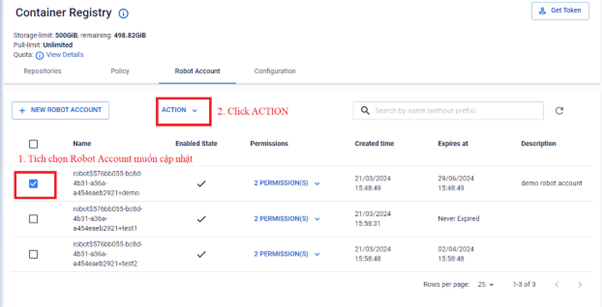
In the Robot Account list, select the Robot Account you want to update.
-
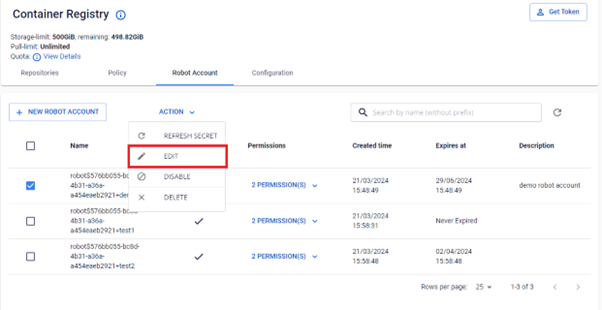
Select Edit in the Action section.
-
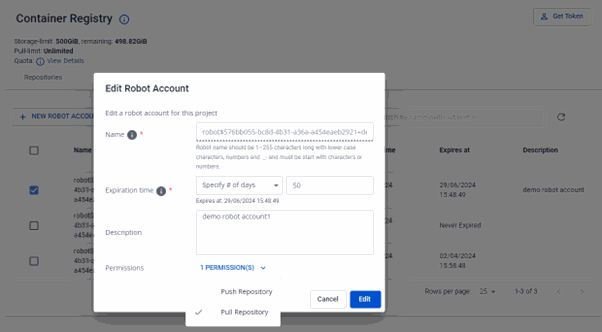
Update the information in the dialog: Expiration time, Description, and/or Permissions. Click Edit to save.
-
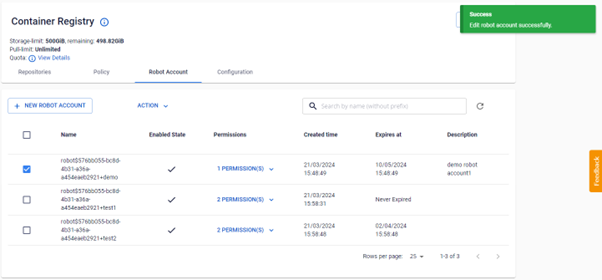
Verify the information after updating.


Disable a robot account
When you need to temporarily suspend access for a Robot Account without deleting it, you can disable the account. A disabled Robot Account cannot authenticate until it is re-enabled.
-
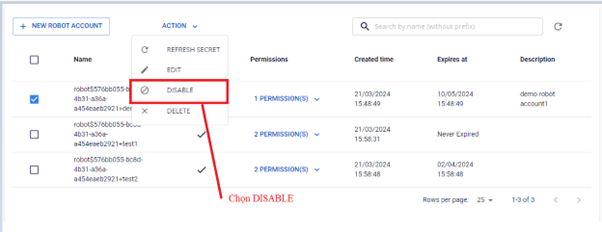
In the Robot Account list, select the Robot Account you want to disable, then select ACTION DISABLE.
-
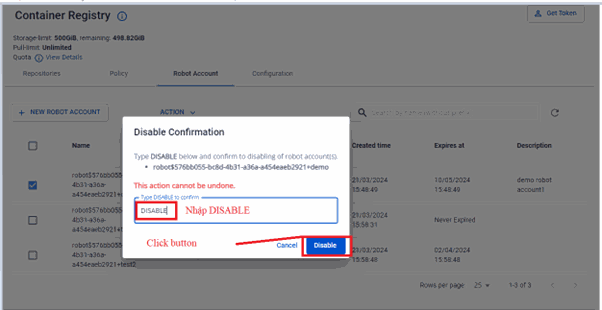
In the confirmation dialog, enter DISABLE to confirm.
-
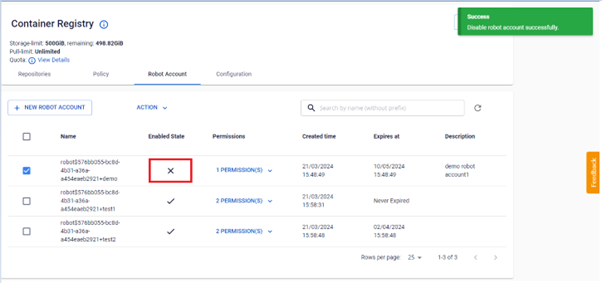
Verify the Enabled State after disabling.


Enable a robot account
To restore access for a disabled Robot Account, follow the steps below. The Enable option only appears for accounts that are currently in the disabled state.
-
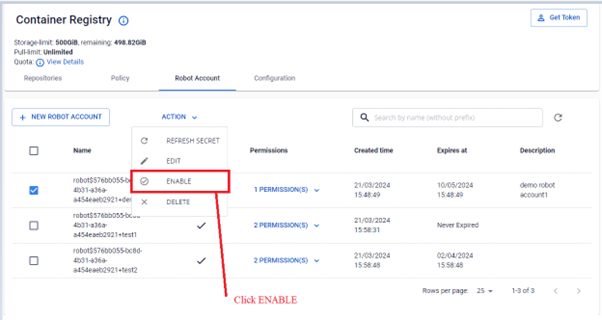
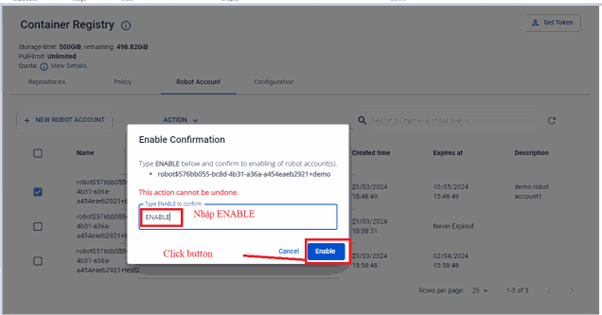
In the Robot Account list, select the Robot Account you want to enable, then select ACTION ENABLE.
-
In the confirmation dialog, enter ENABLE to confirm.
-
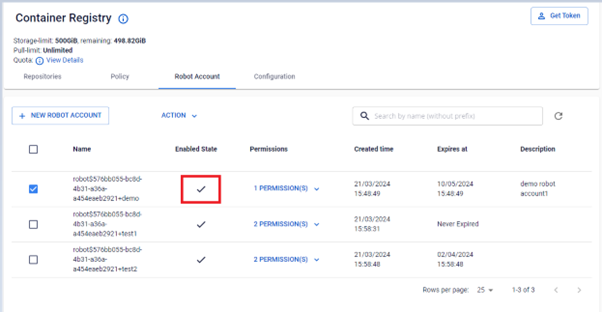
Verify the Enabled State after enabling.


Delete a robot account
When a Robot Account is no longer needed, you can delete it to clean up and reduce your security attack surface. FPT Cloud supports deleting one or multiple Robot Accounts at the same time.
Deleting a Robot Account cannot be undone. CI/CD pipelines using this account will immediately lose access.
-
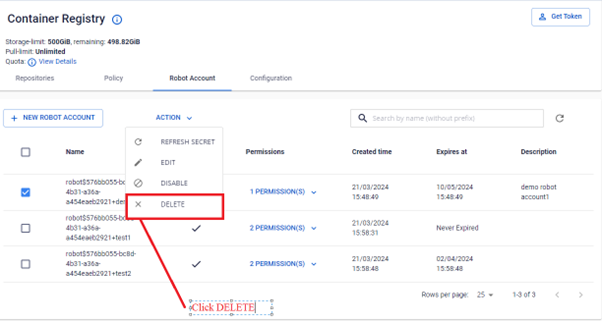
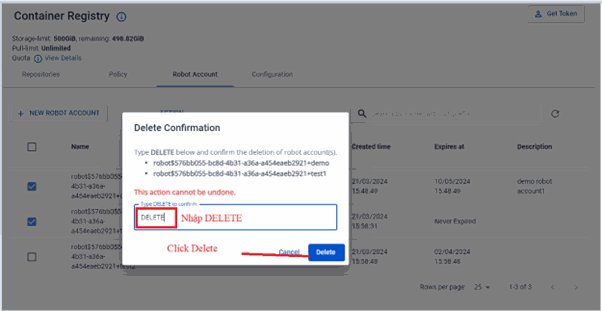
In the Robot Account list, select the Robot Account to delete, then select ACTION DELETE.
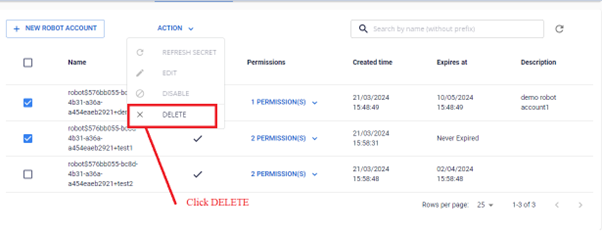
To delete multiple Robot Accounts at once, select multiple accounts before performing the action.
-
In the confirmation dialog, enter DELETE to confirm the deletion.
-
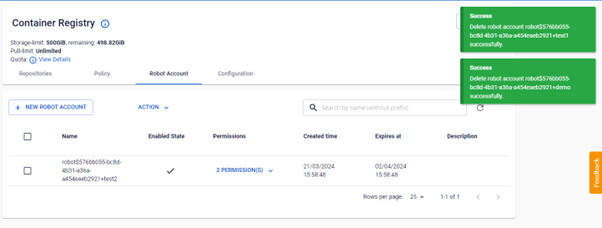
Verify the list after deletion.


Refresh a robot account secret
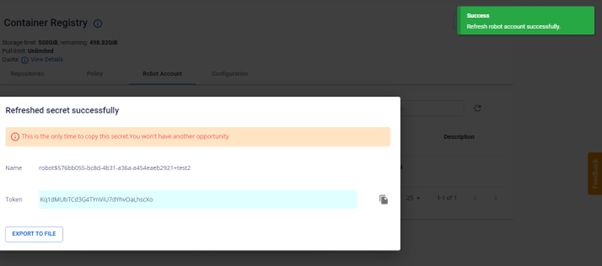
A Robot Account Token is only shown once at creation. When a Token is lost or needs to be replaced for security reasons, FPT Cloud lets you regenerate the secret without deleting and recreating the Robot Account.
-
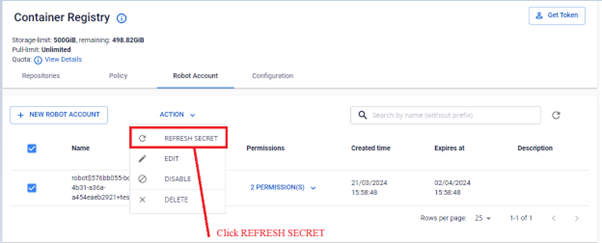
In the Robot Account list, select the Robot Account to refresh, then select ACTION REFRESH SECRET.
-
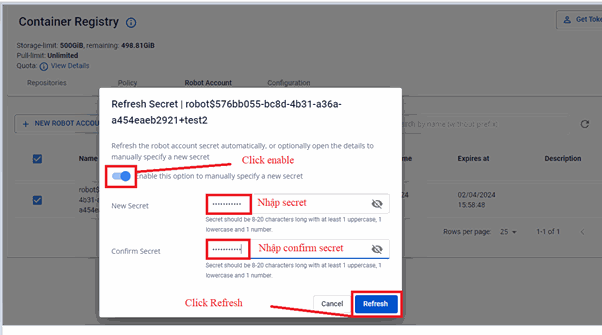
Choose one of two methods to refresh the secret.
Method 1 - Automatic. The system generates a new secret. Copy it or click Export to File to save.
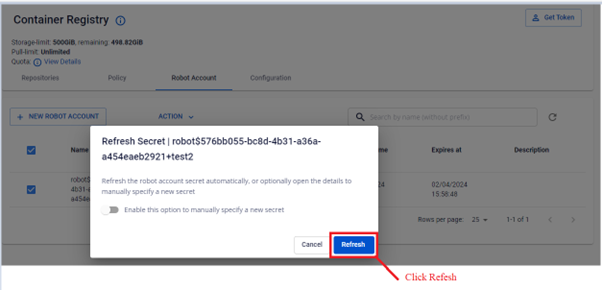
Method 2 - Manual. Enter a custom secret yourself.


After refreshing, update the new secret in all pipelines and systems that use this Robot Account.
Use a robot account
After creating a Robot Account, you can use its credentials to perform docker operations with the configured permissions (pull/push). Robot Accounts are ideal for use in CI/CD pipelines and automated environments.
Use the Token copied from the Portal or from an exported file to log in.

Verify the credentials using the docker login command.

After logging in, use docker pull or docker push to verify the configured permissions.
If the Robot Account is deleted, disabled, or the Token has expired, docker login, docker pull, or docker push returns an "unauthorized to access repository" error. This error is also covered in the Troubleshooting guide.
Next steps
- Robot account reference — field reference for the fields used when creating and updating a Robot Account.