Detailed guide to using Auto Upgrade
A cluster running a version more than one minor version past end of standard support (relative to the oldest version FPT Cloud supports) cannot use Auto Upgrade Version — you must upgrade it manually first.
For example, if a cluster runs 1.24.14 and FPT Cloud supports 1.26 through 1.29, that cluster can't use Auto Upgrade Version. Manually upgrade it to 1.25 first to enable the feature.
The upgrade follows a rolling-update process: FPT Cloud creates workers on the new minor version across all Worker Groups, waits for them to reach Ready, drains the old-version workers, then deletes them once draining completes. This repeats until every worker in the group is replaced.
Enable Auto Upgrade Version when creating a cluster
Auto Upgrade Version is disabled by default when you create a new cluster.
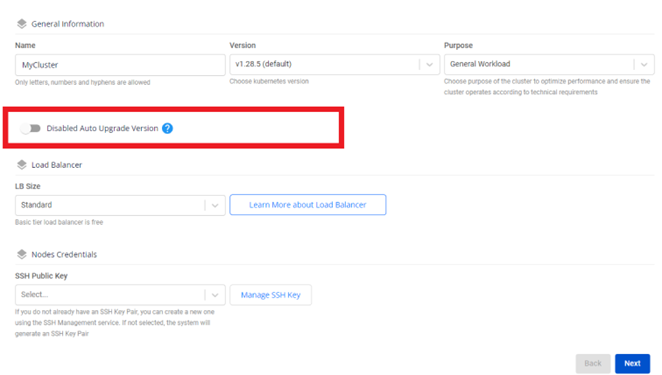
Select the ? icon to see the important milestones for a Kubernetes version FPT Cloud supports.
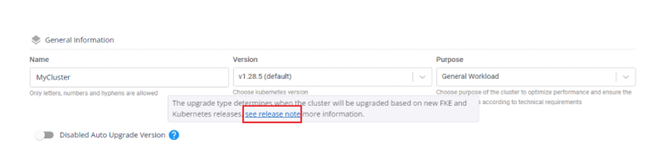
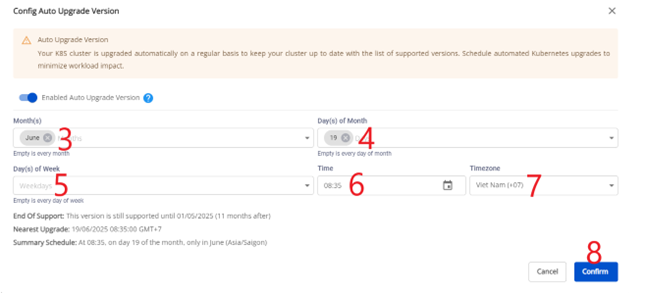
If you enable Auto Upgrade Version without setting an upgrade time, the default time is 07:00 GMT+7 on the first day the version reaches end of standard support.
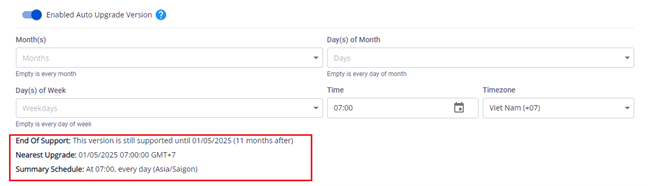
After you configure the schedule, the form shows the current version's end-of-support date, the next scheduled auto upgrade, and a summary of the schedule.
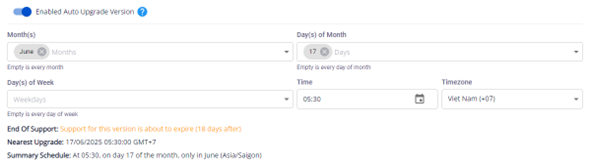
Select Next to continue to the Nodes Pool configuration step.
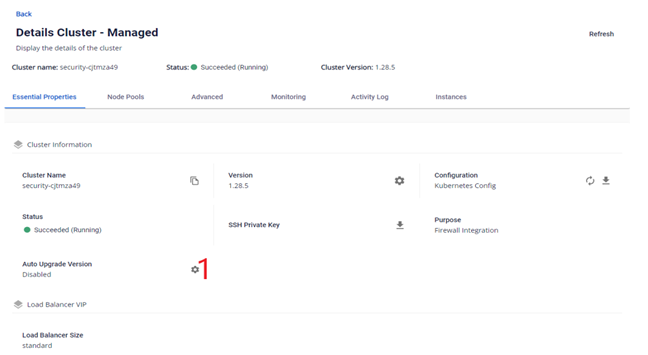
Change Auto Upgrade Version for an existing cluster
- On a cluster with Auto Upgrade Version configured, you can still upgrade manually at any time, the same as a cluster without the feature enabled.
- To cancel a scheduled auto upgrade, disable the feature or change the schedule before 01:00 GMT+7 on the upgrade day. Example: if cluster A is scheduled to auto upgrade at 04:00 GMT+7 on 25 June 2024, you must disable or reschedule before 01:00 GMT+7 that day — any change after 01:00 GMT+7 has no effect, and the upgrade still runs at 04:00 GMT+7.
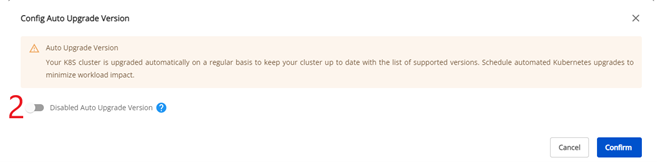
Enable the auto upgrade feature: