Backup and Restore PVC
Protect your application data by scheduling PVC backups on your Managed Kubernetes cluster, and restore from them whenever you need to recover a volume.
Create a Backup Plan
-
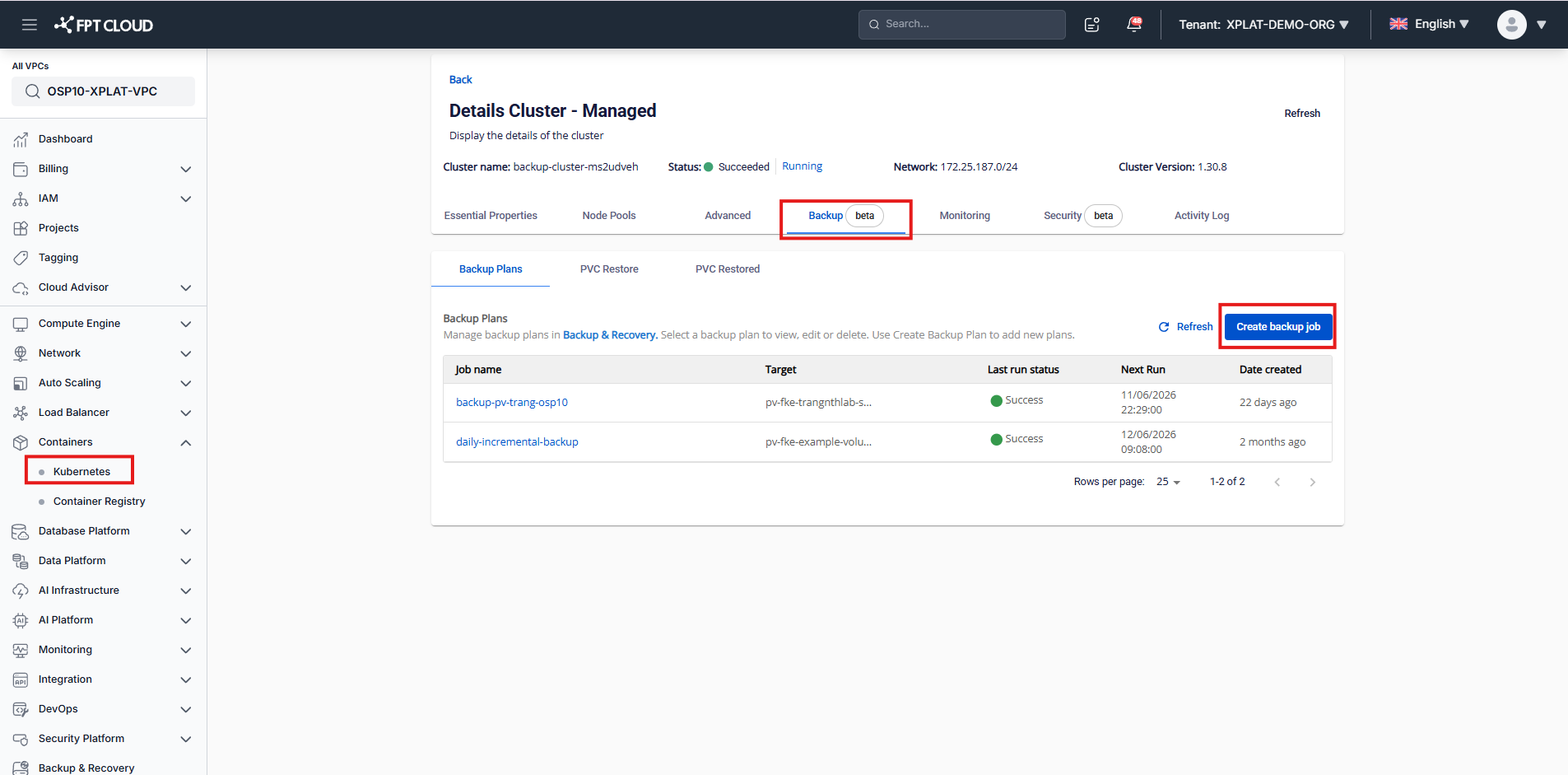
In the navigation menu, select Containers → Kubernetes.
-
Open the cluster details screen, select the Backup tab, then select Create backup job.
-
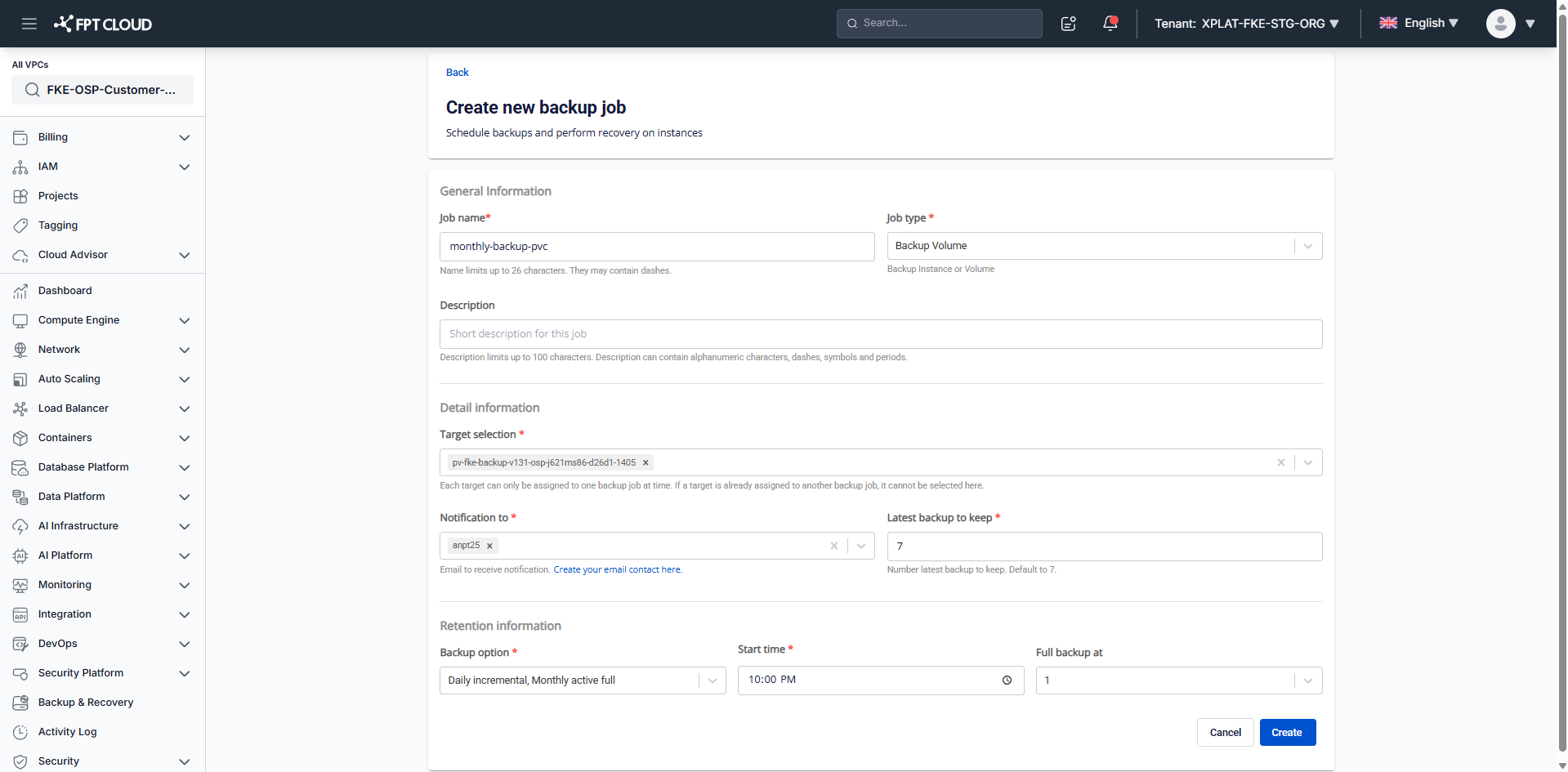
In Create backup job:
- Enter the backup plan name and an optional description; job type is Backup Volume.
- Choose the target Persistent Volume to back up.
- Set a daily, weekly, or monthly backup schedule — or back up manually if you don't want a schedule.
View a Backup Plan
-
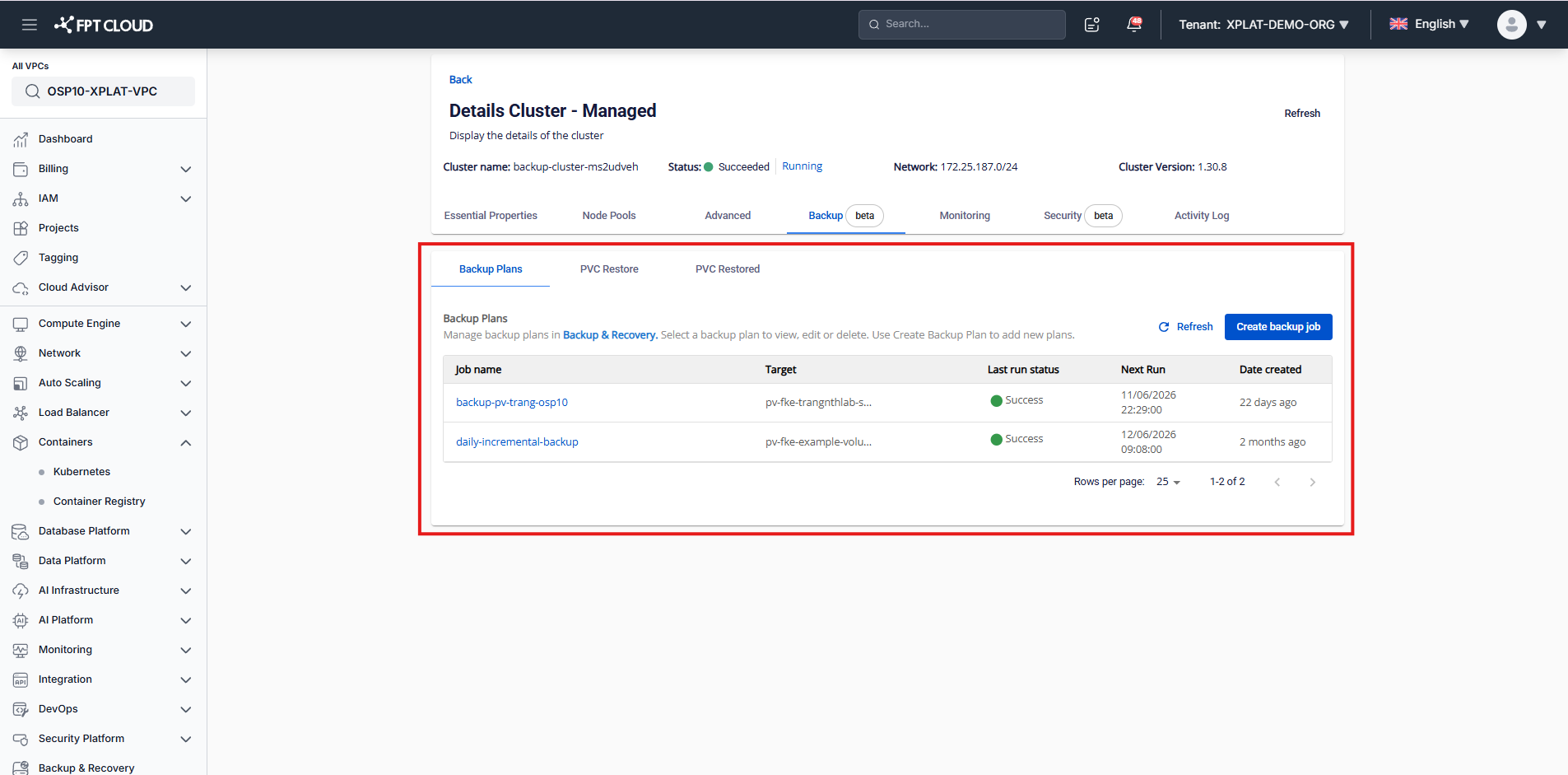
In the navigation menu, select Containers → Kubernetes.
-
Open the cluster details screen and select the Backup tab. All created backup plans are listed here.
Update a Backup Plan
-
In the navigation menu, select Containers → Kubernetes.
-
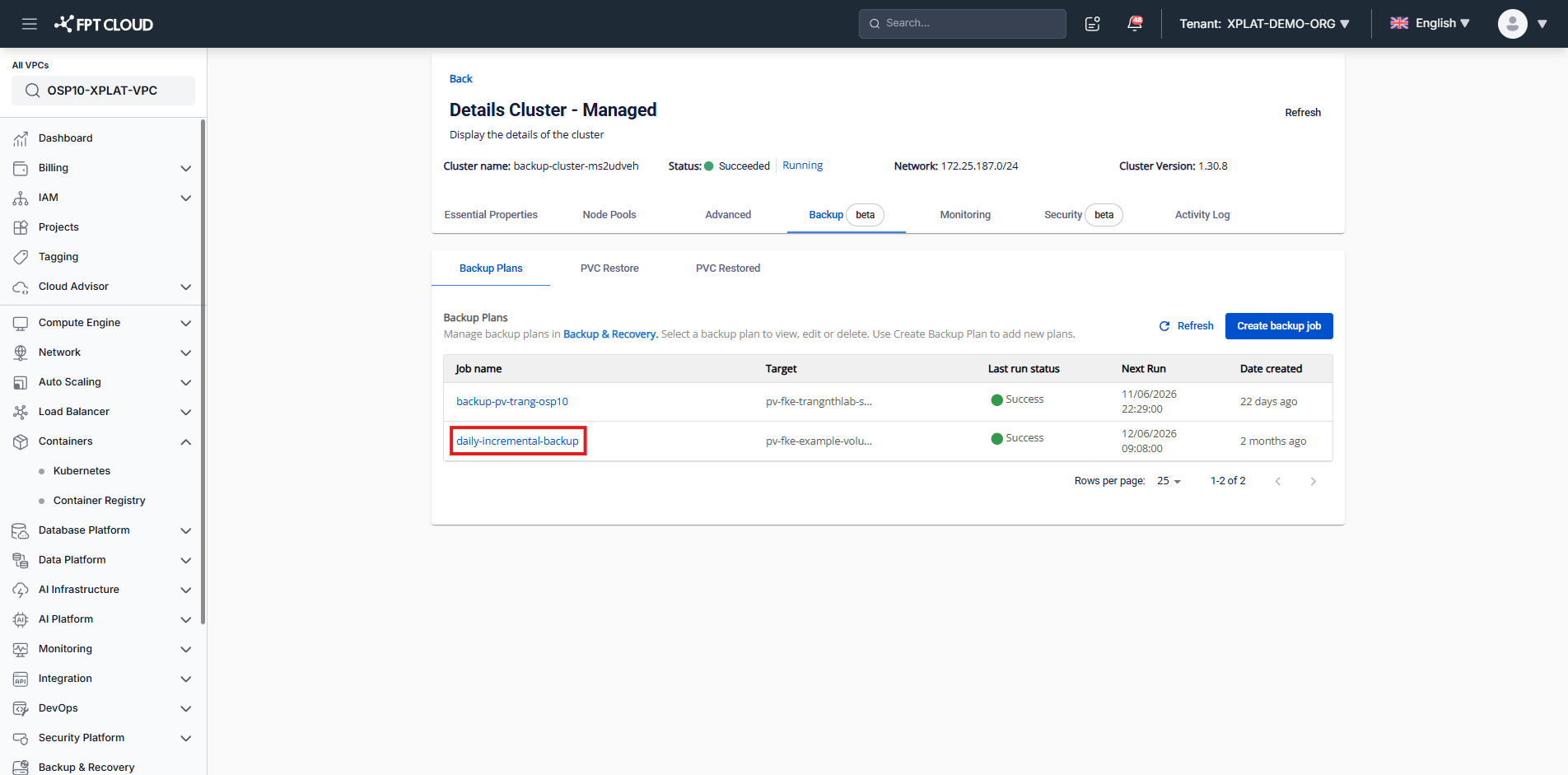
Open the cluster details screen and select the Backup tab.
-
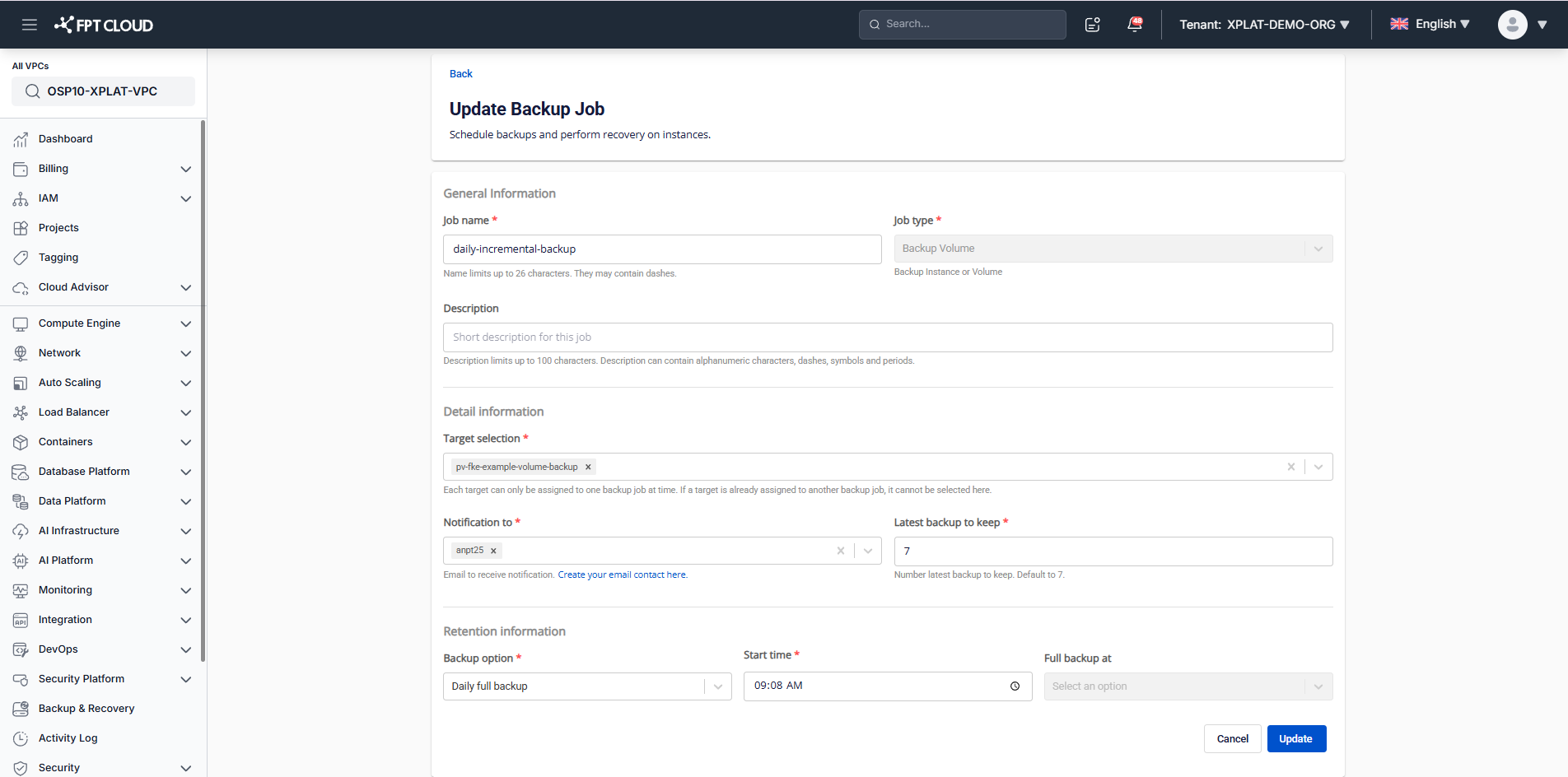
Select the job name to open the Update backup job screen.
Enable, disable, or delete a Backup Plan
-
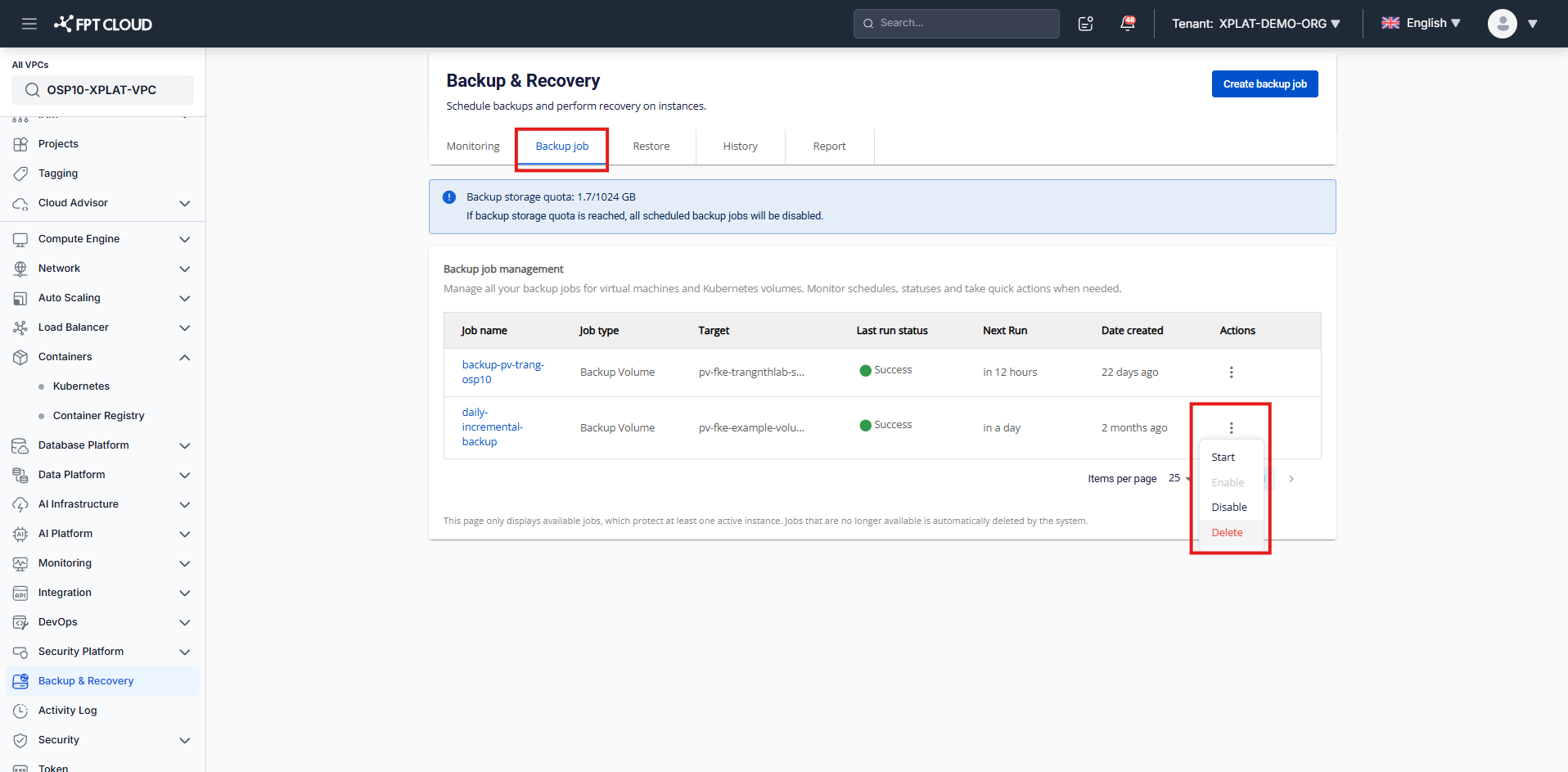
In the navigation menu, select Backup & Recovery.
-
Open the Backup job tab.
-
Select a backup job, then select the 3-dot icon for Enable, Disable, or Delete.
Backup Report
Reports are generated automatically and sent to a selected email daily, weekly, or monthly, so you can confirm backups are working correctly.
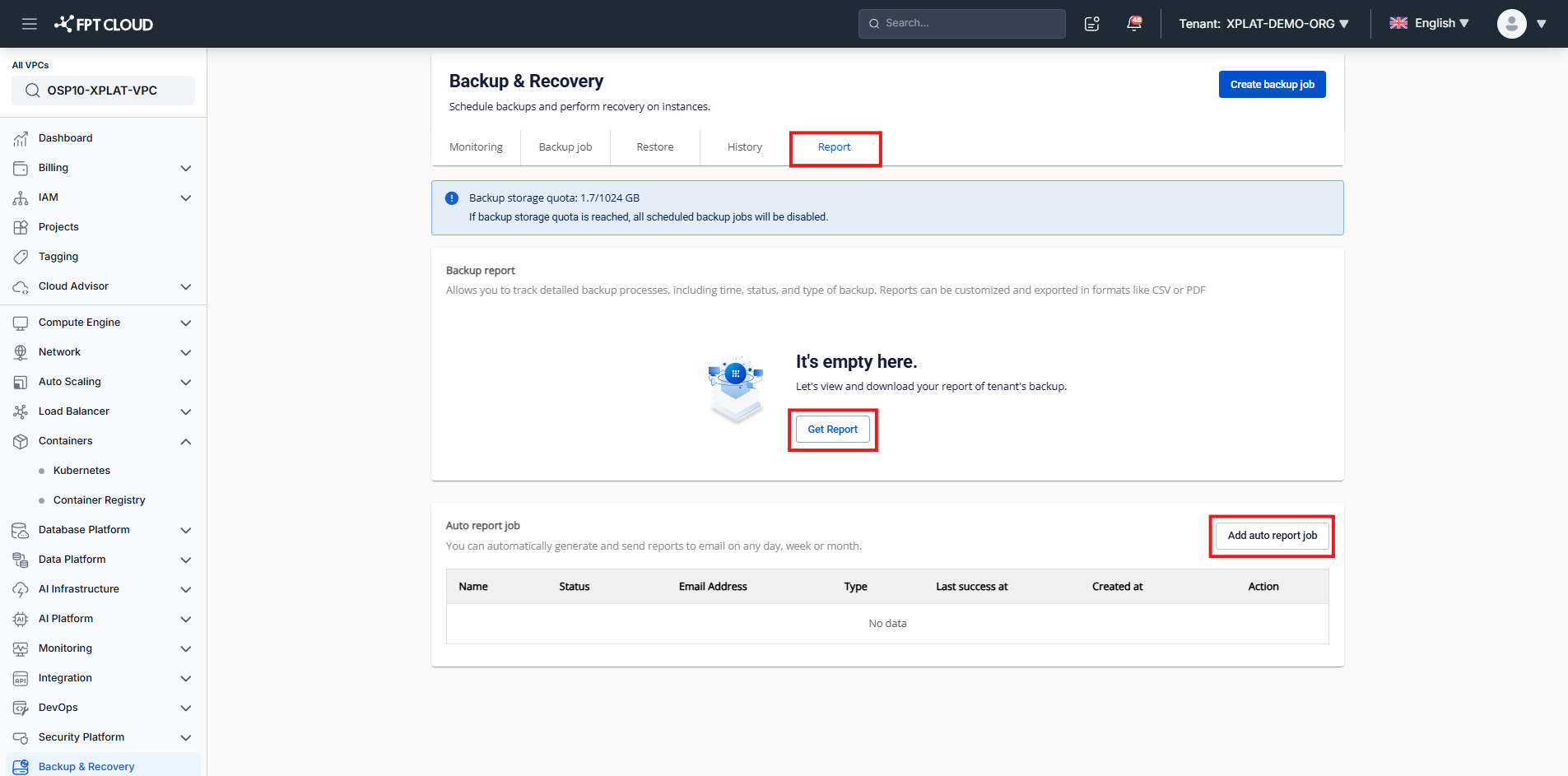
- In the navigation menu, select Backup & Recovery.
- Open the Report tab.
- Select Add auto report job to receive reports by email on a schedule.
- To generate a one-time report instead, select Get report and fill in the required information.
Reports export in .xlsx format.
Restore from backup
Create a restore
-
In the navigation menu, select Containers → Kubernetes.
-
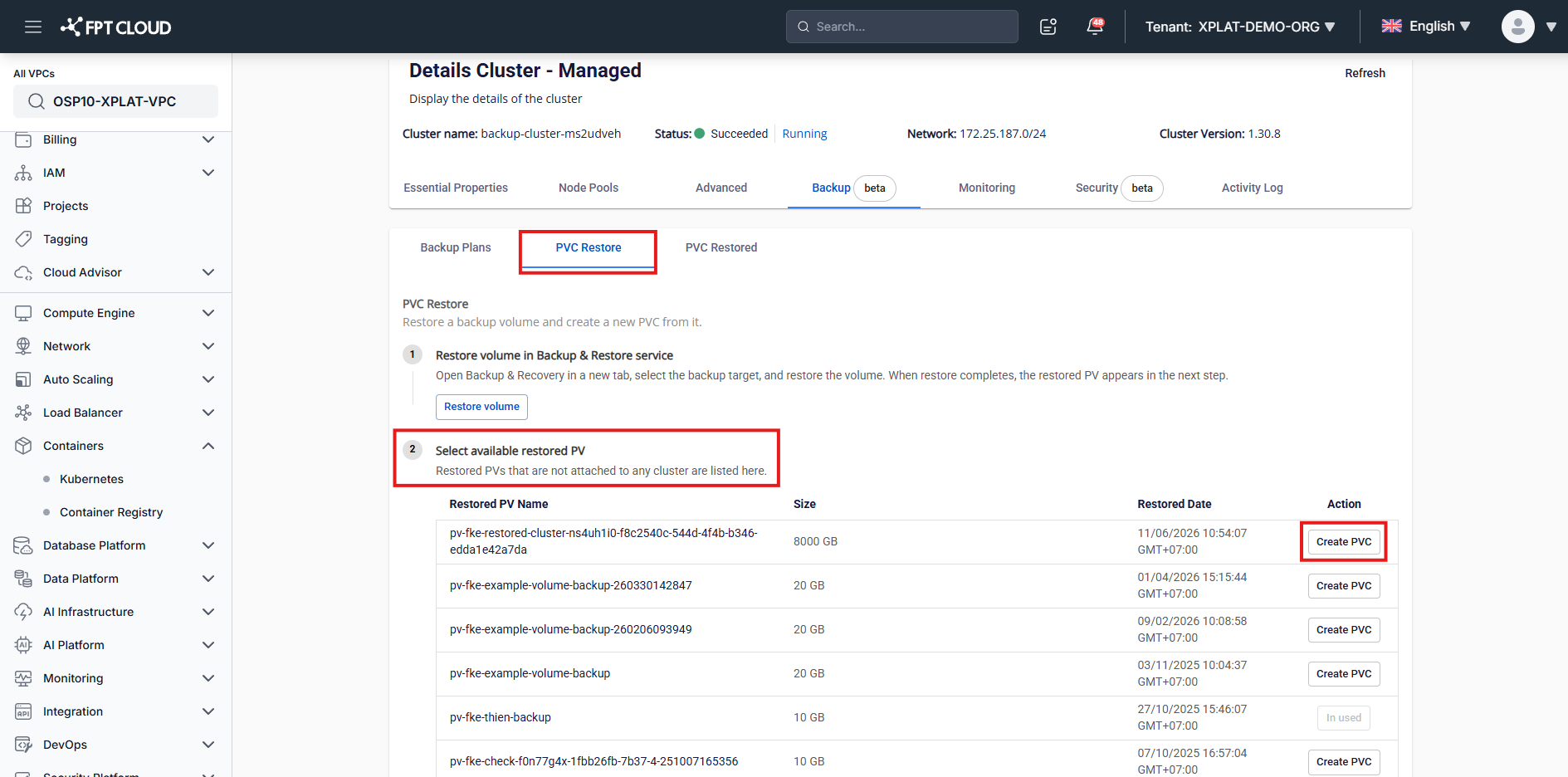
Open the cluster details screen, select the Backup tab, then select the PVC Restore sub-tab.
-
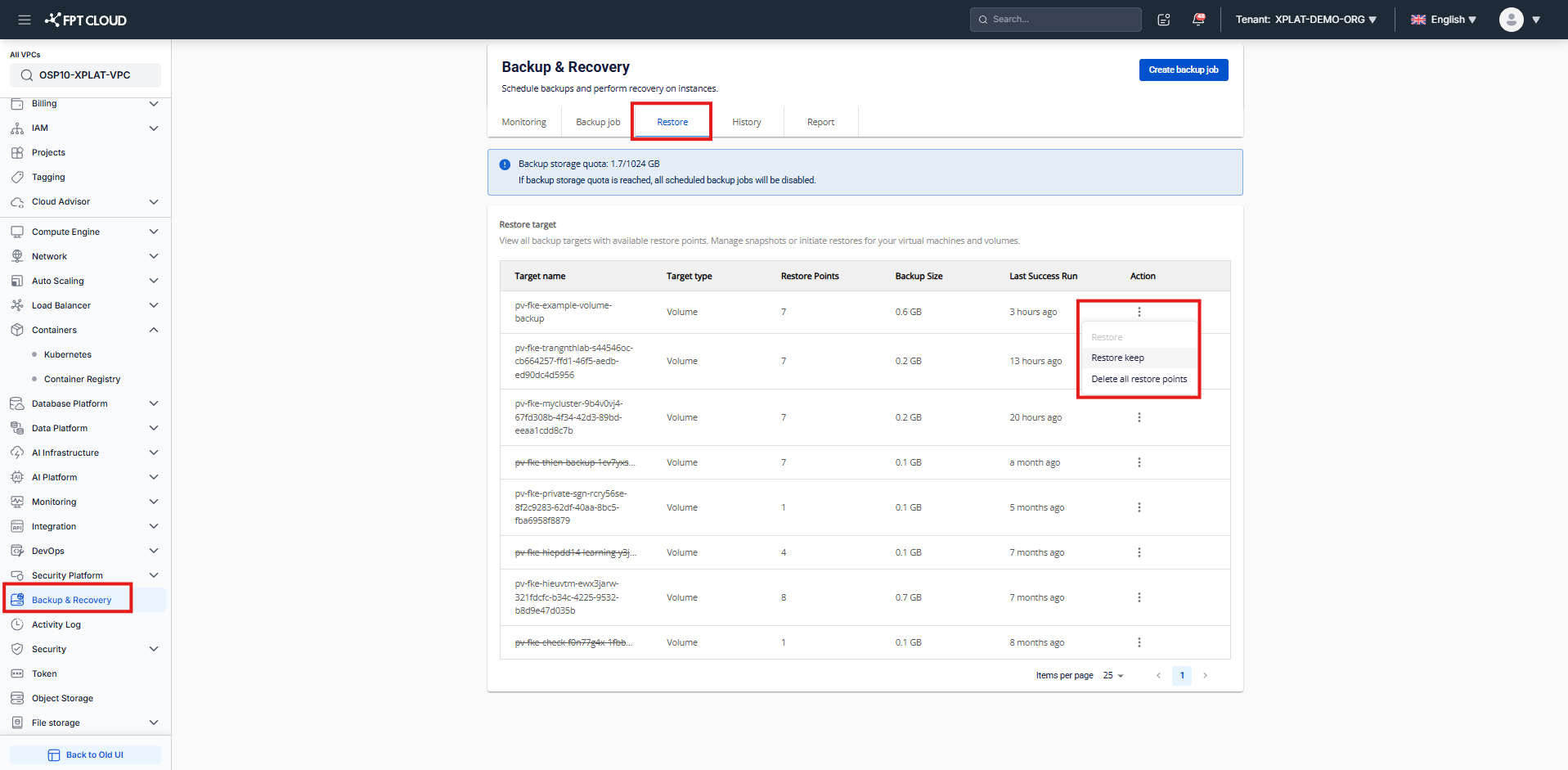
Select Restore volume. You're redirected to the Backup & Recovery service, Restore tab.
-
In the restore target list, select the 3-dot icon on the volume to restore, then select Restore keep. This creates a new PV and keeps the original PV intact.
-
Once the restore completes, go back to Containers → Kubernetes → cluster details → Backup → PVC Restore.
-
Find the restored PV in Select available restored PV, then select Create PVC.
-
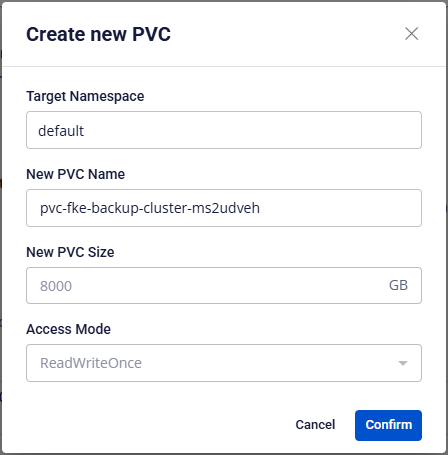
Fill in Target Namespace and New PVC Name. PVC size and access mode are pre-filled and can't be changed.
-
Select Confirm to create the PVC.
Each PV can only be bound to 1 PVC. Delete the existing PVC before reusing a PV.
View a restore
-
In the navigation menu, select Containers → Kubernetes.
-
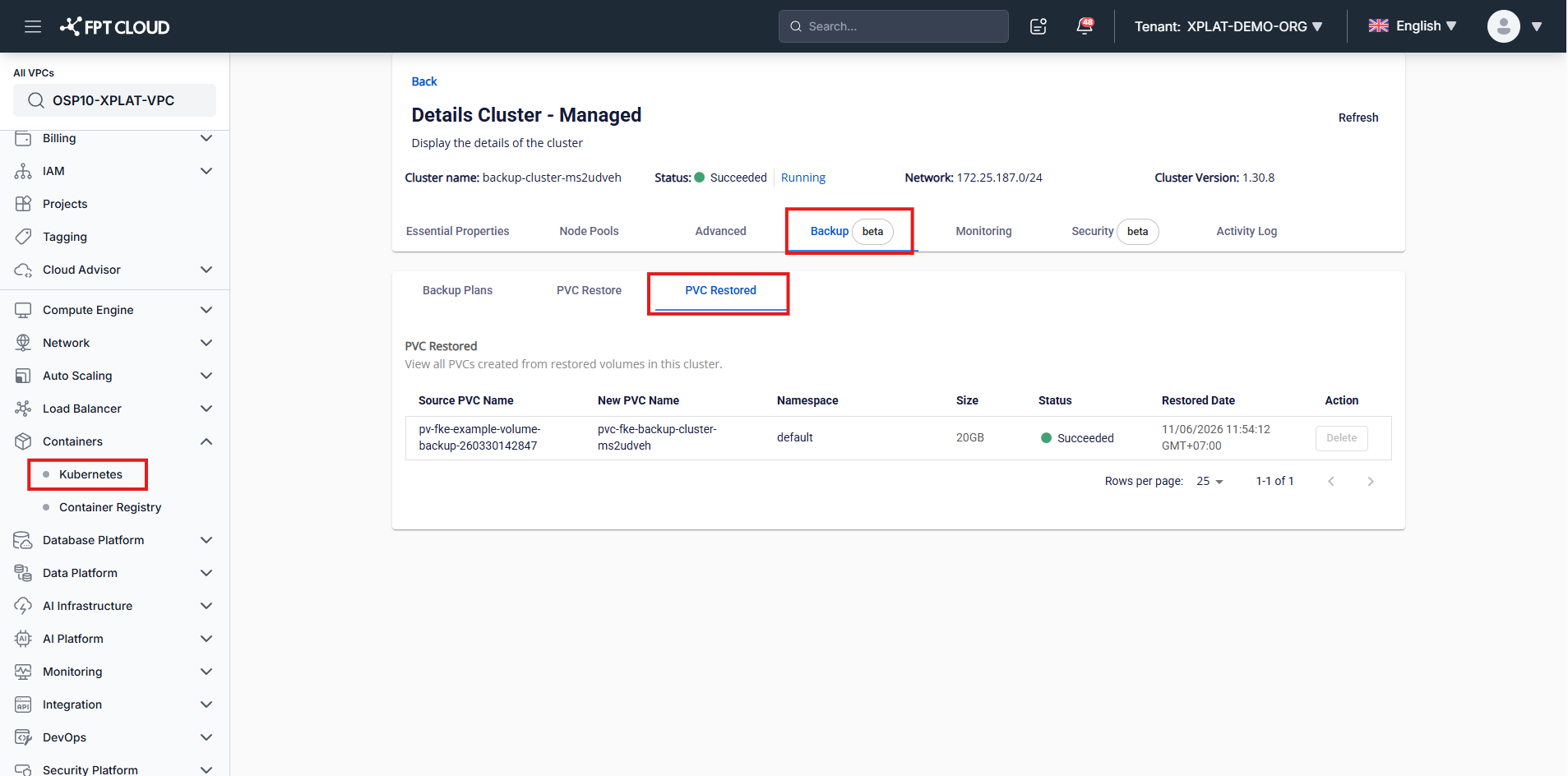
Open the cluster details screen, select the Backup tab, then select the PVC Restored sub-tab. All PVCs created from restored volumes appear here with Source PVC Name, New PVC Name, Namespace, Size, Status, and Restored Date.
Delete a restore
A restore can only be deleted after the restoration has failed.
- In the navigation menu, select Containers → Kubernetes.
- Open the cluster details screen, select the Backup tab, then select the PVC Restored sub-tab.
- Find the restore entry to remove, then select Delete in the Action column.
- Confirm the deletion. The entry is removed from the list.